Appearance
Abandon Cart Automation
With FluentCRM, you can automate abandoned cart recovery for WooCommerce, segment your customers by adding tags and lists, and run email campaigns to bring shoppers back. This article walks you through building the recovery automation for WooCommerce.
Enable Abandoned Cart in global settings
Before you build WooCommerce abandoned-cart automations, turn on abandoned-cart tracking in FluentCRM:
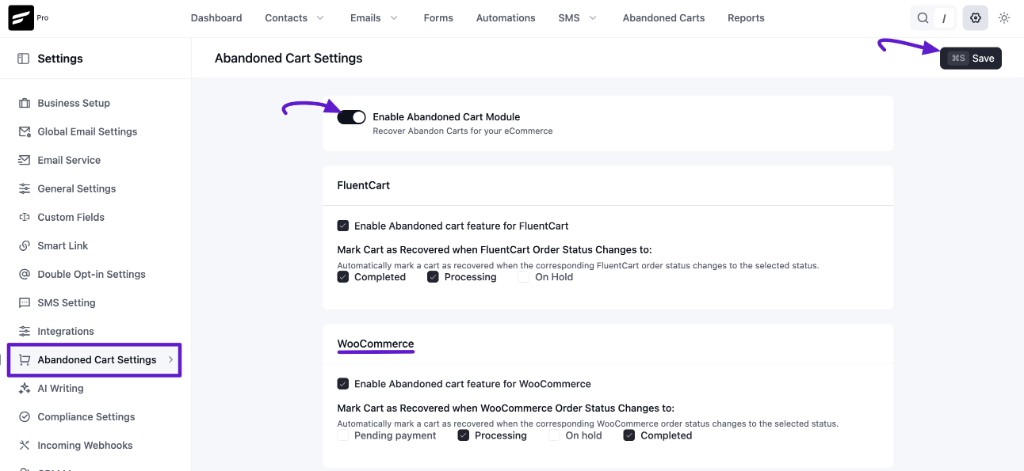
- In the WordPress admin, open FluentCRM → Settings → Abandoned Cart Settings.
- Turn on the Enable Abandoned Cart Module toggle.
- In the WooCommerce section, check Enable Abandoned cart feature for WooCommerce.
- Choose which order statuses should mark a cart as recovered (for example Processing and Completed, depending on your store).
- Click Save (top right).
For every option on this screen, see Abandoned Cart Settings.
Abandon Cart Automation
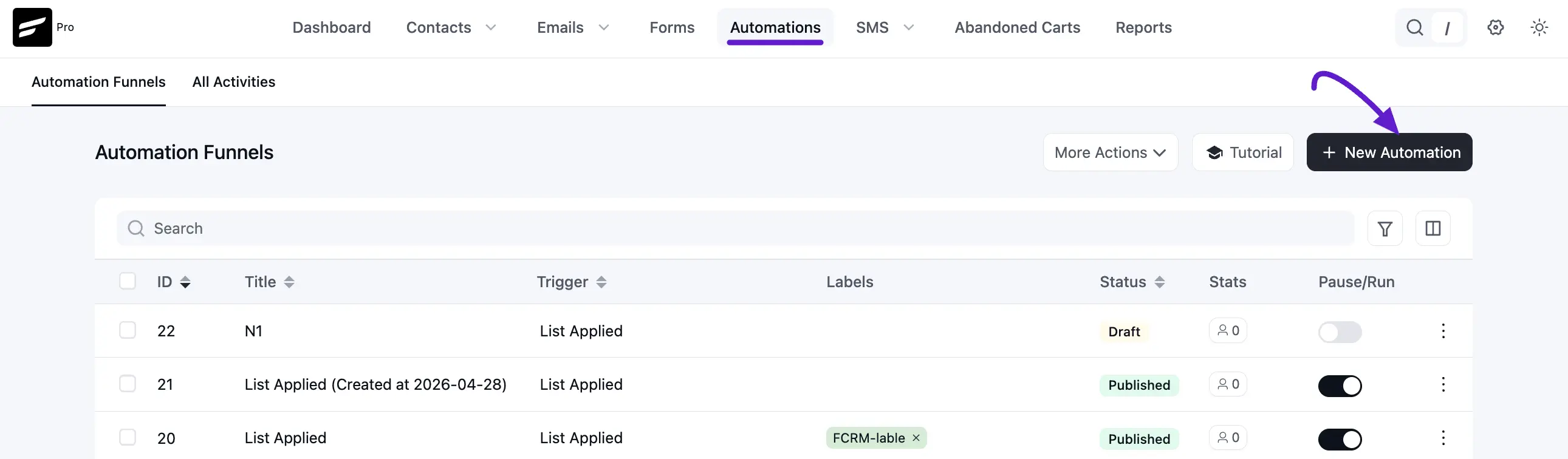
Go to your FluentCRM and select Automation from the Navbar then click on the New Automation button.
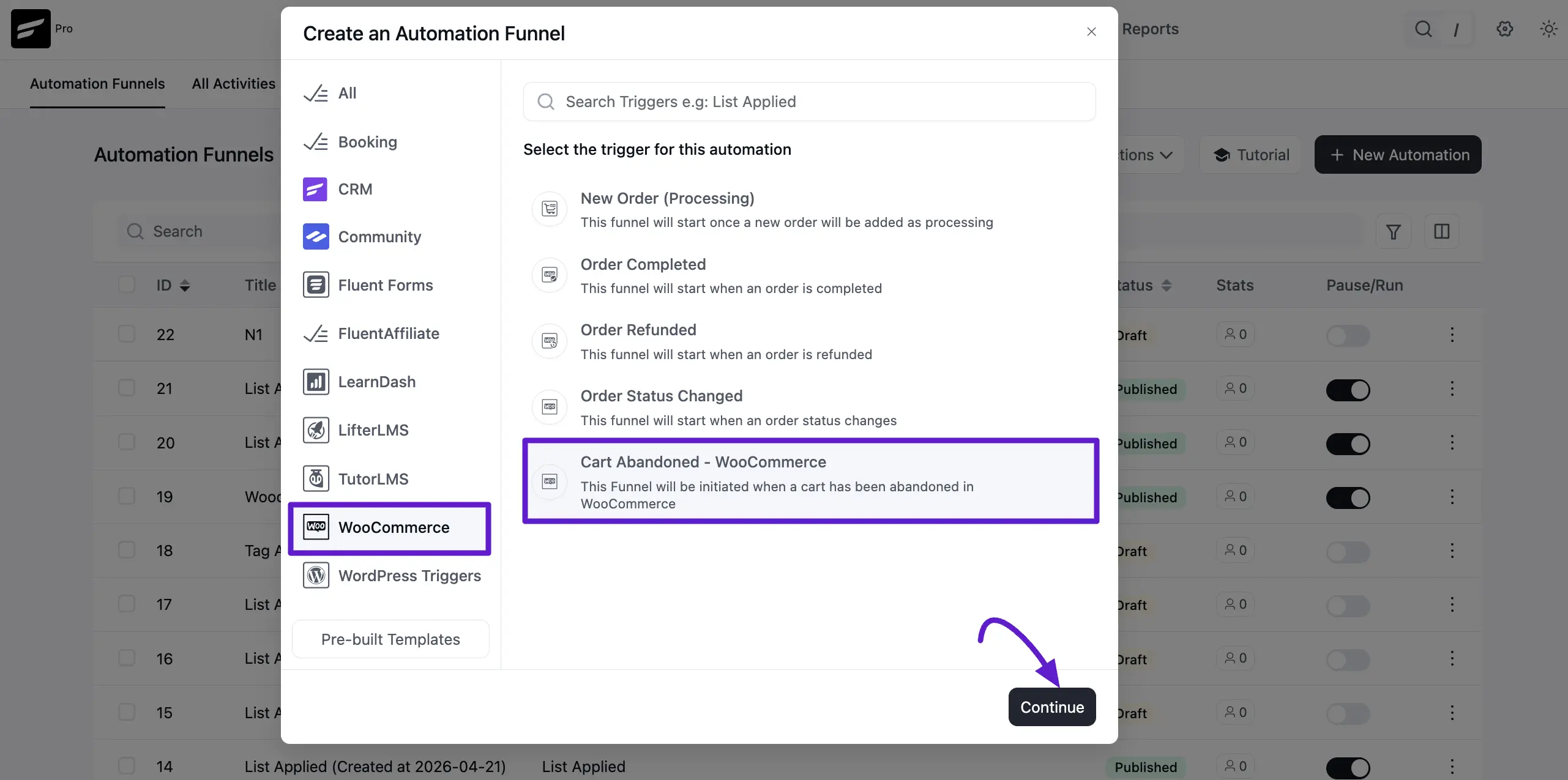
Here, FluentCRM provides several free automation funnel templates, including a built-in automation funnel template specifically for Abandoned Cart. You can choose this template or create new from scratch to design your own.
First, give your automation funnel a name, then select WooCommerce from the sidebar in the popup. Next, choose the Cart Abandoned Trigger and click the Continue button.
A side pop-up will appear from the right, displaying the settings for this automation funnel. Choose the priority for the abandoned cart automation if you have multiple automations.
NOTE
A higher priority means it will be matched earlier.
Run the Automation Action Even if Contact Status is Not in Subscribed Status means that the automation will execute its actions regardless of whether the contact is on the subscribed list or not.
If you enable this then it ensures that the automation triggers and performs its actions for all relevant contacts, even if they are not currently marked as subscribed.
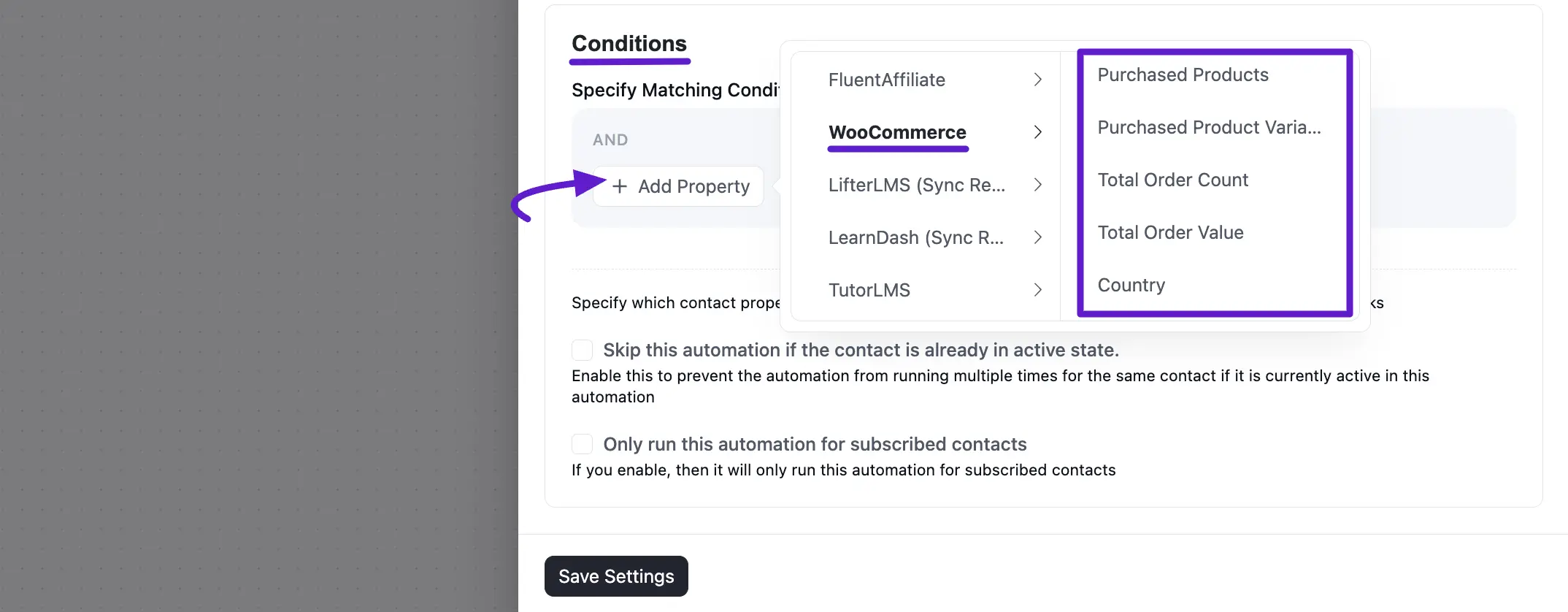
You can enable the Condition for this automation. Click on the Add Property button to set the conditions.
Enabling Skip this Automation if the Contact is Already in Active State will prevent the automation from running multiple times for the same contact if they are already active within this automation.
If you enable Only Run this Automation for Subscribed Contact then it will run this automation for subscribed contacts.
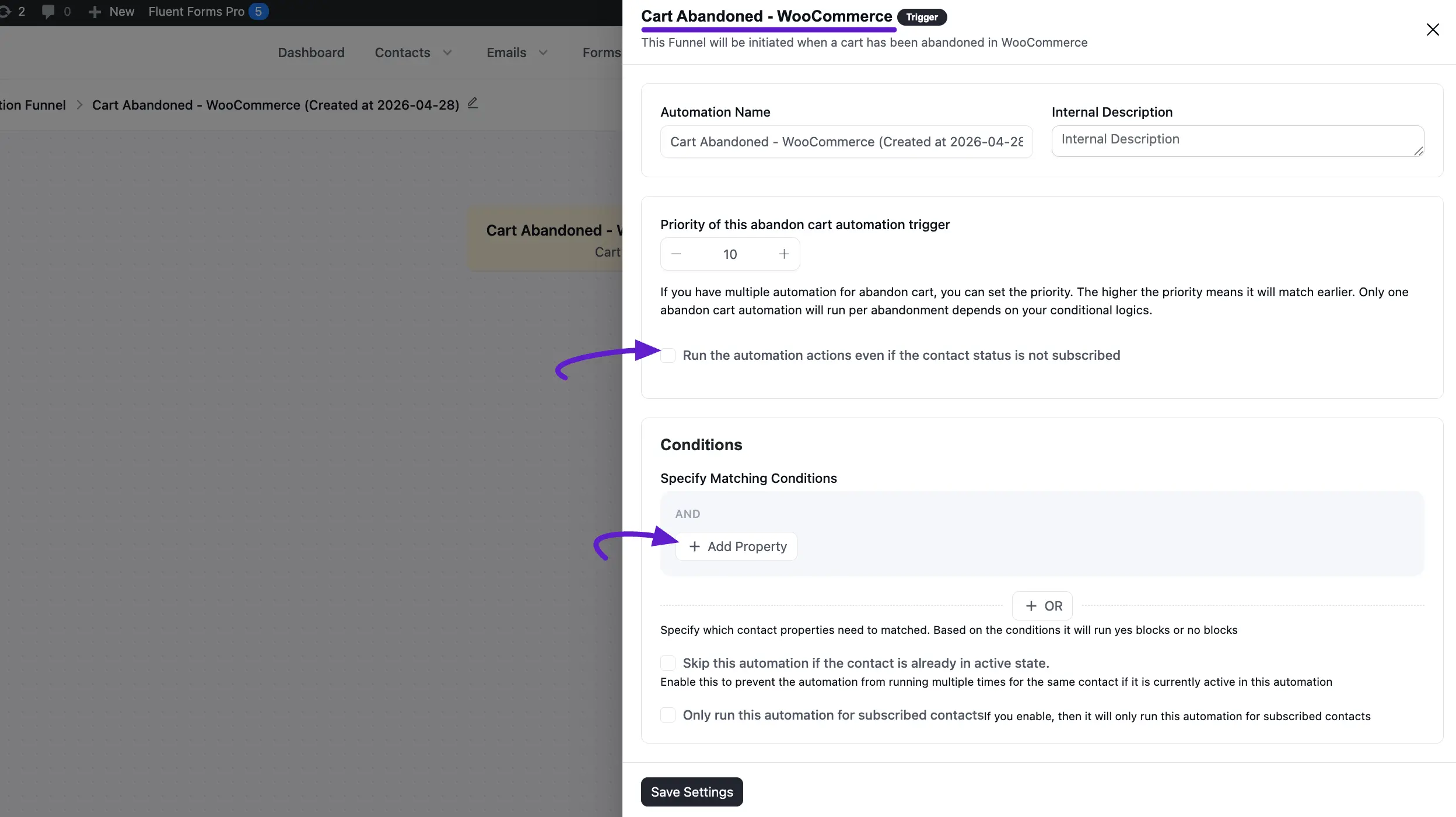
Condition Options
With the default condition options, you will also see a specific condition option for the Abandoned Cart called Cart Data. This option allows you to specify more detailed criteria for when the automation should run.
Finally, click the Save Settings button to save your automation settings then design your automation funnel as desired.