
Appearance
Migrating from MailerLite to FluentCRM
Migrating your contacts from MailerLite to FluentCRM is a quick and seamless process using a direct API connection. This method links the two platforms directly, allowing you to transfer your audience without the hassle of downloading and uploading CSV files.
Follow this simple, step-by-step guide to bring your contacts over safely.
Step 1: Get Your Connection Key from MailerLite
Before starting the process in FluentCRM, you need to generate an API token from your MailerLite account. This token acts as a secure key, allowing FluentCRM to fetch your data securely.
- Log in to your MailerLite dashboard.
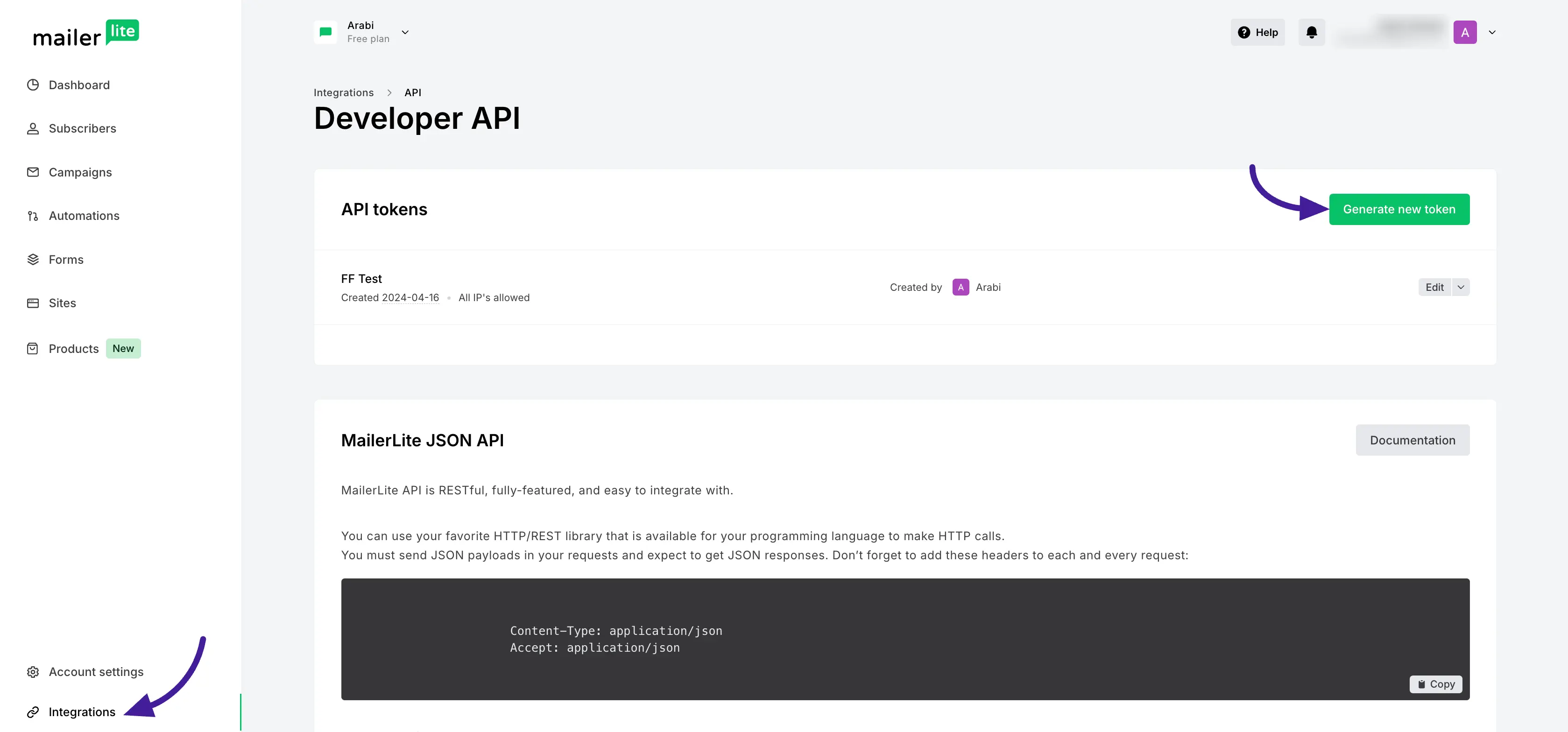
- On the left-hand menu, click on Integrations.
- Locate the Developer API section and click the Generate new token button.
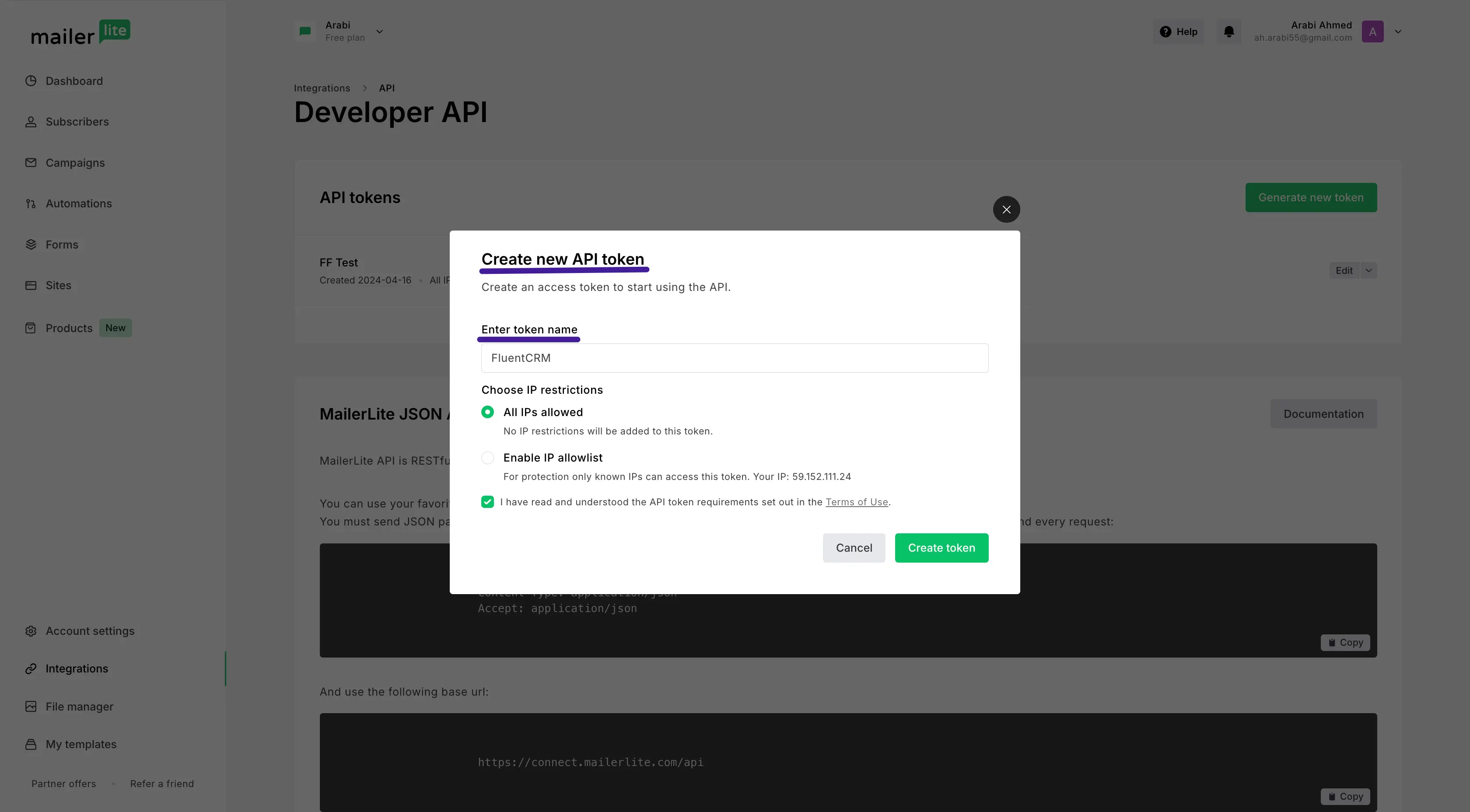
- A popup window will appear. Enter a descriptive name for your token (e.g., "FluentCRM") in the Enter token name field.
- Check the box stating "I have read and understood the API token requirements..." and click the Create token button.
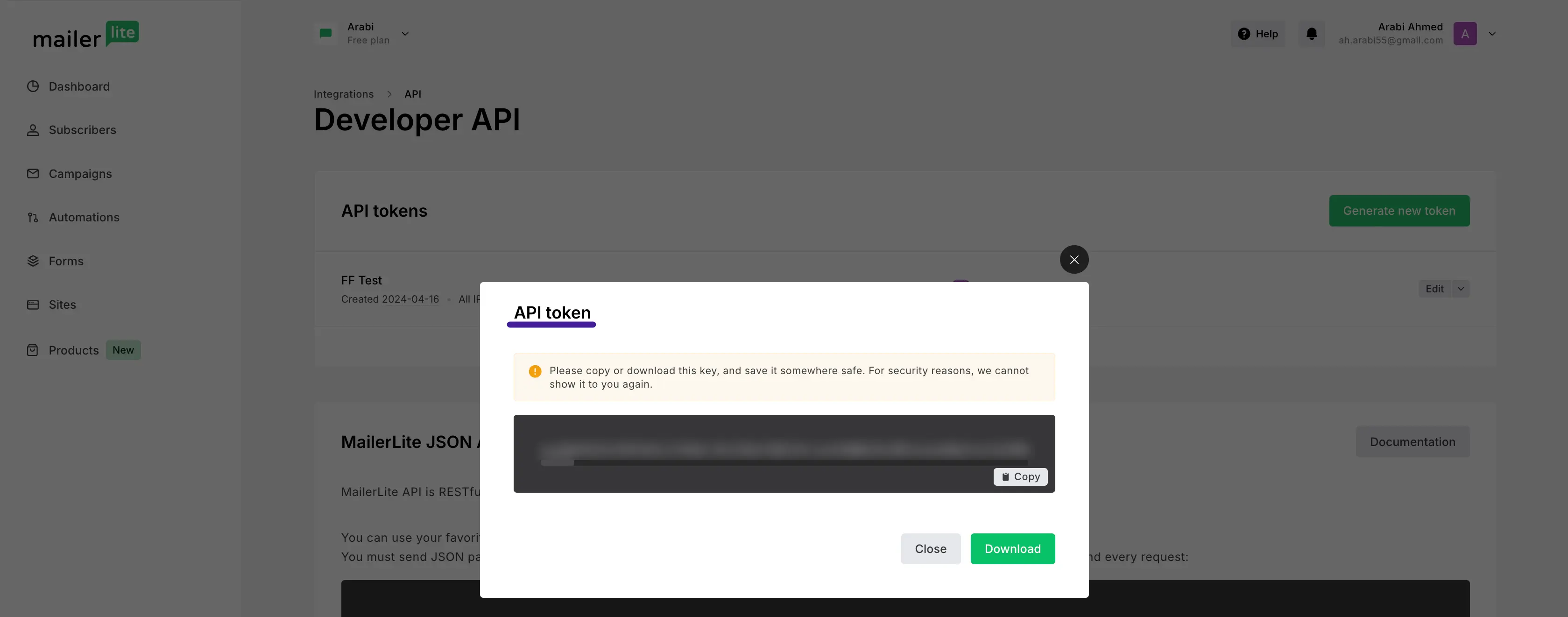
- Your new API token will be displayed on the screen. Click the Copy button to save it to your clipboard.
⚠️ Crucial Note: Please copy or download this key and save it somewhere safe. For security reasons, MailerLite cannot show it to you again once you close the window.
Step 2: Start the Import in FluentCRM
With your MailerLite API token copied, head over to your WordPress dashboard to start the import process.
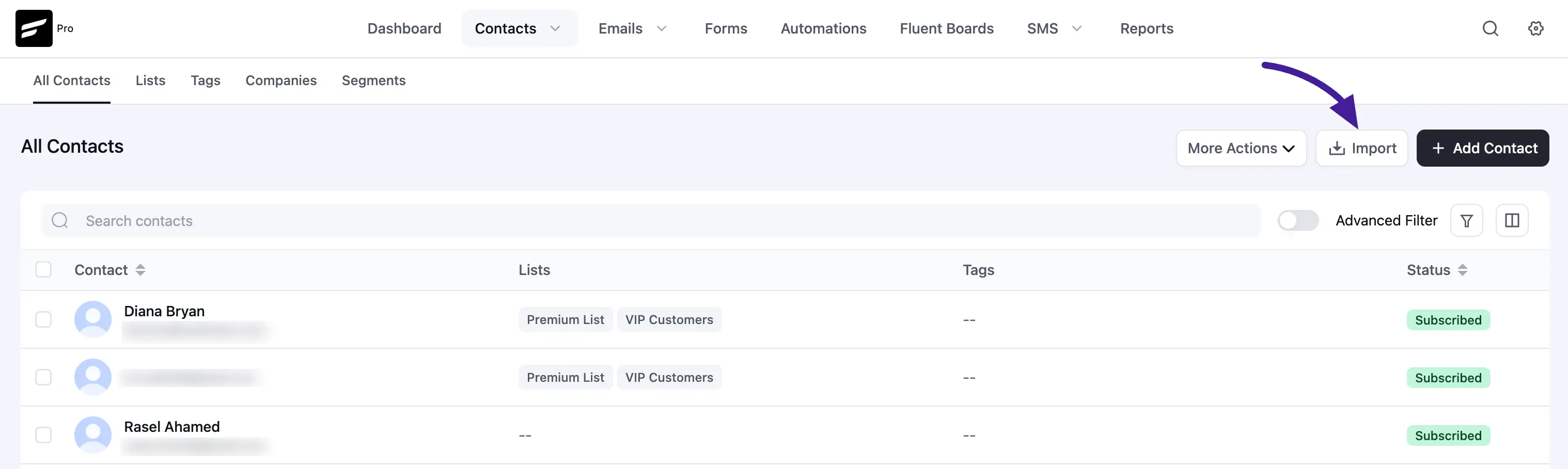
- Go to FluentCRM → Contacts.
- Click the Import button located in the top-right corner of the screen.
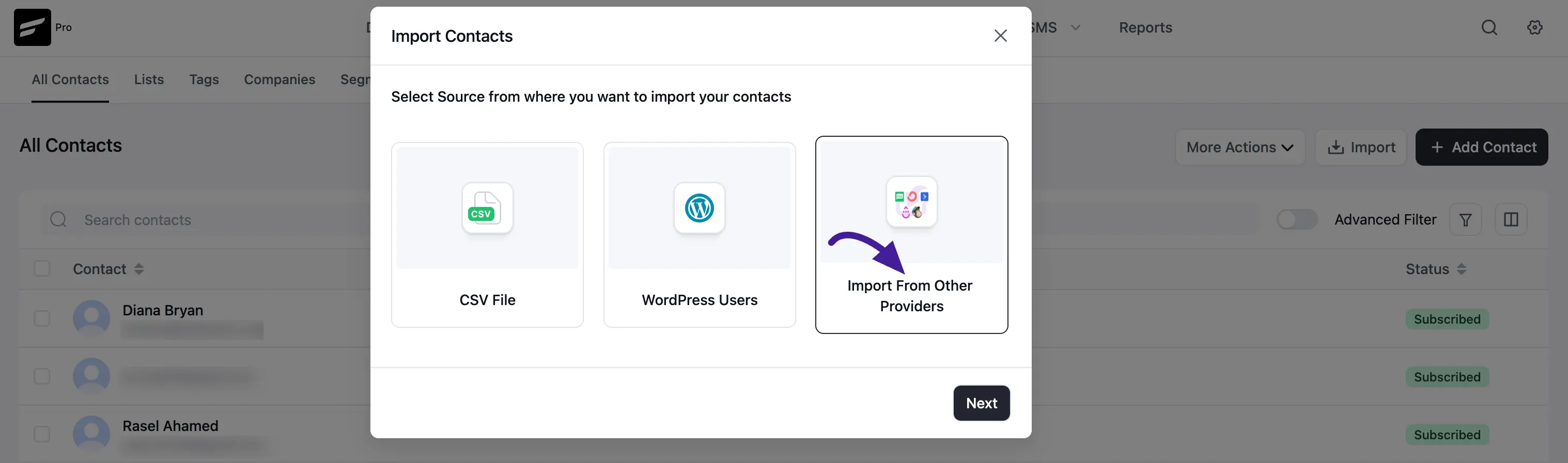
- A pop-up window will appear asking for the source. Select the Import From Other Providers option and click Next.
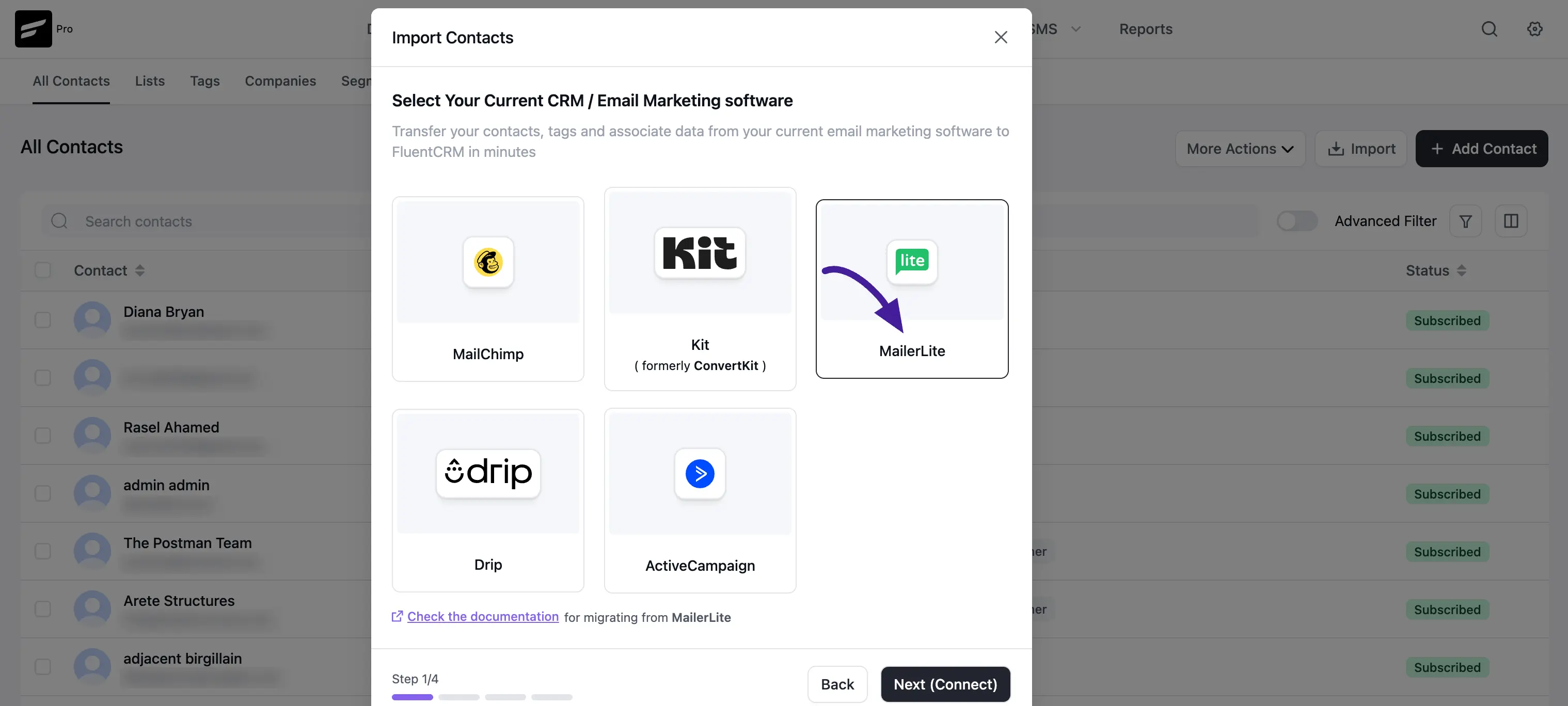
- Choose the MailerLite logo from the list of available marketing software and click Next (Connect).
Step 3: Connect the Two Systems
Now, you'll paste the token you generated in Step 1 to bridge the two systems.
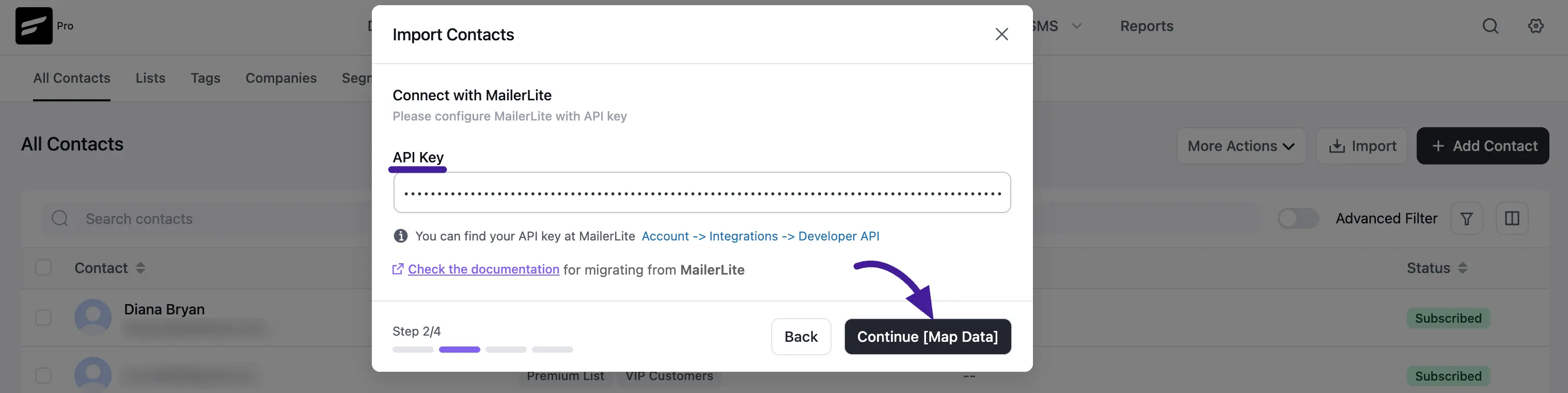
- Paste your copied MailerLite API Key into the provided field.
- Click the Continue [Map Data] button. FluentCRM will now connect to MailerLite and pull in your list information.
Step 4: Organize Your Data (Mapping)
This step tells FluentCRM how to properly structure the information it is pulling from MailerLite.
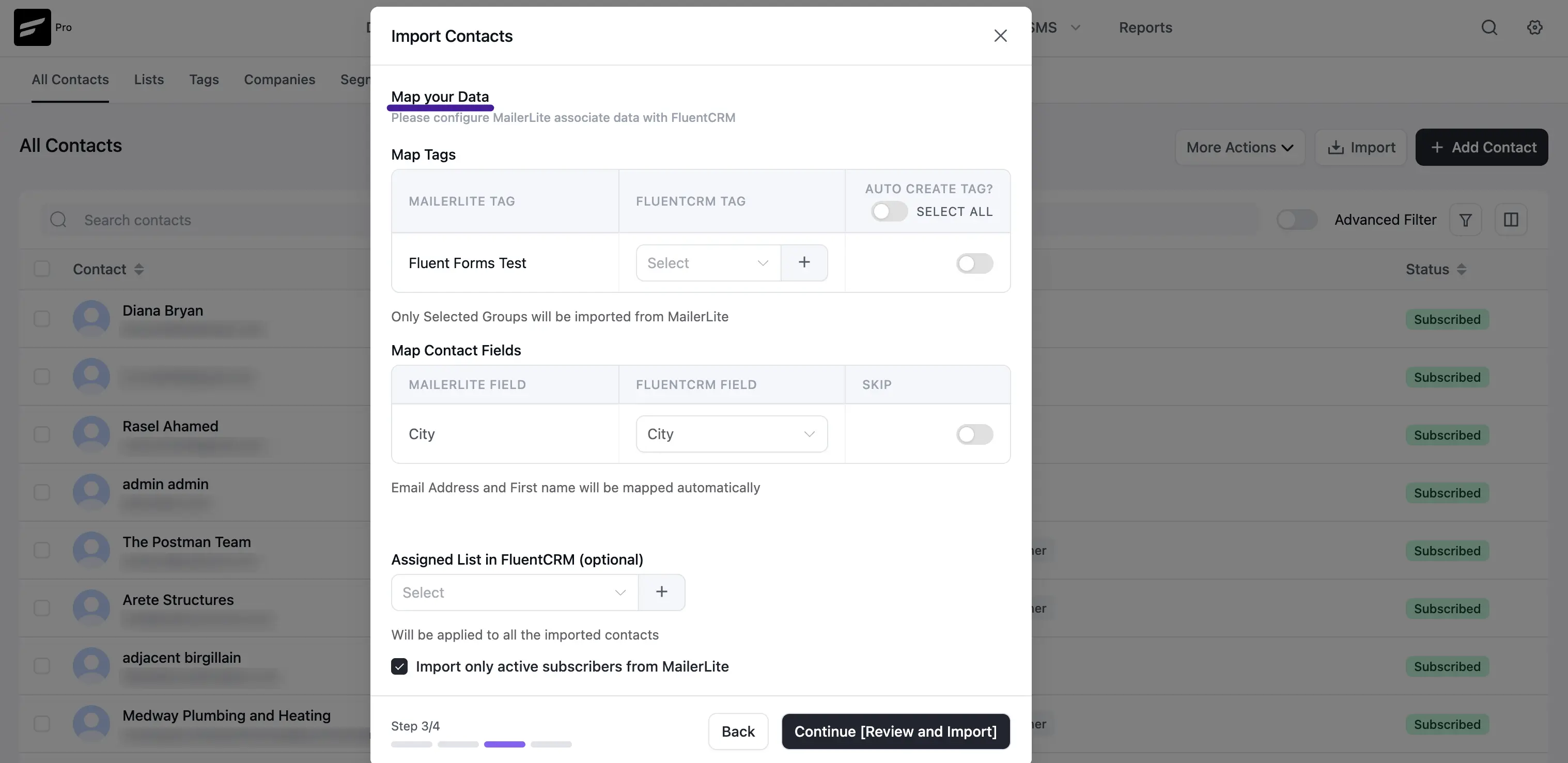
- Mapping Tags: You will see a list of your existing MailerLite tags or groups. You can manually select an existing FluentCRM tag to match it with, or simply toggle the AUTO CREATE TAG? SELECT ALL switch to have the system recreate them for you automatically.
- Mapping Contact Fields: Match your custom MailerLite fields (like "City") to your existing FluentCRM fields. You can also choose to Skip fields you no longer need. (Note: Email Address and First name will be mapped automatically).
- Global Assignments (Optional): You can pick a specific Assigned List to apply to every contact being imported during this session.
💡 Pro Tip: We recommend checking the box labeled "Import only active subscribers from MailerLite". This ensures you only bring over engaged users and keeps your email deliverability healthy.
Once everything is configured, click Continue [Review and Import].
Step 5: Final Review and Finish
Before the data transfer officially begins, you'll get a final look to confirm your choices.
- FluentCRM will display a summary showing exactly what is about to be imported (e.g., "Based on your selections, 3 groups and associate contacts will be imported from MailerLite").
- If everything looks correct, click the Confirm Import button.
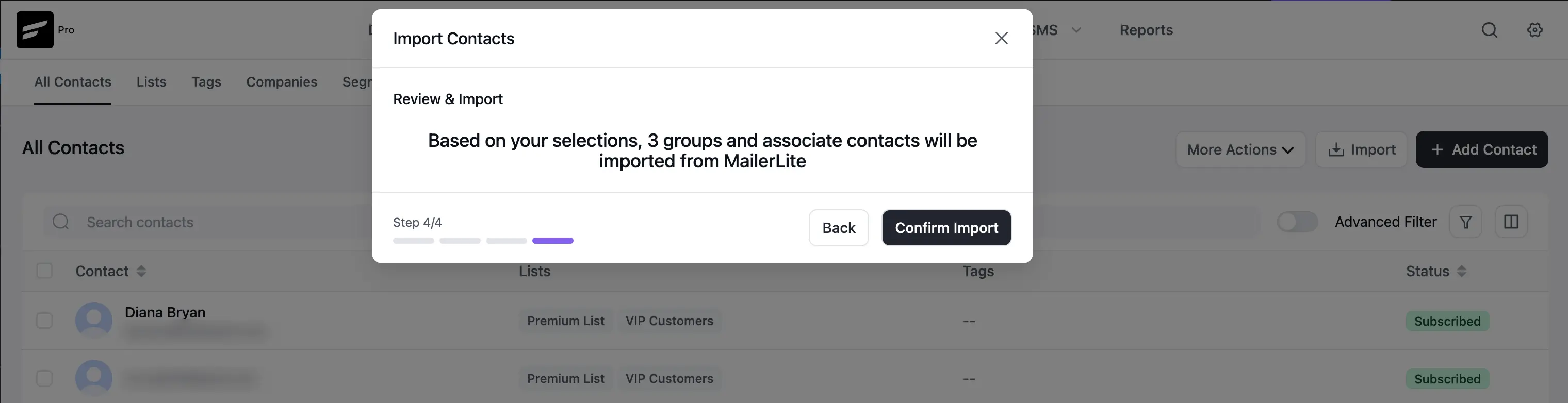
- The system will process your data. Once complete, your MailerLite audience will be successfully migrated into FluentCRM!