Appearance
Ecommerce Conditionals
FluentCRM provides several Conditionals for E-commerce Platforms like WooCommerce, Woo Current Order, Easy Digital Downloads, and AffiliateWP, allowing you to create conditional checks and take alternative Actions based on those set conditions.
This article will provide detailed information about all E-commerce Conditional Actions of FluentCRM Automation.
Remember, to use these E-Commerce Conditionals you must install and activate all the E-commerce Plugins in your website. Additionally, learn the detailed integration process of WooCommerce and Easy Digital Downloads with FluentCRM.
All E-commerce Conditionals
To learn how you can use all the E-commerce Conditionals in your FluentCRM, follow the steps with screenshots below –
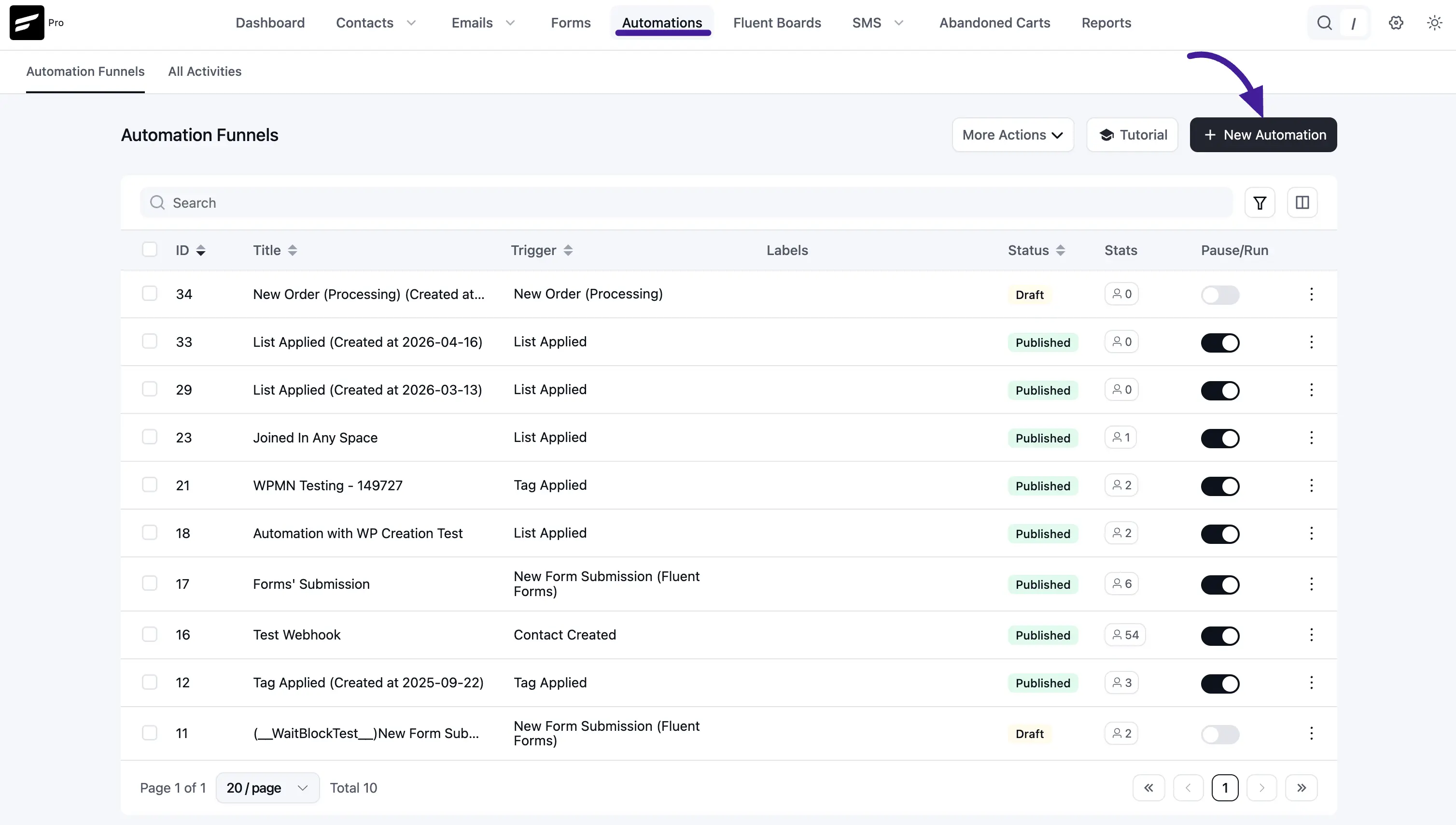
First, go to the Automation section from the FluentCRM Navbar, and open your desired Automation by clicking on its title. Or, create a new one by clicking the + New Automation.
To learn the process of creating a new automation funnel, read this Documentation.
For example, I opened the List Applied automation funnel to explain all the E-commerce Conditionals.
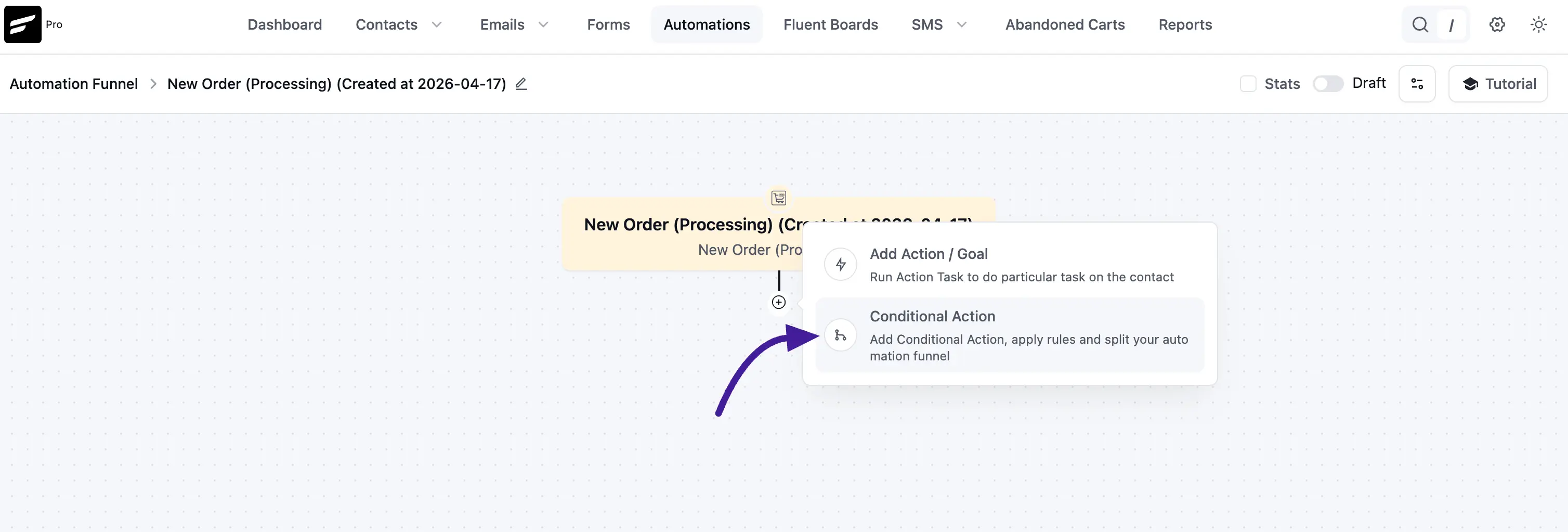
Now, click the Plus Icon or hover over it and click the Conditional Action option to view all the E-commerce Conditionals.
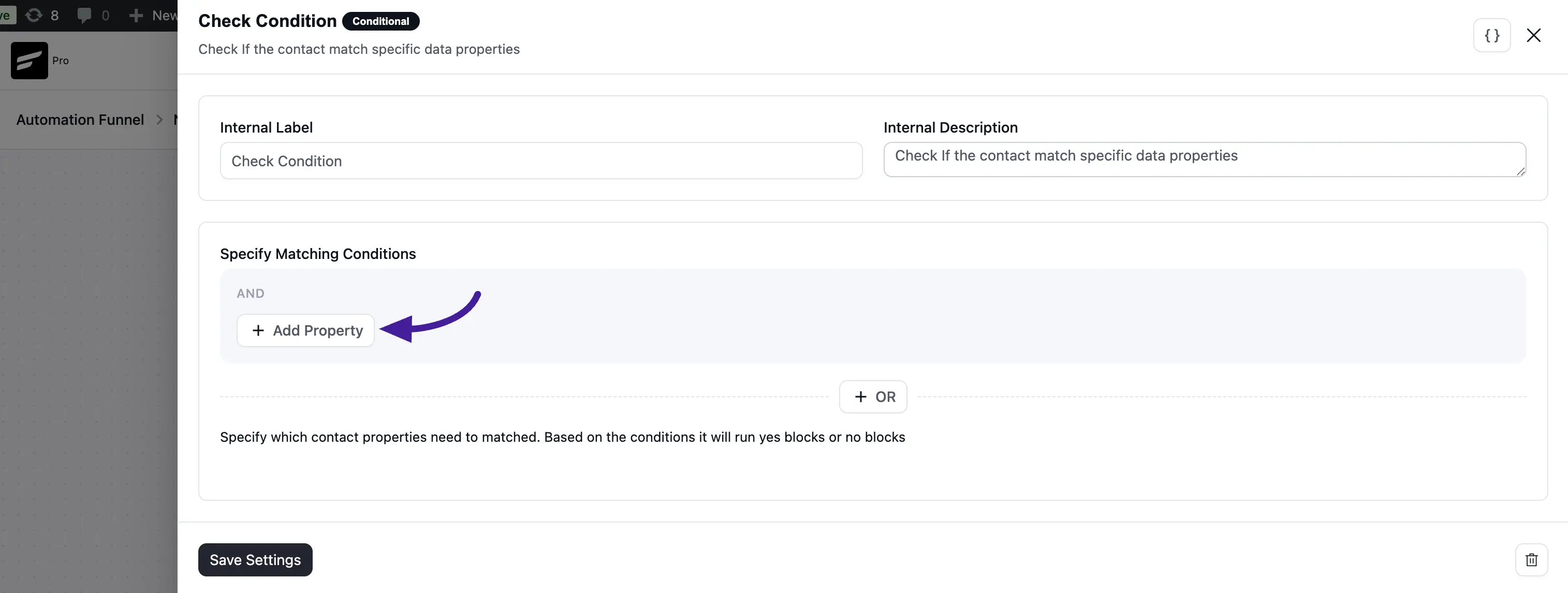
Then, a Check Condition page will appear in the left Sidebar for adding conditions.
The explanation of the following settings is given below:
Interval Label: Here, a Name for the Action will be automatically added so you can easily find it later. You can change it that suit your needs.
Internal Description: A description of the action will also be automatically added as a Subtitle. You can also change it suit to your needs.
+ Add Button: To add a new condition/s, always click this + Add button. And, to delete any existing condition, always click the Trash Icon.
+ OR Button: To add condition/s against any existing condition/s, always click the + OR button. Then, the process of adding conditions here is also the same.
Once you are done, click the Save Settings button to save all your changes.
You can also Delete the action by clicking the Trash Icon if needed.
Once you click the + Add button, you will get all the E-commerce Properties to set the Parameter based on the selected property. These are:
- WooCommerce
- Woo Current Order
- EDD (Easy Digital Downloads)
- AffiliateWP
To learn the full process of creating a conditional action, read this full Documentation
A detailed explanation of the Properties mentioned above is given below –
1. WooCommerce
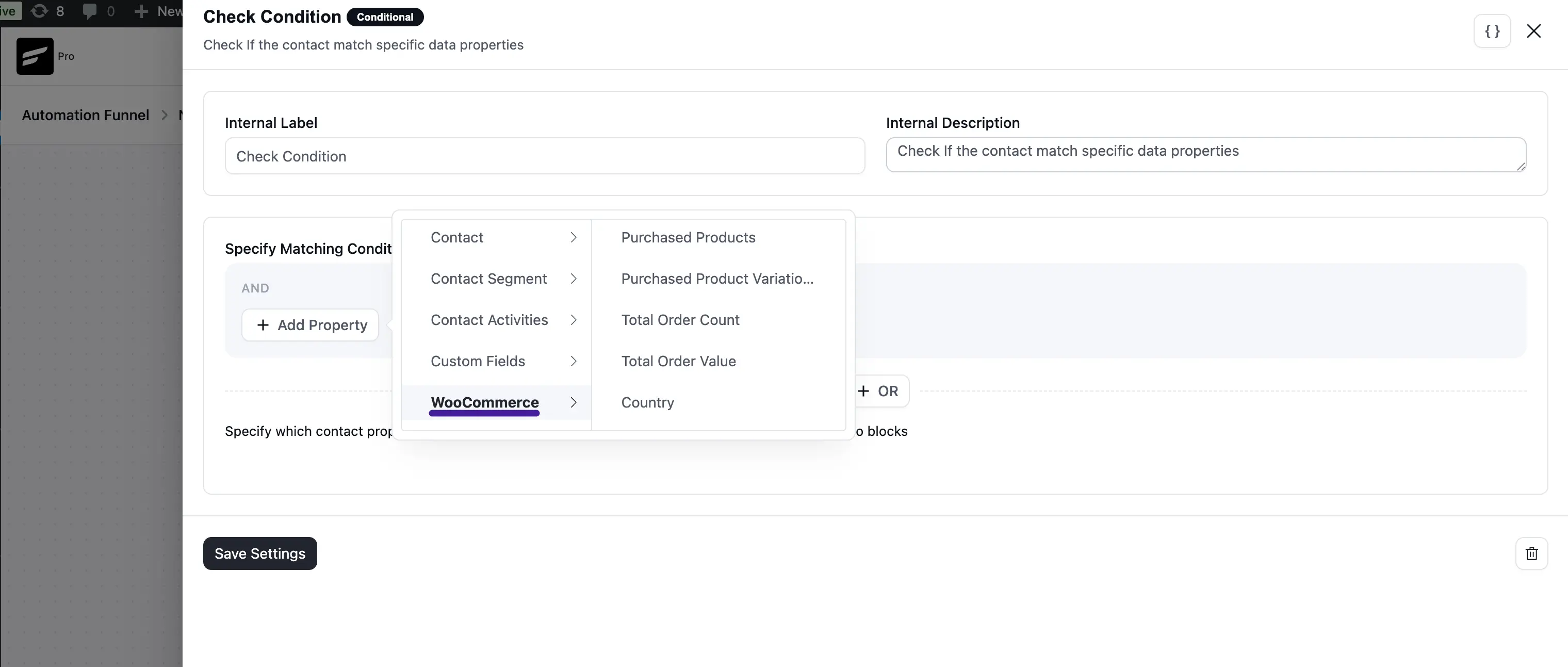
Here you will get a wide range of Options based on the WooCommerce property to set the desired Parameter for your condition. These are:
- Purchased Products
- Purchased Product Variations
- Total Order Count
- Total Order Value
- Country
- Is Guest?
- First Order Date
- Last Order Date
- Purchased Categories
- Purchased Tags
- Used Coupons
- Specific Product Purchase Times
- Is a customer?
2. Woo Current Order
Remember, to get the “Woo Current Order” property you need to use the WooCommerce Trigger. To learn more about WooCommerce Trigger, read this Documentation.
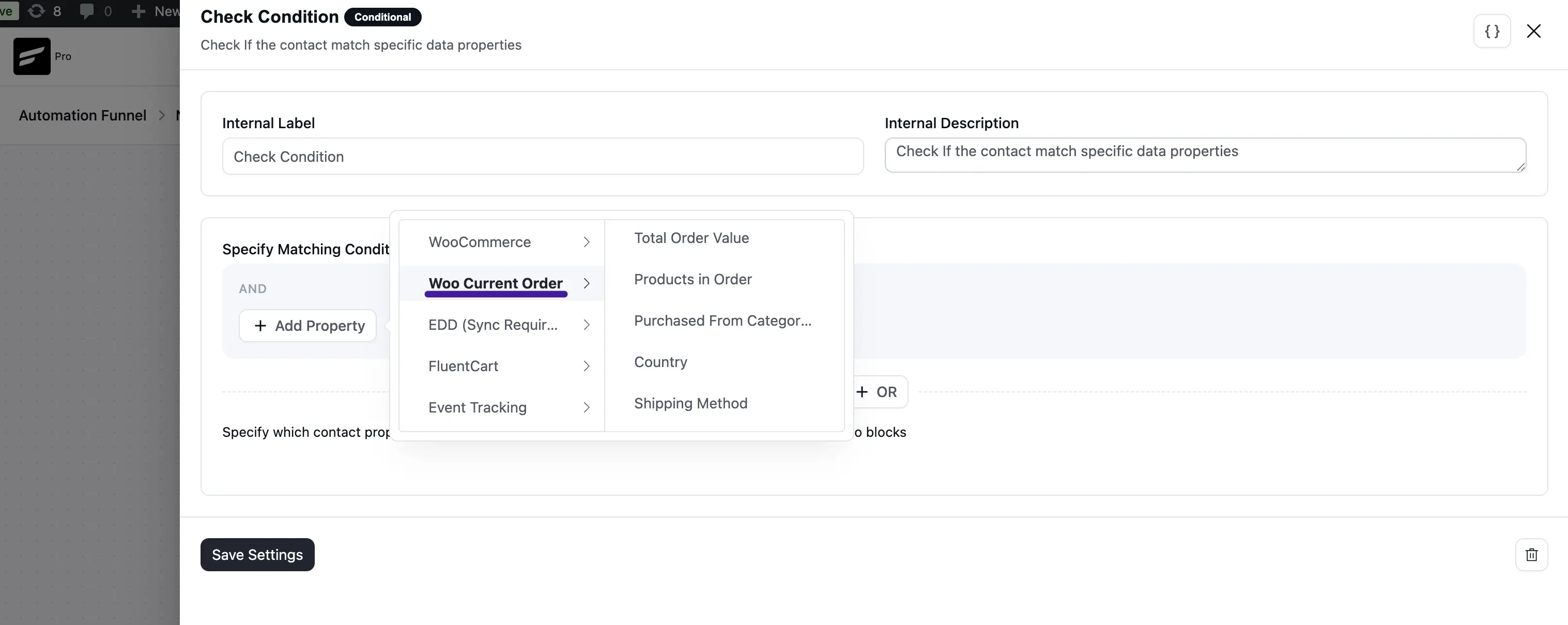
Here you will get a wide range of Options based on the Woo Current Order property to set the desired Parameter for your condition. These are:
- Total Order Value
- Products in Order
- Purchased from Categories
- Country
- Shipping Method
- Payment Gateway
- Order Status
3. EDD (Easy Digital Downloads)
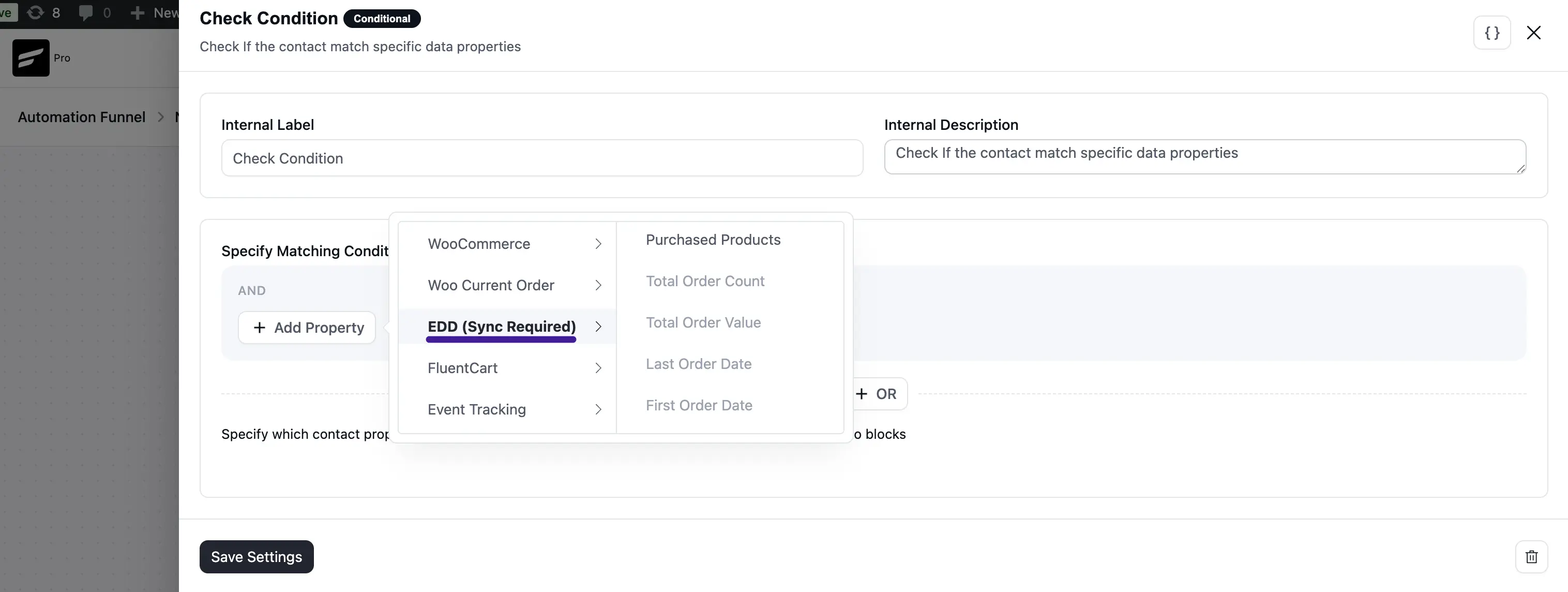
Here you will get a wide range of Options based on the EDD property to set the desired Parameter for your condition. These are:
- Purchased Products
- Total Order Count
- Total Order Value
- Last Order Date
- First Order Date
- Purchased Categories
- Purchased Tags
- Used Coupons
- Is a customer?
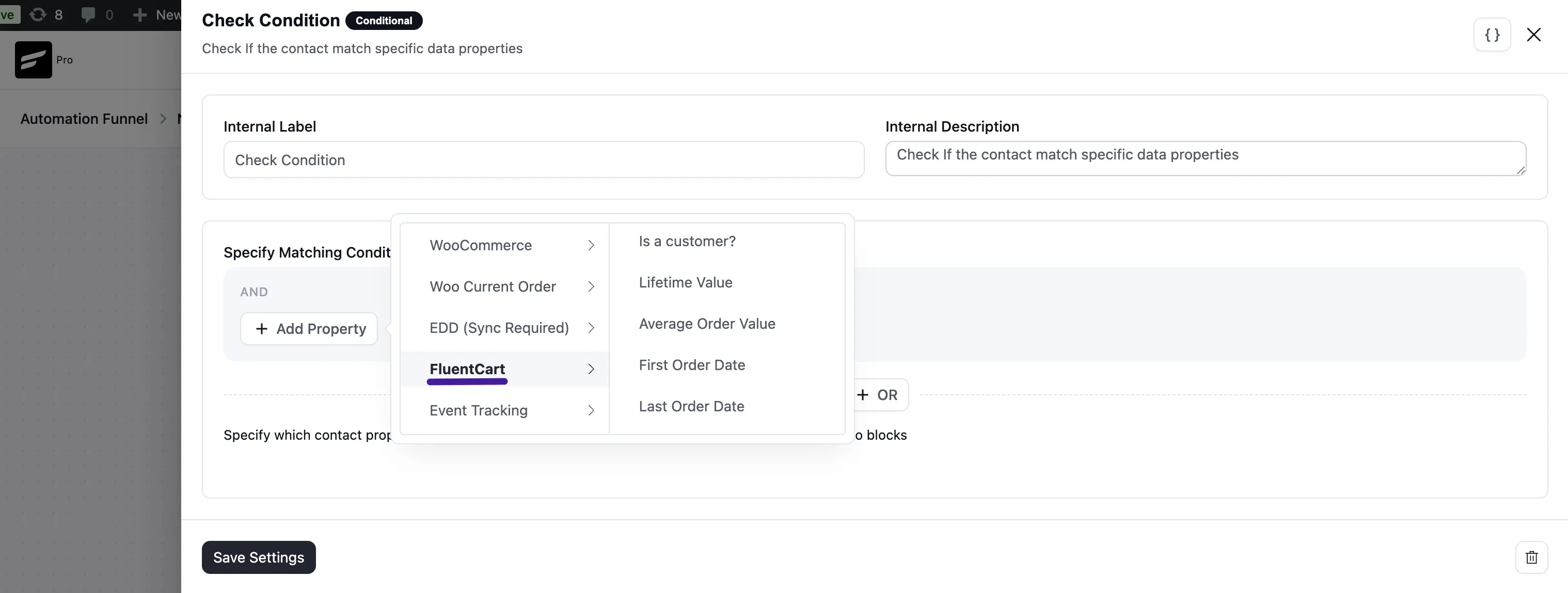
4. FluentCart
Here you will get a set of FluentCart options to define your conditional Parameter. These are:
- Is a customer?
- Lifetime Value
- Average Order Value
- First Order Date
- Last Order Date
Use these conditions to segment contacts by purchase status, total spend, average spending behavior, and customer recency.