
Appearance
Email Patterns
FluentCRM ships with a dedicated Patterns library so you can save and reuse email content blocks across your campaigns. Patterns are built with the same visual block editor used in emails, so you can create a reusable section once and use it again whenever needed.
This article walks you through where Patterns live, how to create one, and how to manage existing patterns.
Where to find Patterns
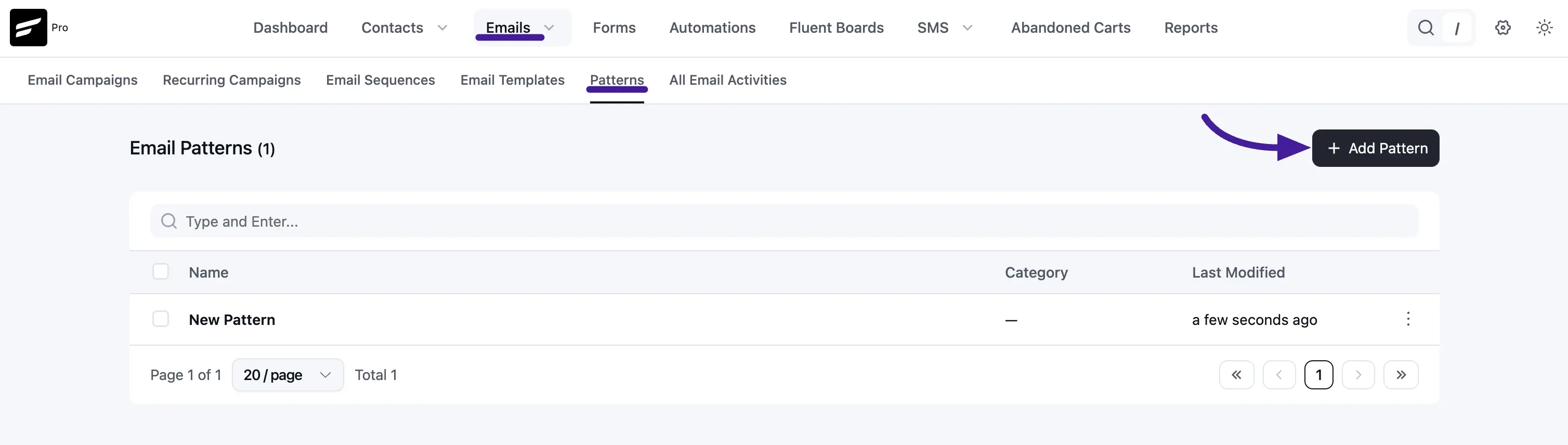
Go to FluentCRM → Emails → Patterns from your WordPress dashboard. On this screen, you will see your saved patterns in a table with columns like Name, Category, and Last Modified.
To create a new one, click the + Add Pattern button in the top-right corner.
Note: Email Patterns are part of the FluentCRM core (free) plugin. Anyone with the fcrm_manage_email_templates capability can create or edit patterns.
Creating a new pattern
After clicking + Add Pattern, FluentCRM opens the pattern editor.
Here you can configure:
- Pattern Name: Internal title for the pattern.
- Category: Select an existing category or create a new one.
- Synced Pattern:
- If enabled, edits to the pattern can stay linked.
- If disabled, patterns are inserted as a copy and emails keep their own independent version.
Then build the content in the editor canvas using blocks such as Paragraph, Heading, List, Table, Image, and more.
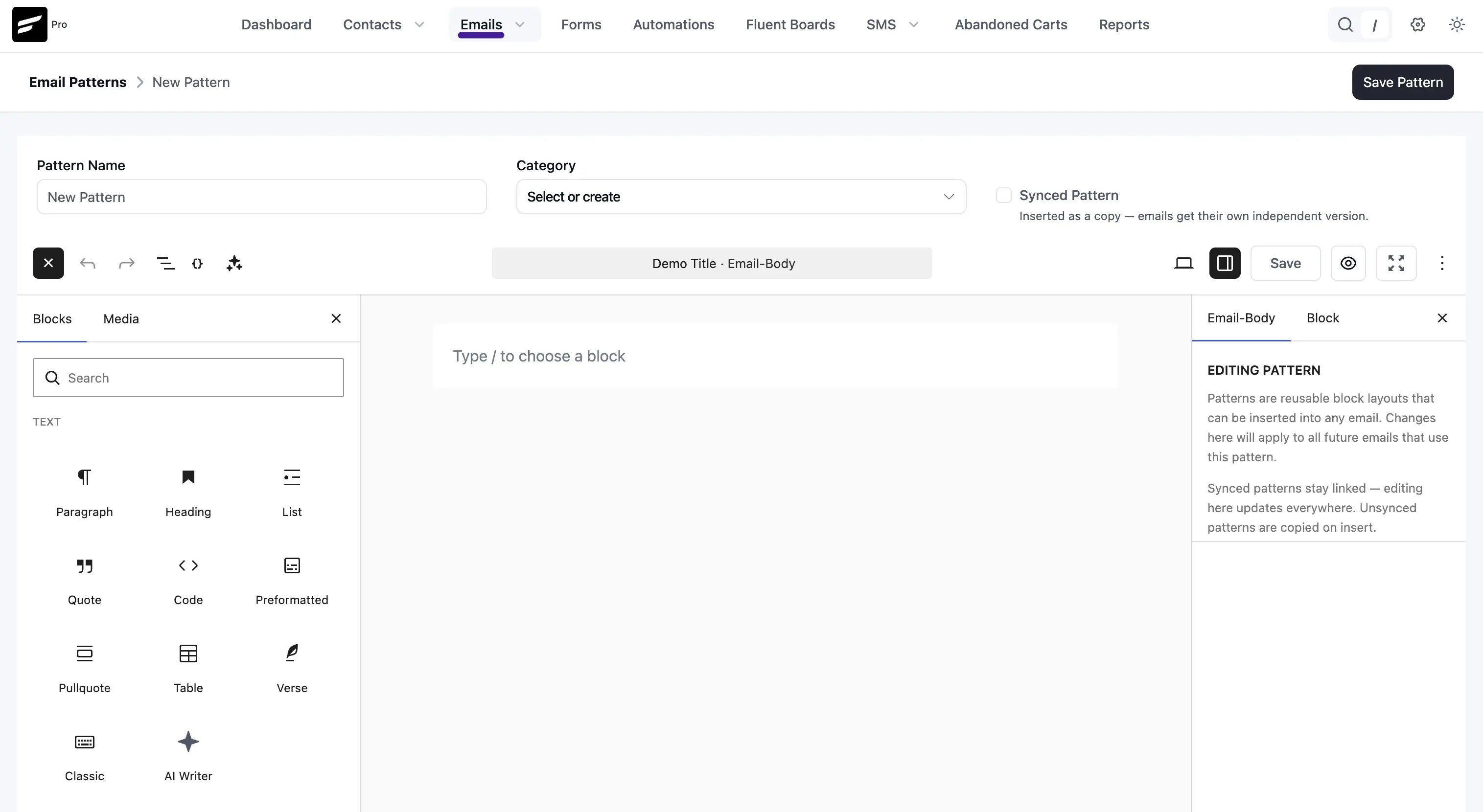
When your design is ready, click Save Pattern from the top-right corner.
Editor options while building a pattern
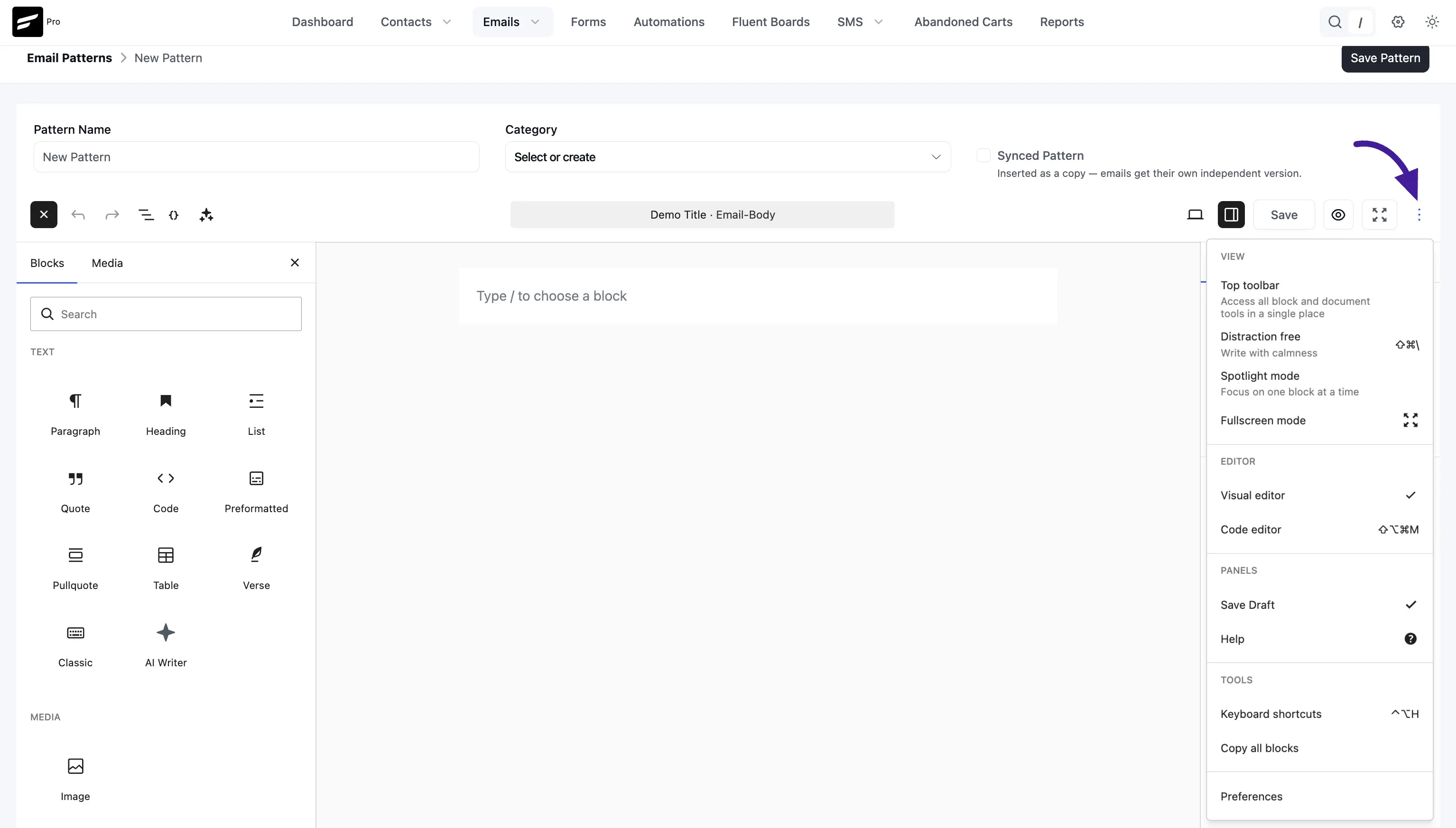
Inside the pattern editor, click the More options menu (three-dot icon) to access additional editor controls, including:
- View modes (Top toolbar, Distraction free, Spotlight mode, Fullscreen mode)
- Editor mode (Visual editor / Code editor)
- Panel and tool preferences (Keyboard shortcuts, Copy all blocks, and related options)
These options are useful when you want a cleaner writing view or need quick access to editor utilities.
Inserting a pattern into an email
After saving, your pattern becomes available in the email editing experience and can be inserted into campaigns where pattern blocks are supported.
Tip: Patterns are full Gutenberg blocks – once inserted, you can edit any text, swap images, or change colours just like a regular block. Edits to an inserted pattern do not modify the original pattern in your library.
Updating or deleting a pattern
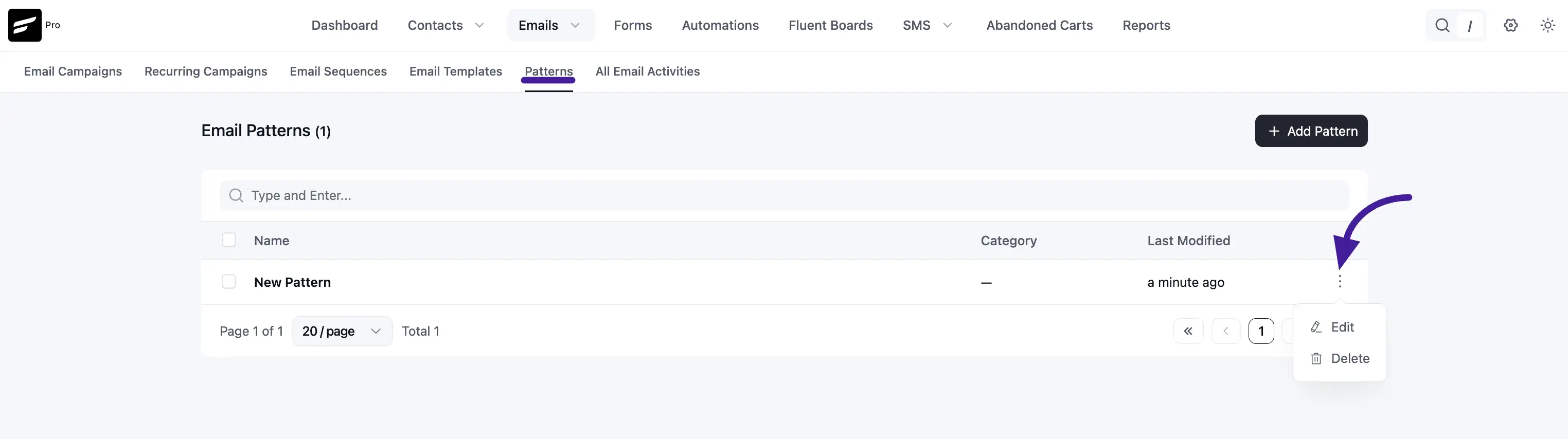
Open Emails → Patterns and click the action menu (three-dot icon) for the pattern row. From there, you can:
- Edit: Open the pattern in the editor and update it.
- Delete: Remove the pattern from the library.
When to use Patterns vs. Templates
Both Patterns and Email Templates help you reuse design, but they solve slightly different problems.
| Use a Pattern when… | Use a Template when… |
|---|---|
| You want to reuse a single section (header, hero, footer, CTA row) | You want to reuse the entire email layout |
| You want to mix and match multiple blocks per campaign | You always start the same campaign type from the same skeleton |
| You're refining a brand-consistent block library over time | You're producing many transactional or repeatable emails |