
Appearance
Merge Codes (Smart Codes) in FluentCRM
Personalizing your emails is one of the best ways to increase engagement. FluentCRM makes this easy by using Merge Codes (also known as Smart Codes). These codes act as placeholders in your email subject lines or body text and automatically swap themselves out for real data—like your subscriber's actual first name—when the email is sent.
Here is a simple breakdown of how they work and how you can use them.
How a Merge Code is Built
At first glance, a code like {{contact.first_name|Friend|ucfirst}} might look complicated, but it is actually built using a very simple, 4-part structure:
{{DataGroup.Property|FallbackValue|Transformer}}
Here is what each part means:
- DataGroup: This tells FluentCRM where to look for the information (e.g.,
contact,wp). - Property: This is the specific piece of information you want to pull (e.g.,
first_name,email). - Fallback Value (Optional): This is your "backup text." If FluentCRM doesn't have the contact's first name, it will display this word instead (e.g., showing "Friend" instead of a blank space).
- Transformer (Optional): This applies a formatting rule to the text, like making sure the first letter is capitalized (
ucfirst).
How to Add Codes to Your Emails
You don't need to memorize these codes! FluentCRM gives you two incredibly easy ways to insert them while you are writing an email:
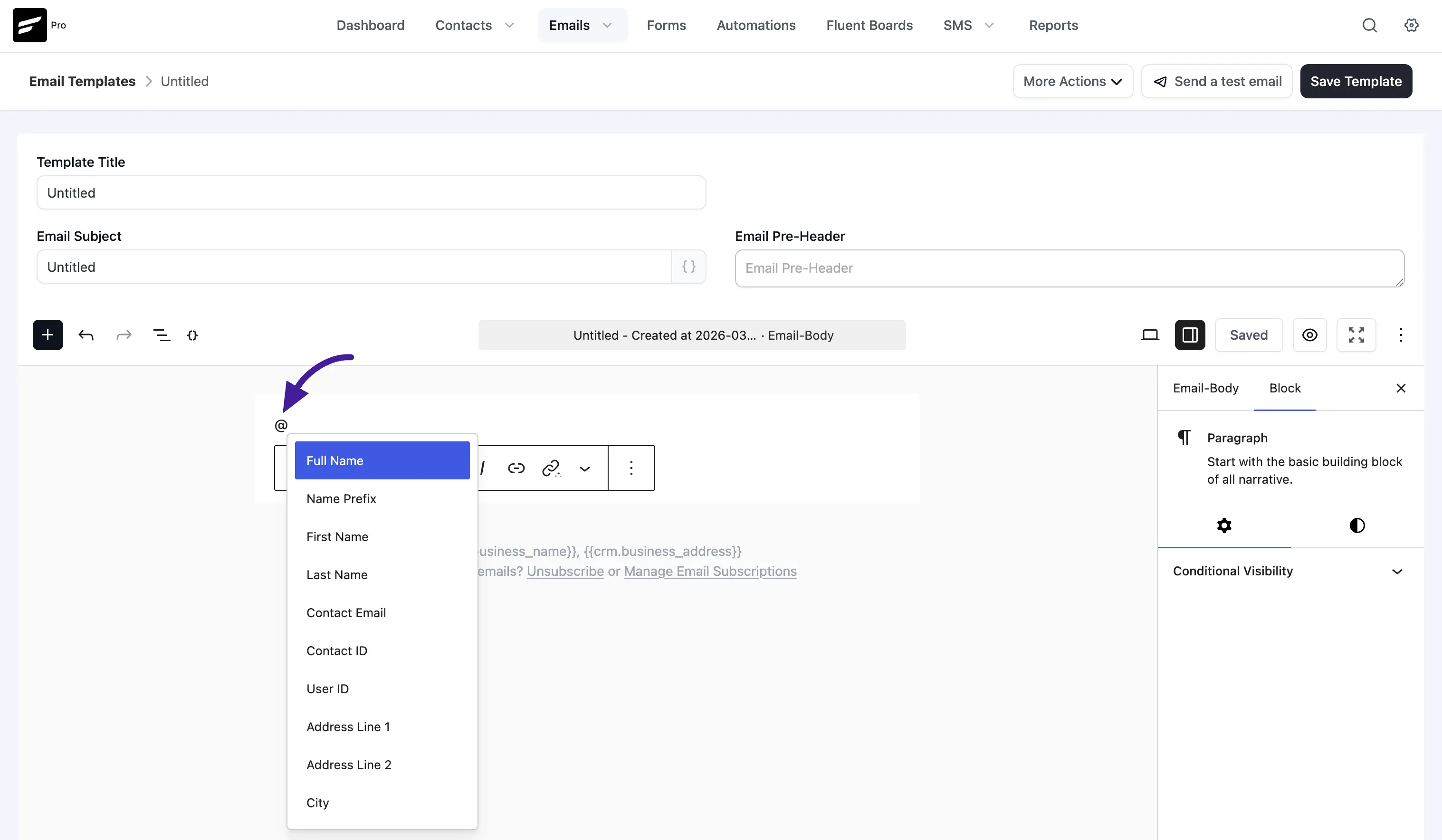
- The "@" Shortcut: Simply type the
@symbol directly into your email composer, and start typing what you are looking for (like "name"). A list of codes will pop up for you to select.
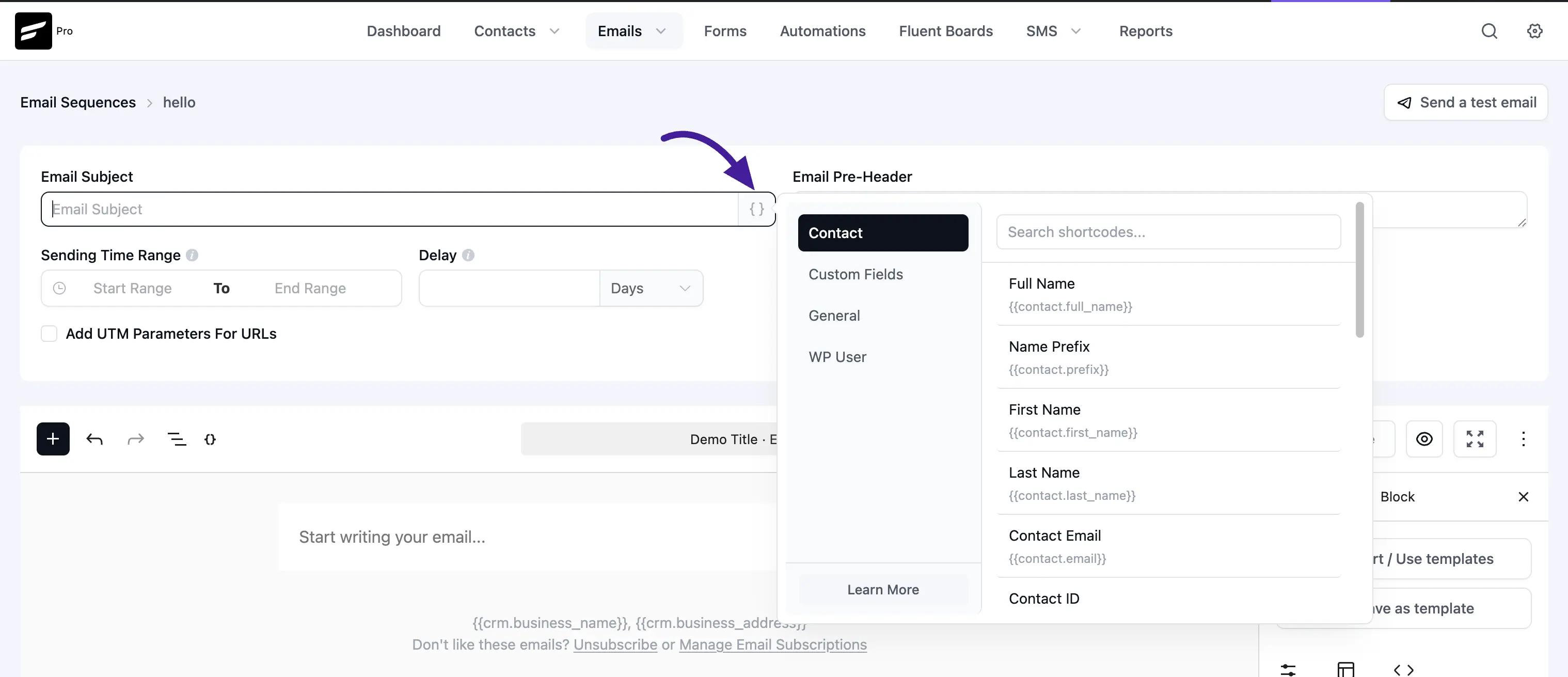
- The Menu Button: Click the
{ }icon located in the top bar of your email editor. This opens a pop-up window where you can browse and copy any SmartCode you need.
Commonly Used Merge Codes
Here are some of the most helpful codes you can use to personalize your messages.
Contact Details
These codes pull information directly from your subscriber's profile.
- Full name
text
{{contact.full_name}}Displays the contact's full name.
- First name
text
{{contact.first_name}}Displays the contact's first name.
text
{{contact.email}}Displays the contact's email address.
- Phone
text
{{contact.phone}}Displays the contact's phone number.
- City
text
{{contact.city}}Displays the city listed in their address.
- Custom field
text
{{contact.custom.CUSTOM_FIELD_SLUG}}Displays a custom field you've created (replace CUSTOM_FIELD_SLUG with your actual field name).
General & Business Links
These codes are great for adding mandatory links and business details to your email footers.
- Business name
text
{{crm.business_name}}Displays your business name, as defined in your FluentCRM settings.
- Website URL
text
{{wp.url}}Displays your website's URL.
- Unsubscribe URL (raw link)
text
##crm.unsubscribe_url##Displays the unsubscribe URL as a plain link.
- Unsubscribe HTML link
text
{{crm.unsubscribe_html|Unsubscribe}}Displays a clickable HTML unsubscribe link with the text "Unsubscribe".
- Manage subscription HTML link
text
{{crm.manage_subscription_html|Manage Preference}}Displays a clickable HTML link with the text "Manage Preference".
WordPress User Codes
If your contacts are also registered users on your WordPress site (like students or customers), you can use these.
- Any WordPress user property
text
{{user.ANY_USER_PROPERY}}Displays any standard WordPress user property (e.g., user_login).
- Password reset link
text
{{user.password_reset_direct_link}}Displays a direct link for the user to reset their WordPress password.
Data Transformers (Formatting Rules)
Transformers are optional tools that ensure your text looks grammatically correct, even if the user typed their information in messily.
- trim
text
{{contact.first_name|There|trim}}Removes accidental empty spaces before or after the value.
- ucfirst
text
{{contact.first_name||ucfirst}}Capitalizes the first letter of the word (e.g., changes "john" to "John").
- ucwords
text
{{contact.full_name||ucwords}}Capitalizes the first letter of every word (e.g., changes "john doe" to "John Doe").
- strtolower
text
{{contact.first_name||strtolower}}Forces all letters to be lowercase.
- strtoupper
text
{{contact.first_name||strtoupper}}Forces all letters to be UPPERCASE.
- concat_first
text
{{contact.first_name||concat_first|Hello}}Attaches a word before the value. If the name is John, it prints "Hello John".
- concat_last
text
{{contact.first_name||concat_last|**,**}}Adds a character after the value. Great for adding a comma only if the name exists (e.g., "John,").