Appearance
SMS Campaign Report
FluentCRM provides detailed reporting for SMS campaigns so you can track delivery performance, review recipient-level activity, and run post-campaign actions to keep your audience clean and engaged.
Accessing campaign reports
To open the report for any sent or archived SMS campaign:
- Go to SMS from the top FluentCRM navbar.
- Find your campaign in the SMS Campaigns list.
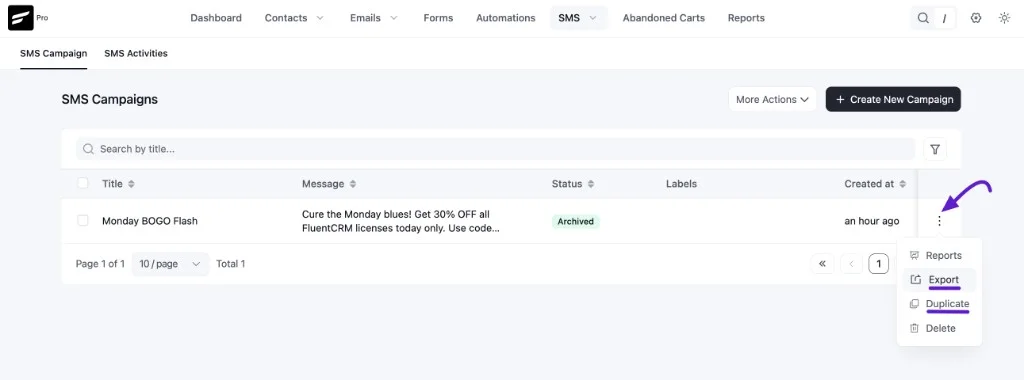
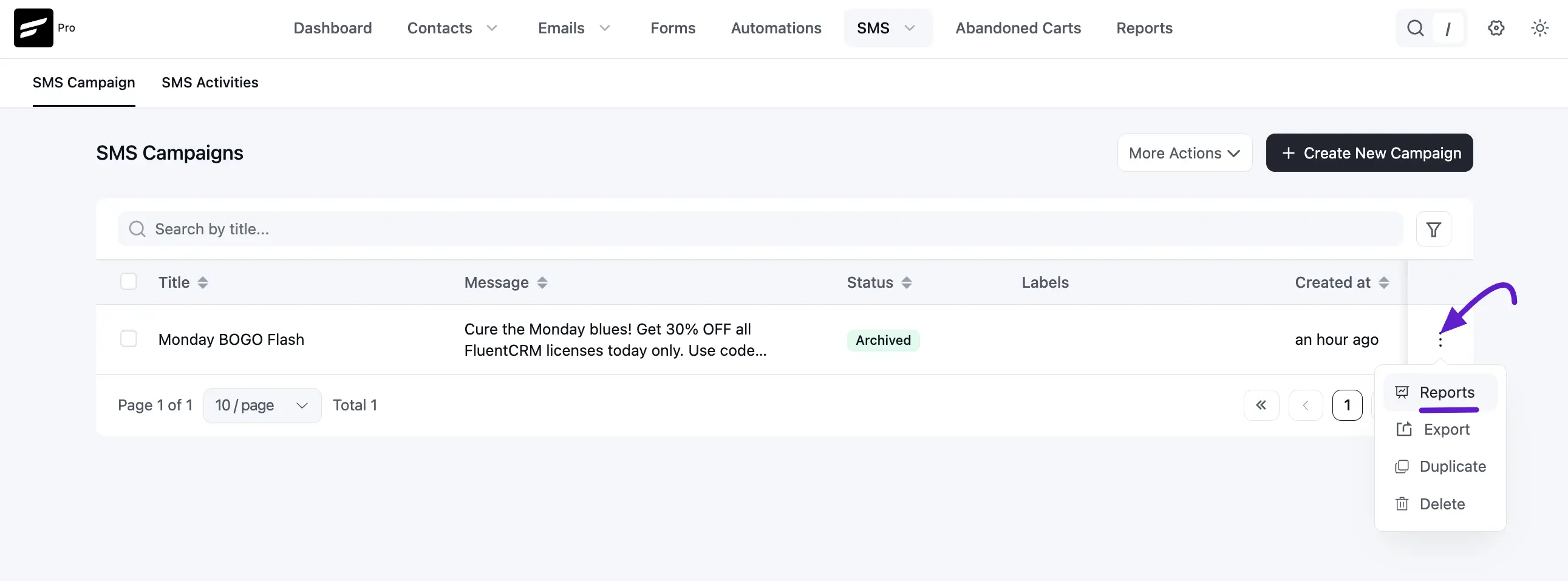
- Click the three-dot menu under Actions.
- Select Reports from the dropdown.
Campaign Details and Preview
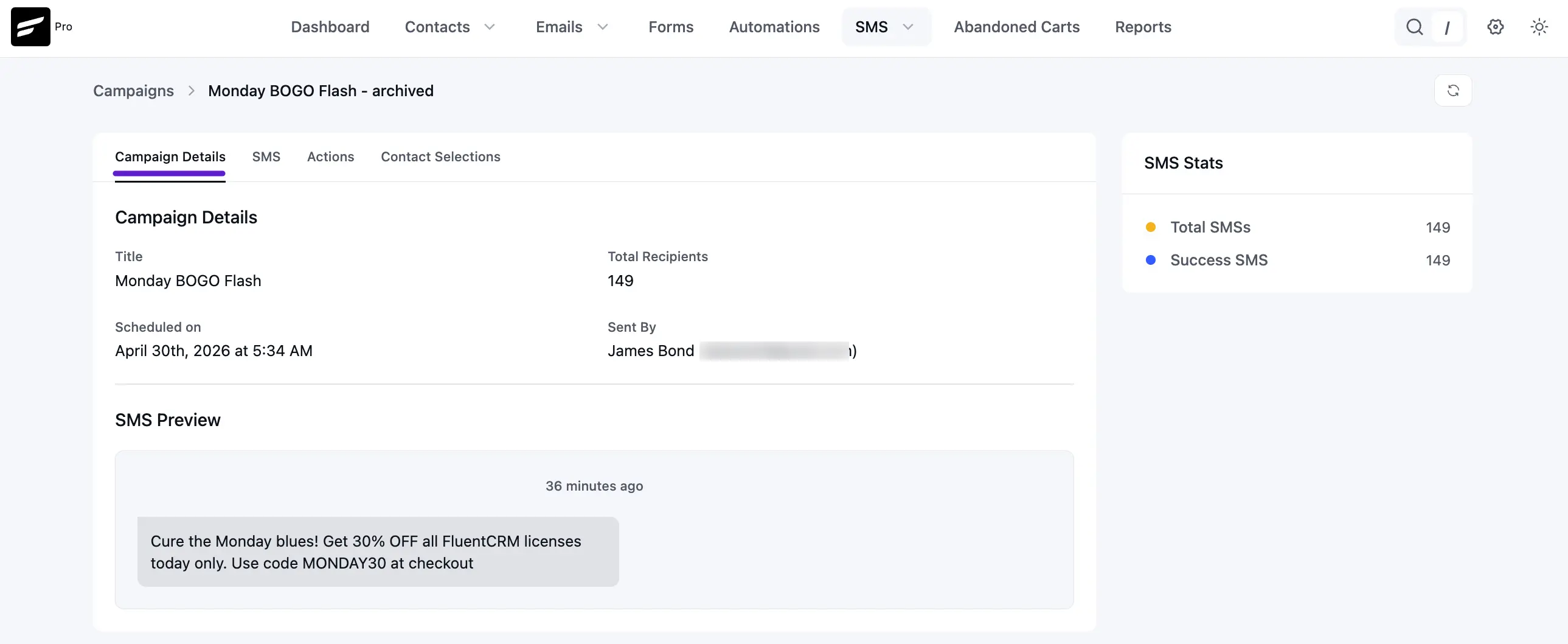
The Campaign Details tab gives you a complete snapshot:
- Technical data: Campaign Title, Total Recipients, Scheduled on date/time, and Sent By user.
- SMS preview: The exact message content delivered to subscribers.
- SMS stats: Quick counters such as Total SMSs and Success SMS.
Monitoring Recipients and Statuses
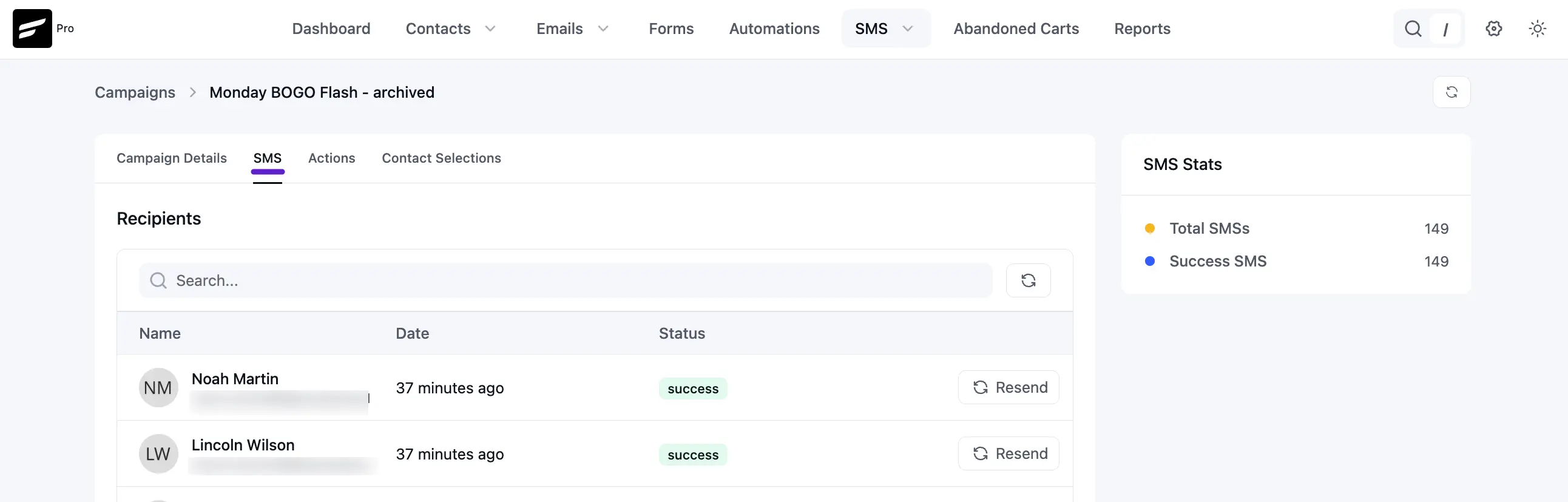
Use the SMS tab inside the report to audit delivery per contact:
- Detailed list: View recipients and their send records.
- Delivery status: Track success/failure outcomes for each recipient.
- Resend option: Click Resend beside a recipient to retry delivery.
Post-campaign Automation Actions
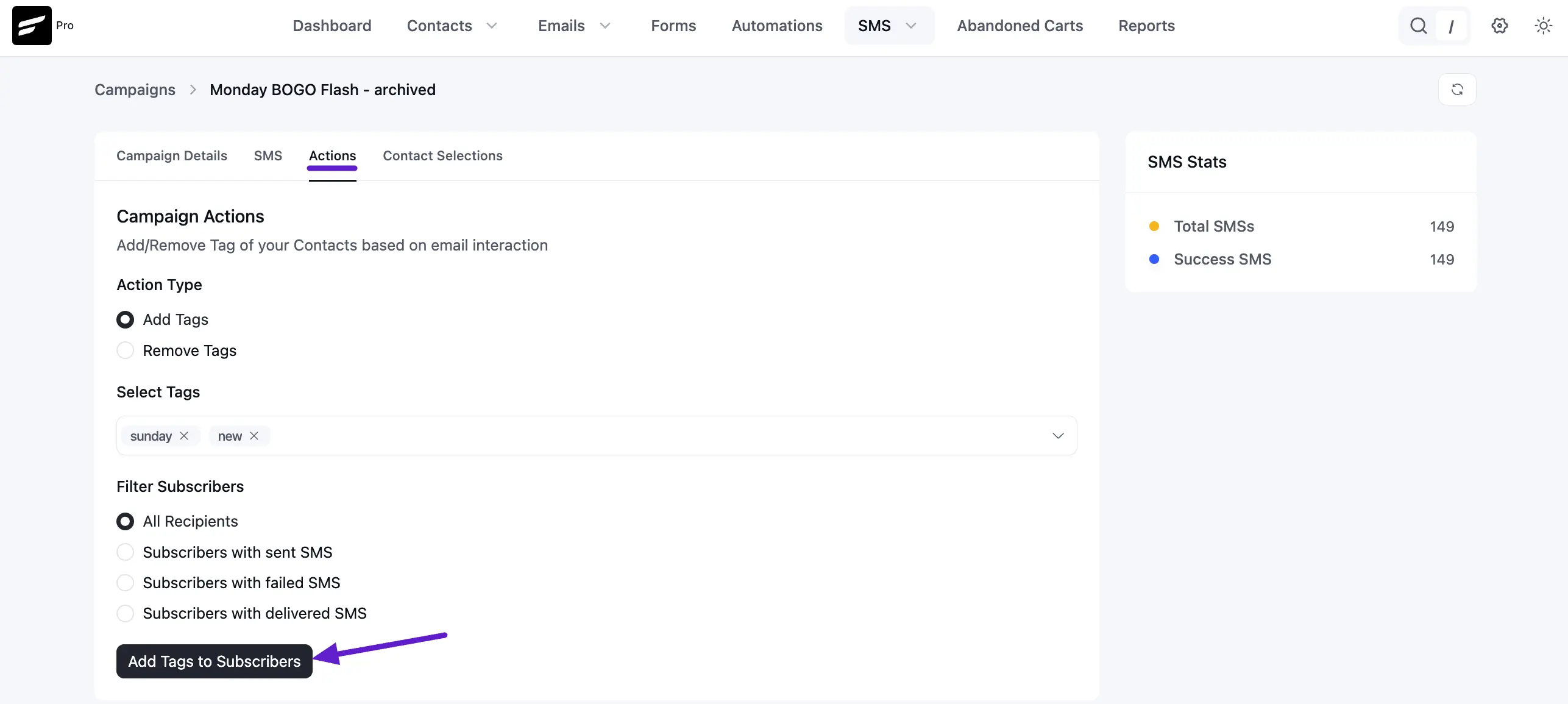
Use the Actions tab to manage tags based on campaign result groups:
- Action type: Choose Add Tags or Remove Tags.
- Tag selection: Select one or more tags to apply.
- Filter subscribers: Target by:
- All Recipients
- Subscribers with sent SMS
- Subscribers with failed SMS
- Subscribers with delivered SMS
Then click Add Tags to Subscribers (or the remove action button) to execute.
Reviewing Contact Selection
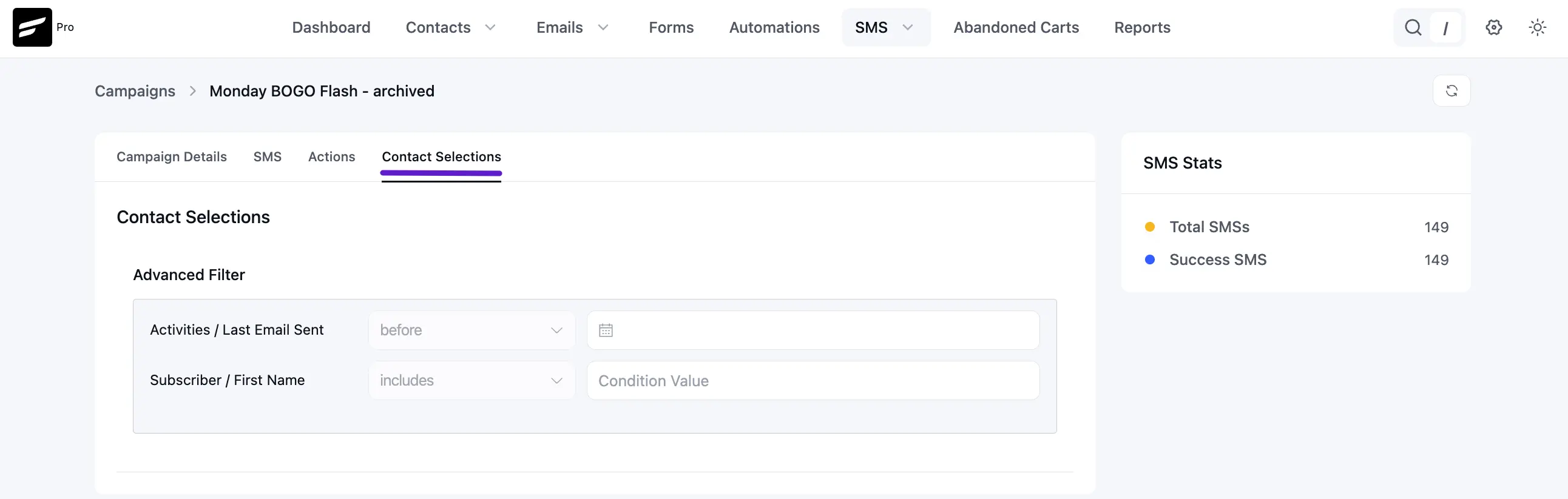
The Contact Selections tab helps you verify how the audience was originally built:
- Review advanced filters used at send time (for example, activity fields or contact properties).
- Confirm your segmentation logic matched the audience you intended to target.
Export, Duplicate, and Delete Campaign
From the same three-dot campaign menu, you can also run quick maintenance actions:
- Export: Click Export to download that campaign's data as a JSON file (usually generated in about a second).
- Duplicate: Click Duplicate to create a copy of the campaign with the same settings/content, so you can reuse it quickly.
- Delete: Click Delete, then confirm with Yes in the permission/confirmation prompt to permanently remove the campaign.