Appearance
Automation Reports
FluentCRM provides a comprehensive Reports section for each automation, allowing you to analyze campaign performance and customer interactions to refine your marketing strategy. This article guides you through the features available within the reporting interface of a specific automation funnel.
Accessing Automation Reports
To view reports for an automation:
- Navigate to the Automations section from the FluentCRM Navbar.
- Open your desired automation by clicking on its Title.
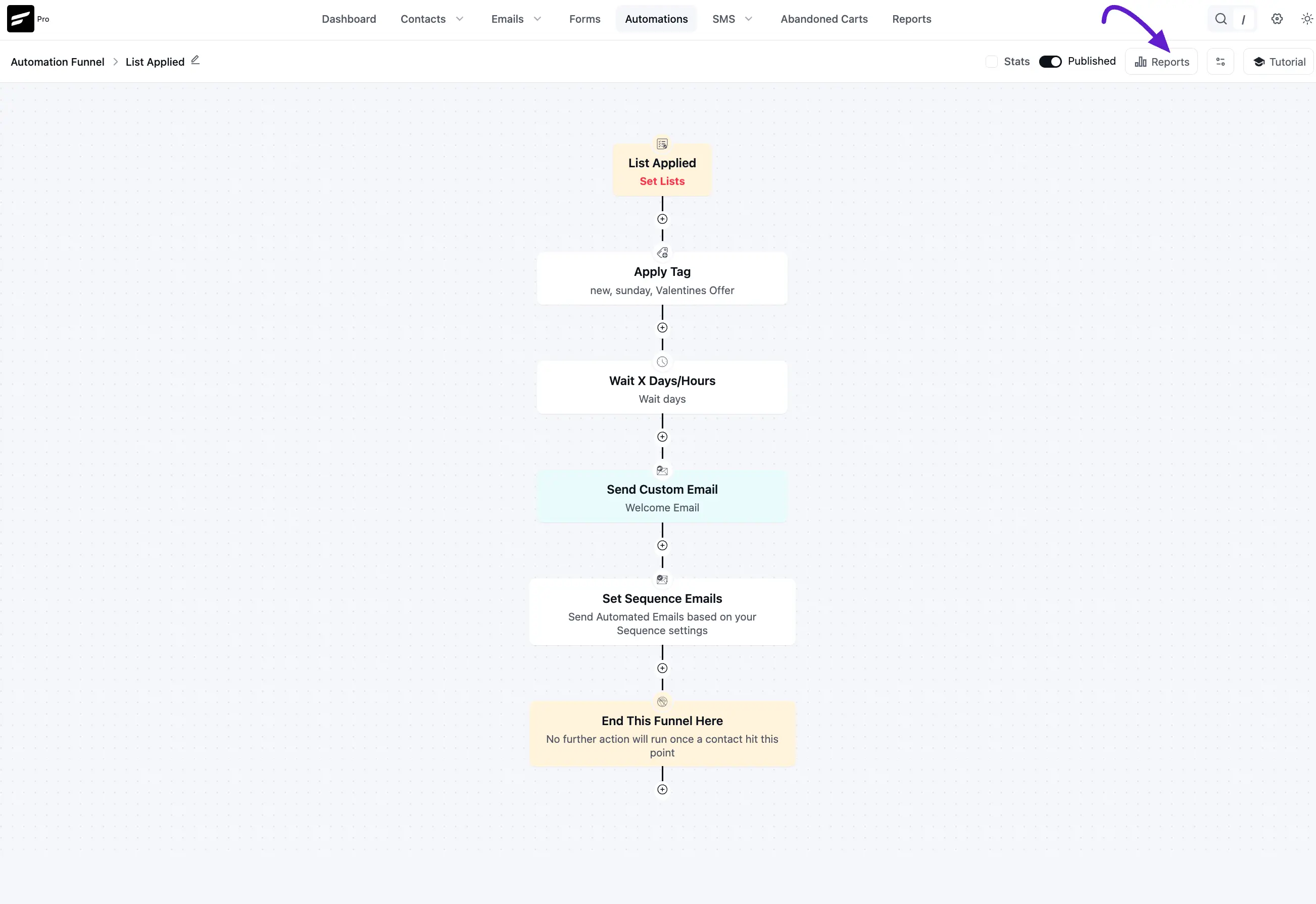
- On the Automation Editor page, click the Stats toggle to enable the reporting overlay.
Summary Reporting
NOTE
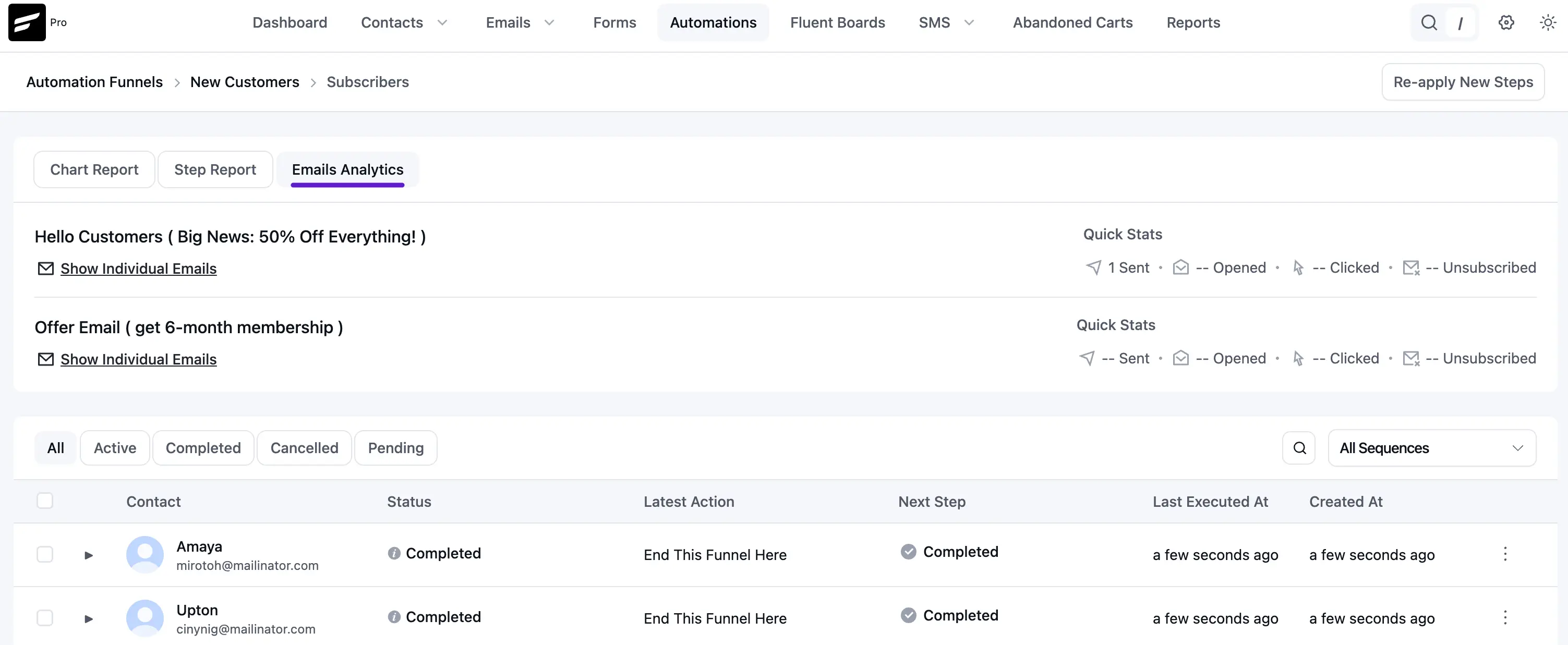
To sync new funnel steps to contacts who have already completed the automation, click the Re-apply New Steps button in the top right corner.
The summary section offers three distinct views to analyze how contacts progress through your funnel.
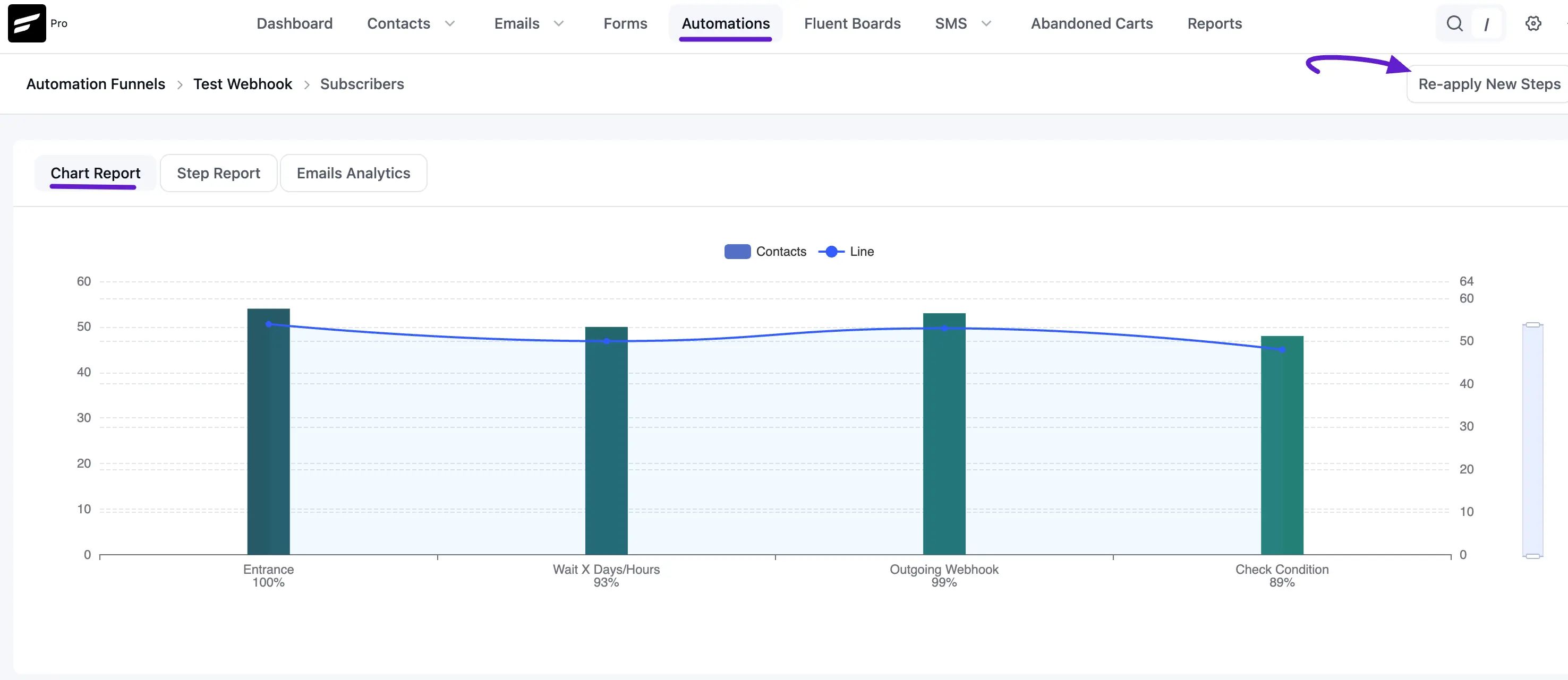
Chart Report
This tab displays a visual summary of each automation step using a Bar Diagram and a Line Graph. It shows the volume and percentage of contacts at each stage, such as Entrance, Wait X Days/Hours, and specific actions like Outgoing Webhooks or Check Condition.
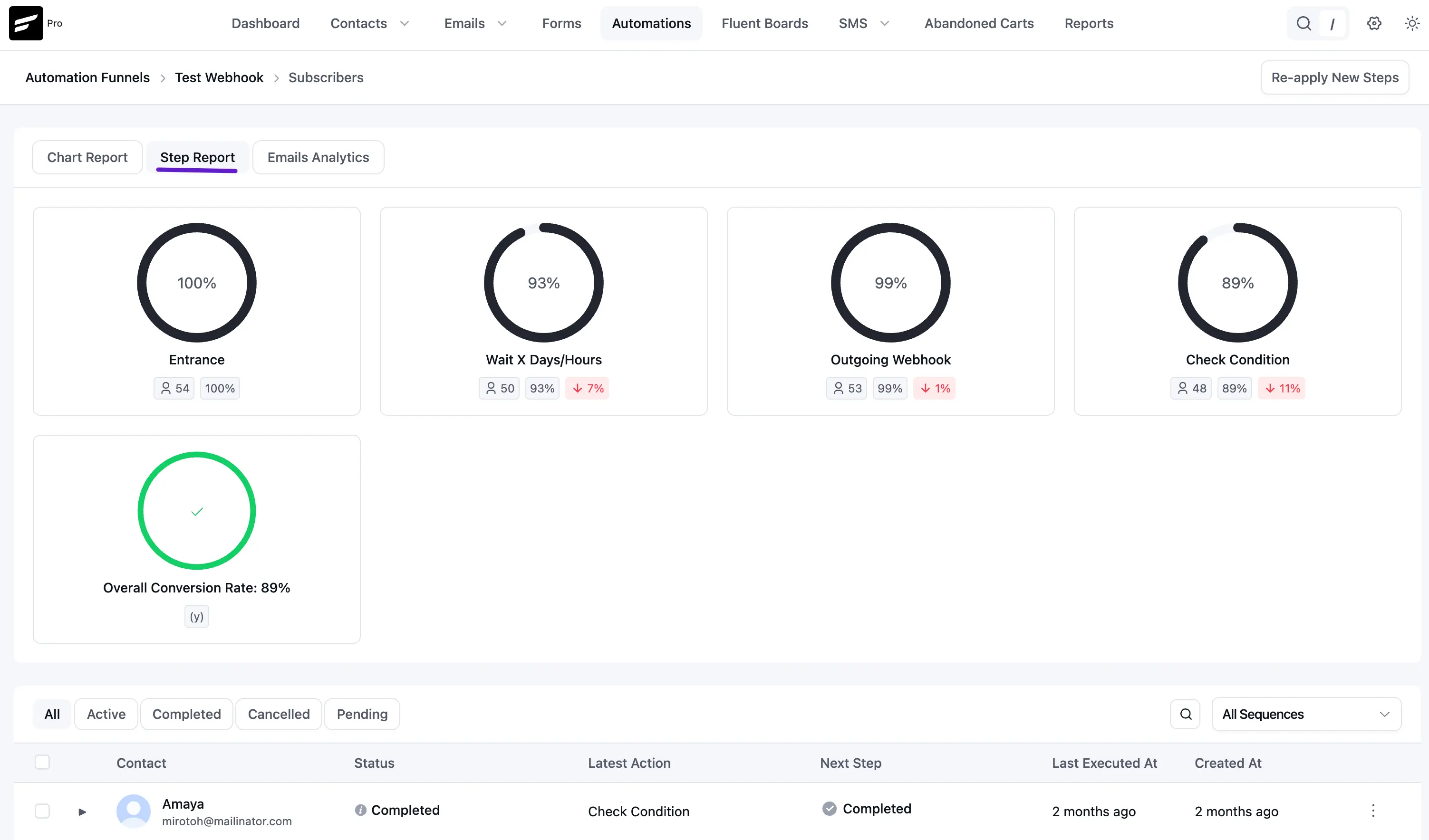
Step Report
This tab provides a summary of each action block using Circle Graphs. Each card displays the percentage of contacts that reached that step, the total count, and the percentage change. It also highlights the Overall Conversion Rate for the entire funnel.
Emails Analytics
This tab focuses on the performance of email actions within your funnel. For each automated email (e.g., "Hello Customers"), you can view Quick Stats including: * Sent: Total number of emails delivered. * Opened: The percentage of recipients who opened the email. * Clicked: The percentage of recipients who clicked a link within the email. * Unsubscribed: The percentage of recipients who opted out after receiving the email.
Individual Reporting
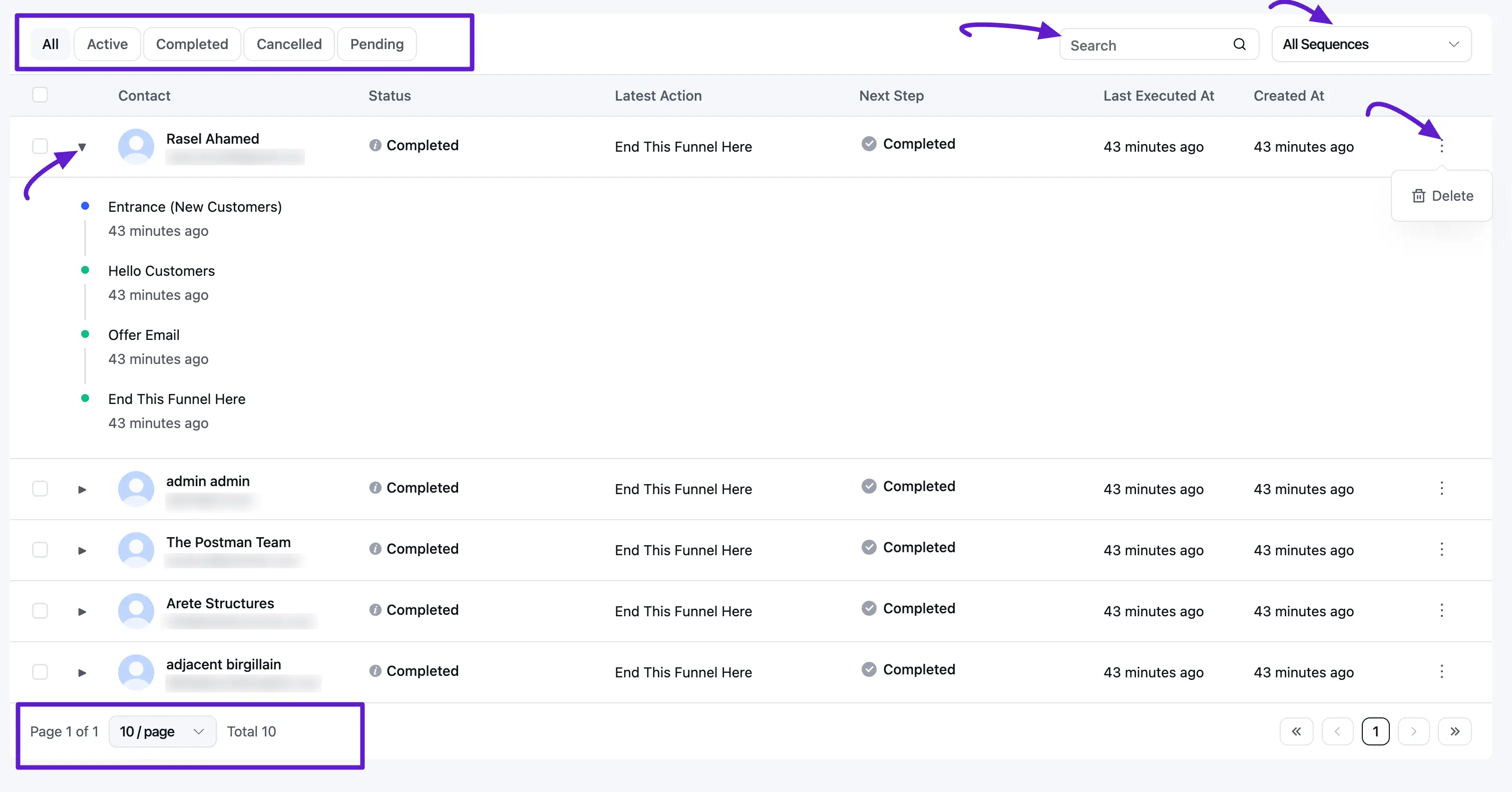
Located below the summary charts, this section provides a granular, contact-by-contact breakdown of automation activity.
- Contact Overview: View each contact's Name, Email, current Status, Latest Action performed, and the Next Step scheduled for them.
- Status Filters: Filter the list to see contacts based on their progress:
- All: Every contact currently or previously in the funnel.
- Active: Contacts currently moving through the steps.
- Completed: Contacts who have finished all steps.
- Cancelled: Contacts whose automation was stopped manually or by a system rule.
- Pending: Contacts waiting for a specific trigger or delay to expire.
- Step & Sequence Filters: Use the dropdown menu (e.g., All Sequences) to filter reports by specific automated actions within the funnel.
- Search Box: Use the search icon to find specific contacts by name or email address.
- Actions: Click the three-dot menu next to an individual contact to perform specific management tasks.
- Pagination: With this option, you can set how many individual reports you want to display per page.