
Appearance
FluentCRM Visual Builder
The Visual Builder is a powerful drag-and-drop email template designer. It allows you to create professionally designed, personalized content without needing any technical knowledge of HTML or complex frameworks.
Access the Visual Builder
In FluentCRM, the Visual Builder is integrated across all primary email communication features. You can access it from the following locations:
- Email Campaigns: When creating a new broadcast for your subscribers.
- Email Templates: While designing reusable templates for your brand.
- Email Sequences: When setting up automated series of emails.
- Automations: Directly within your automation funnels when adding a "Send Email" action.
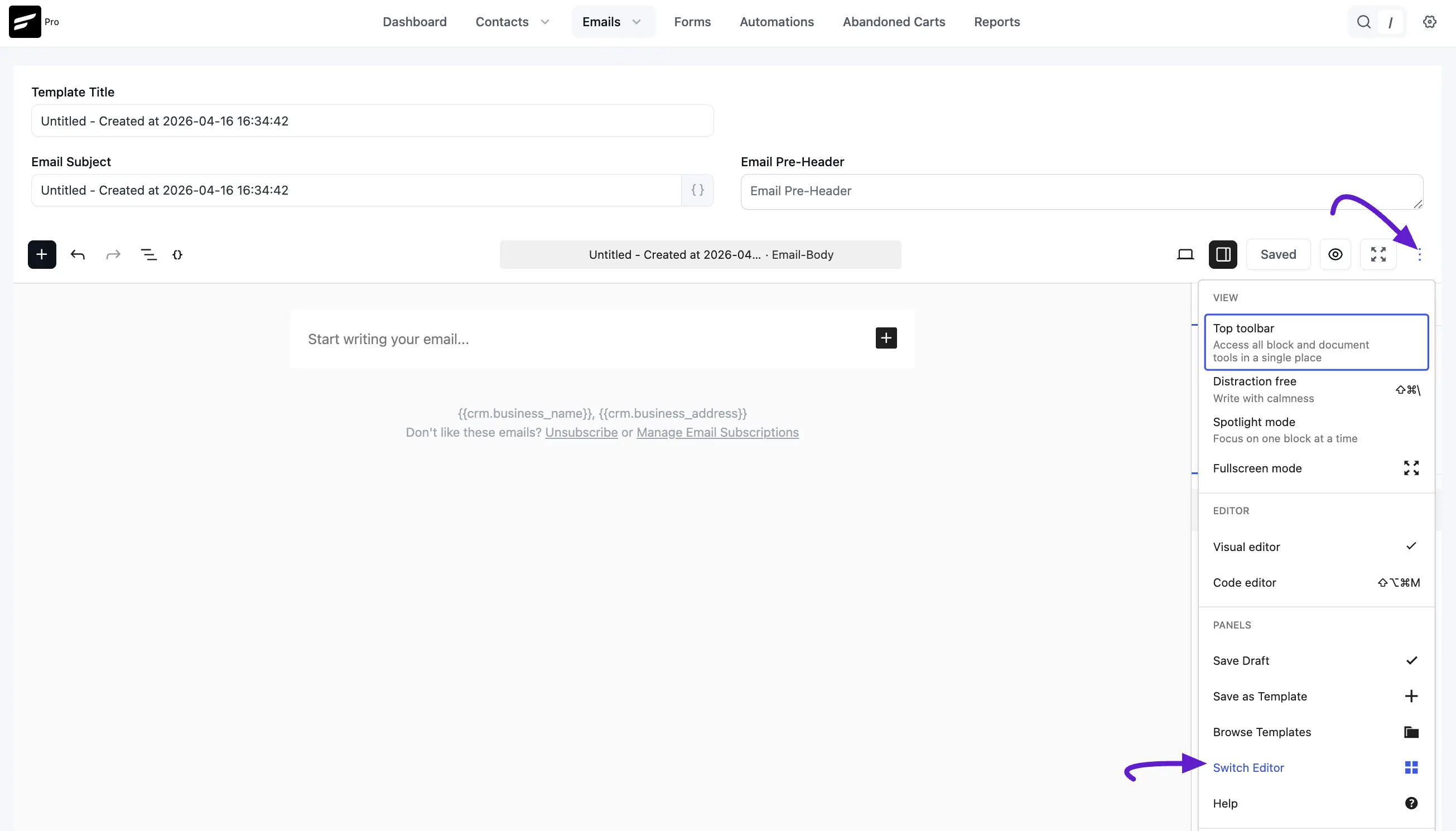
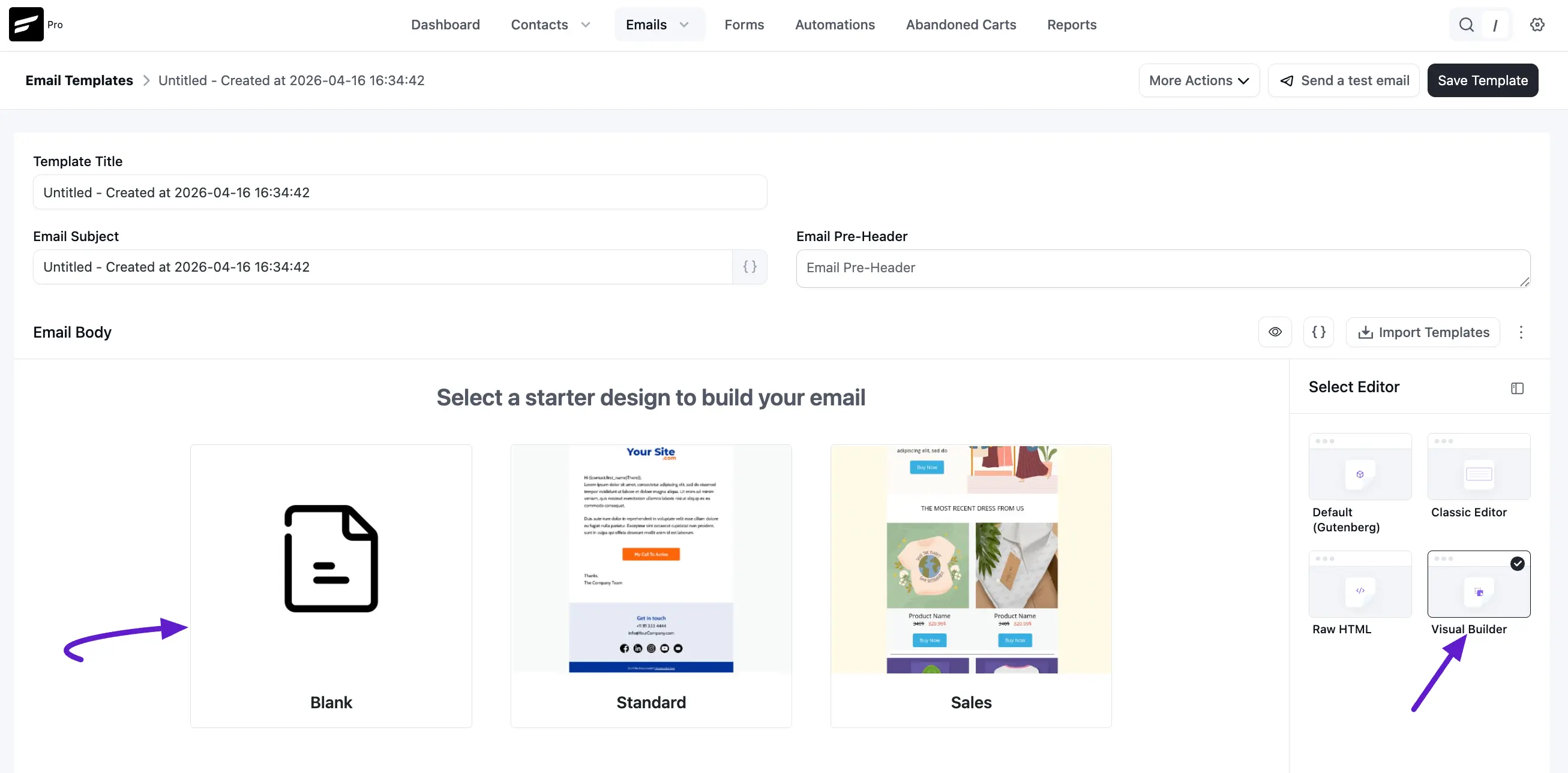
Once you are in any of these sections, you can initiate the builder by selecting a Starter Design (such as Blank, Standard, or Sales) or by using the Switch Editor panel to select Visual Builder.
Tip: Want to write or rewrite copy with AI? Connect a provider on the AI Model Setup page and the Smart Headings, Smart Buttons, and Magic Image tools will appear directly in the block toolbar.
Here are two default free email templates for your visual email body. Just click on the template to use them or you can start with the Blank template.
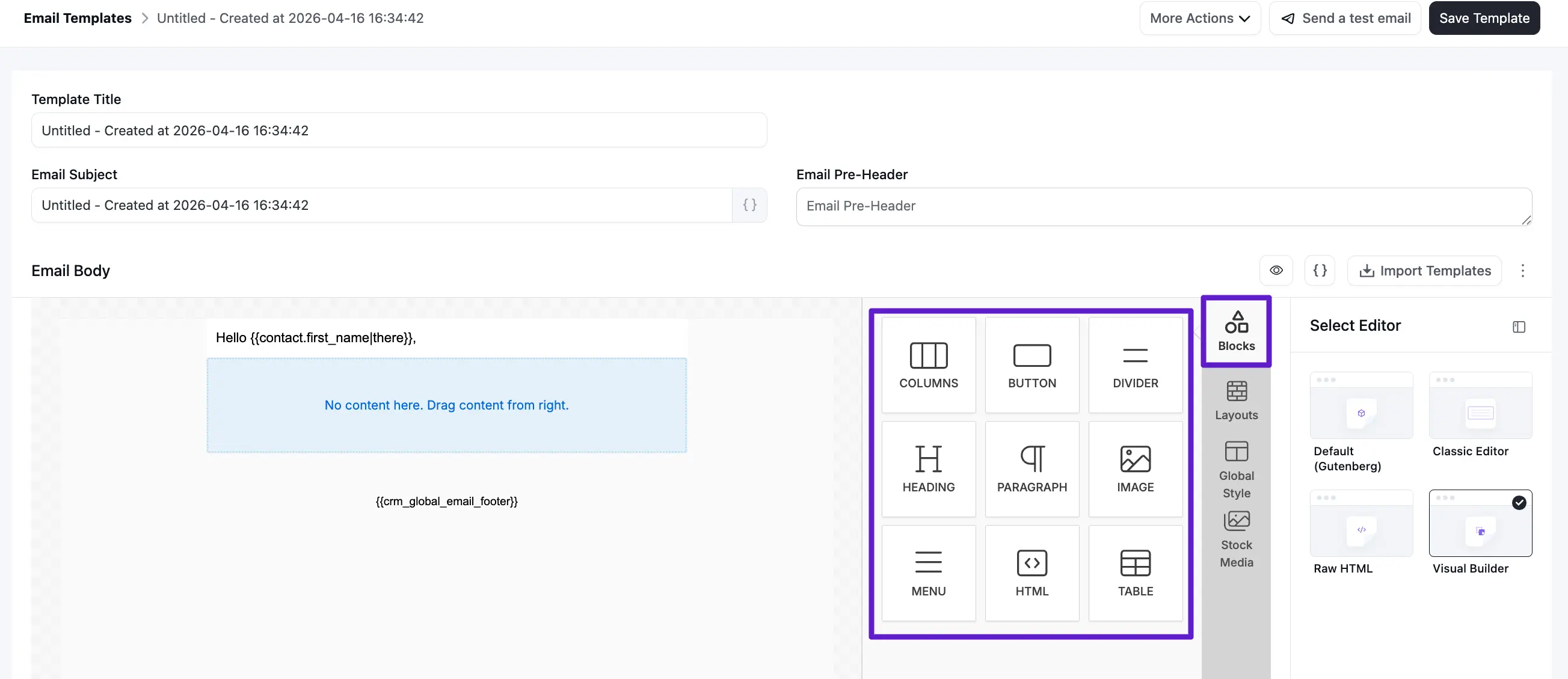
On your right here are some main custom options for your visual email template.
- Blocks
- Layouts
- Global Style
- Stock Media
Blocks
The Blocks section is the primary toolkit for your design, featuring drag-and-drop components that you can place anywhere in your email body.
1.1 Columns
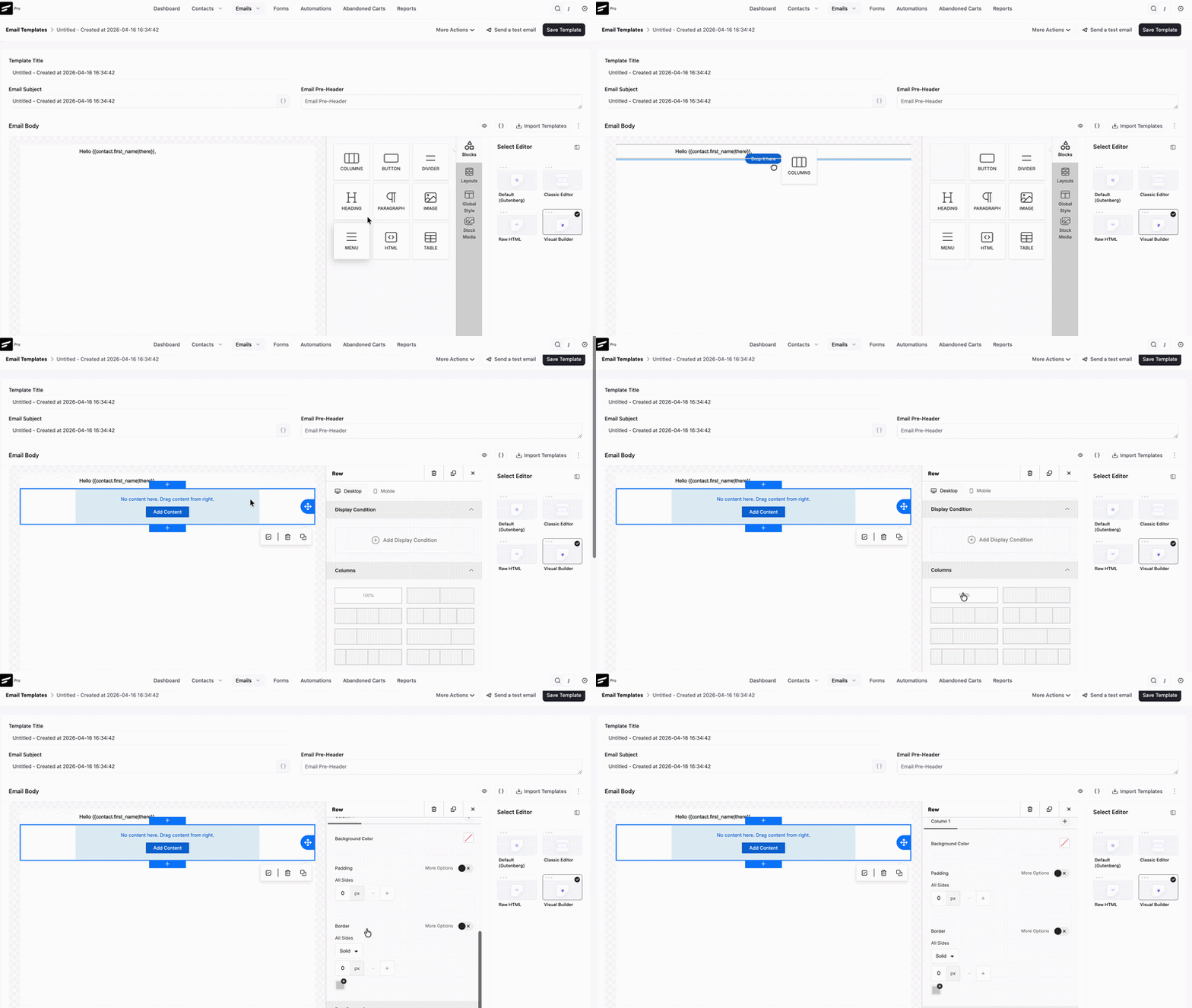
Column helps to ensure the design has consistent spacing, proper alignment, and appropriate visual grading. If you need a column for your visual email template just click on the column section and drag it to your email body.
- Display Condition: You can target specific segments by choosing to show columns only to contacts with certain Tags or Lists.
- Column & Row Properties: Customize background colors, borders, and padding for individual sections.
- Responsive Design: Use the Hide on Desktop or Hide on Mobile toggles to ensure your email looks perfect on every device.
1.2 Heading
Add a clear hierarchy to your content with the Heading block.
- Display Condition: The display condition gives you the freedom to choose who can see your specific contents in this column. You can set conditions according to your tags and list for the mail.
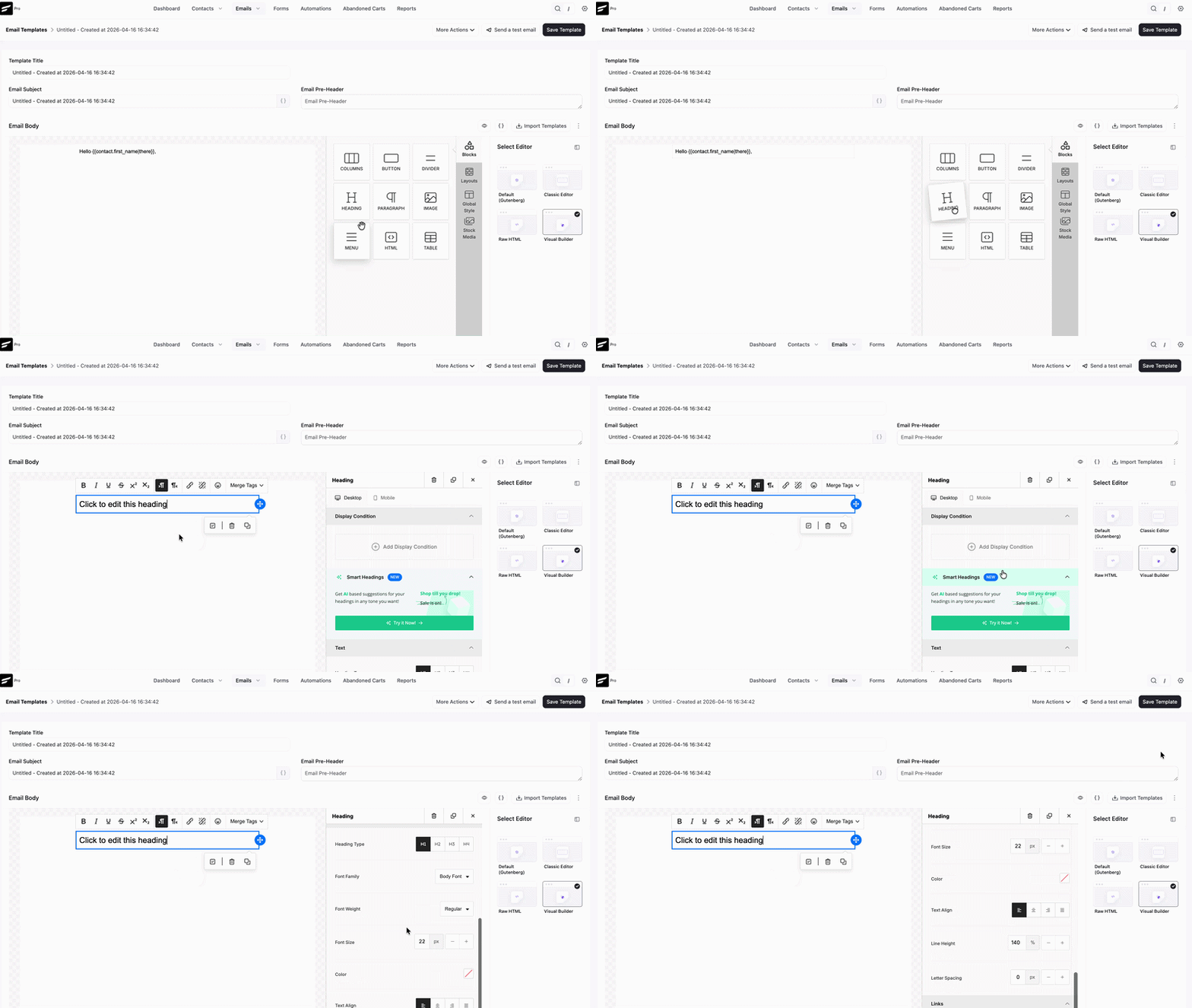
Smart Headings: Use Smart AI to generate attractive, high-converting headlines.
Typography: You have full control over font size, weight, line height, and color.
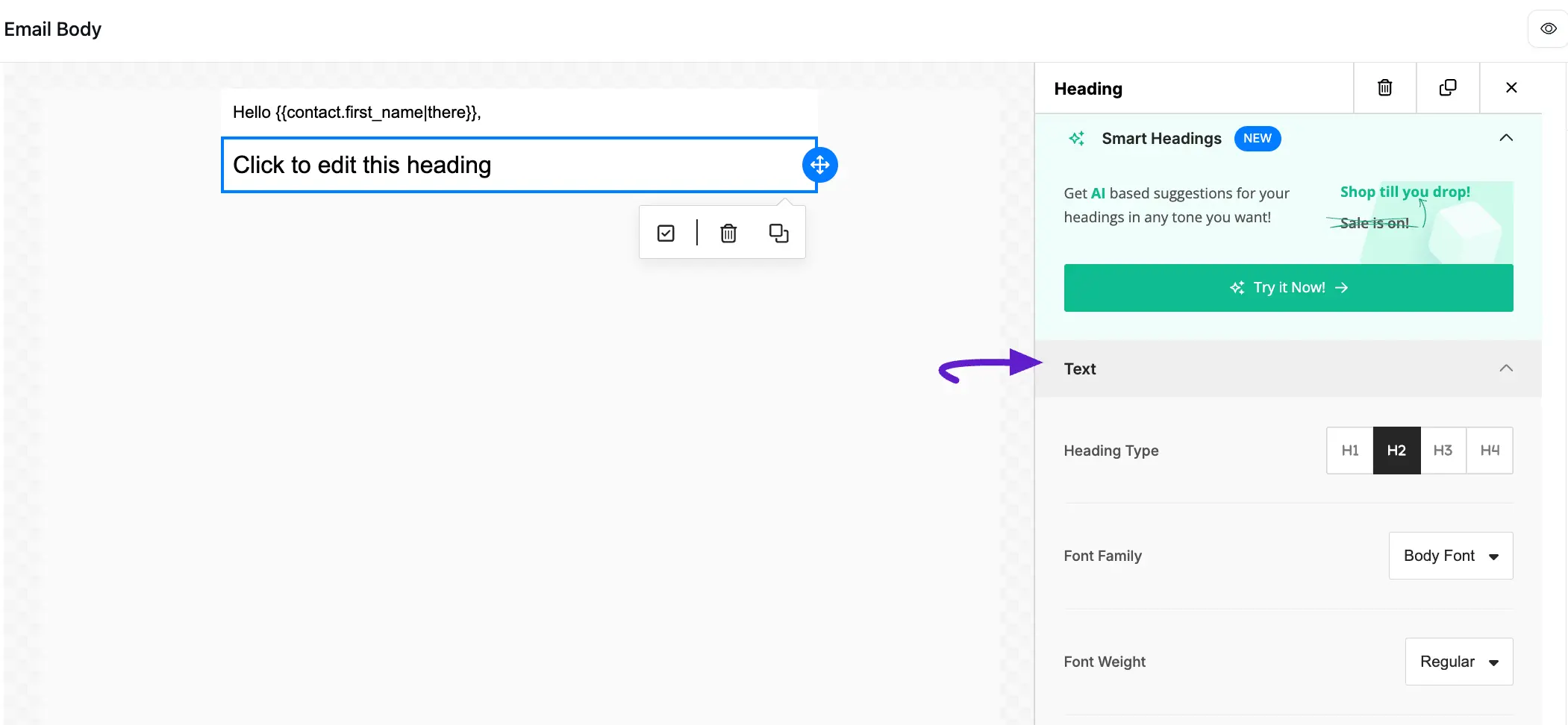
Text: Heading font options like font type, family, size, color, and other things are available here.
Links: If your heading have any link then you can customize the link options in this section
General: You can set the padding in the general section.
1.3 Images
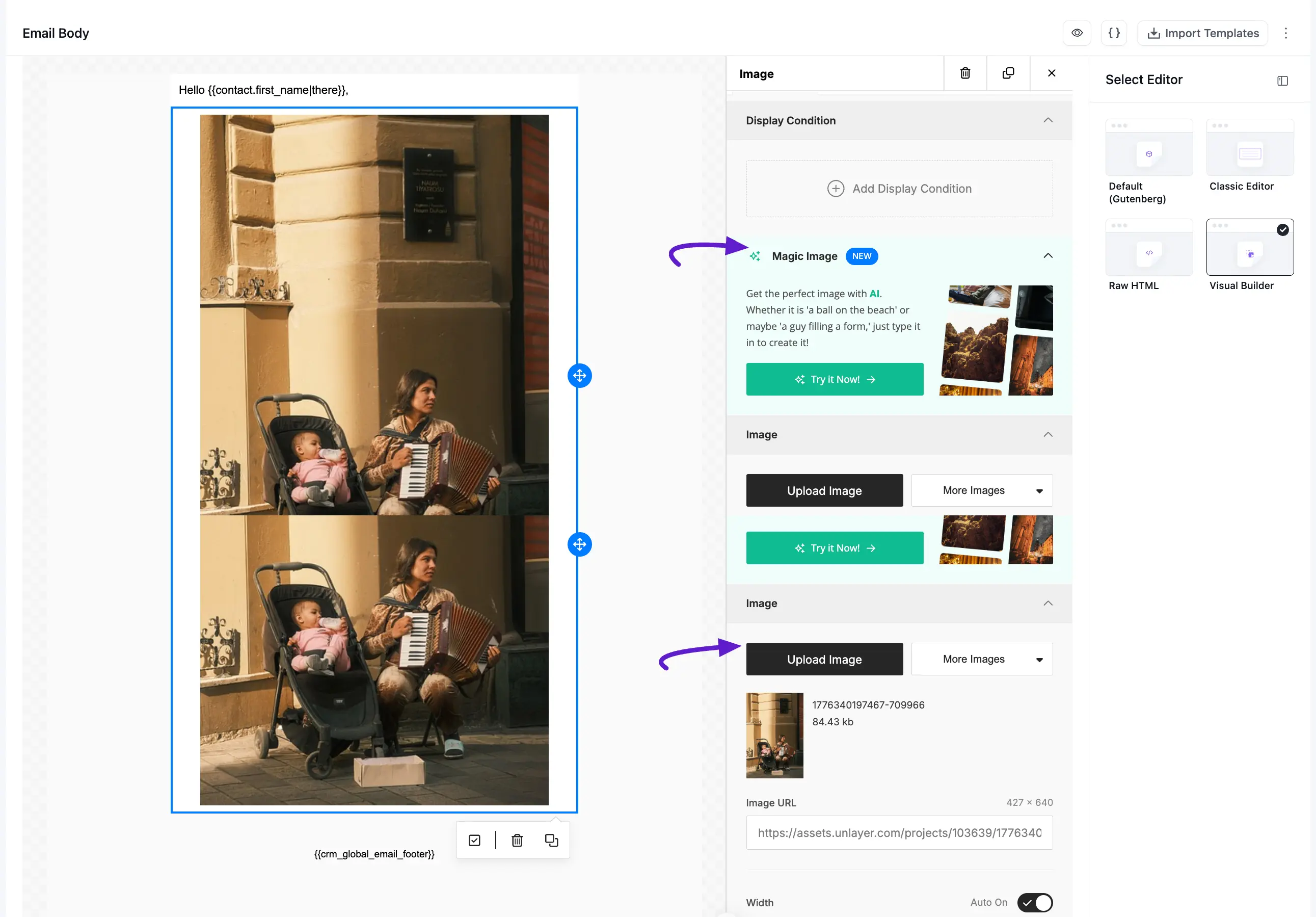
If you need to use an image in your body just simply add the Image from the Block section. You can directly upload the image from your device.
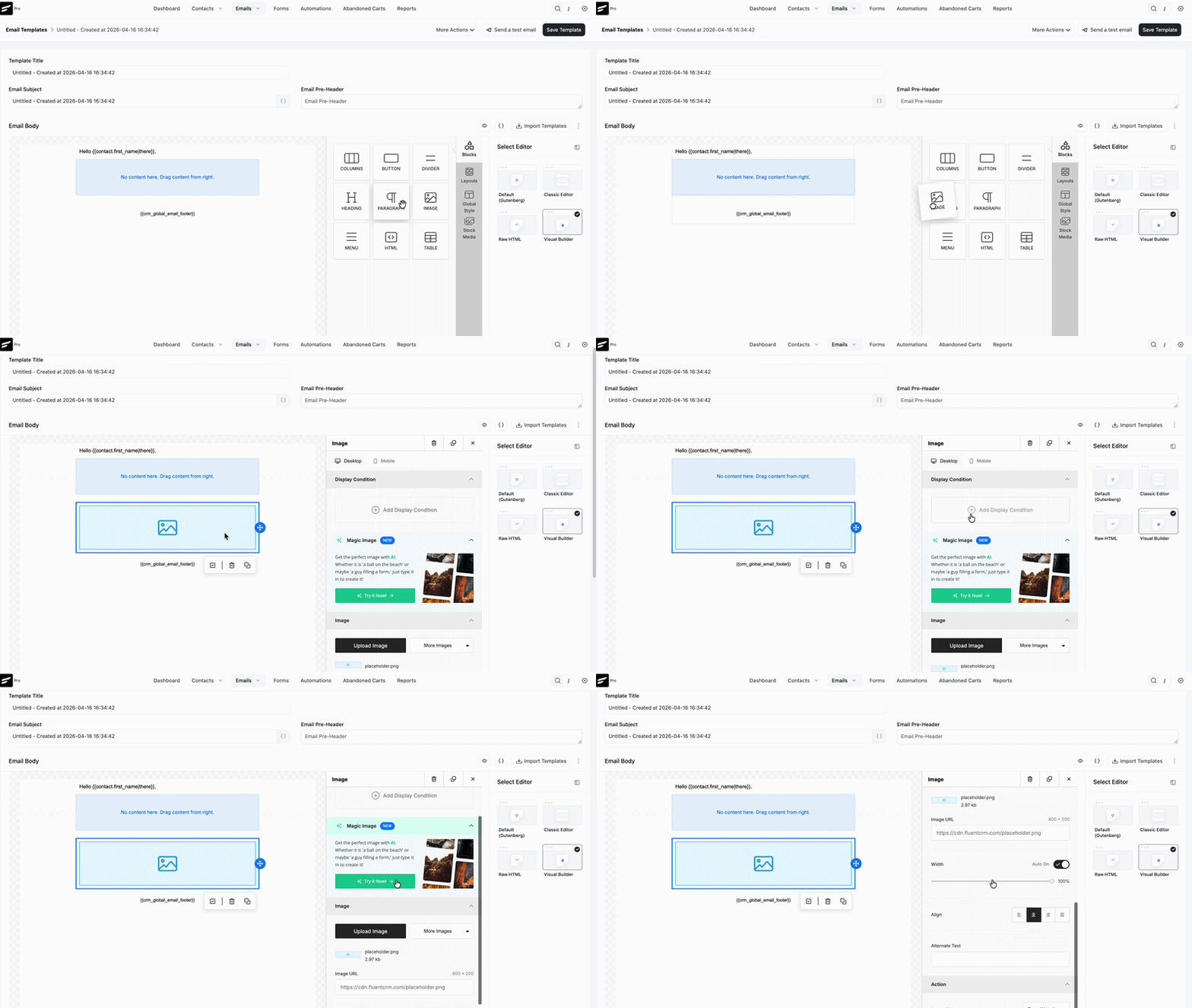
- Magic Image: Enter a description, and the built-in AI image generator will create a unique visual for you.
- Stock Media: Access millions of free photos from Unsplash, Pexels, and Pixabay directly within the editor. Also, you can set the image width to align manually.
- Action: To set any action for your image first select the Action from the right dropdown menu. Now give the required info in the input field following your action.
- General setting: This is for your container padding.
If you want to enable Hide on the desktop the image will be only shown on responsive devices.
1.4 Button
If you need an action button on your visual email body select the button from the option and place it in your email.
- Display Condition: Set the condition for your segmentation.
- Smart Buttons: If you want a Smart suggestion for your button just type your text and the AI will give you some suggestions for your button.
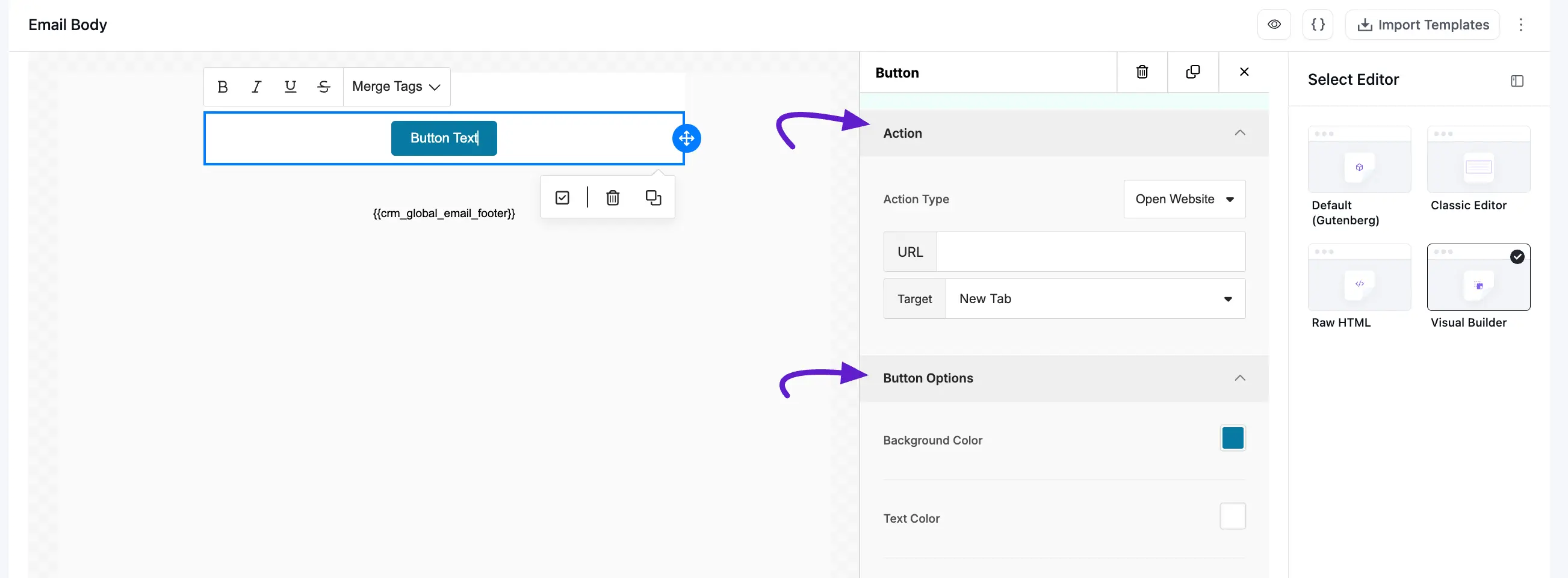
- Action: This option is for the action of your button. You can link any website URL, send emails, and call phone numbers with this button. Just set the action and customize the fields as required.
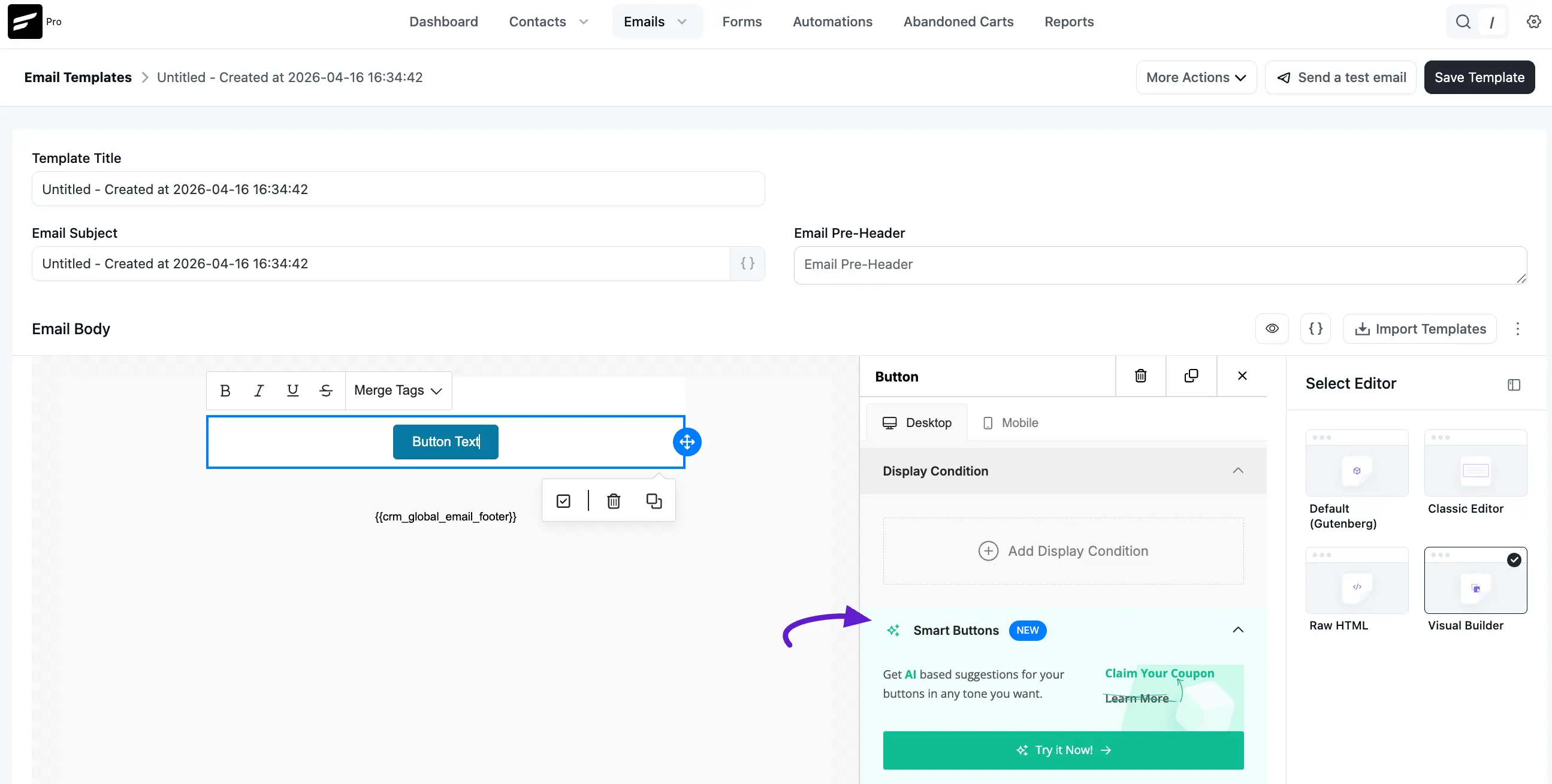
- Button option: For the color and alignment of your button go to the button option.
- Spacing: You can set the positioning of your button. Also, design the border of your button.
1.5 Divider
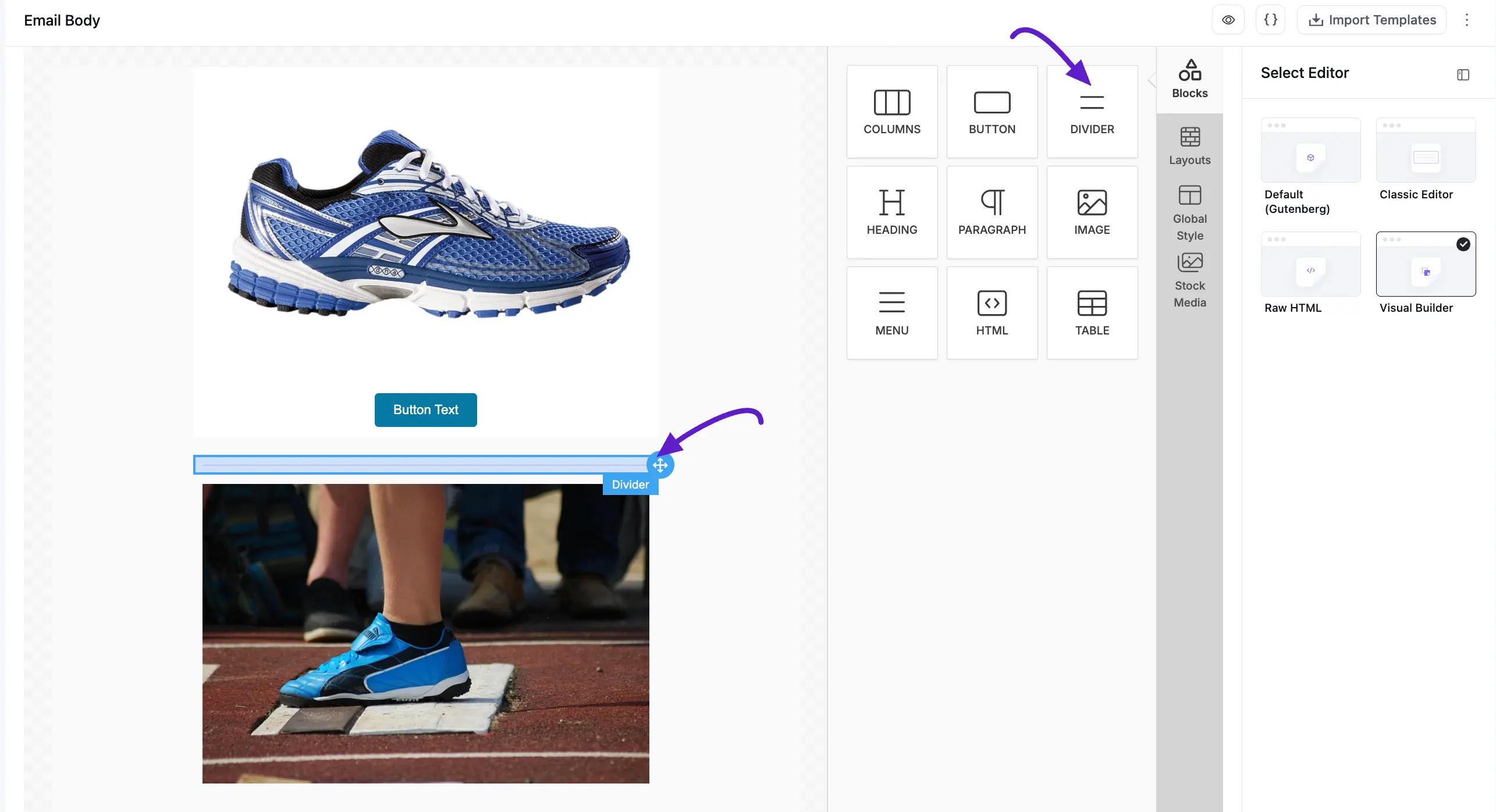
The divider is made for a visible divider line in the section. So if you want a divider on your email body. Select the divider section and drop it into your visual email.
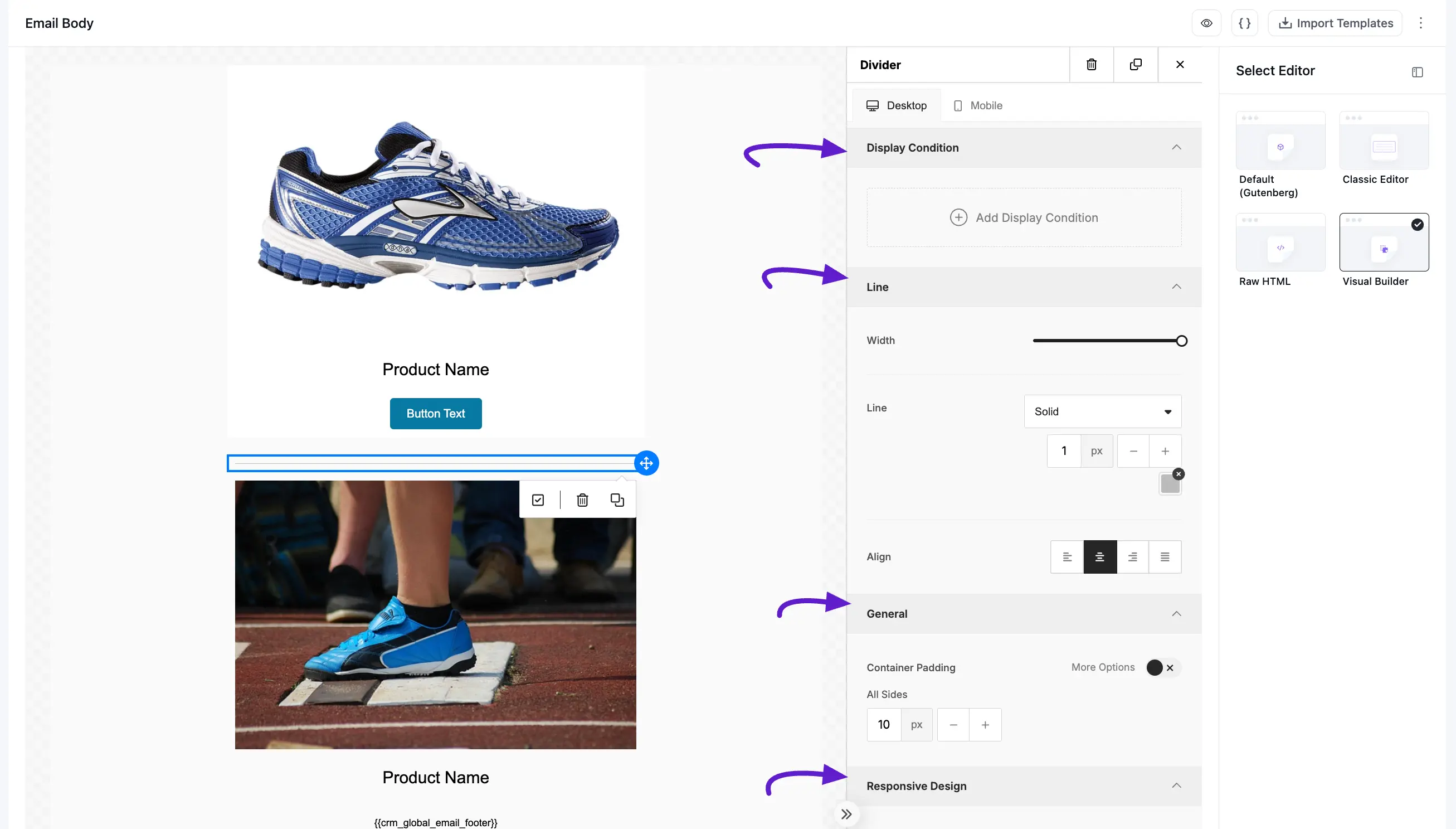
customize your divider from the options held on the right side.
1.6 HTML
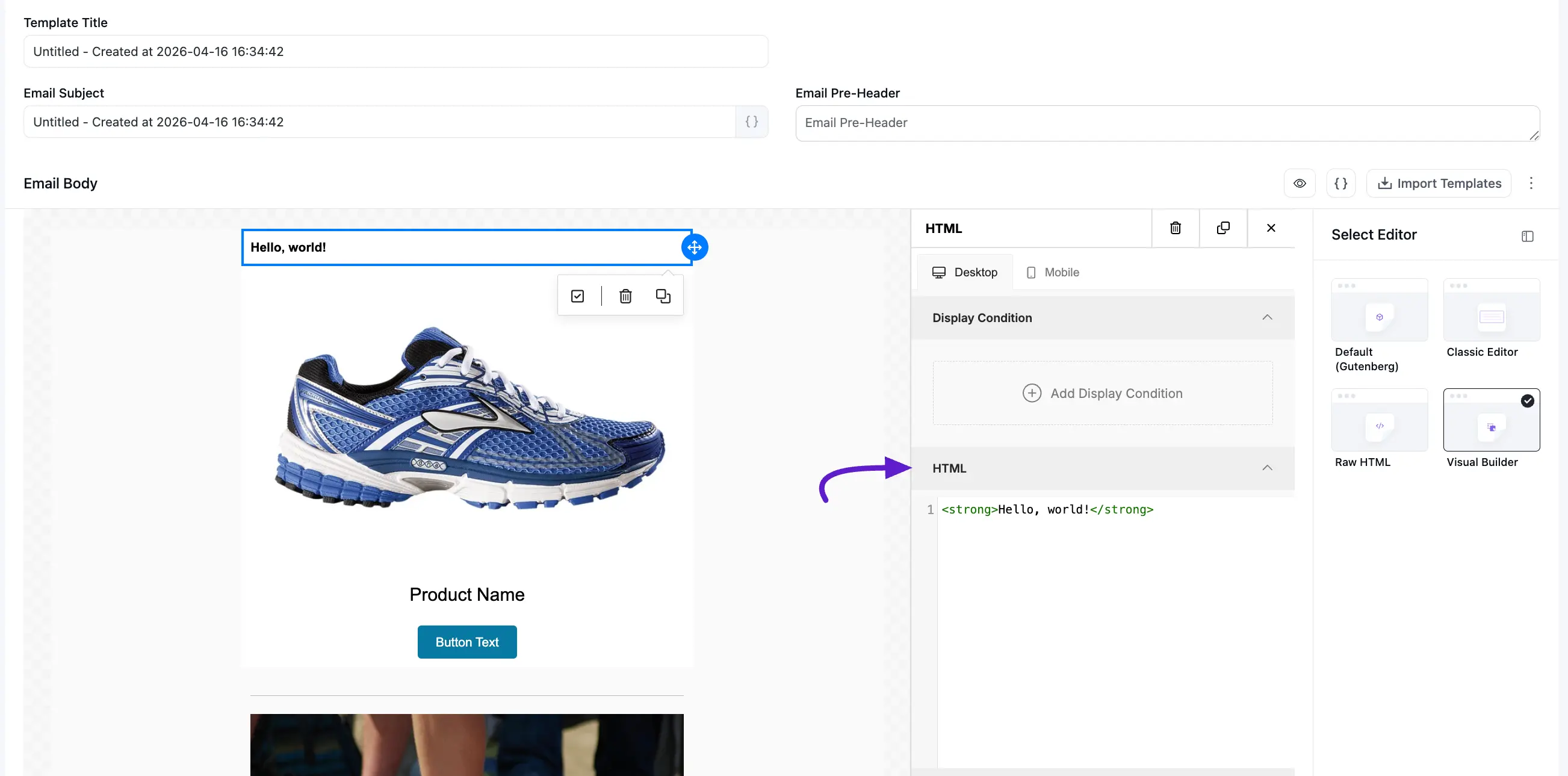
- HTML will allow you to use codes in your email template so you can design your visual email with your custom HTML and it can be changed by the HTML blocks.
1.7 Menu
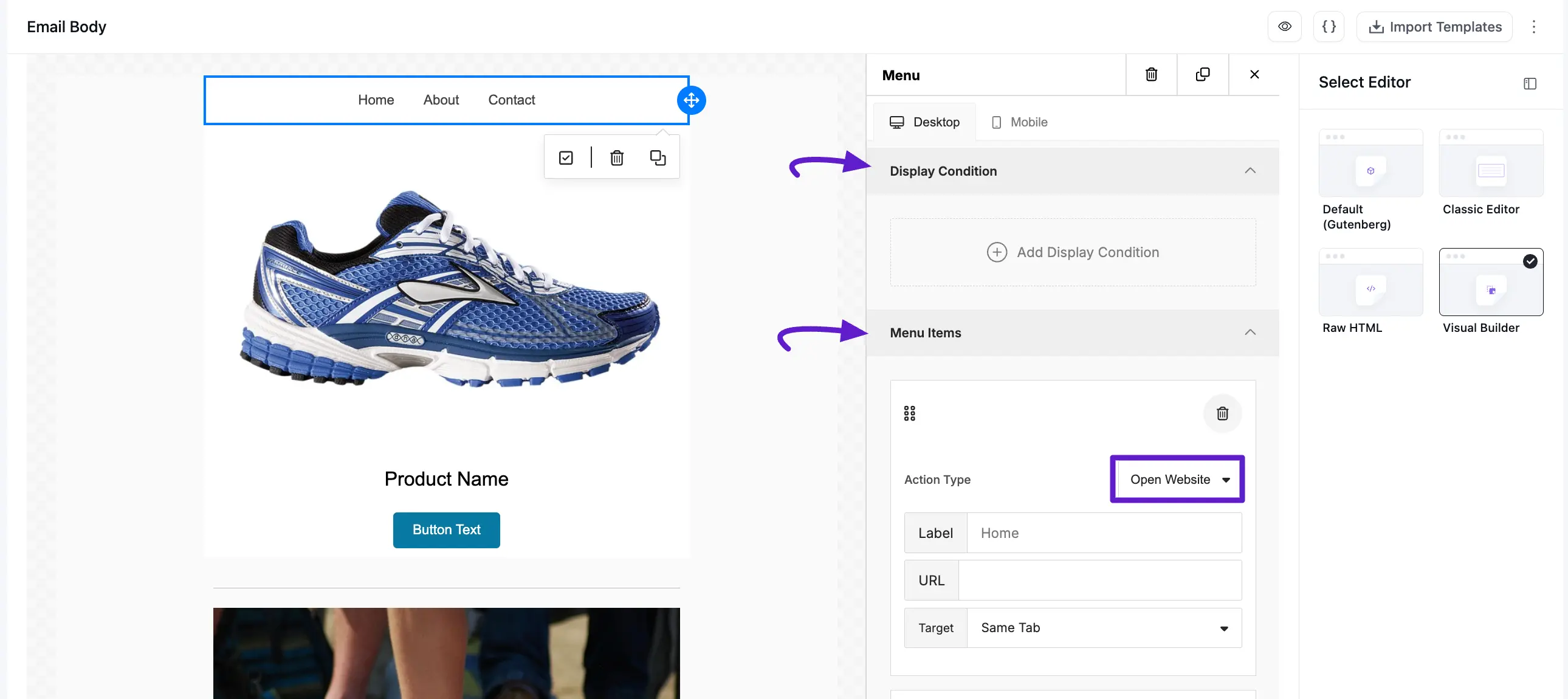
The Menu block allows you to add a navigation bar to your email.
- Menu Item: Type the menu name and set the action from the drop down list and customize the input field, if you need more menu items then press Add New item.
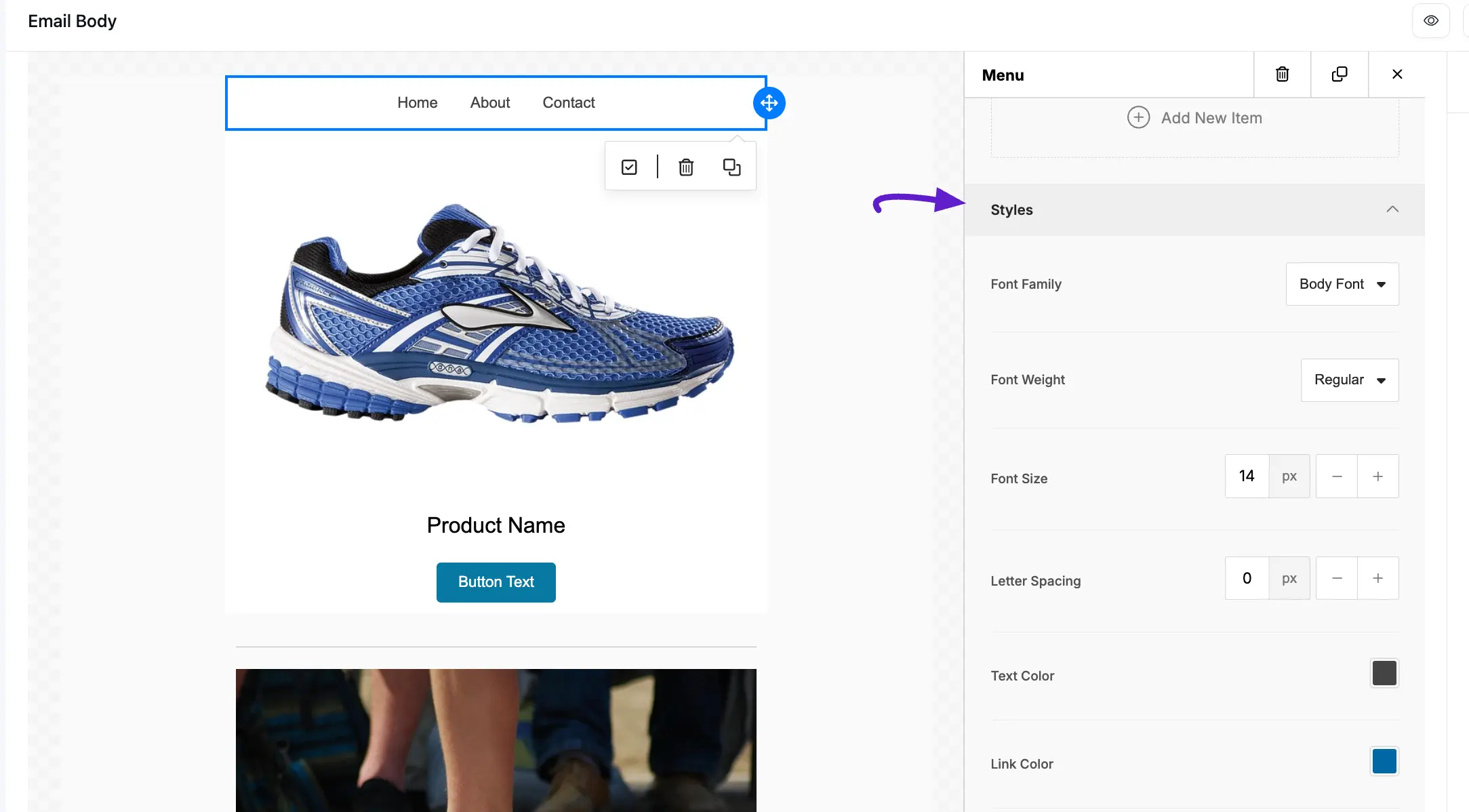
- Styles: Styles will give you the options to design your menu bar. You can change the font size, color, and link color and align them also.
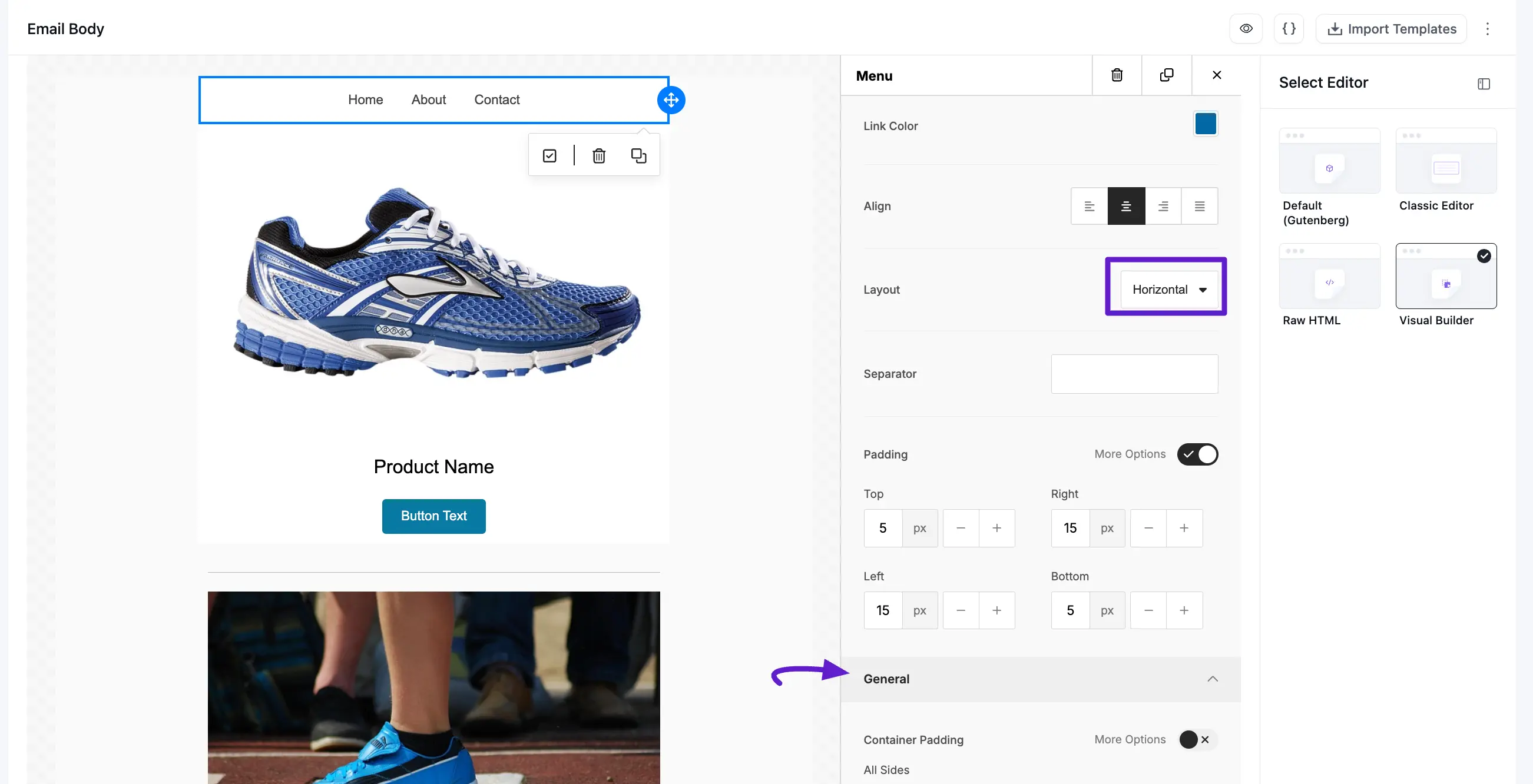
- General: General is for container padding.
- Layout: Switch between Horizontal or Vertical layouts and customize link colors.
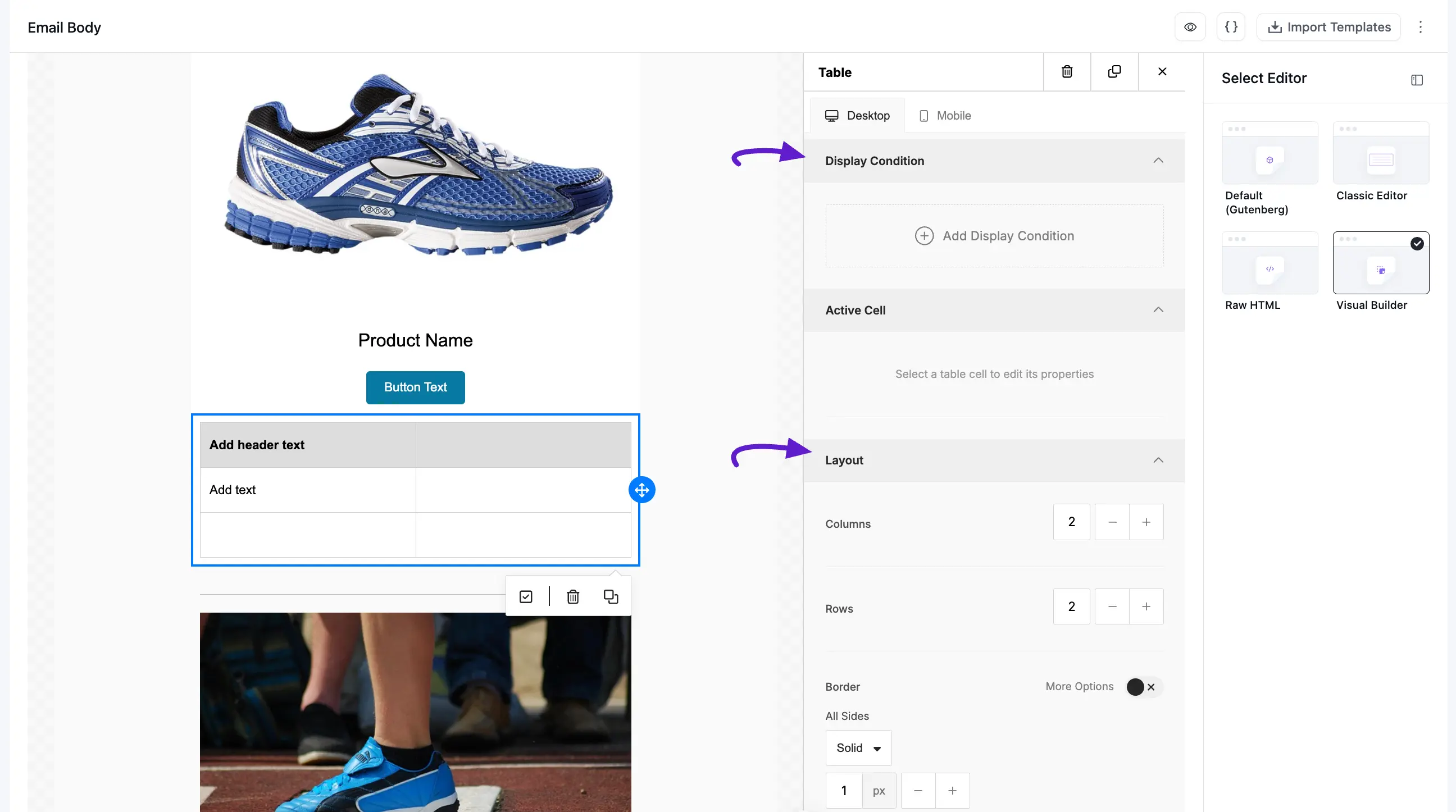
1.8 Table
The Table Block allows you to organize information into structured rows and columns within your email body.
- Display Condition: Set specific rules for who sees this table (e.g., segmenting by user tags or behavior).
- Active Cell: Click on any individual cell within the builder to edit its specific properties, such as background color or text alignment.
Layout:
- Columns & Rows: Use the + and – buttons to quickly add or remove columns and rows.
- Borders: Toggle borders on/off and adjust the style (Solid, Dashed, etc.) and thickness in pixels.
Layout
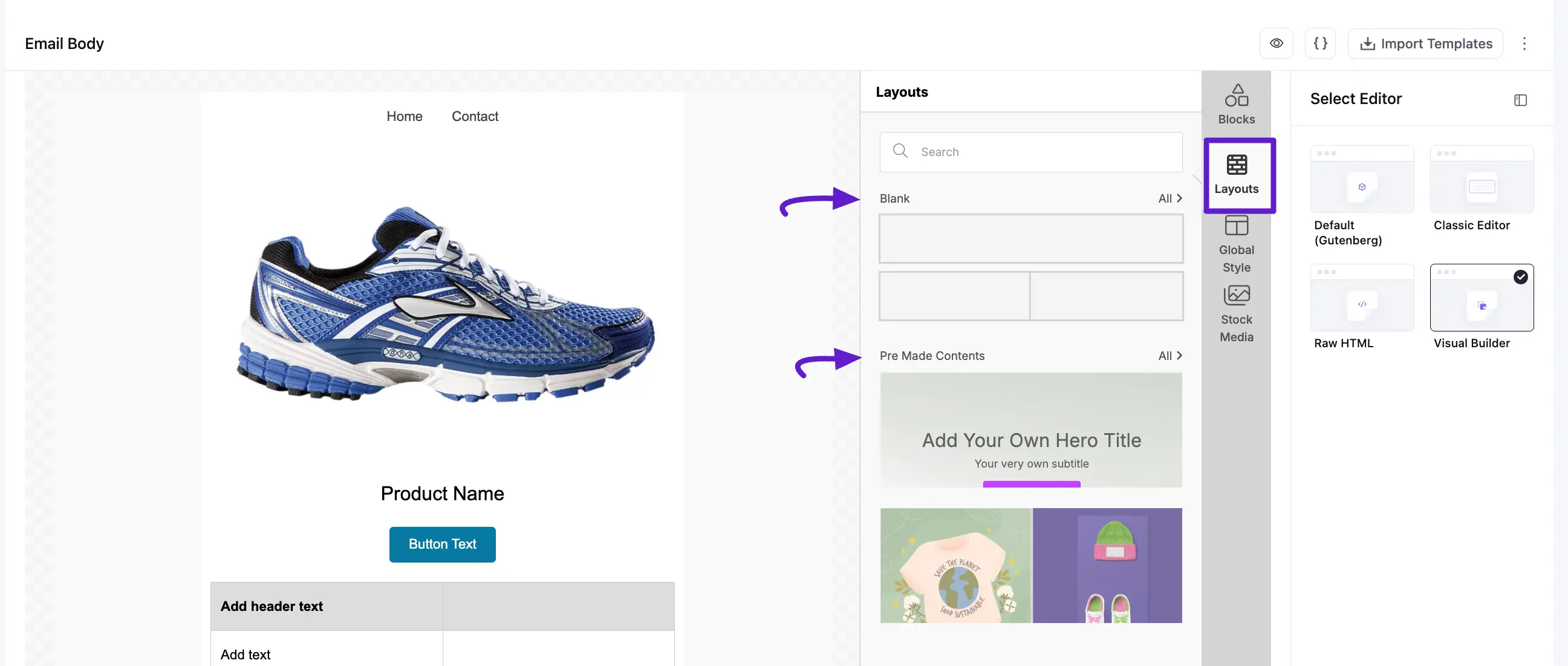
The Layouts tab provides pre-structured containers and content blocks to help you build your email design quickly.
From the sidebar, you can browse and drag the following into your email:
- Blank Layouts: Choose from various column structures (1-column, 2-column, etc.) to create a custom grid for your content.
- Pre-Made Contents: Access designed components like Hero sections, feature grids, and image-text combinations that are ready to use.
- Search Bar: Quickly find specific layout types by typing keywords into the search field at the top of the panel.
TIP
Use Global Styles (located below the Layouts tab) to ensure consistent padding, colors, and fonts across all the layout blocks you add.
Global Style
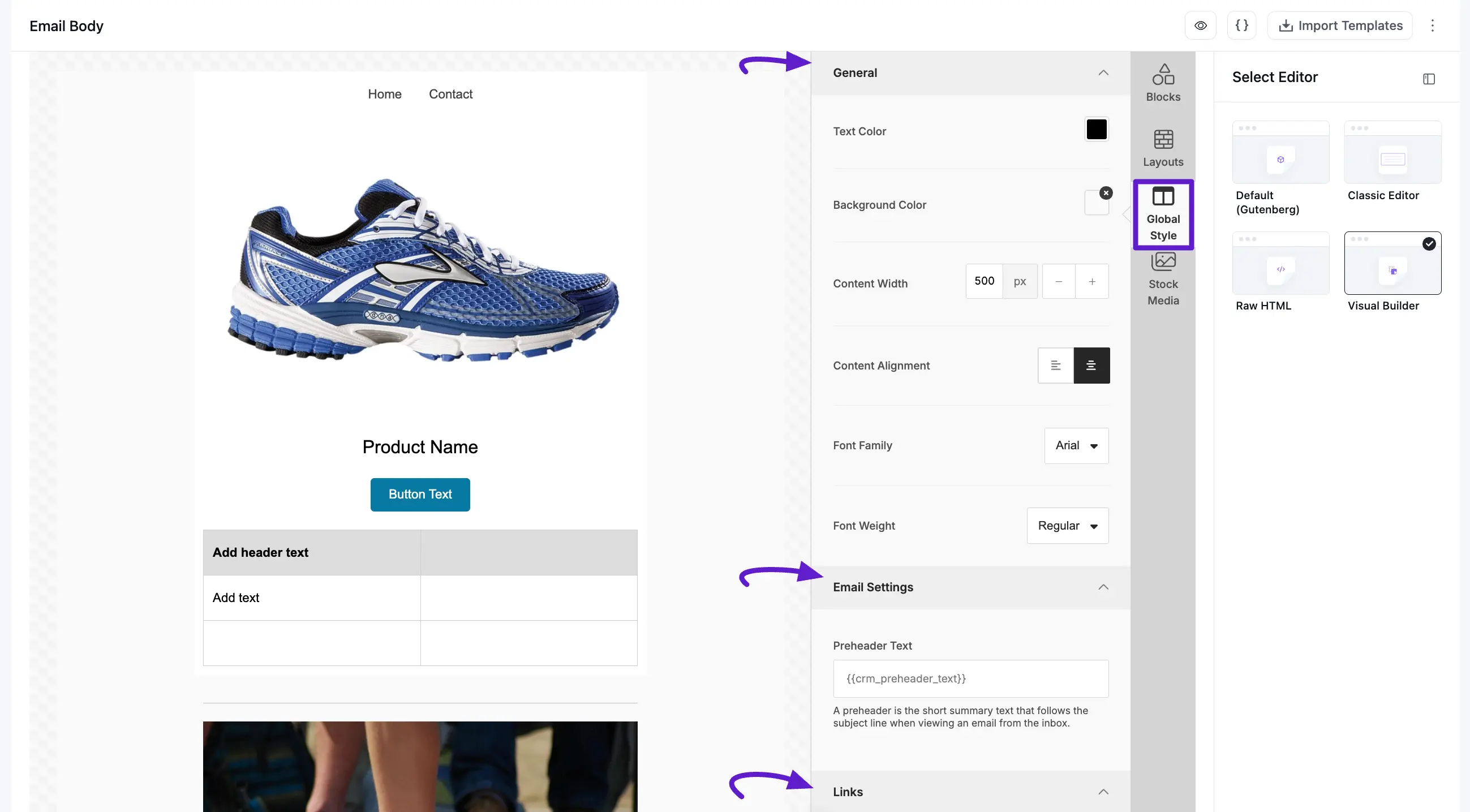
The Global Style tab allows you to define the universal look and feel of your email. Changes made here apply to the entire document, ensuring a consistent brand experience.
1.1 Typography & Canvas
- Content Width: Set the maximum width of your email body in pixels (e.g., 600px).
- Content Alignment: Choose whether your email content sits in the center or aligns to a side of the screen.
- Font Family & Weight: Select your primary brand font and its default thickness (e.g., Arial, Regular).
1.2 Email Settings
- Preheader Text: Add a short summary that appears after the subject line in a recipient's inbox. You can use dynamic tags like .
1.3 Links & Accessibility
- Links: Set a default color for all hyperlinks and toggle the Underline option on or off.
- Accessibility: Set an HTML Title for the email to improve screen reader performance and SEO.
NOTE
Individual block settings (like Table or Text colors) will override these Global Styles if specifically changed.
Stock Media and AI Images
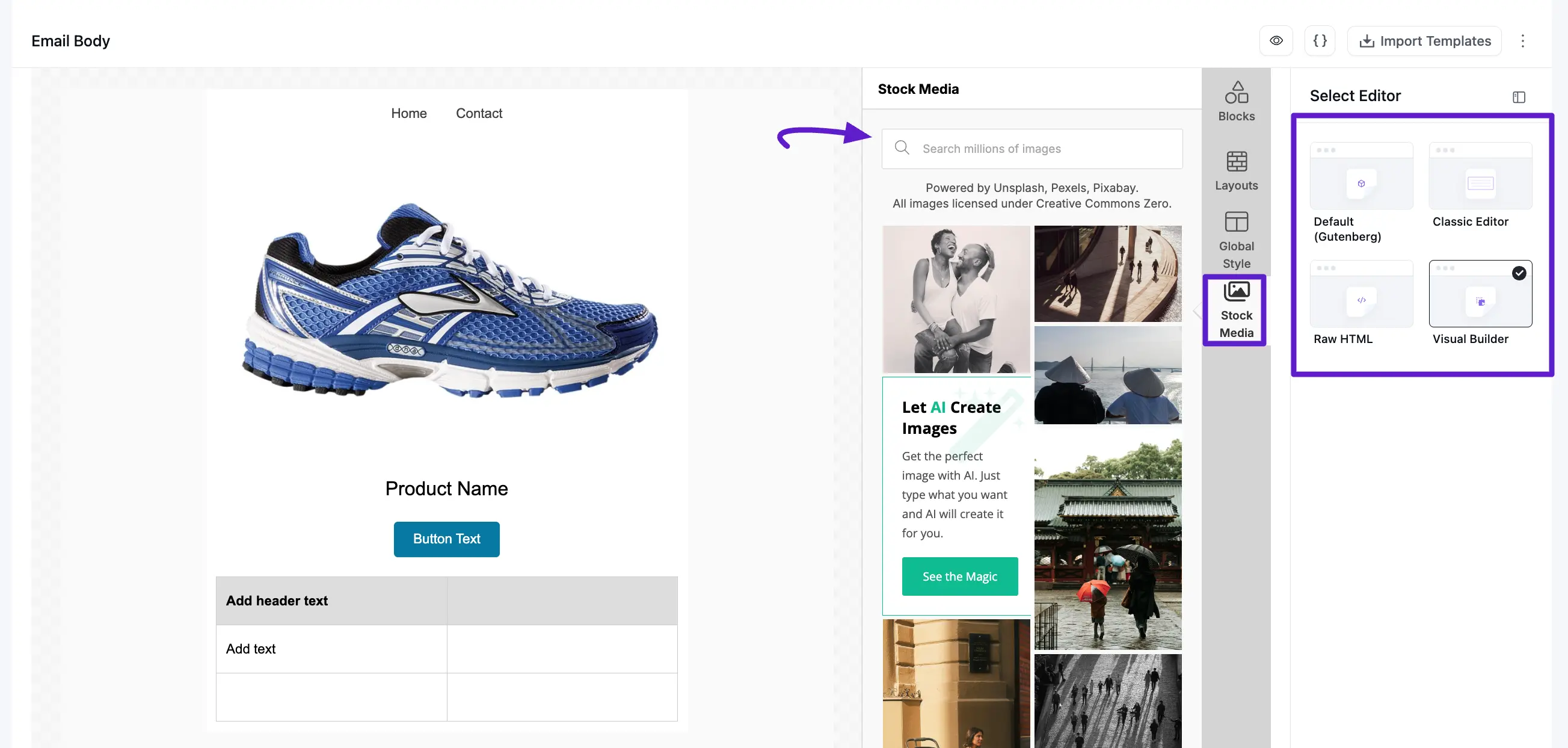
The Stock Media tab provides instant access to professional imagery and AI-powered generation tools to enhance your email's visual appeal.
Finding and Creating Visuals
- Search Library: Use the search bar to browse millions of high-quality, royalty-free images powered by Unsplash, Pexels, and Pixabay. All images are licensed under Creative Commons Zero for worry-free use.
- AI Image Generation: Click "See the Magic" to access the AI creation tool. Simply type a description of the image you want, and the AI will generate unique visuals tailored to your prompt.
- Drag and Drop: Once you find or create the perfect image, simply drag it from the sidebar directly into your email layout.
Switching the Editor
If you need to move between different editing environments, you can use the Switch Editor panel found in the right-hand Panels menu.
- Default (Gutenberg): A familiar block-based editing experience.
- Classic Editor: A traditional text-based editor.
- Raw HTML: For full code-level control.
- Visual Builder: The current drag-and-drop designer.
TIP
High-quality images can increase engagement, but always remember to add Alt Text to your images for better accessibility and deliverability.
Global Link Color Picker
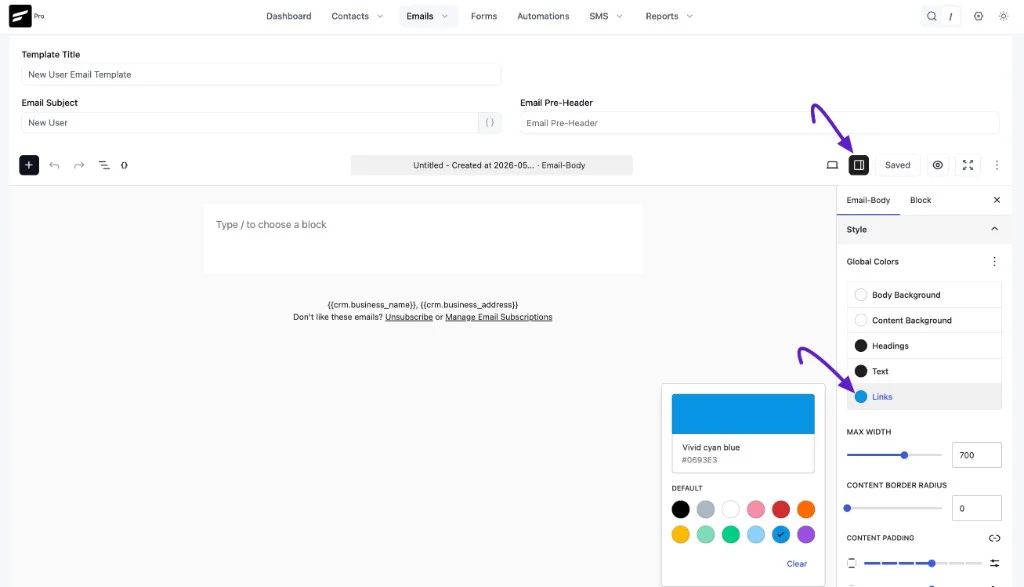
The Global Link Color Picker in the Default (Gutenberg) email editor lets you set one link color for the entire email so every hyperlink matches your brand — no need to style each block separately.
Set link color in Gutenberg mode
- Open an email in the Default (Gutenberg) editor (use Switch Editor in the right-hand panel if you're in Visual Builder or another mode).
- Click the sidebar icon in the top toolbar to open the right-hand settings panel.
- Open the Email-Body tab and scroll to the Style section.
- Under Global Colors, click Links to open the color picker.
- Choose your brand color and save the email. FluentCRM applies it to all hyperlinks when the message renders for sending.
The Style panel also includes global colors for Body Background, Content Background, Headings, and Text, plus layout controls such as Max Width, Content Border Radius, and Content Padding.
TIP
In Visual Builder (drag-and-drop mode), set the default link color under Global Style → Links & Accessibility → Links.