
Appearance
Integrated Contact Overview
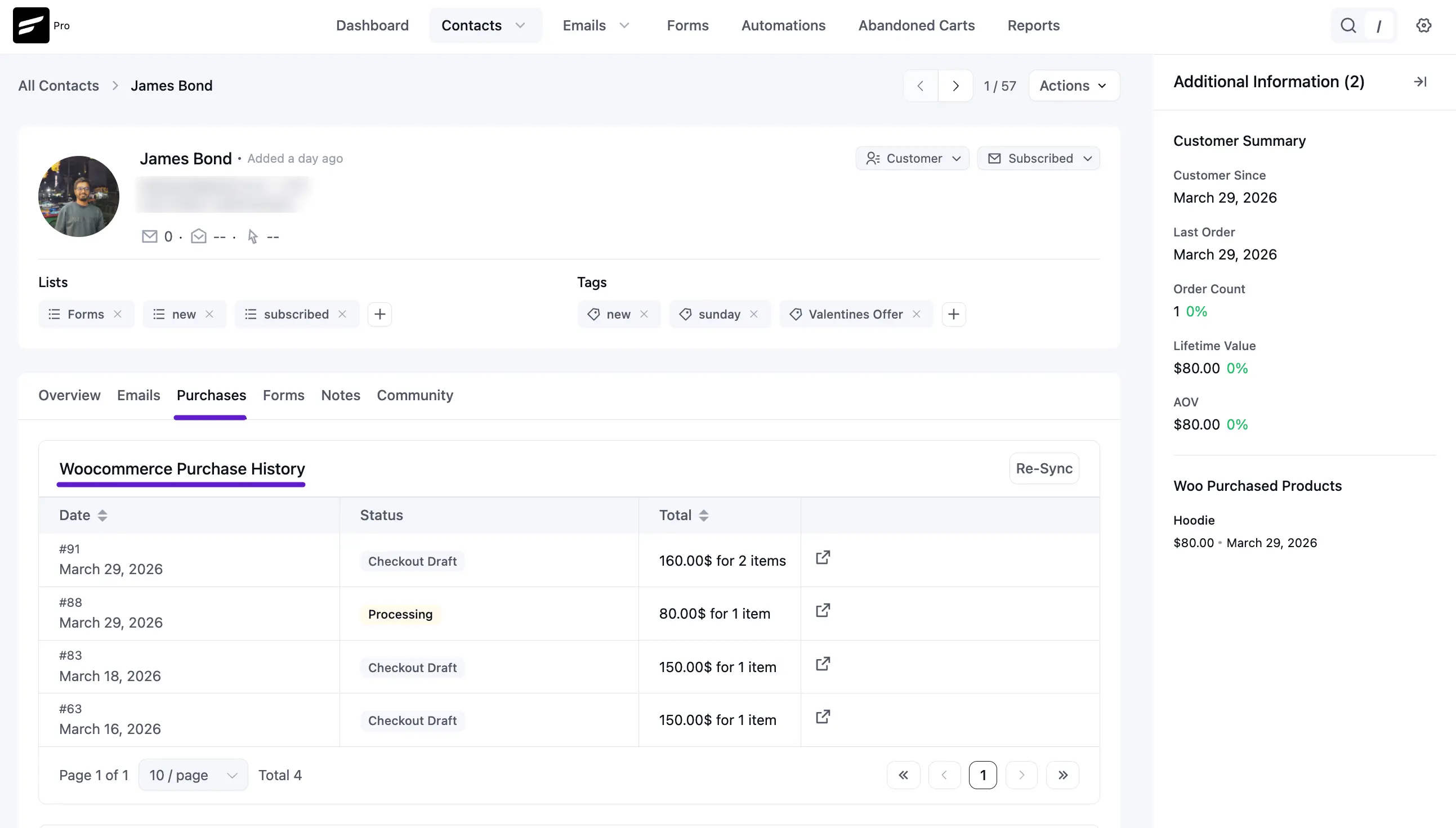
If you use e-commerce or payment plugins like WooCommerce or Paymattic, FluentCRM automatically gathers all your sales data into one place. This makes it easy to see exactly how much a customer has spent and what they have bought across different platforms.
WooCommerce Purchase History
When a customer buys something from your WooCommerce store, the details appear here automatically.
- Customer Summary (Right Sidebar): This gives you a quick calculation of the customer's value, including their First Purchase Date, Total Order Count, and Lifetime Value (total money spent).
- Purchased Products: You can see a list of the actual items they bought, the price, and the date they bought them.
- Order Table: The main table shows the Order ID, Date, and Status (like Processing or Completed). You can also see the Total price and the number of items. Click the External Link icon to view the full order in WooCommerce.
Paymattic Purchase History
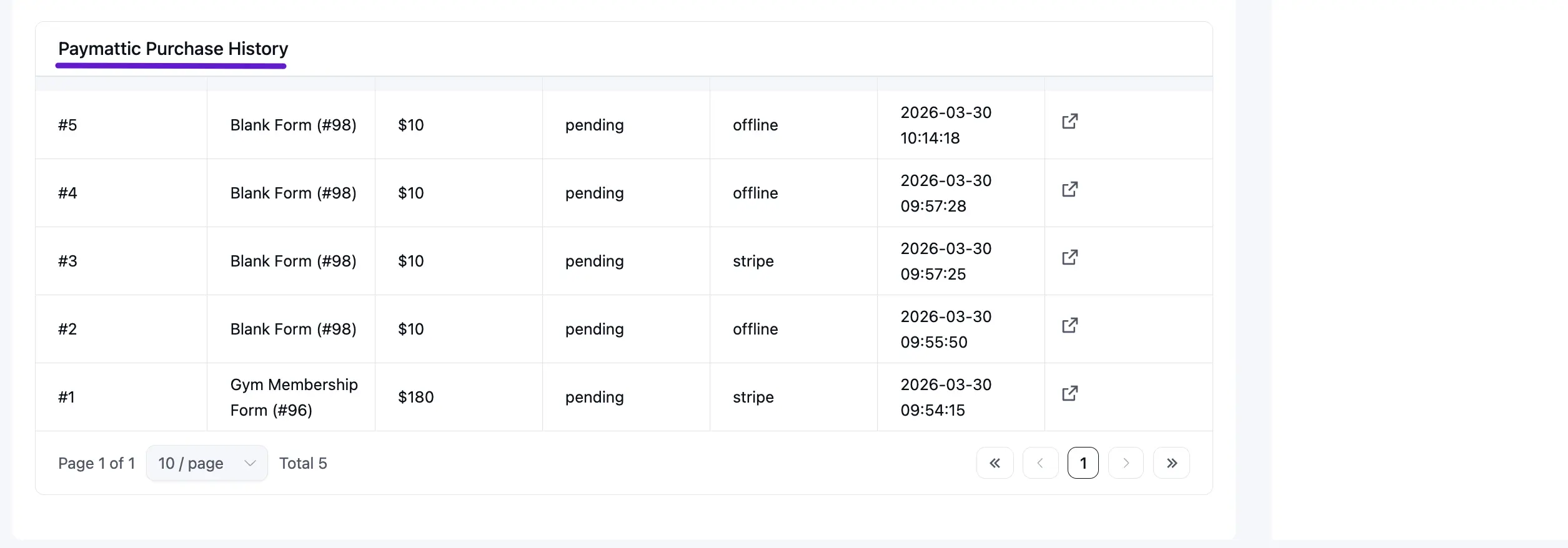
If you use Paymattic to accept payments or donations through forms, that history will also show up in this tab.
The Paymattic table includes:
- ID: The specific entry number for the payment form.
- Form Title: The name of the form used (for example, "Gym Membership Form").
- Payment Total: The exact amount of money paid through that form.
- Payment Status: Tells you if the payment is paid, pending, or failed.
- Payment Method: Shows how they paid, such as via Stripe, PayPal, or Offline.
- Submitted At: The exact date and time the payment was made.
- Action: Click the View icon to see the complete payment details and customer information inside the Paymattic dashboard.
To know about Payment Details of the Paymattic Form, click here.