Appearance
Miscellaneous Actions
FluentCRM includes multiple automation action groups such as Primary, WordPress, Email, WooCommerce, LMS, Goals or Benchmarks, and Conditional.
In addition to those, it also provides Miscellaneous Actions like Fluent Support integration.
This guide explains how to use the Fluent Support Action inside FluentCRM automations.
To use the Fluent Support action, you must install and activate the Fluent Support plugin on your WordPress site.
You can follow these installation guides for Fluent Support Free and Fluent Support Pro.
Fluent Support Action
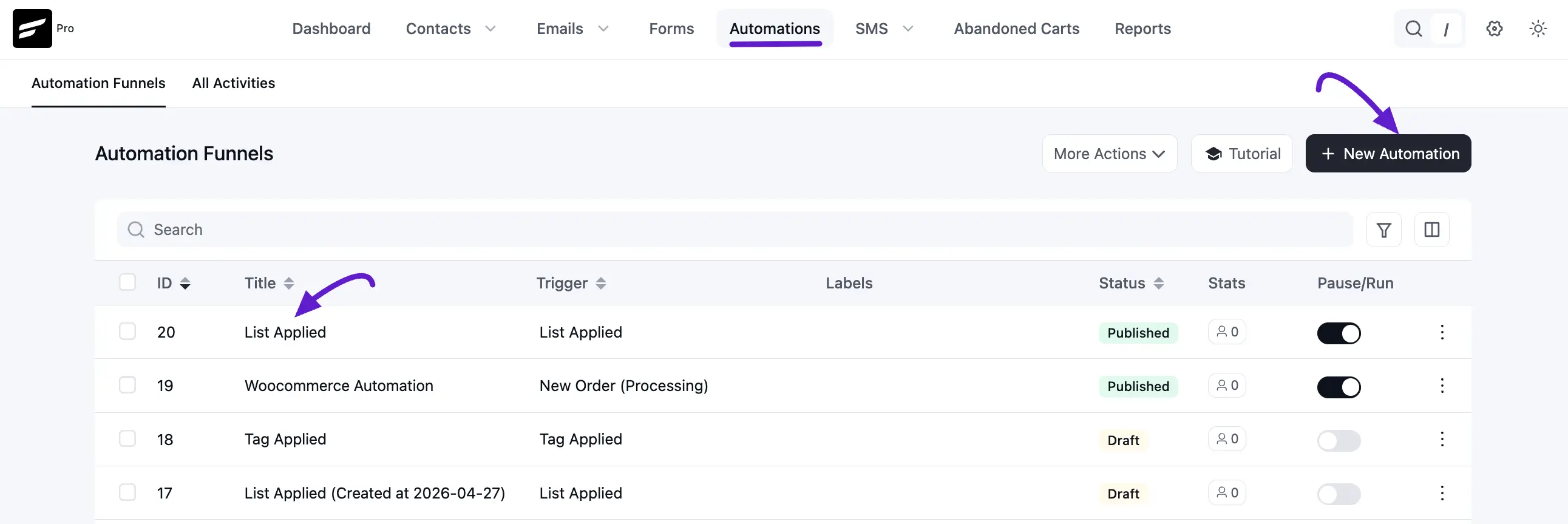
First, go to the Automation section from the FluentCRM Navbar, and open your desired Automation by clicking on its title. Or, create a new one by clicking the + New Automation.
To learn how to create a new automation funnel, read this Documentation.
For example, I opened the List Applied automation funnel to explain all the Actions in CRM.
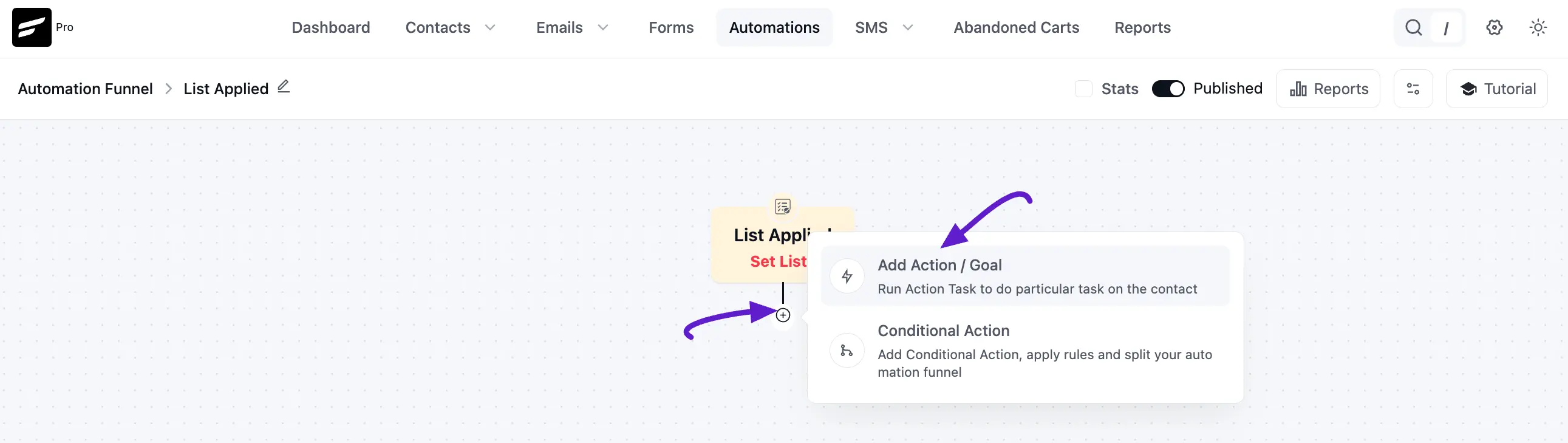
Now, click the Plus Icon, or just hover over it and click the Add Action / Goal option to get all the LMS Actions.
Now, a pop-up page will appear with the Fluent Support Action Blocks.
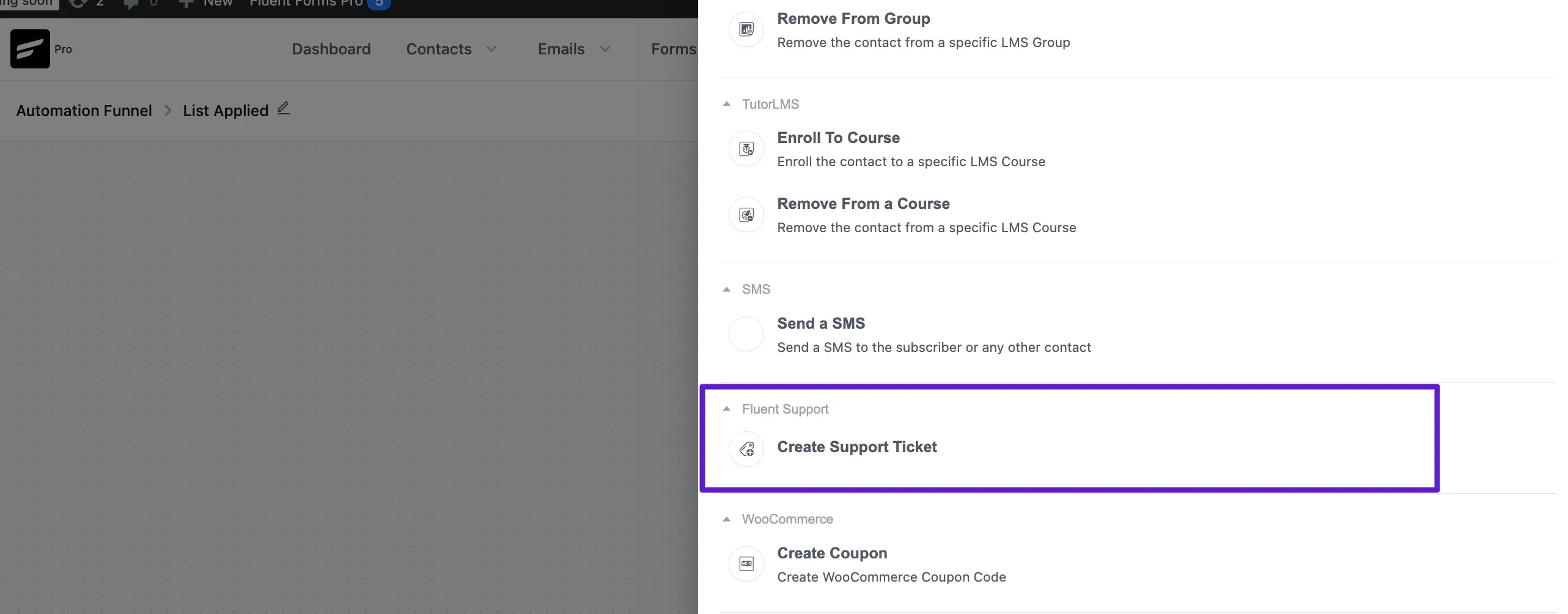
Create Support Ticket
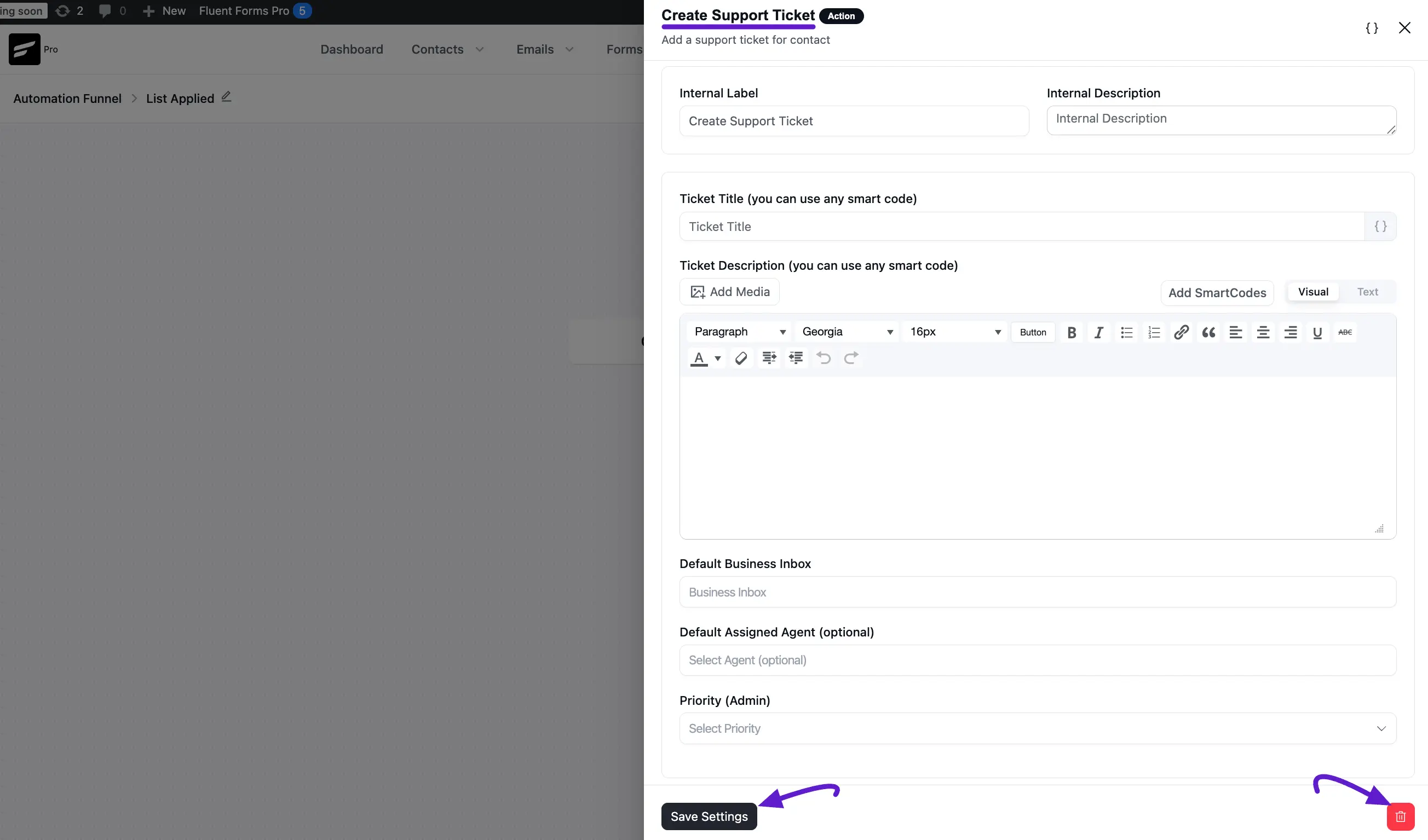
This action lets you Add a support ticket for contact.
After selecting this Action, a tab will appear on the right-hand side with options to set up your action.
Here, are the Settings of the Create Support Ticket Action
Interval Label: Here, a Name for the Action will be automatically added so you can easily find it later. You can change it according to your needs.
Internal Description: Write a description that will be used as a Subtitle in the Block Diagram in the Automation Editor.
Ticket Title: Add the Title for the ticket so you can easily find it in Fluent Support Tickets section. You can also use SmartCodes by clicking the Three-dot-icon.
Ticket Description: Also, add a Description or Ticket Body (i.e., content you want to add in the ticket). Here, also you can use the SmartCodes by clicking the Add SmartCodes dropdown arrow.
Default Business Inbox: Using this option, you can set the default business inbox where the ticket will be created. To learn more about the Business Inbox field, read this Documentation of Fluent Support.
Default Assigned Agent: This allows to assign support agent for the tickets that will be created in Fluent Support. To learn more about the Support Agent/Staff field, read this Documentation of Fluent Support.
Priority (Admin): With this option, you can set the priority level for your tickets and it will only visible to the Support Admin. To learn more about the Priority (Admin) field, read this Documentation of Fluent Support.
Once you are done, click the Save Settings button to save all your changes.
You can also Delete the action by clicking the Trash Icon if needed.