
Appearance
Conditional Sections in Email Editor
FluentCRM’s Conditional Section block is a powerful tool for advanced personalization. Instead of creating multiple separate emails for different audiences, you can design a single email that "shifts" its content based on who is reading it. This ensures that every subscriber only sees the information that is relevant to them.
Add a Conditional Section
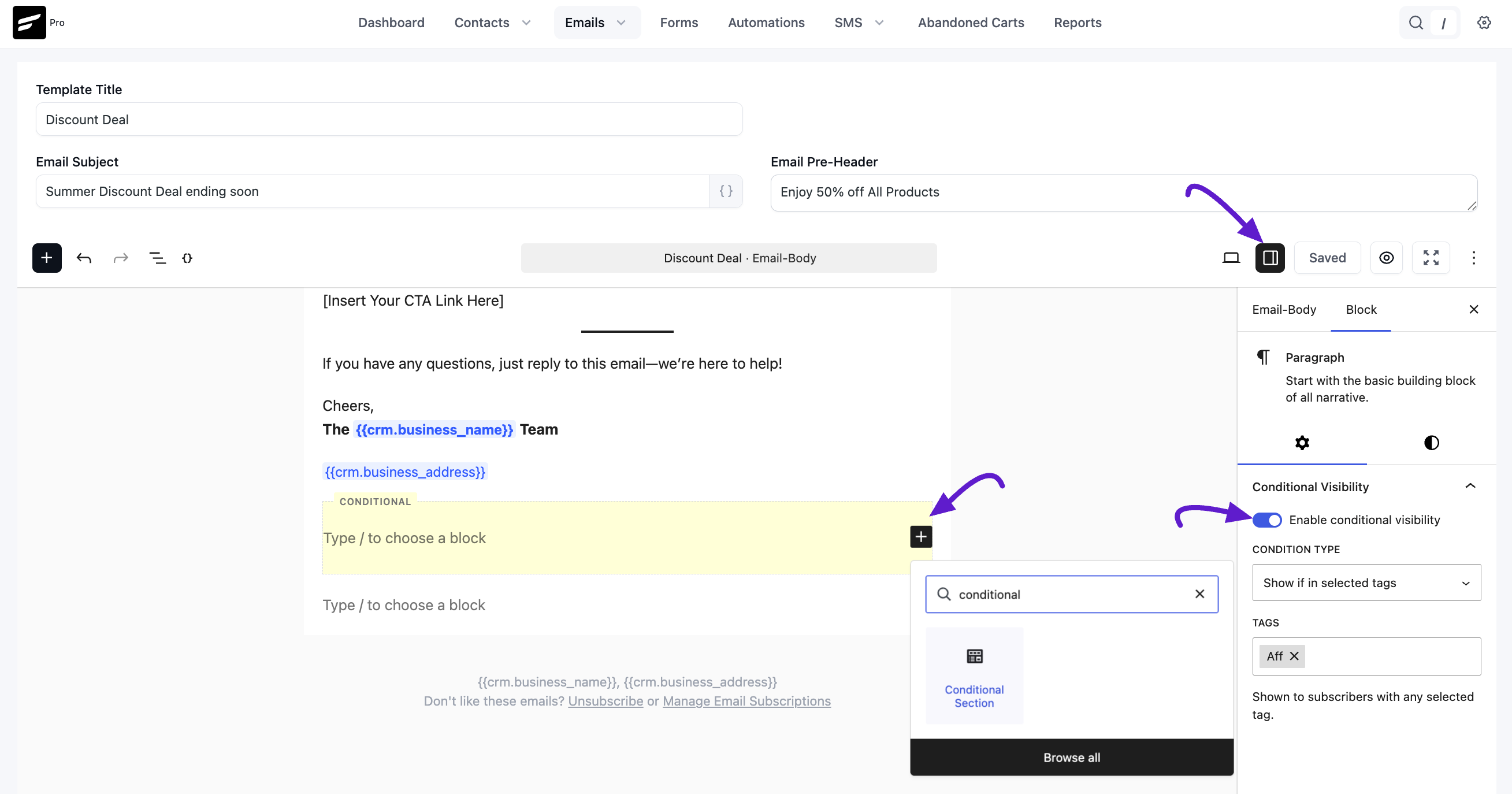
In the Email Editor, click the + (Plus) icon or type "/conditional" to find and insert the Conditional Section block.
Once the block is added, you will see a highlighted area (yellow in the editor) where you can Type / to choose a block. You can place any standard block like text, images, or buttons inside this section.
Configuring Visibility Settings
When the Conditional Section is selected, the Block settings sidebar on the right will show the Conditional Visibility options:
Enable conditional visibility: Toggle this switch to On to start applying rules to the section. Condition Type: Choose how you want the tags to trigger the content:
- Show if in selected tags: The content will only be visible to subscribers who have the tags you specify.
- Show if not in selected tags: The content will be hidden from anyone who has the selected tags but shown to everyone else.
Tags: Select one or multiple tags from your database. For example, you might select an "Affiliate" tag to show a special bonus offer only to your partners. To know more about Tags please check the Segmentation Guide.
Once you sent the email as an Email Campaign, you will then be able to see the actual email that was generated and delivered to the recipients.
Remember that, The Conditional Sections do not support nesting. You can add one single block to each conditional block from any of the Text, Media, Design, or Widget Blocks.