
Appearance
Migrating from Drip to FluentCRM
Moving your contacts from Drip to FluentCRM is incredibly simple thanks to a direct API connection. This method allows the two systems to sync directly, so you don’t have to worry about manual downloads or messy CSV spreadsheets.
Follow this friendly, step-by-step guide to bring your audience over in just a few clicks.
Step 1: Get Your Connection Credentials from Drip
First, you need to grab two pieces of information from your Drip account so FluentCRM has permission to securely access your contacts.
- Log in to your Drip account.
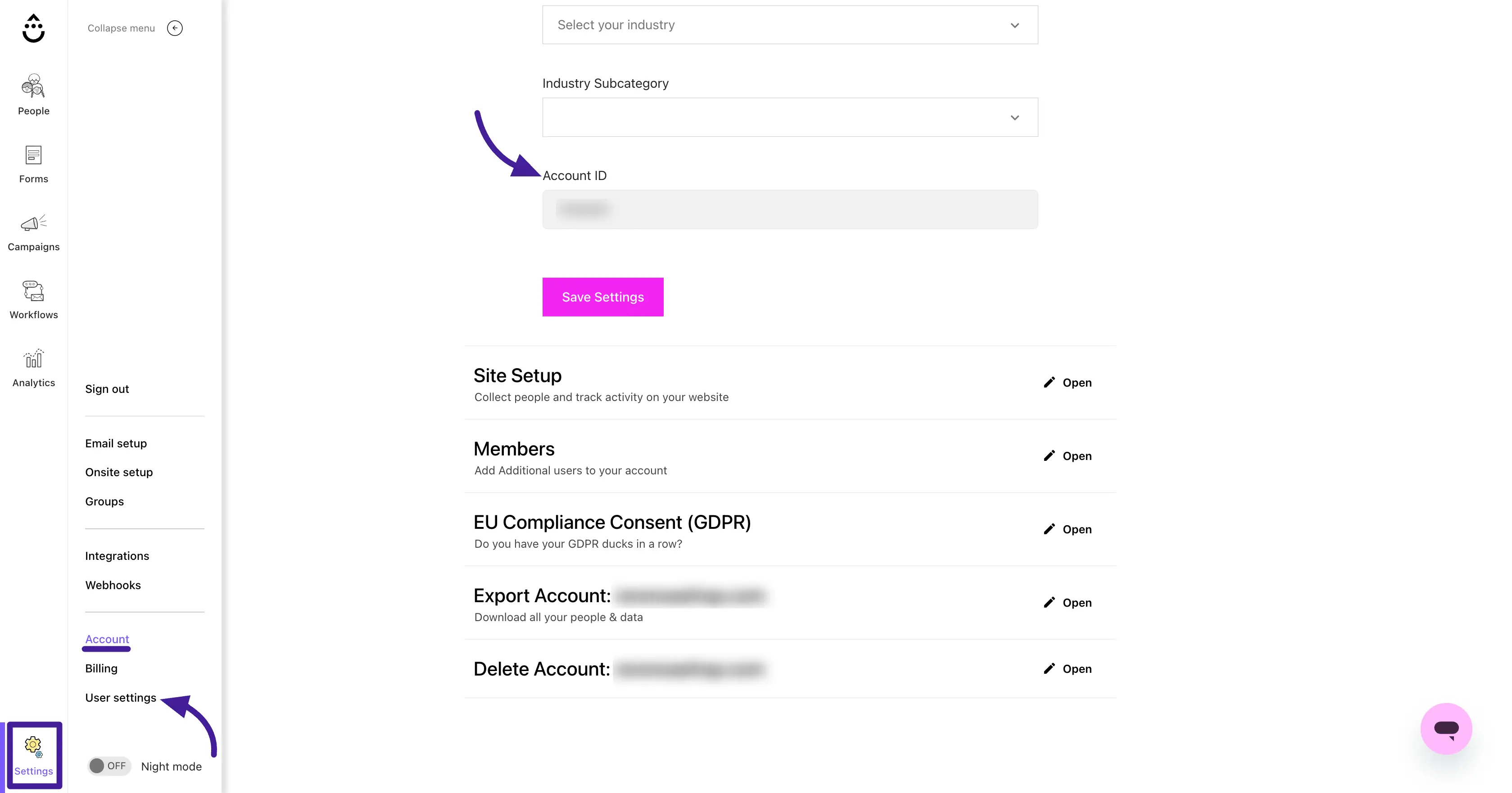
- Click the Settings click on the Account.
- On this page, you will see your Account ID. Copy this down.
- Now again go the setting and in the bottom-left corner of your dashboard and select User settings.
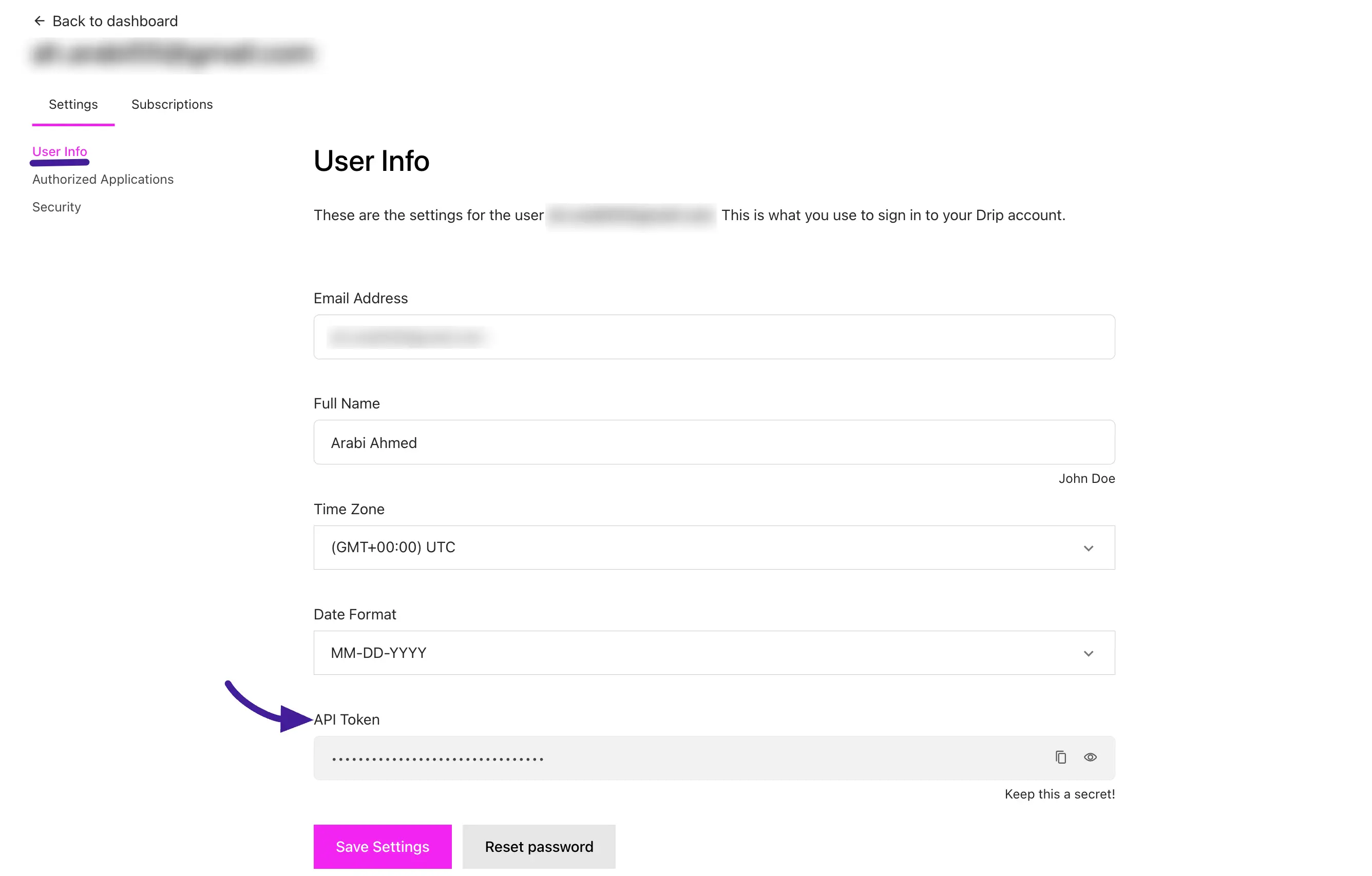
- Next, scroll down to find your API Token. Copy this token as well. Keep both of these handy for the next step.
Step 2: Initiate the Import in FluentCRM
Now, let's head over to your WordPress dashboard to start the migration.
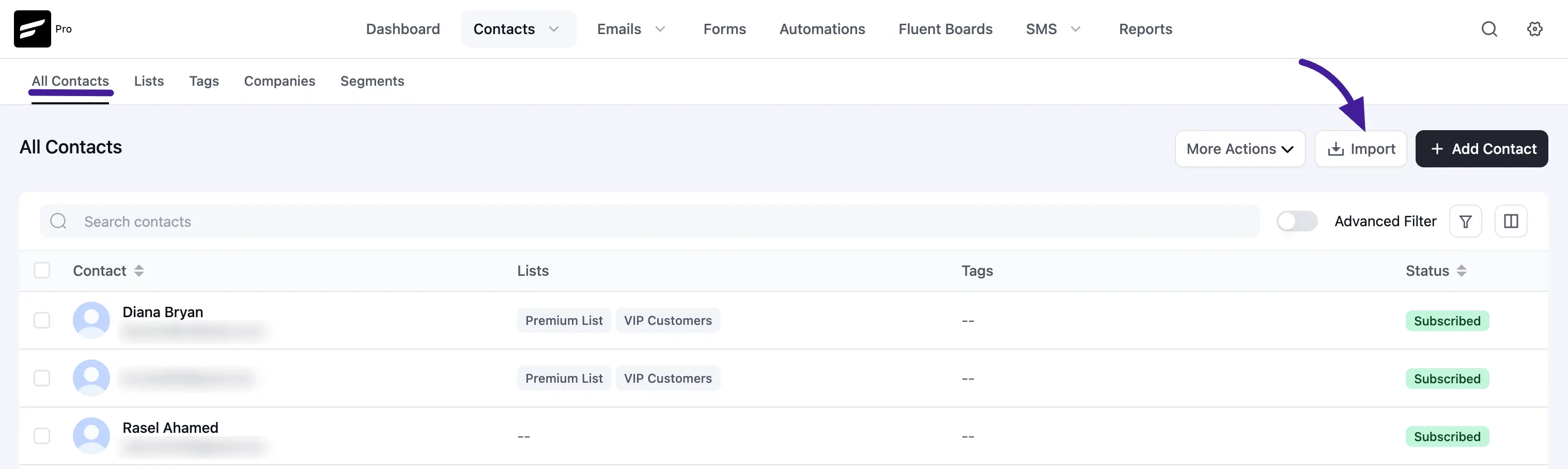
- Go to FluentCRM → Contacts and click the Import button at the top right.
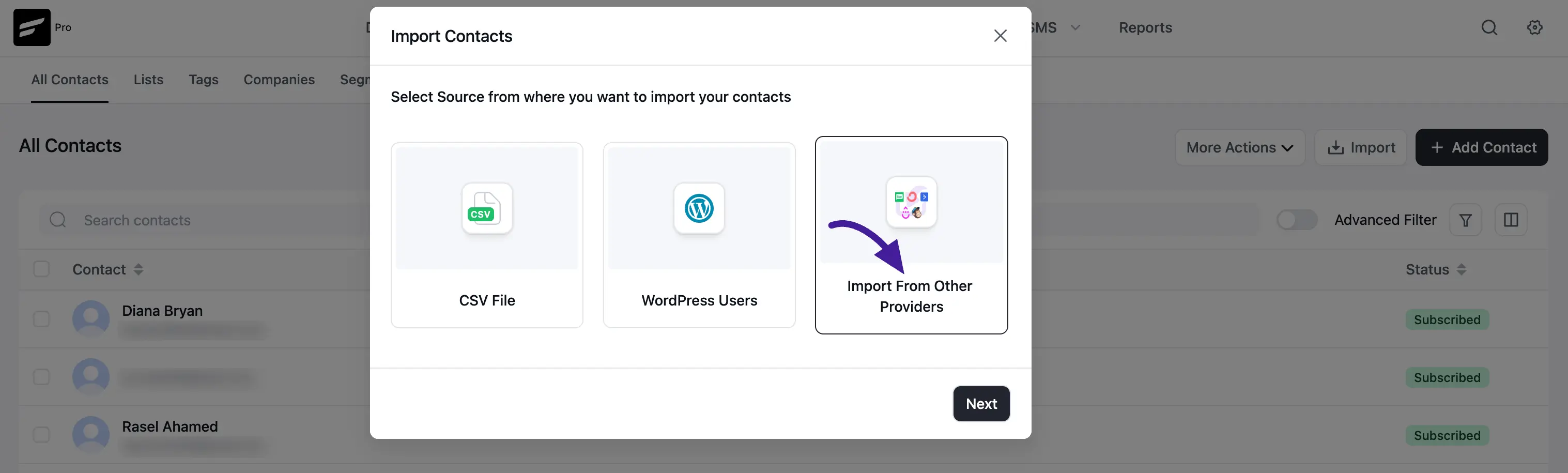
- A window will pop up. Select the Import From Other Providers option and click Next.
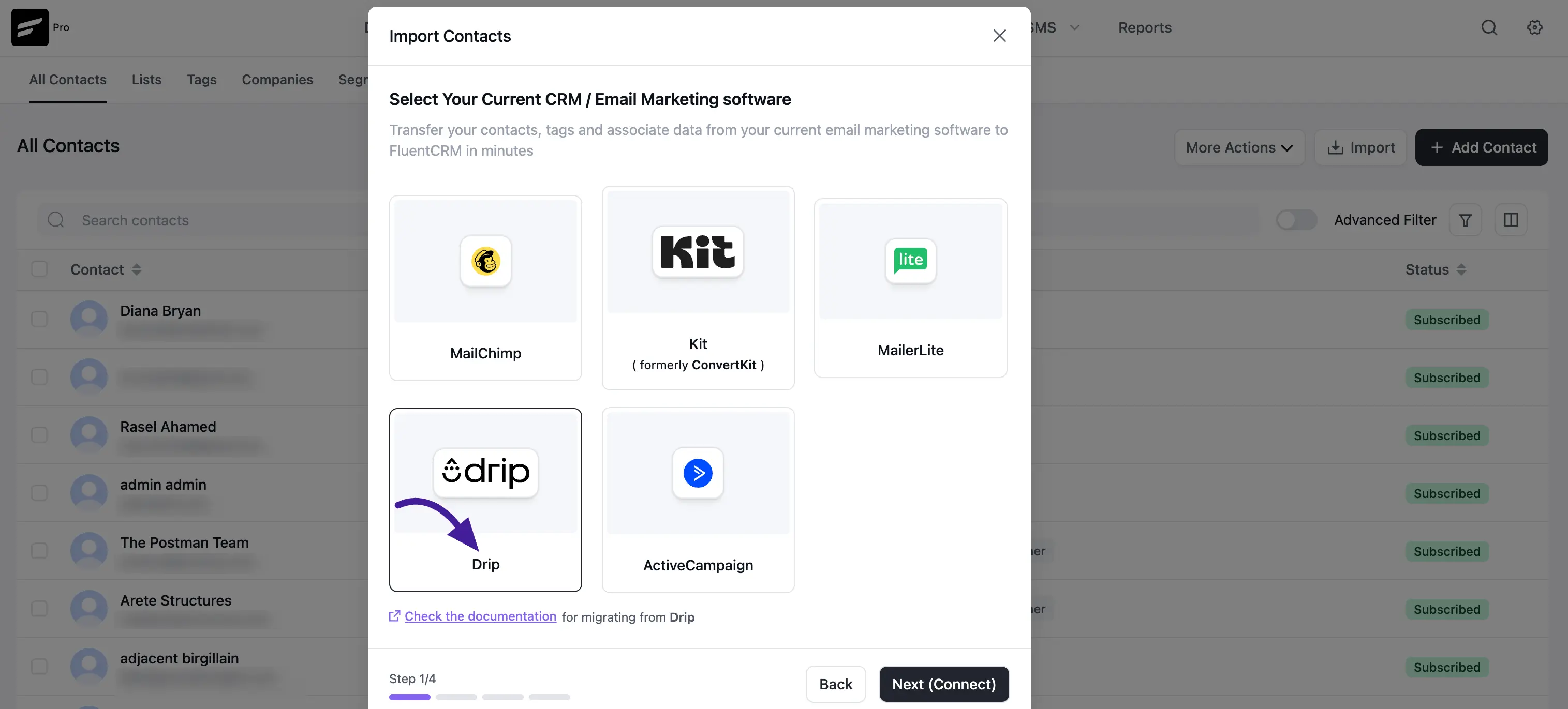
- Click on the Drip logo from the list of available marketing software and hit Next (Connect).
Step 3: Connect the Two Systems
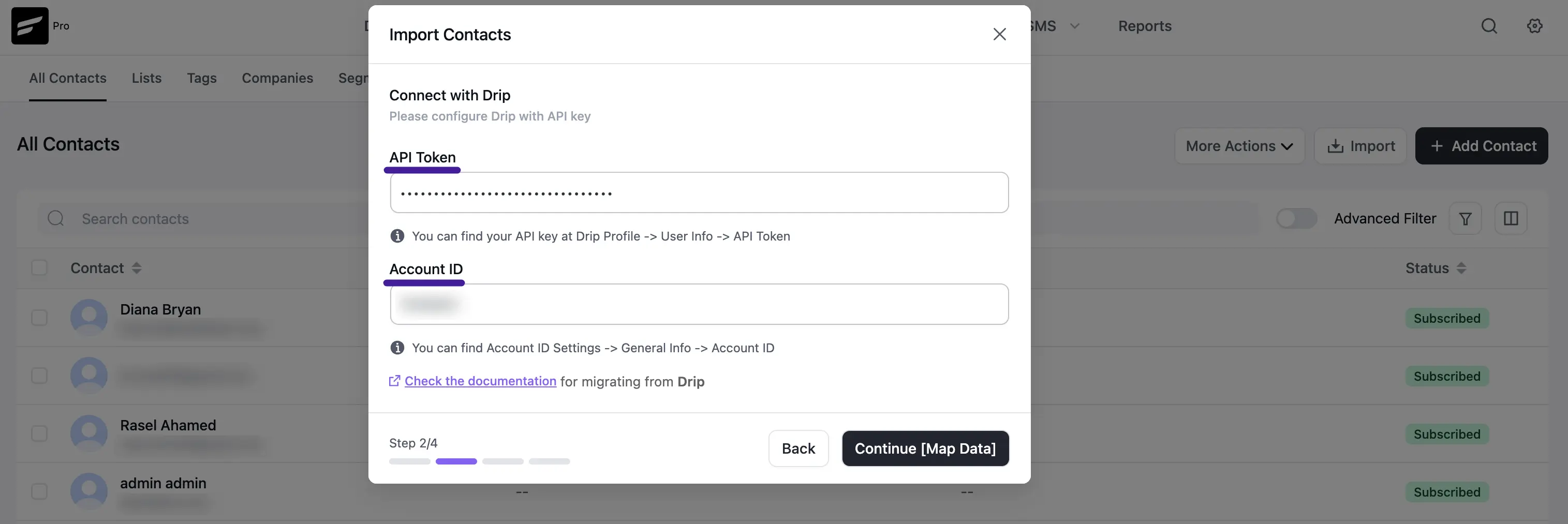
It's time to bridge the connection using the credentials you just copied from Drip.
- Paste your API Token into the first box.
- Paste your Account ID into the second box.
- Click Continue [Map Data]. FluentCRM will now securely connect and pull in your Drip data.
Step 4: Organize Your Data (Mapping)
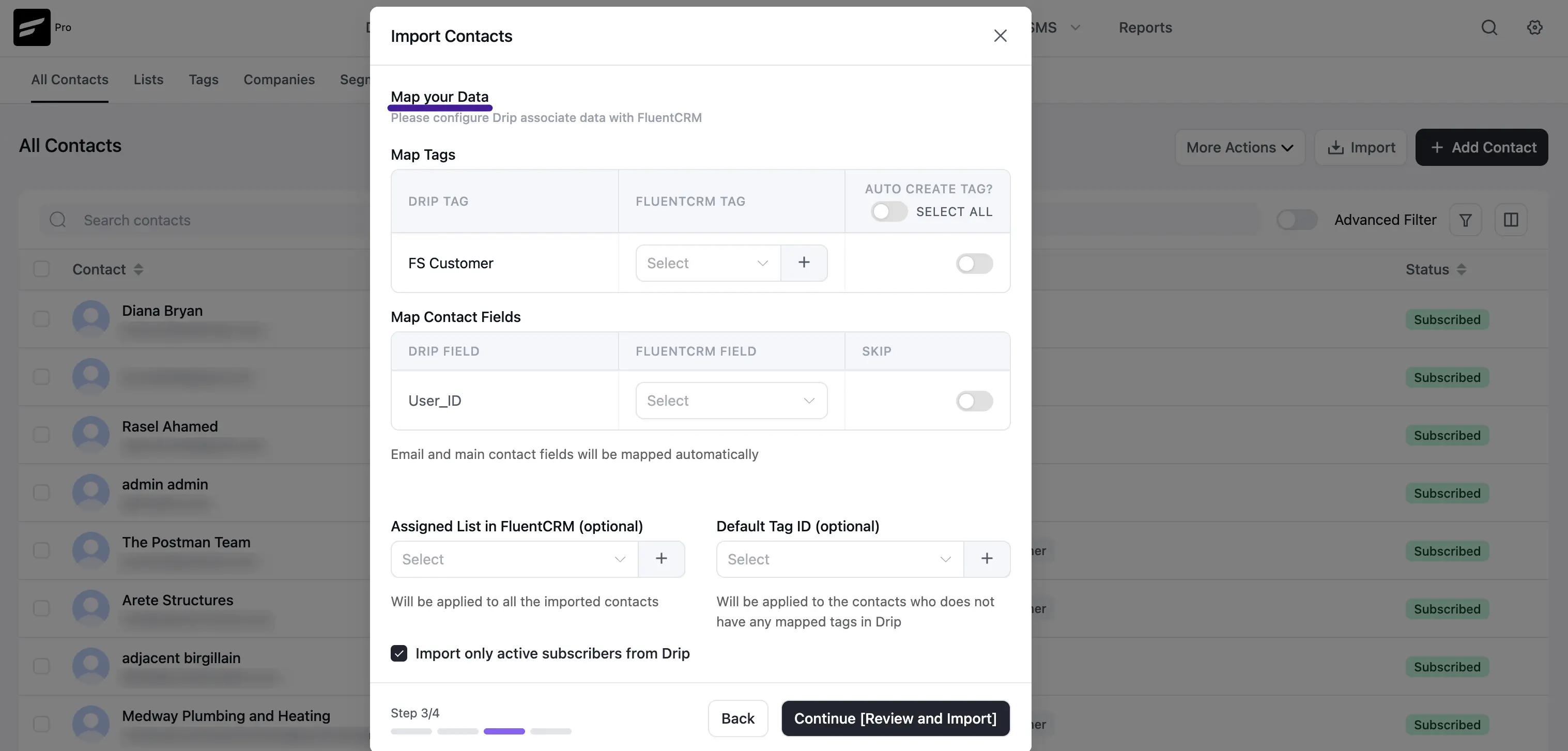
This is where you tell FluentCRM how to correctly organize the information coming from Drip.
- Mapping Tags: You will see a list of your Drip tags. You can select an existing FluentCRM tag to match it with, or simply toggle the Auto Create Tag? switch to have the system recreate them for you.
- Mapping Fields: Match your custom Drip fields (like
User_ID) to your FluentCRM custom fields. If there is a field you don't need anymore, just toggle the Skip switch next to it. (Note: Email Address and First Name are mapped automatically for you). - Global Assignments (Optional): You can pick a specific Assigned List or a Default Tag ID to apply to every single contact being imported. This is a great way to tag everyone with a label like "Migrated from Drip" to keep things organized.
💡 Tip: We recommend checking the box labeled "Import only active subscribers from Drip". This ensures you only bring over engaged users and leaves bounced or unsubscribed contacts behind!
When you are ready, click Continue [Review and Import].
Step 5: Final Review and Finish
The final step is to verify your selections before the data transfer officially begins.
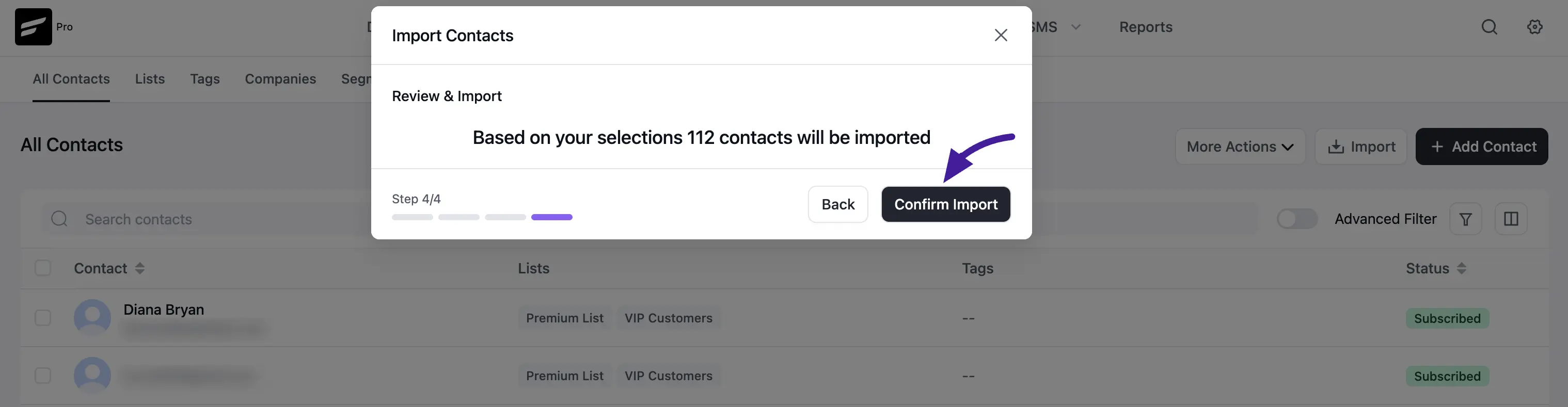
- FluentCRM will display a quick summary of what is about to happen (e.g., "Based on your selections 112 contacts will be imported").
- If everything looks correct, click the Confirm Import button.
- The system will process your data. Once finished, your Drip audience will be safely settled into their new home in FluentCRM!