Appearance
Bounce Handling with Mailgun
If you use Mailgun email service then use this documentation to set up Bounce handling with FluentCRM.
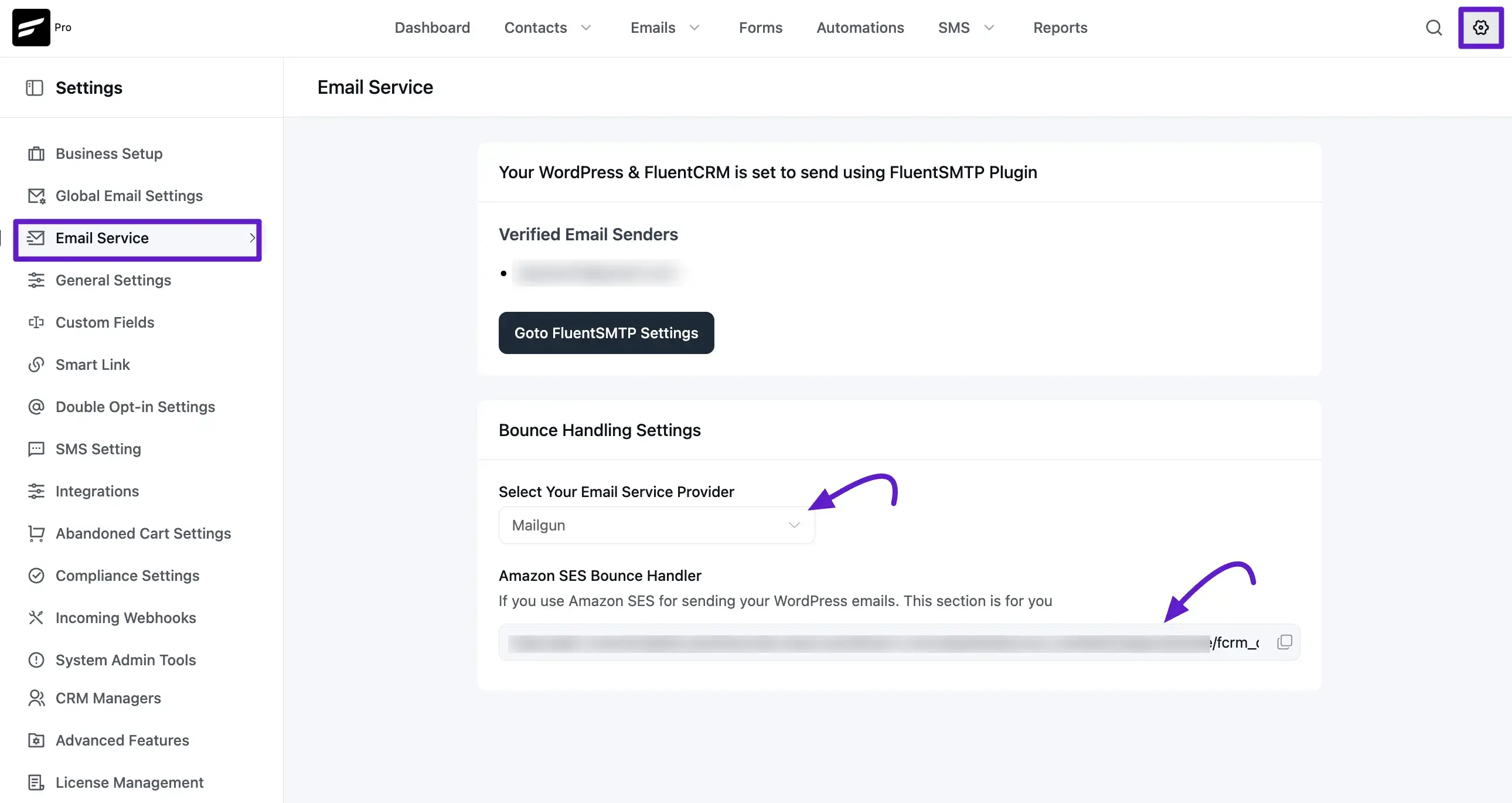
First copy the Webhook URL at FluentCRM -> Settings -> Email Service and Select Mailgun from the dropdown.
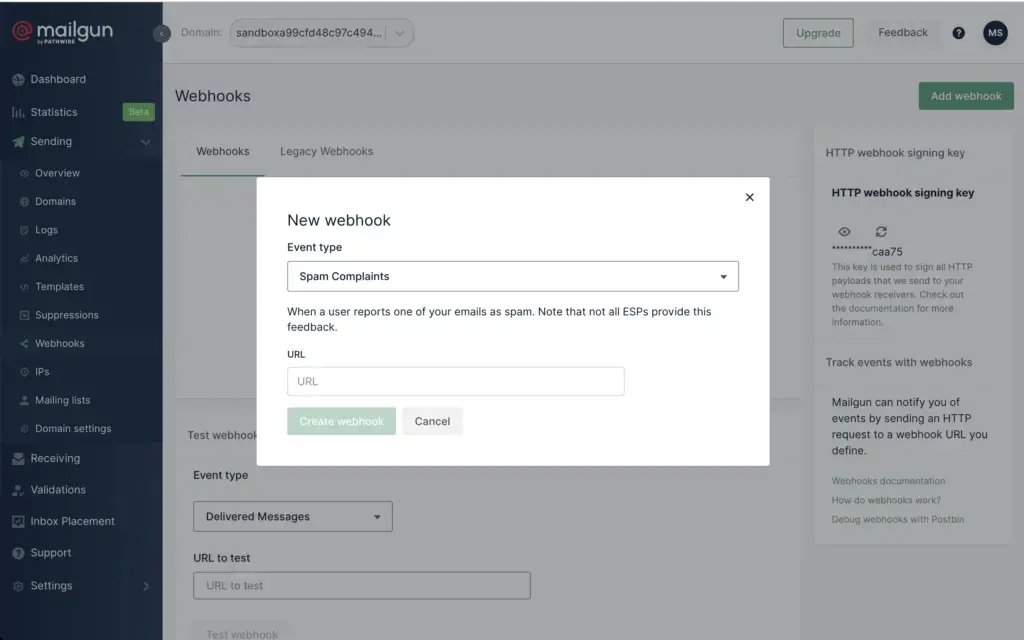
Login to your Mailgun account and then navigate to Sending > Webhook then click on the "Add webhook" button.
Select the Event type as Spam Complaints and then paste the URL that you have copied from FluentCRM for Mailgun.
Then create another webhook in Mailgun for Permanent Failure
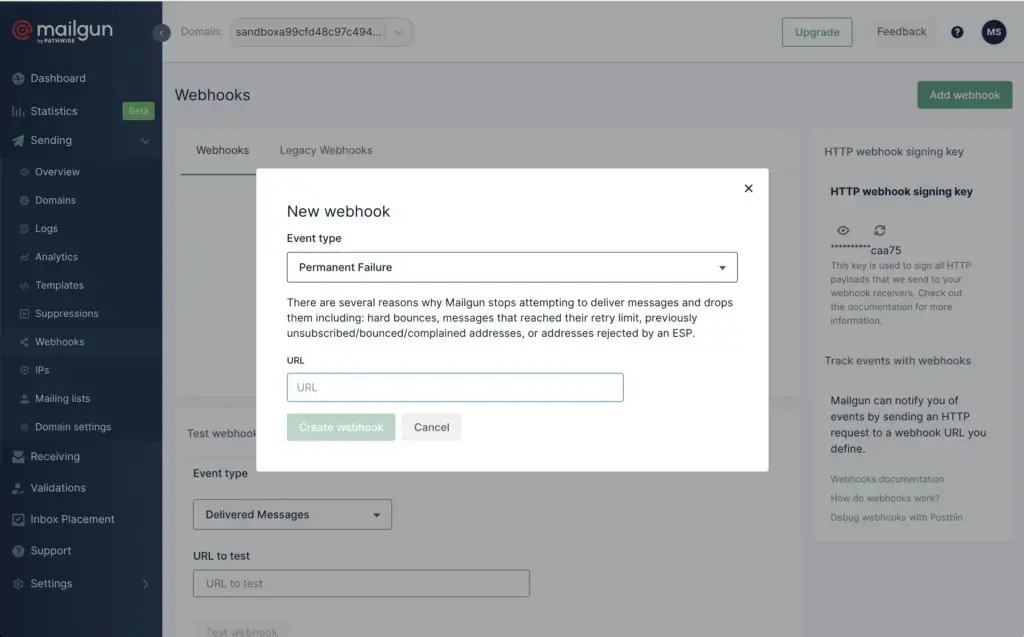
If you set up these two webhook correctly, so whenever an email mark as a complaint or Detected as a permanent Failure, Then FluentCRM will change the contact status accordingly.
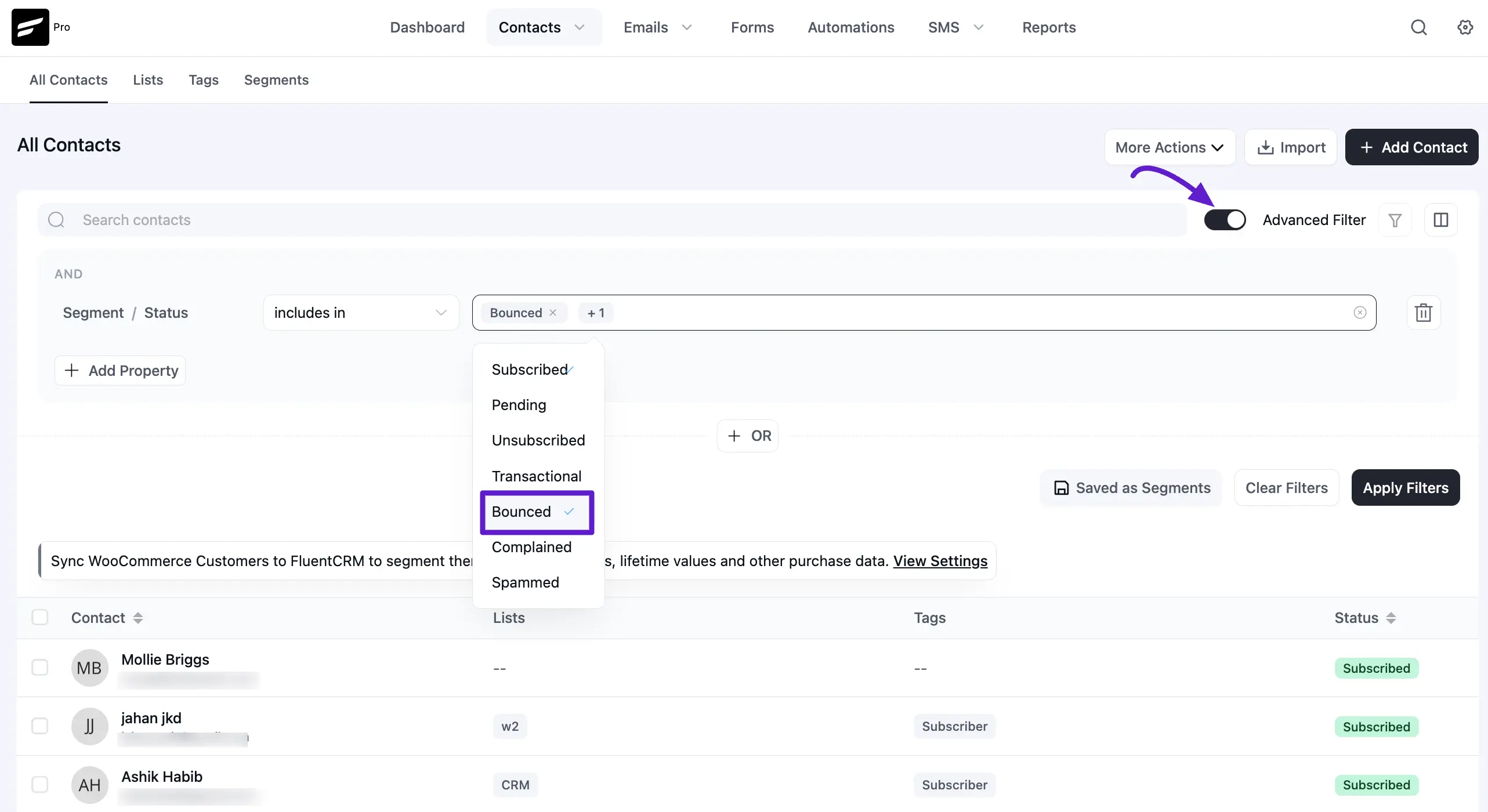
Viewing Bounced Contacts
If you want to view bounced contacts, go to FluentCRM Contacts. Then, enable to the Advanced Filter option. Click the Add Property > Contact Segment > Status and select the Bounce option.