
Appearance
Abandoned Cart Settings
With FluentCRM, you can automate the recovery of abandoned carts from both WooCommerce and FluentCart. This article walks you through every setting on the Abandoned Cart Settings page – timing rules, GDPR consent, audience segmentation, and the per-driver options for WooCommerce and FluentCart. To use the feature, make sure either WooCommerce or FluentCart is installed and activated.
Access the Abandoned Cart Settings
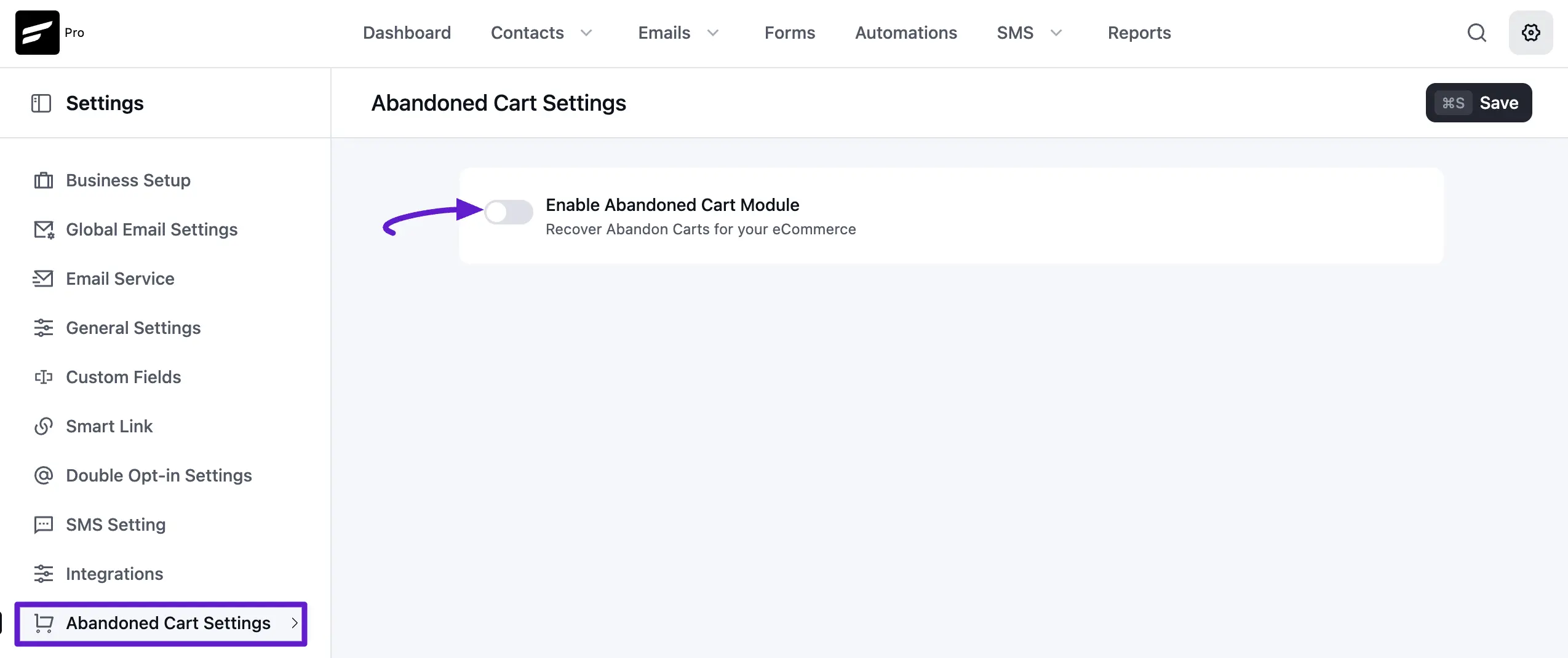
Go to FluentCRM and click on Settings from the navbar. In the left sidebar, select Abandoned Cart Settings.
To enable the Abandoned Cart feature, check the box labeled Enable Abandoned Cart Module.
Drivers (WooCommerce / FluentCart)
In v3, abandoned-cart tracking is driver-based. FluentCRM ships with two drivers out of the box:
- WooCommerce driver – tracks WooCommerce classic cart and block-based checkout.
- FluentCart driver (new) – tracks FluentCart carts. Bundled with FluentCRM core (free).
If both plugins are installed, FluentCRM enables both drivers and you'll see two configuration sections on this page – one per driver. If only one of WooCommerce or FluentCart is active, only that driver's section is shown.
WooCommerce Specific Settings
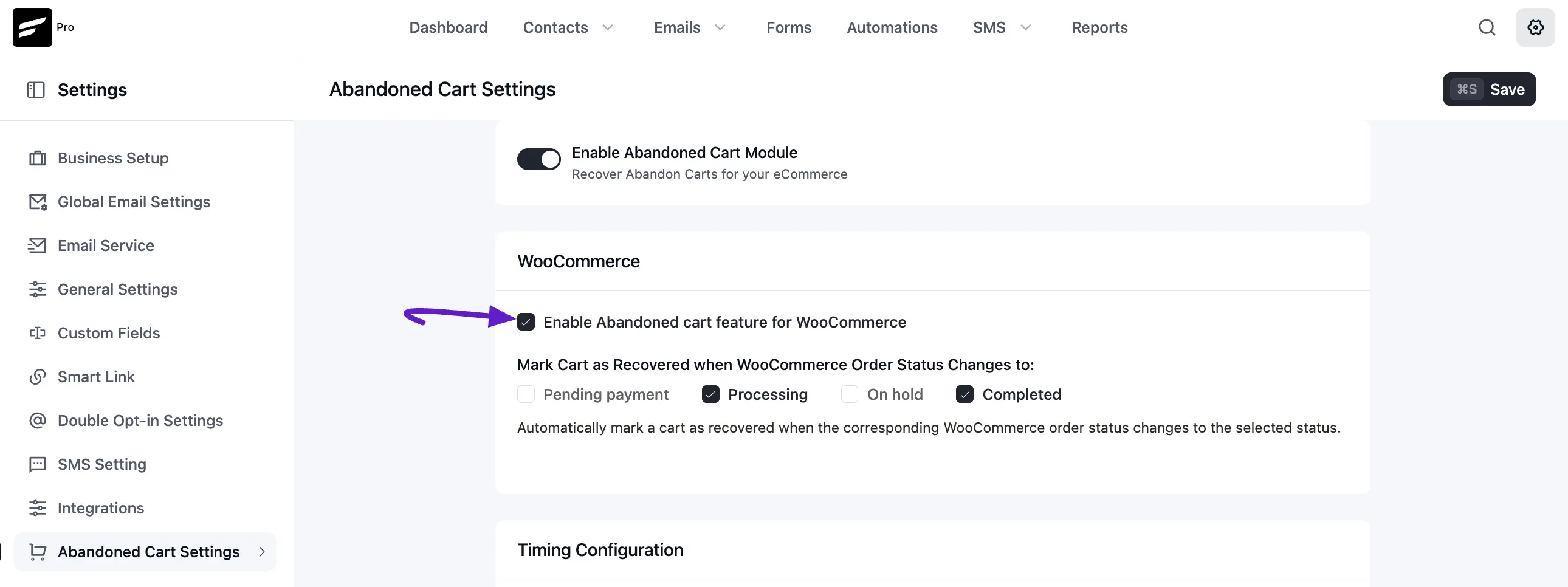
If you Enable Abandoned cart Feature for WooCommerce, you have access to these specific recovery and exclusion controls:
The option Mark Cart as Recovered when WooCommerce Order Status Changes to Pending Payment, On hold, Processing, Completed, and Draft specifies the conditions under which an abandoned cart will be considered recovered.
This means that when the status of an order in WooCommerce changes to any of the listed statuses (Pending Payment, On hold, Processing, Completed, or Draft), FluentCRM will mark the previously abandoned cart as recovered. This helps in tracking successful recoveries and stops further recovery actions for that cart.
FluentCart Specific Settings
If FluentCart is installed, a parallel section appears for the FluentCart driver. The same idea applies – pick the order statuses that should mark a captured cart as recovered.
The option Mark Cart as Recovered when FluentCart Order Status Changes to typically includes Paid, Processing, and Completed. Once a FluentCart order moves into one of the selected statuses, FluentCRM marks the corresponding abandoned cart as recovered, stops any in-flight recovery automations, and (optionally) removes the temporary abandoned-cart lists/tags.
Note: The FluentCart driver lives in FluentCRM core – no additional add-on is required. If you want a step-by-step automation walkthrough specific to FluentCart, see FluentCart Abandon Cart Automation.
Timing Configuration
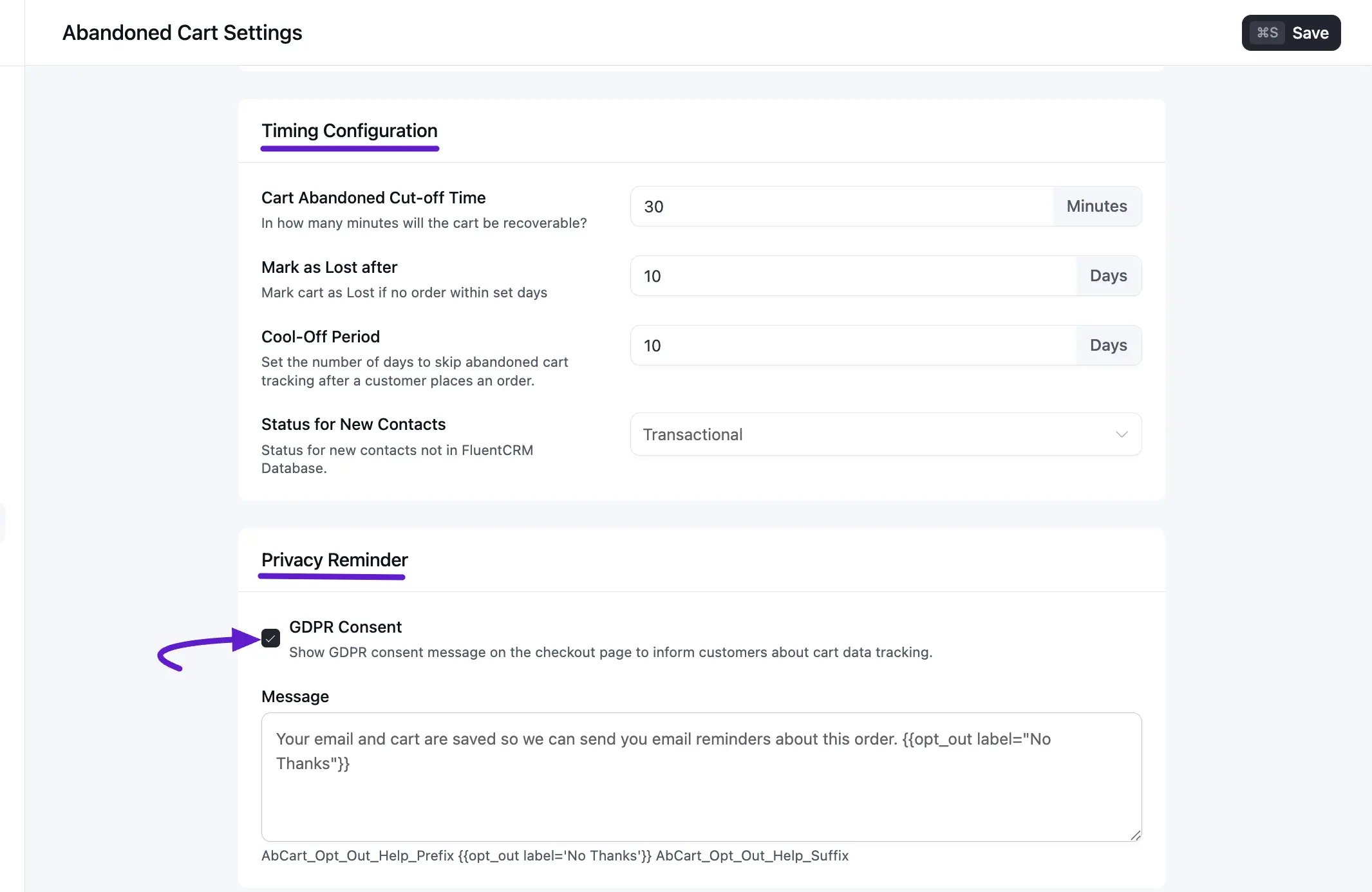
In the Abandoned Cart Settings you will get some options for the Abandoned Automation.
- Cart Abandoned Cut-off Time: Cart Abandoned Cut-off Time refers to the specific period after which a shopping cart is considered abandoned if the customer has not completed the purchase.
- Mark as Lost After: In abandoned cart this setting refers to the duration after which an abandoned cart is considered lost if the customer has not completed the purchase within that time frame.
- Cool-off Period: The Cool-off period for abandoned cart tracking defines how many days customers who have made a purchase will be excluded from abandoned cart follow-ups. This prevents them from receiving such emails for the specified number of days after their purchase.
- Status for New Contacts: In the FluentCRM plugin's abandoned settings, Status for New Contacts refers to the default status assigned to new contacts who are added to your CRM system when they abandon a cart. This status helps categorize and manage these contacts for follow-up and marketing activities.
GDP Consent
The GDPR Consent option ensures compliance with GDPR by informing customers that their email and cart data will be saved and used to send abandoned cart reminders. This helps maintain transparency and obtain consent for data usage. Also, you can set a GDPR consent message for the users from here.
Disable Tracking for User Roles
Disable Tracking for User Roles allows you to exclude certain user roles from being tracked for abandoned cart activities. This means that users with specified roles (e.g., administrators, editors) will not have their cart actions monitored or recorded for abandoned cart purposes.

Abandoned Cart Settings
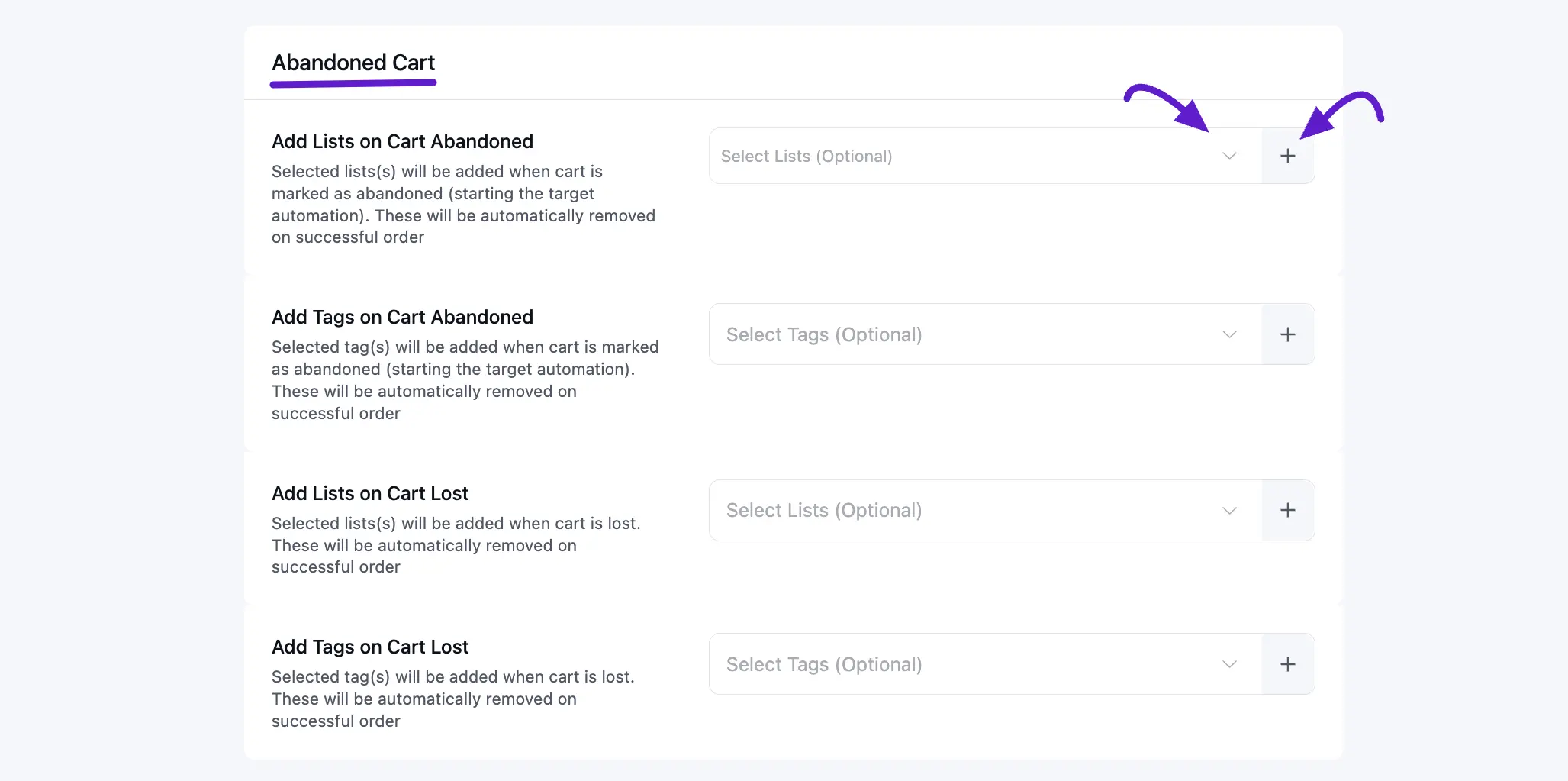
The Abandoned Cart Settings section lets you automatically organize contacts based on their cart activity. Here, you can choose specific Lists or Tags that will be added to a contact when their cart is marked as Abandoned or Lost.
- Add Lists on Cart Abandoned: Select the lists that will be added when a cart is marked as abandoned. These lists will be removed automatically if the customer completes the purchase.
- Add Tags on Cart Abandoned: Choose tags that will be added to contacts when their cart becomes abandoned. These tags will also be removed automatically after a successful order.
- Add Lists on Cart Lost: Select lists to add when a cart is marked as lost. These will be removed if the customer later completes the order.
- Add Tags on Cart Lost: Choose tags that will be applied when a cart is considered lost and removed automatically after a successful purchase.
Each option includes a dropdown to select existing lists or tags, and a plus (+) button to quickly create a new one if needed.
Once all done, click the Save button to apply all the changes you’ve made.
Compatibility: The WooCommerce driver supports both the Classic Cart and the block-based checkout. The FluentCart driver supports the standard FluentCart checkout. If you only see one section on this page, confirm both plugins are installed and activated.