
Appearance
Migrating from ConvertKit to FluentCRM
Moving your contacts from Kit (formerly ConvertKit) to FluentCRM is incredibly simple thanks to a direct API connection. This method allows the two systems to sync directly, so you don’t have to worry about manual downloads or messy spreadsheets.
Follow this friendly, step-by-step guide to bring your audience over in just a few clicks.
Step 1: Get Your Connection Keys from Kit
First, you need to grab two "keys" from your Kit account so FluentCRM has permission to securely access your contacts.
- Log in to your Kit account.
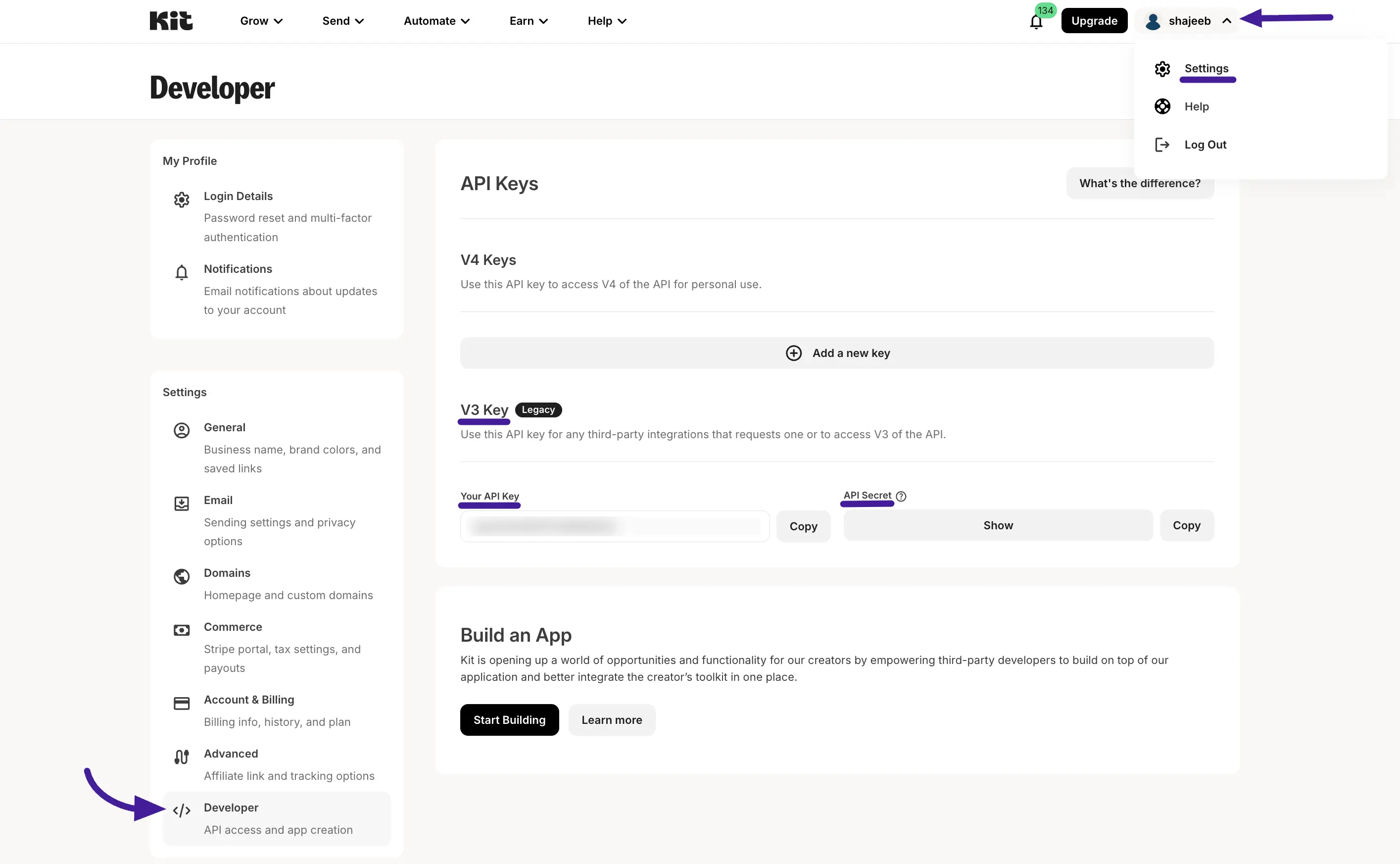
- Click on your Profile name in the top-right corner and select Settings.
- On the left-hand menu, click on the Developer tab.
- You will see a V3 Key section. Copy your API Key and click the "Show" button to copy your API Secret. Keep these handy for the next step.
Step 2: Start the Import in FluentCRM
Now, let's head over to your WordPress dashboard to start the migration.
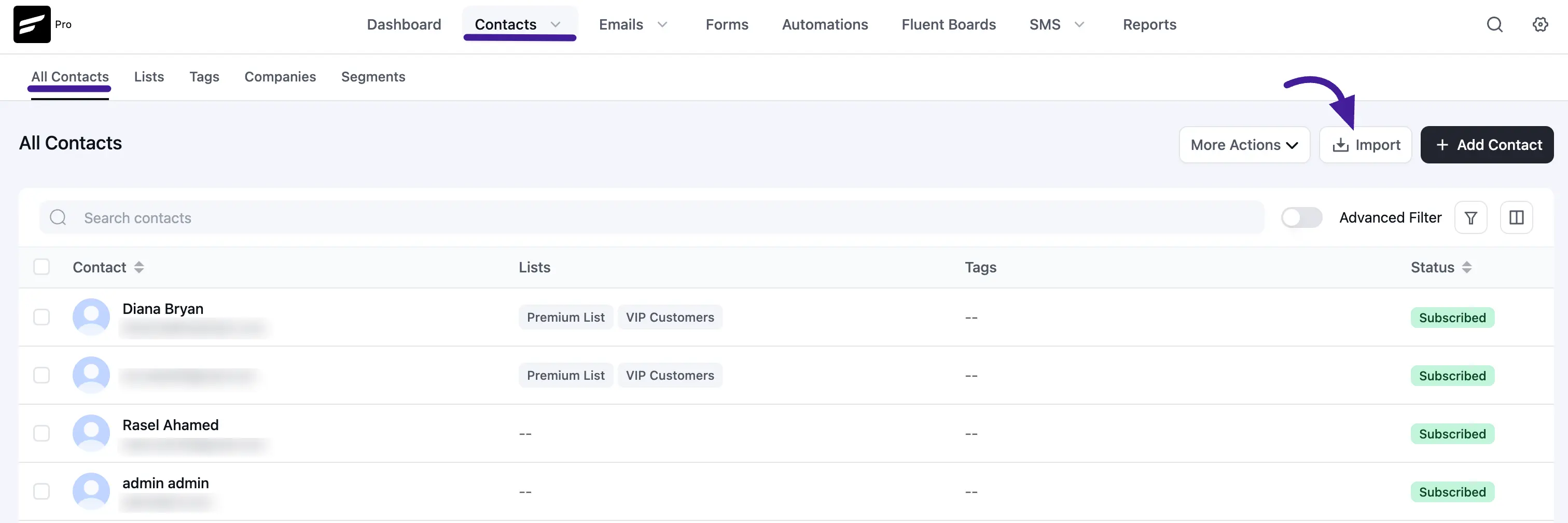
- Go to FluentCRM → Contacts and click the Import button at the top right.
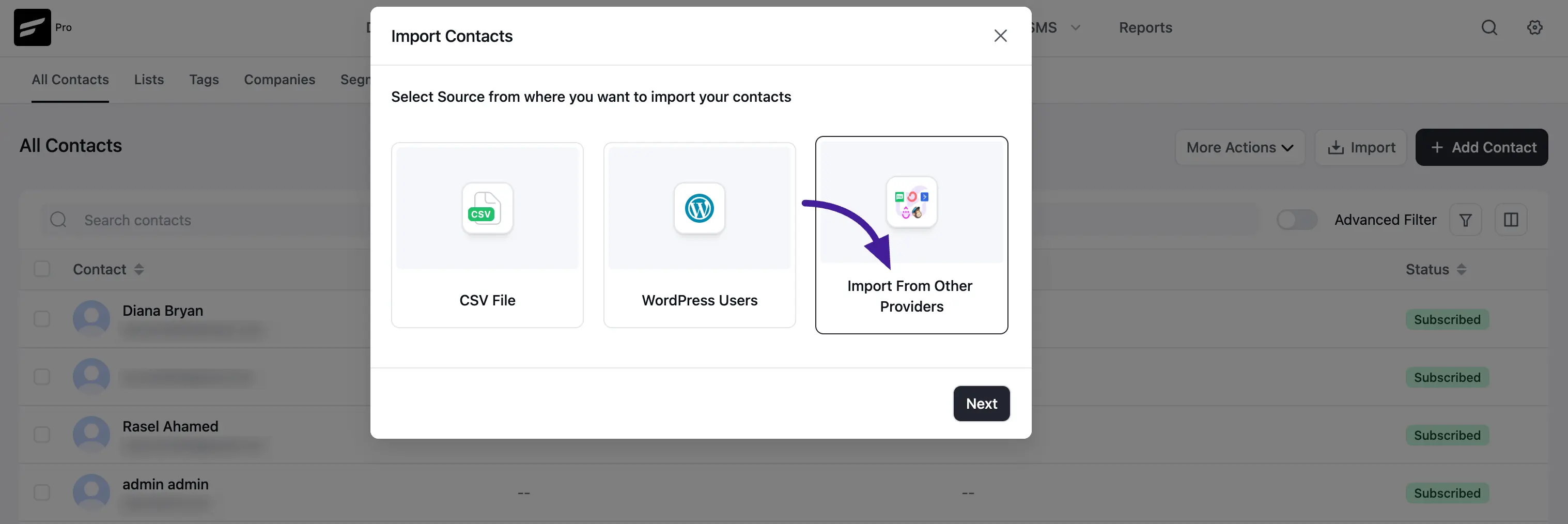
- A window will pop up. Select Import From Other Providers and click Next.
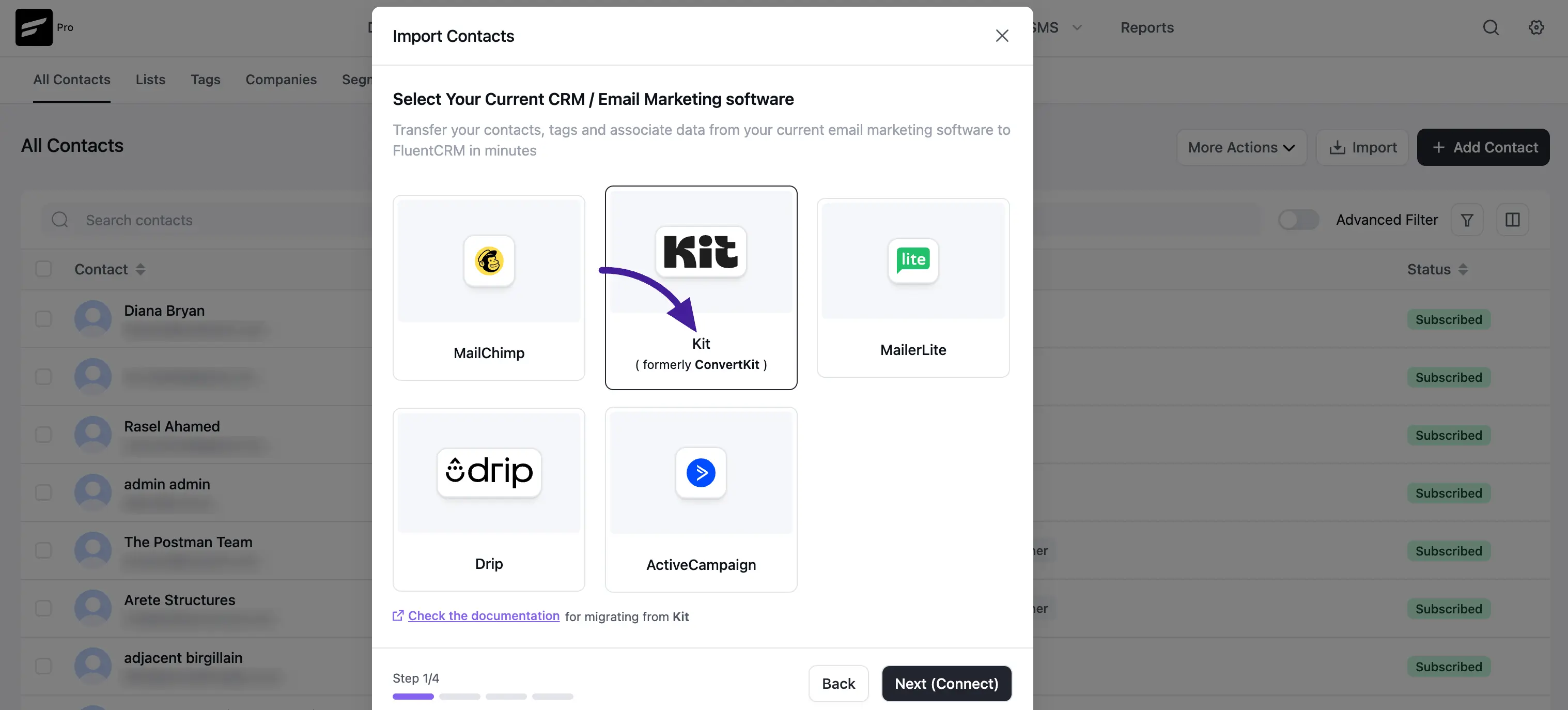
- Select the Kit (formerly ConvertKit) logo and click Next (Connect).
Step 3: Connect the Two Systems
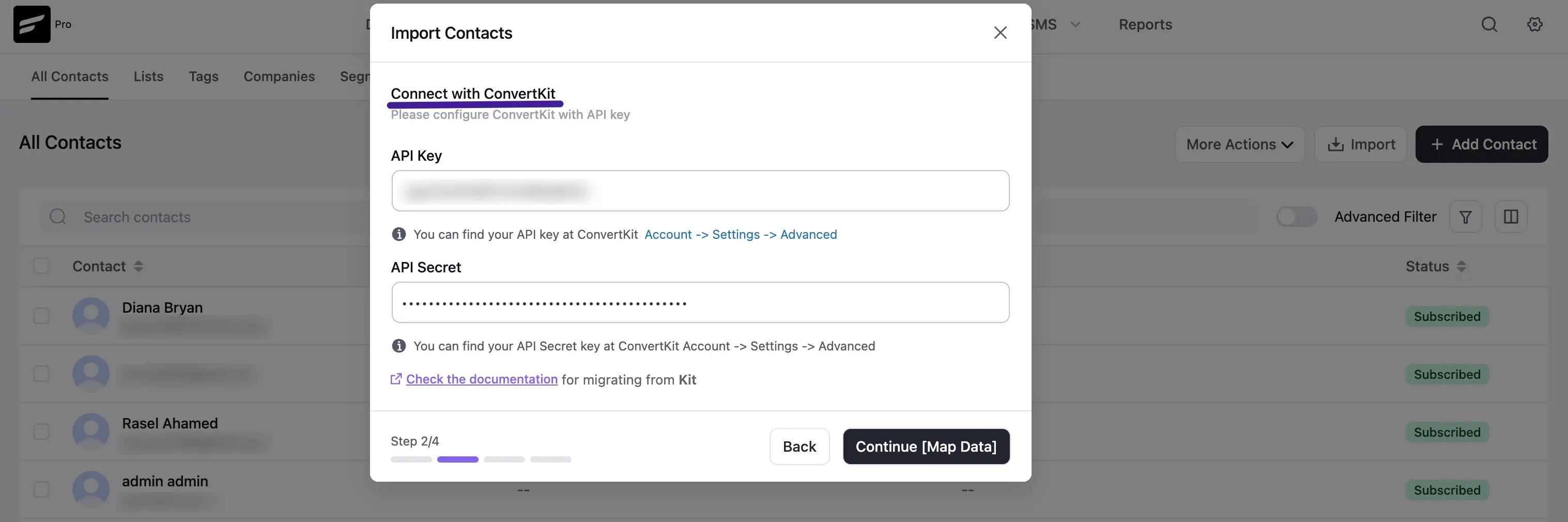
Now, paste the keys you copied from Kit to bridge the connection.
- Paste your API Key into the first box.
- Paste your API Secret into the second box.
- Click Continue [Map Data]. FluentCRM will now pull in all your Kit tags and information.
Step 4: Organize Your Data (Mapping)
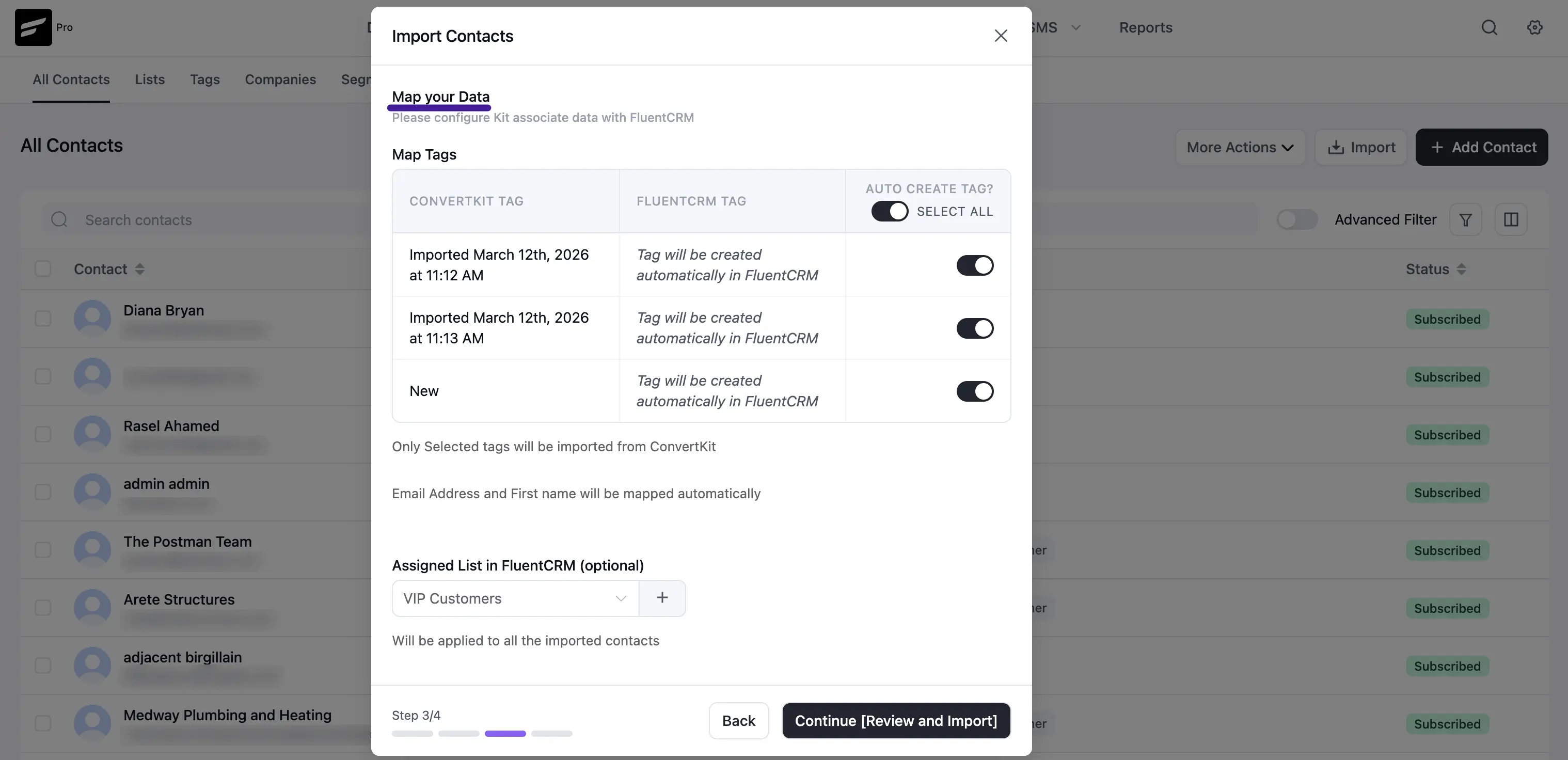
This is where you tell FluentCRM how to organize your Kit information.
- Mapping Tags: You will see a list of your Kit tags. You can toggle the Auto Create Tag? switch to have FluentCRM automatically recreate these tags for you.
- Automatic Sync: FluentCRM will automatically map your contacts' Email Addresses and First Names for you.
- Assigned List (Optional): You can pick a specific Assigned List (like "VIP Customers") to give to every contact being imported during this session to keep your move organized.
When you are ready, click Continue [Review and Import].
Step 5: Final Review and Finish
FluentCRM will show you a quick summary of what is about to happen (e.g., "Based on your selections, 14 tags and associate contacts will be imported").
- If everything looks correct, click Confirm Import.
- The system will process the data, and once finished, your Kit audience will be safely settled in their new home in FluentCRM!