Appearance
Compliance
FluentCRM helps you with data protection and other compliance issues by offering specific settings to add to your Privacy Policy. This article will guide you through the process of using the Compliance settings option in FluentCRM.
Compliance Settings
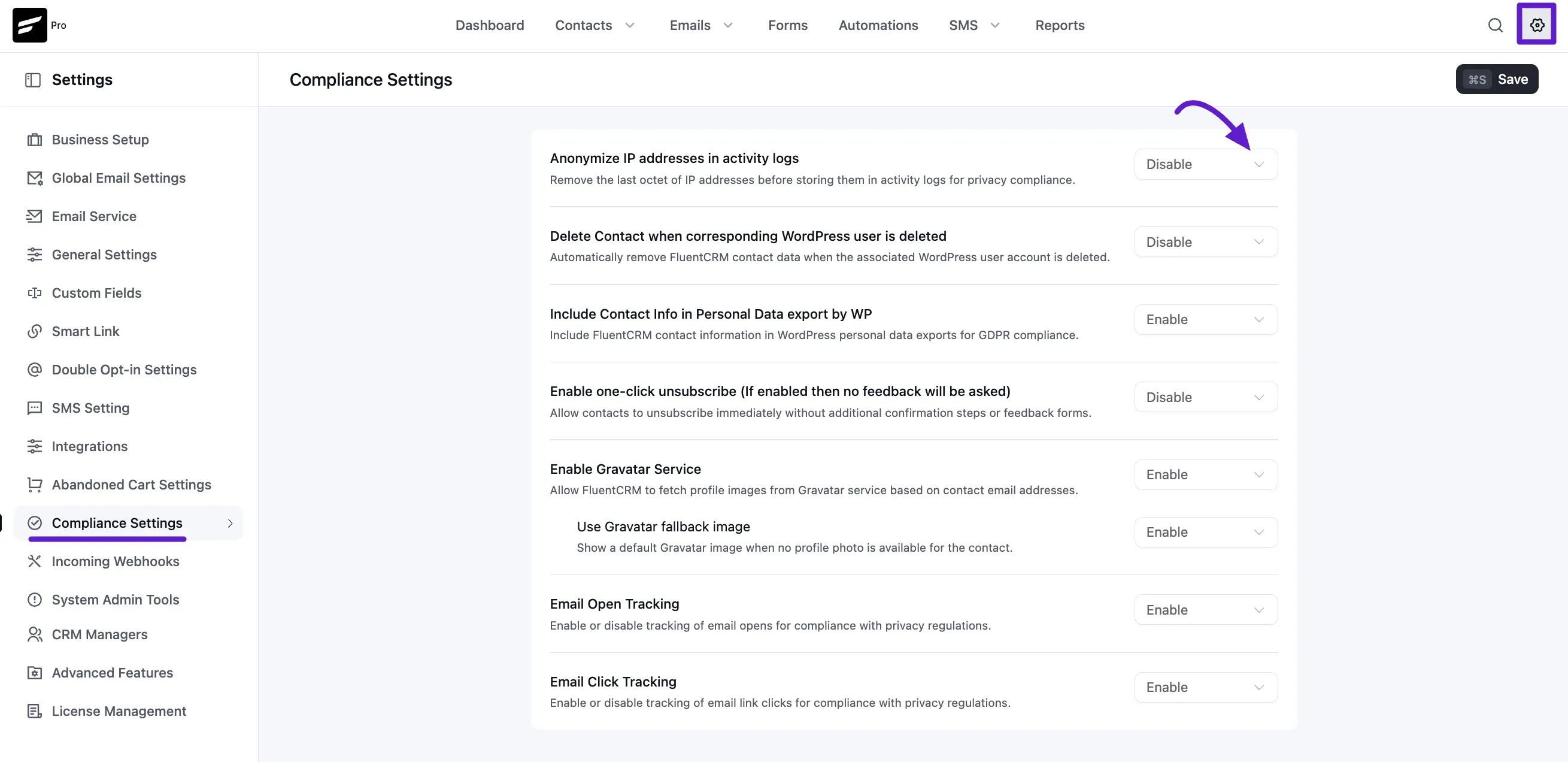
First, go to Settings from the top right corner of the FluentCRM Navbar and click the Compliance Settings option.
Managing Compliance Settings
Once you are in the Compliance settings page, you will see several options to help you manage data privacy. Below is a detailed breakdown of each setting:
1. Anonymize IP Address for Associate Contact Data
When capturing customer data through forms (such as Fluent Forms), the system often records the user's IP address. Enabling this option will anonymize the IP address, ensuring that personally identifiable location data is masked for better privacy.
2. Delete Connected Contact when a User gets Deleted
Maintaining a clean database is essential for compliance. By checking this box, FluentCRM will automatically remove the contact record from the CRM whenever the corresponding WordPress user is deleted from your site.
3. Include Contact Info in Personal Data Export by WP
WordPress has a built-in tool for exporting personal data upon a user's request. Enabling this setting ensures that FluentCRM contact data (like tags, lists, and activity) is included in that official WordPress data export file.
4. Enable One-Click Unsubscribe
This feature streamlines the user experience for those wishing to opt out.
- If Enabled: When a user clicks the unsubscribe link in your email, they are unsubscribed immediately without being redirected to a feedback or survey page.
- If Disabled: Users may be asked to provide a reason for unsubscribing, providing you with valuable feedback for your campaigns.
Pro Tip: Always ensure these settings align with your website's Privacy Policy to keep your users informed about how their data is being processed.