
Appearance
Managers
Efficient management leads to better productivity, which in turn helps increase the overall welfare of the business. Alongside Administrators, Managers are responsible for overseeing the FluentCRM dashboard. In this tutorial, we will learn how to add Managers and define their specific permissions.
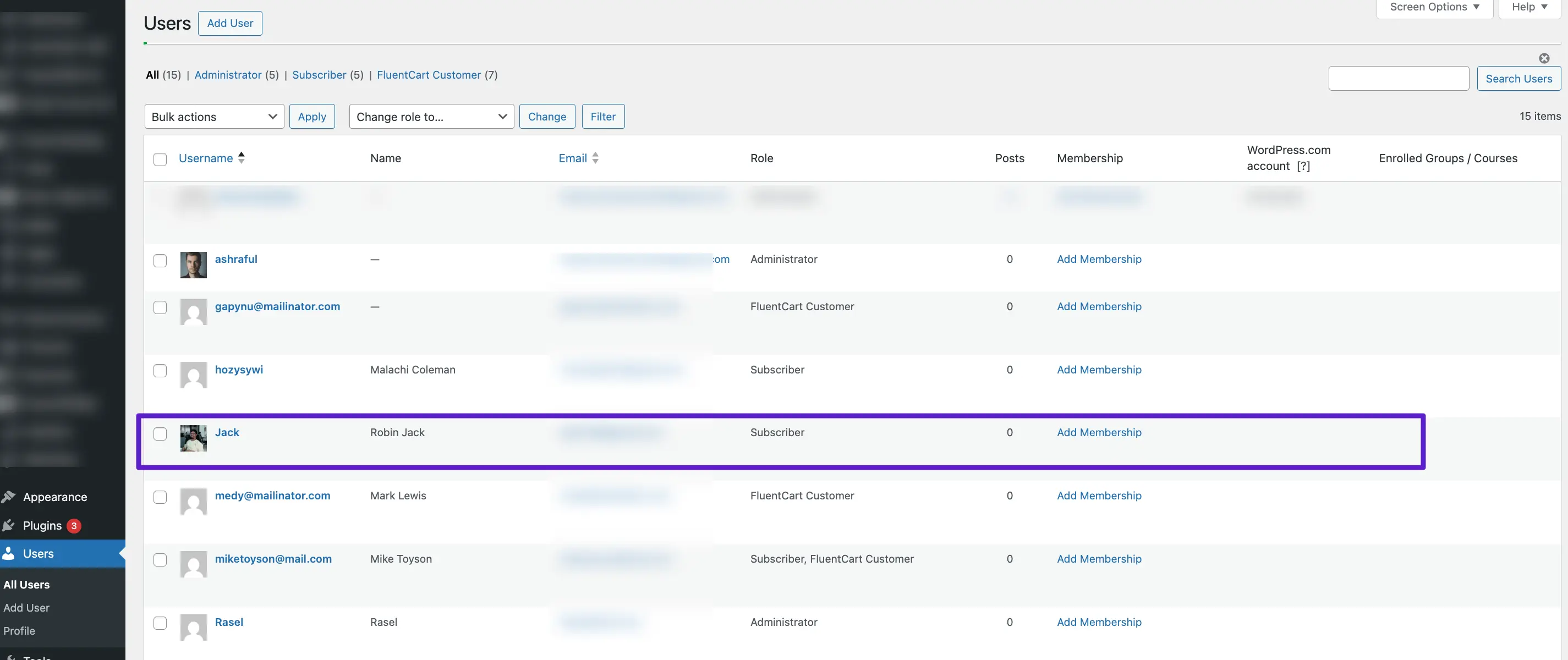
FluentCRM Managers are WordPress users who are granted specific access levels by a WordPress Administrator. Users with any role—even a standard Subscriber—can be designated as a Manager.
Prerequisite: Before starting, ensure you have the email address of the WordPress user you wish to authorize as a Manager.
Adding a New Manager & Defining Permissions
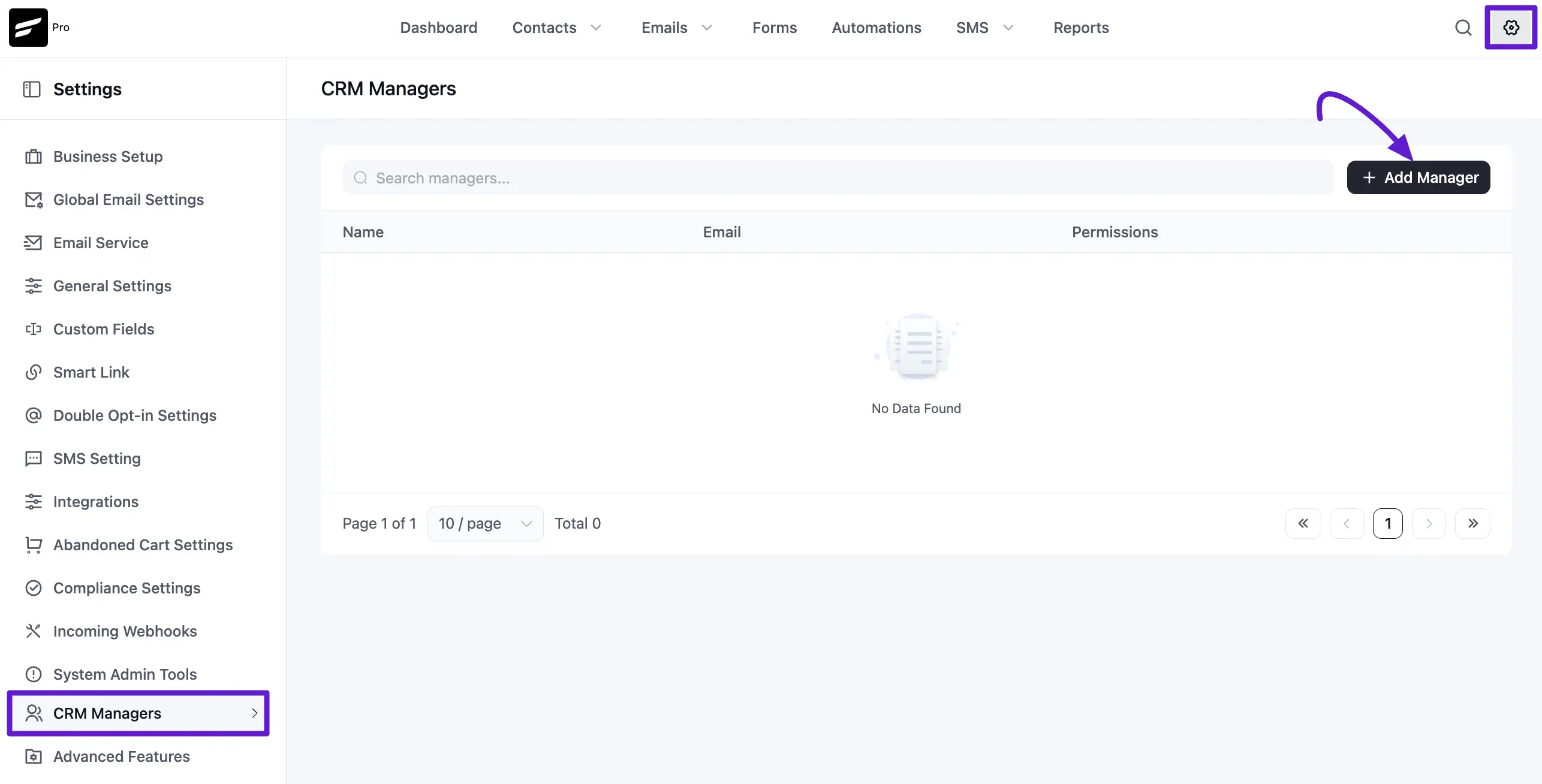
First, navigate to FluentCRM Dashboard ➜ Settings ➜ Managers. Click the + Add New Manager button.
In the popup window, input the user's Email Address. Select the specific permissions you wish to grant from the list below.
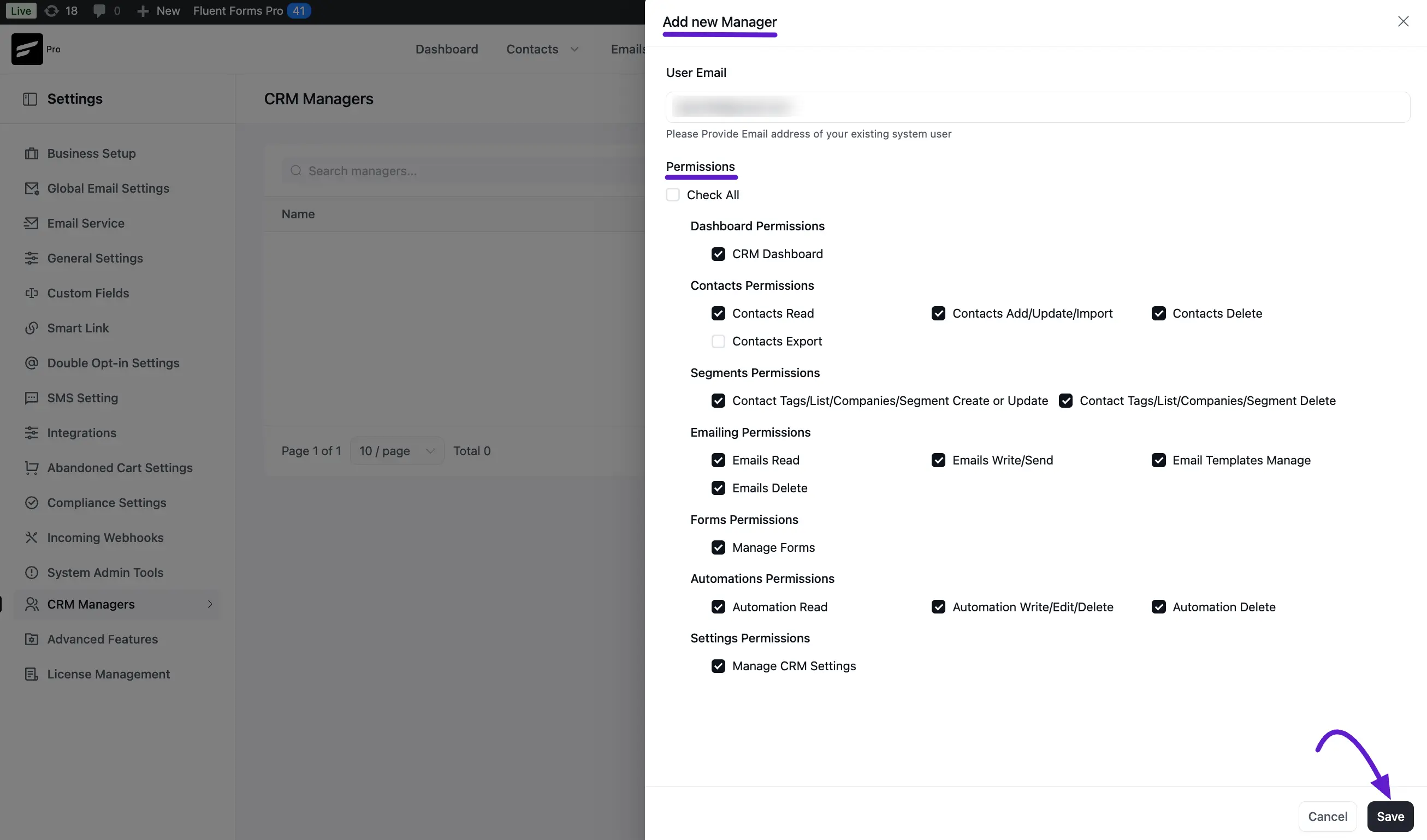
Available Permissions:
- CRM Dashboard: Grants access to the FluentCRM dashboard. This allows the Manager to see statistics and reports.
NOTE
If you want a Subscriber-level user to access the /wp-admin/ area directly (which some plugins like WooCommerce may block), you may need to escalate their WordPress role to Contributor.
- Contacts Read: Allows the Manager to view all contacts and their profile details without the ability to edit or delete them.
- Contacts Edit/Update/Delete: Grants full control to modify, delete, or update contact information.
- Contact Tags/List/Segment Manage: Allows the Manager to create, edit, and update Lists, Tags, and Dynamic Segments.
- Emails Read: The Manager can view Email Campaigns, Sequences, and all email activities, but cannot send or resend them.
- Emails Write/Send/Delete: Grants the ability to create, duplicate, delete, send, or resend Email Campaigns and Sequences.
- Email Templates Manage: Allows the Manager to create and manage global Email Templates.
- Manage Forms: Grants access to manage Fluent Forms that are connected to FluentCRM.
- Automation Read: Allows the Manager to view automation funnels and their performance reports.
- Automation Write/Edit/Delete: Grants full permission to create, edit, and manage automation workflows.
- Settings Manage: Allows the Manager to access the Global Settings of FluentCRM.
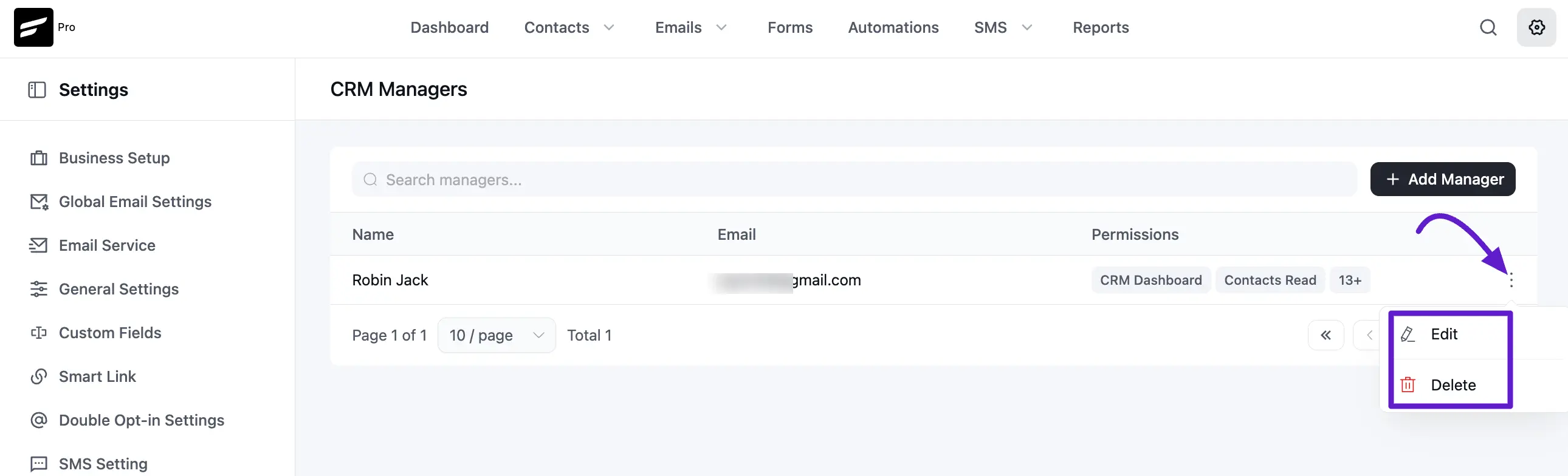
When you are done with adding the new manager you will see them listed as CRM Managers along with their assigned permissions.
NOTE
All the permissions are set or allowed or accessed globally. For example, a manager will have access to all the lists, tags, and contacts depending on the permission granted.