Appearance
Abandoned Cart Report
The Abandoned Cart Reports dashboard in FluentCRM provides a clear financial overview of your store's recovery efforts. By tracking exactly how much revenue is lost, recovered, or currently in progress, you can measure the ROI of your automated recovery funnels.
To access these analytics, navigate to Reports in the top navbar and select Abandoned Carts from the left sidebar.
NOTE
If the Abandoned Carts report does not appear in your dashboard, please ensure the Abandoned Cart Module is enabled in your Settings first.
1. Revenue Analytics Overview
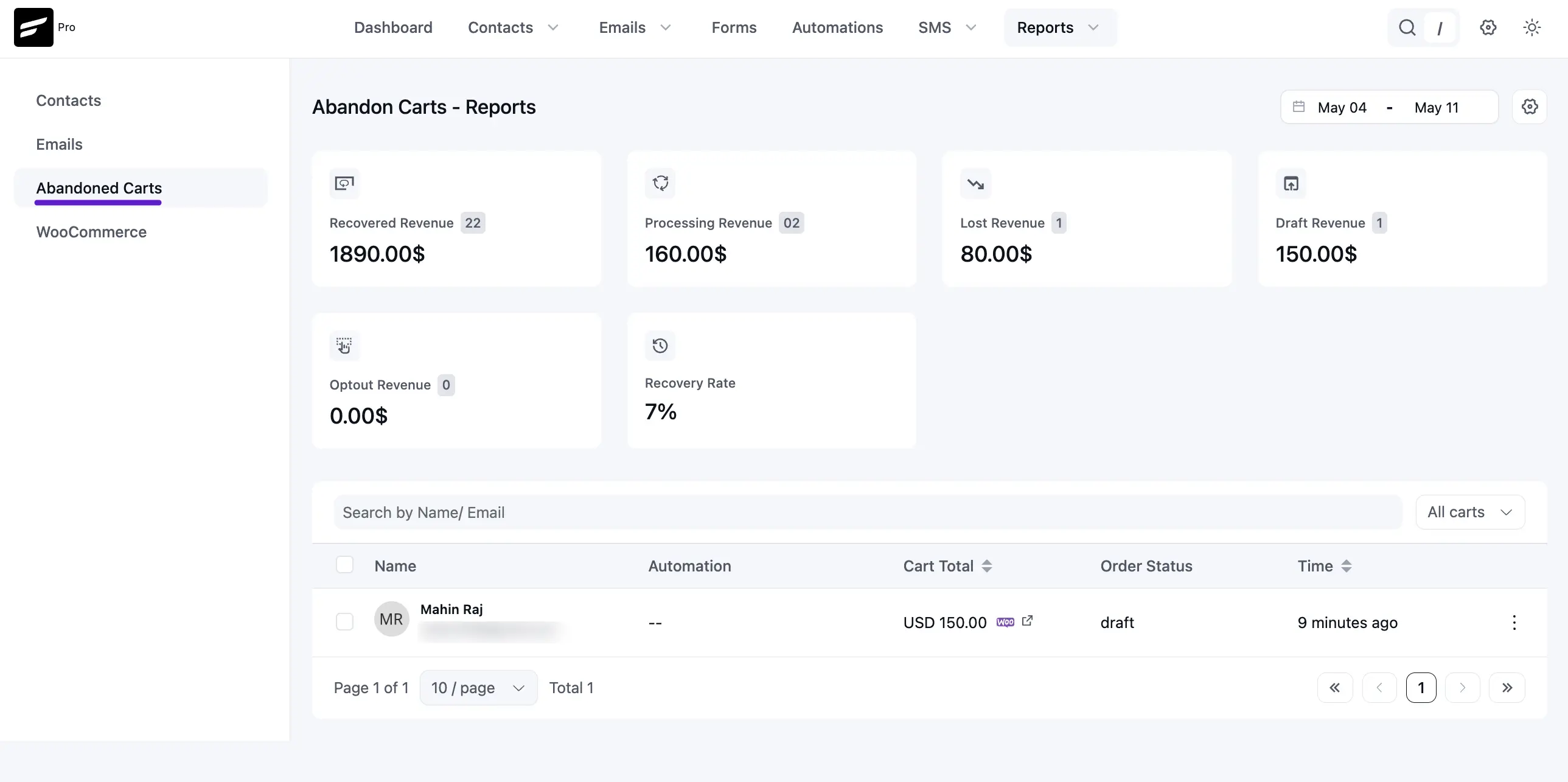
The dashboard features six key metric cards that provide an immediate summary of your store's recovery performance:
- Recovered Revenue: The total value of orders successfully completed after an abandonment trigger.
- Processing Revenue: The value of carts where recovery automation is currently active and the user is still within the recovery window.
- Lost Revenue: The value of abandoned carts where the recovery sequence has finished without a purchase.
- Draft Revenue: The value of carts currently in a "Draft" state, where the customer is still actively adding items but has not yet reached the abandonment threshold.
- Optout Revenue: Revenue associated with customers who unsubscribed or opted out during the recovery sequence.
- Recovery Rate: The percentage of abandoned carts that were successfully converted into completed orders.
2. Real-Time Cart Tracking
Below the revenue summary, the Abandoned Carts table provides a granular look at every individual instance of abandonment:
- Name/Email Search: Quickly find a specific customer to check their cart status.
- Automation: Identifies which specific recovery funnel (e.g., Cart Abandoned - FluentCart) is currently handling the contact.
- Cart Total: The exact monetary value of the items left in the checkout.
- Order Status: Displays the current real-time status of the cart (e.g., Abandoned, Recovered, or Lost).
- Time: Shows exactly when the abandonment occurred.
3. Data Filtering and Management
- Date Range Picker: In the top right corner, you can filter the entire report by specific dates (e.g., May 04 – May 11) to analyze weekly or monthly performance.
- Cart Type Filter: Use the All carts dropdown menu to filter the list by status, making it easy to isolate only "Recovered" or "Active" carts for review.
- Setup Alerts: If you do not have an active recovery sequence running, a warning banner will appear at the top of the dashboard with a quick link to set up your automation.
Customer Details & Cart Insights
Scroll down to the Abandoned Cart Details section to see a list of individual customers who left items in their carts. This table provides the customer's name, email, the date the cart was abandoned, and the total value of the items.
To get a deeper look at what a specific customer intended to buy:
Locate the customer in the list. Go to three-dot icon and click the View Cart button on the right side.
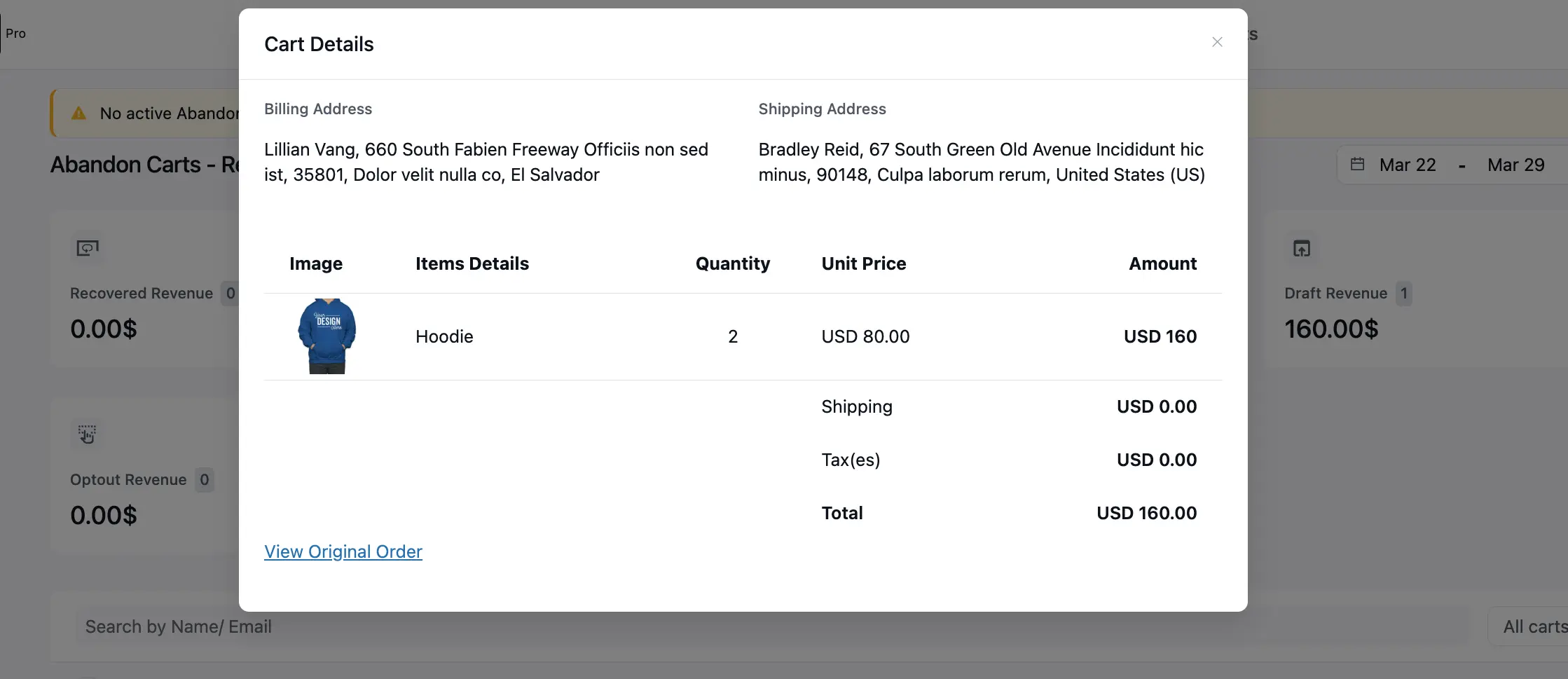
A popup will appear showing the specific products left in the cart, their quantity, and the individual prices.