
Appearance
FluentCart Abandon Cart Automation
With FluentCRM, you can recover lost sales from FluentCart just like you would from WooCommerce – with a built-in Cart Abandoned trigger, audience segmentation through tags and lists, and personalised email sequences. The FluentCart driver ships with FluentCRM core (free), so no extra add-on is required.
This article walks you through configuring the FluentCart abandoned-cart settings, building the recovery automation, and tracking results.
Make sure FluentCart and FluentCRM are installed and activated before you continue.
Enable Abandoned Cart in global settings
Before you build FluentCart abandoned-cart automations, turn on abandoned-cart tracking in FluentCRM:
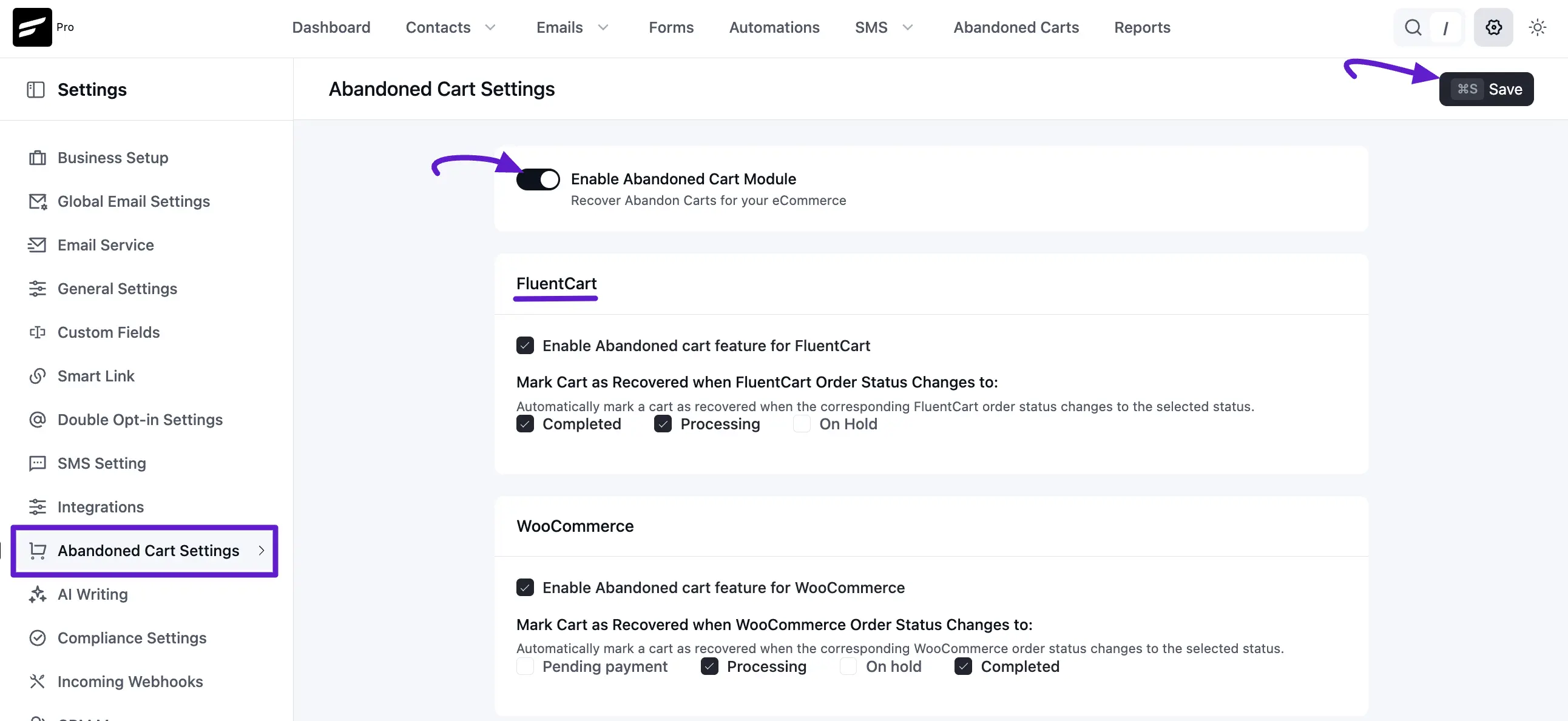
- In the WordPress admin, open FluentCRM → Settings → Abandoned Cart Settings.
- Turn on the Enable Abandoned Cart Module toggle.
- In the FluentCart section, check Enable Abandoned cart feature for FluentCart.
- Choose which order statuses should mark a cart as recovered (for example Processing and Completed, depending on your store).
- Click Save (top right).
For every option on this screen, see Abandoned Cart Settings.
How FluentCart Abandoned-cart Tracking Works
Once the FluentCart driver is enabled:
- A visitor adds one or more products to their FluentCart cart and provides their email address (during checkout, in a popup, or via a previous order).
- If they leave without completing checkout, FluentCRM marks the cart as Abandoned after the configured cut-off time.
- FluentCRM applies any Lists or Tags you mapped in Abandoned Cart Settings.
- Your Cart Abandoned (FluentCart) automation kicks in and sends recovery emails.
- If the customer completes the order, FluentCRM marks the cart as Recovered and (optionally) removes the temporary lists/tags.
Build the Recovery Automation
Go to FluentCRM → Automations and click + New Automation.
For this walkthrough, start by selecting From Scratch instead of using the pre-built Abandoned Cart Recovery template.
Step 1 – Choose the FluentCart trigger
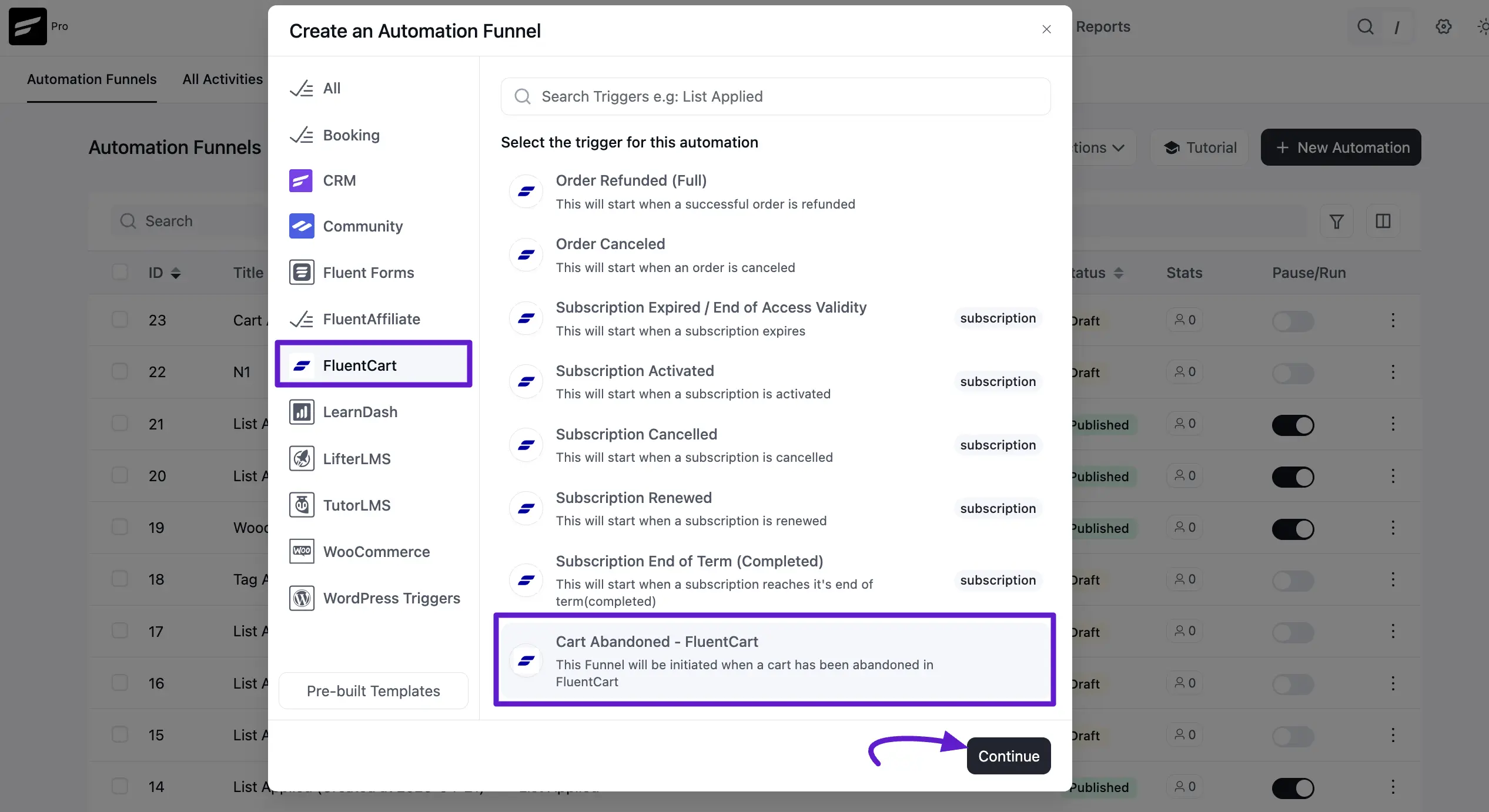
Give the automation a name, then select FluentCart from the trigger sidebar in the popup. Choose the Cart Abandoned trigger and click Continue.
Step 2 – Configure trigger settings
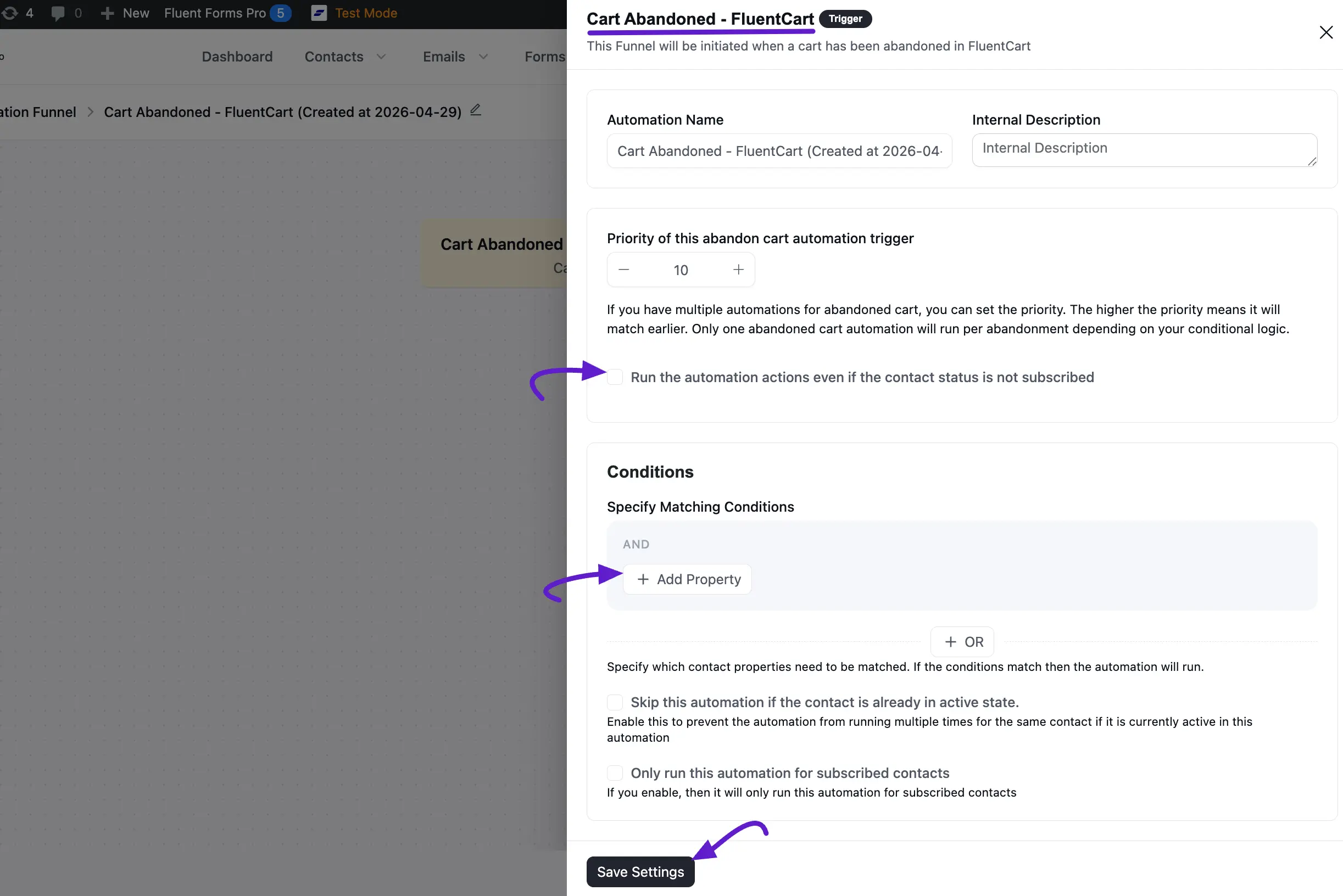
A side panel opens with the automation settings:
- Priority – Used when more than one automation could match the same cart. Higher numbers are evaluated first.
- Run the Automation Action Even if Contact Status is Not in Subscribed Status – Toggle on to send recovery emails even to non-subscribed contacts (recommended for cart recovery, since you have a legitimate-interest basis for the email).
- Skip this Automation if the Contact is Already in Active State – Keeps a single contact from running through the same recovery flow twice.
- Only Run this Automation for Subscribed Contact – The opposite of the toggle above – use it if you want to be conservative.
Click Add Condition if you want to constrain the automation to specific products, cart values, or customer tags. The Cart Data condition lets you check the contents of the cart (product IDs, total, currency, item count).
Click Save Settings.
Step 3 – Design the recovery flow
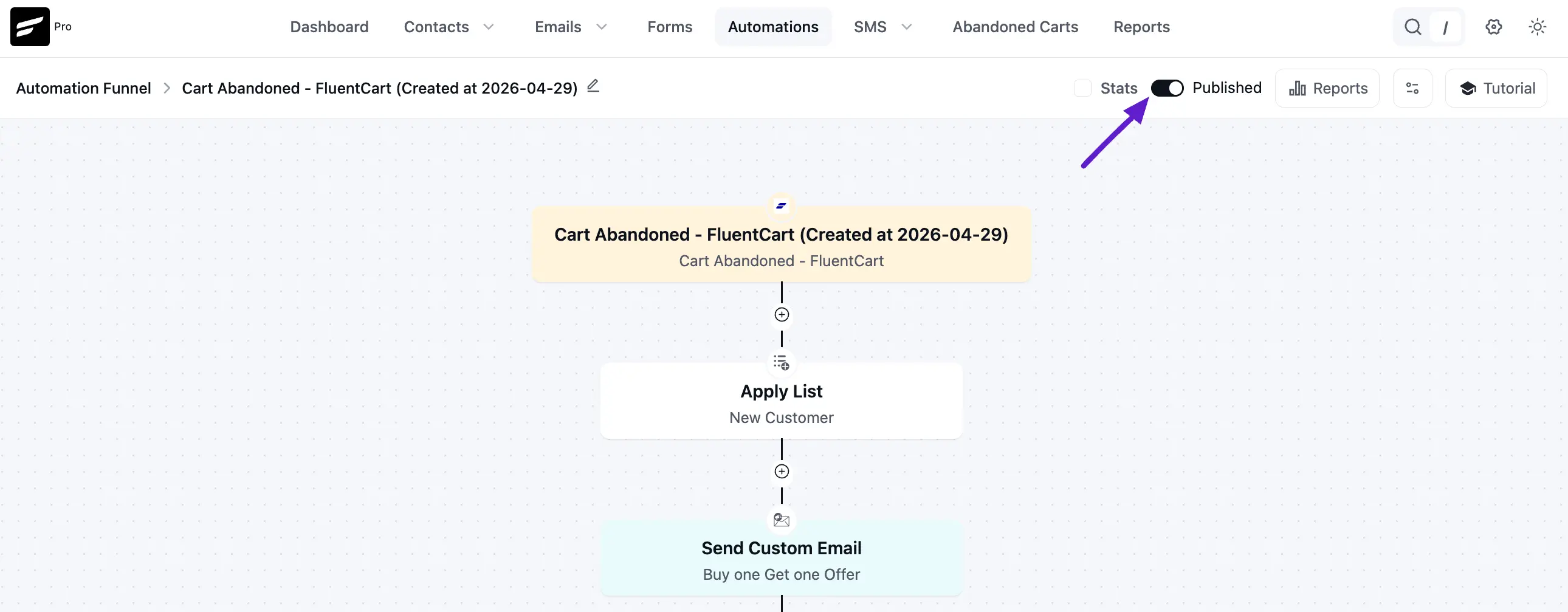
Drop in Wait steps and Send Email Action steps to build a sequence like:
| Step | Purpose |
|---|---|
| Wait 1 hour | Don't be pushy – give the customer time to come back on their own. |
| Send Email | Friendly reminder, with a one-click checkout link. Use the ##cart.recovery_url## smart code. |
| Wait 23 hours | Cool-off before the next nudge. |
| Send Email | Add a discount or social proof. |
| Wait 2 days | Final pause. |
| Send Email | Last reminder before the cart is marked Lost. |
Use Smart Codes to drop product names, totals, and the recovery link into your emails.
Step 4 – Activate
Once the flow looks right, switch the automation to Active in the top-right header.
Track recovery performance
The Abandoned Cart Report at FluentCRM → Reports → Abandoned Carts breaks down both WooCommerce and FluentCart performance:
- Total carts captured, recovered, and lost.
- Recovery rate (%) per driver.
- Top recovery campaigns and their attributed revenue.
See Abandoned Cart Report for a full walkthrough.
Differences from the WooCommerce flow
If you've used the WooCommerce abandoned cart flow before, the FluentCart version is almost identical with two small differences:
- The trigger lives under the FluentCart category in the trigger sidebar (not WooCommerce).
- The Mark as Recovered condition uses FluentCart order statuses (Paid, Processing, Completed) rather than WooCommerce statuses. You can configure this in Abandoned Cart Settings.