
Appearance
Contacts Dashboard
FluentCRM provides an excellent contacts dashboard that represents all the necessary summaries of the activities. Total Contacts Paginated, Filter by Tags & Lists & Status, Advanced Filter with numerous data, Searchbox, Import & Export of the contacts, Bulk Actions on Contact Selection, and many more on the front page or the Contacts Dashboard.
New in v3:
- Bulk-action floating bar – When you select one or more contacts, a floating action bar appears at the bottom of the screen with the most-used bulk actions (apply tag/list, change status, send double opt-in, export, delete). It stays in view as you scroll, so you no longer have to scroll back to the top to apply an action.
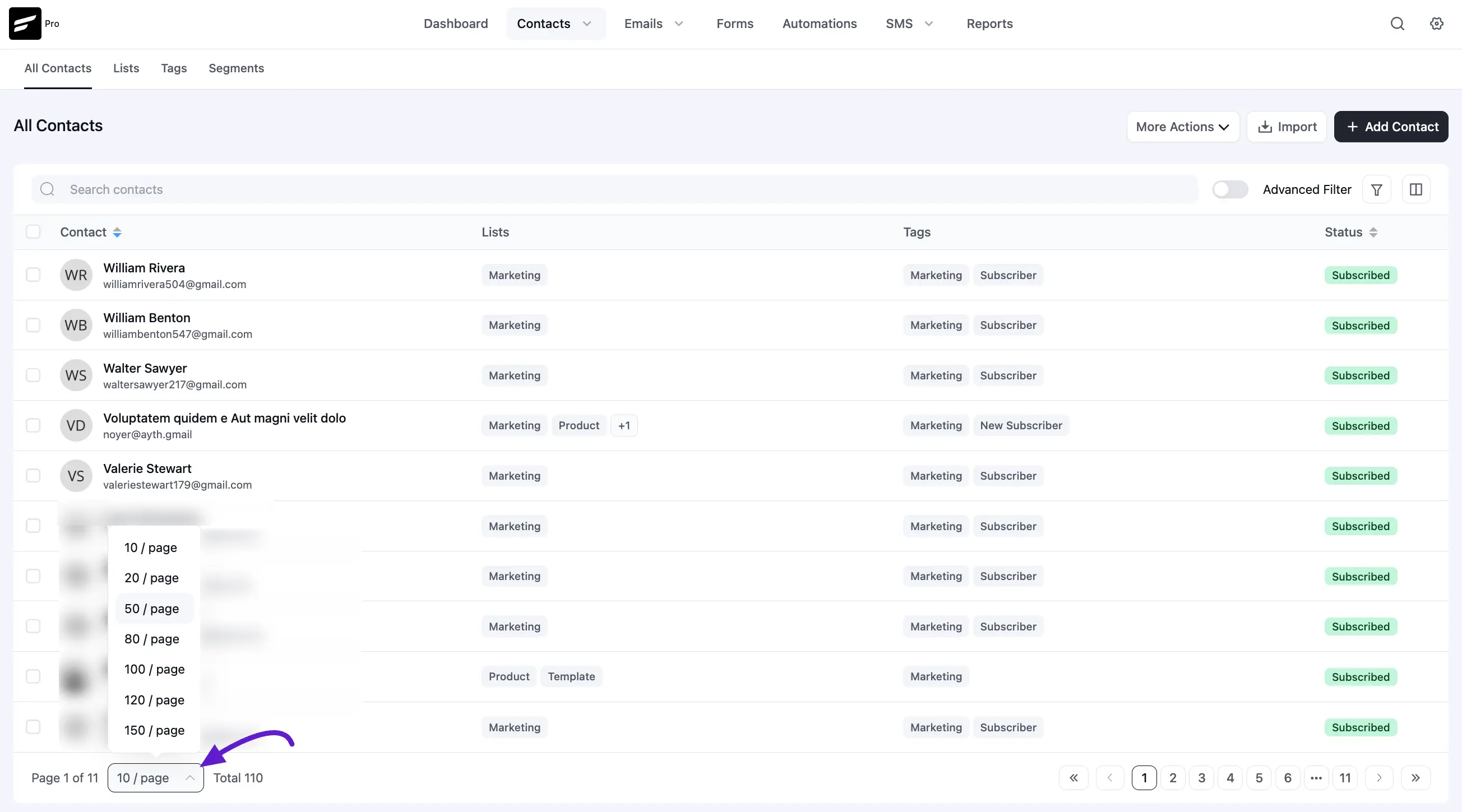
- Up to 600 contacts per page – The pagination dropdown now goes up to 600 / page for power users managing very large lists.
- Segments menu item – Contacts → Segments sits alongside Lists, Tags, and Companies for quick access to Dynamic Segments.
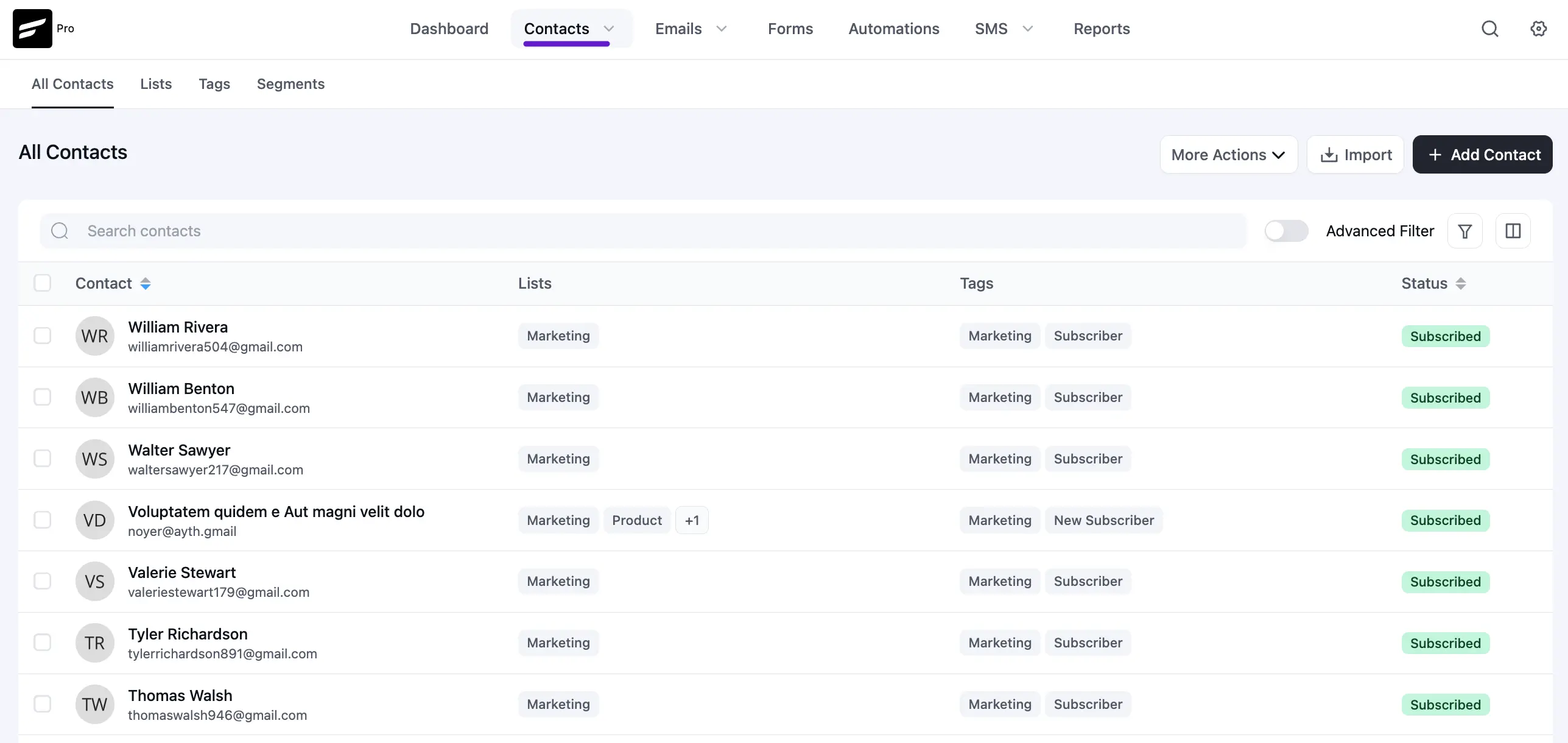
The key points are discussed below:
1. Filter By Lists:
This is a dropdown option where you will see all the Lists you have created and if you want you can filter by each or multiple Lists depending on your selection. More on this is discussed in the Basic Filters & Pagination below.
2. Filter By Tags:
This is another dropdown option where you will see all the Tags you have created and if you want you can filter by each or multiple Tags depending on your selection. More on this is discussed in the Basic Filters & Pagination below.
3. Filter By Statuses:
Similar to Lists & Tags if you want you can filter by each or multiple Contact Status depending on your selection. More on this is discussed in the Basic Filters & Pagination below.
4. Add Contact:
FluentCRM provides an easy way to add a new contact with a popup letting you add contact details. More on Adding a new Contact is discussed in Add New Contact.
5. Import:
With this option, you can import contacts from different sources like CSV files, WordPress Users, 3rd Party sources like Active Campaign, etc. More on Importing Contacts are discussed in Import Contacts.
6. Export:
To Export all or specific contacts by limits along with data properties selected you can use this FluentCRM option. More on exporting contacts are discussed in Export Contacts.
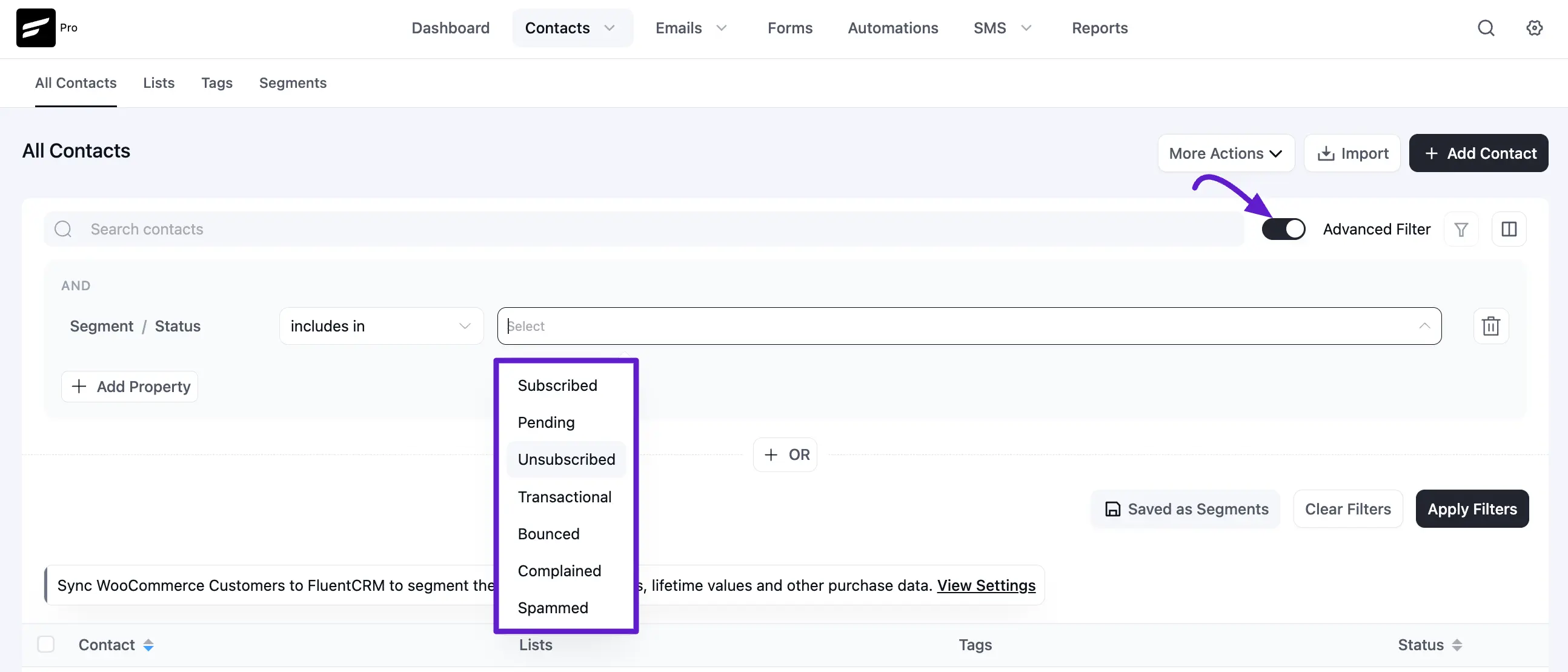
7. Advanced Filter:
This is a very advanced filter that provides numerous data types and also puts logical conditions like AND & OR to filter your contacts based on advanced data conditions. More on Advanced Filter are discussed in Advanced Filter.
8. Searchbox:
A search box where you will be able to search for contacts by email address or name.
9. Columns:
Contacts have numerous data fields and you can customize the view according to your needs by selecting the suitable fields as columns beside the contacts to get an overview quickly.
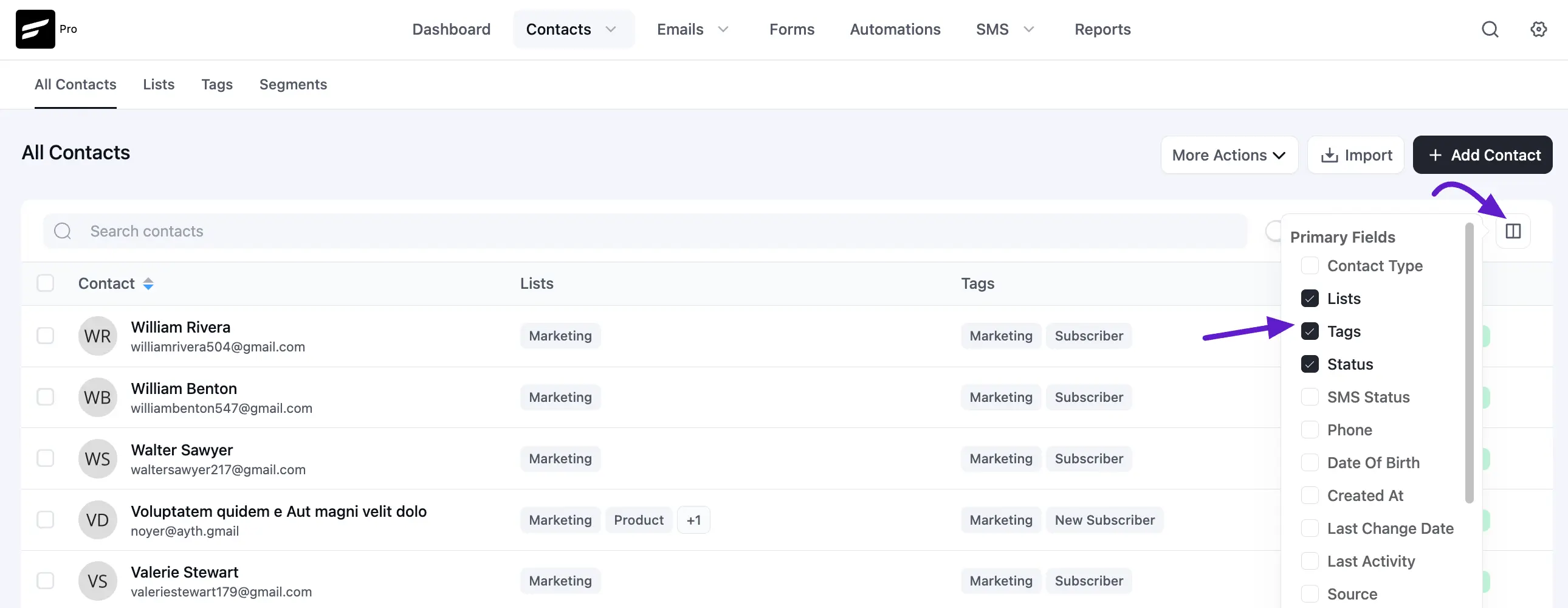
Basic Filters & Pagination
Filter By Lists, Tags & Statuses
Filter By Lists, Tags, Statuses & Number of contacts is the basic type of filtering.
If you have multiple Lists, for example, a List named Students contains 60 contacts and another List named Teachers contains 10 contacts then you will be able to filter them out by this filter option. You can select only Students to see all 60 contacts. If you want to include Teachers too then you will be able to add teachers to your selection and you will see 70 contacts in total.
The same goes for Tags as well.
You can also filter by any or multiple contact statuses. To know more about status types and what are they please visit FluentCRM Contact Status.
All the above 3 types of filters work as AND conditions in conjunction.
Pagination
And contacts listed can be paginated per 10, 20,.. contacts per page from the bottom dropdown option as shown in the below screenshot.
Data Columns
Primary Columns
By default, the contacts dashboard shows the contact images coming from Gravatar, Email addresses, Names, Lists, Tags, and Status Columns. You can additionally choose to see more or fewer columns as you wish to see.