
Appearance
Twilio SMS Integration
Twilio is a leading cloud communication platform that empowers developers to create powerful customer engagement features. By integrating FluentCRM with Twilio, you can reliably send SMS campaigns and automated messages to your subscribers worldwide – and, with v3, optionally receive inbound replies via Twilio's incoming webhook.
Follow the steps below to connect your Twilio account to FluentCRM.
Accessing the Twilio SMS Provider
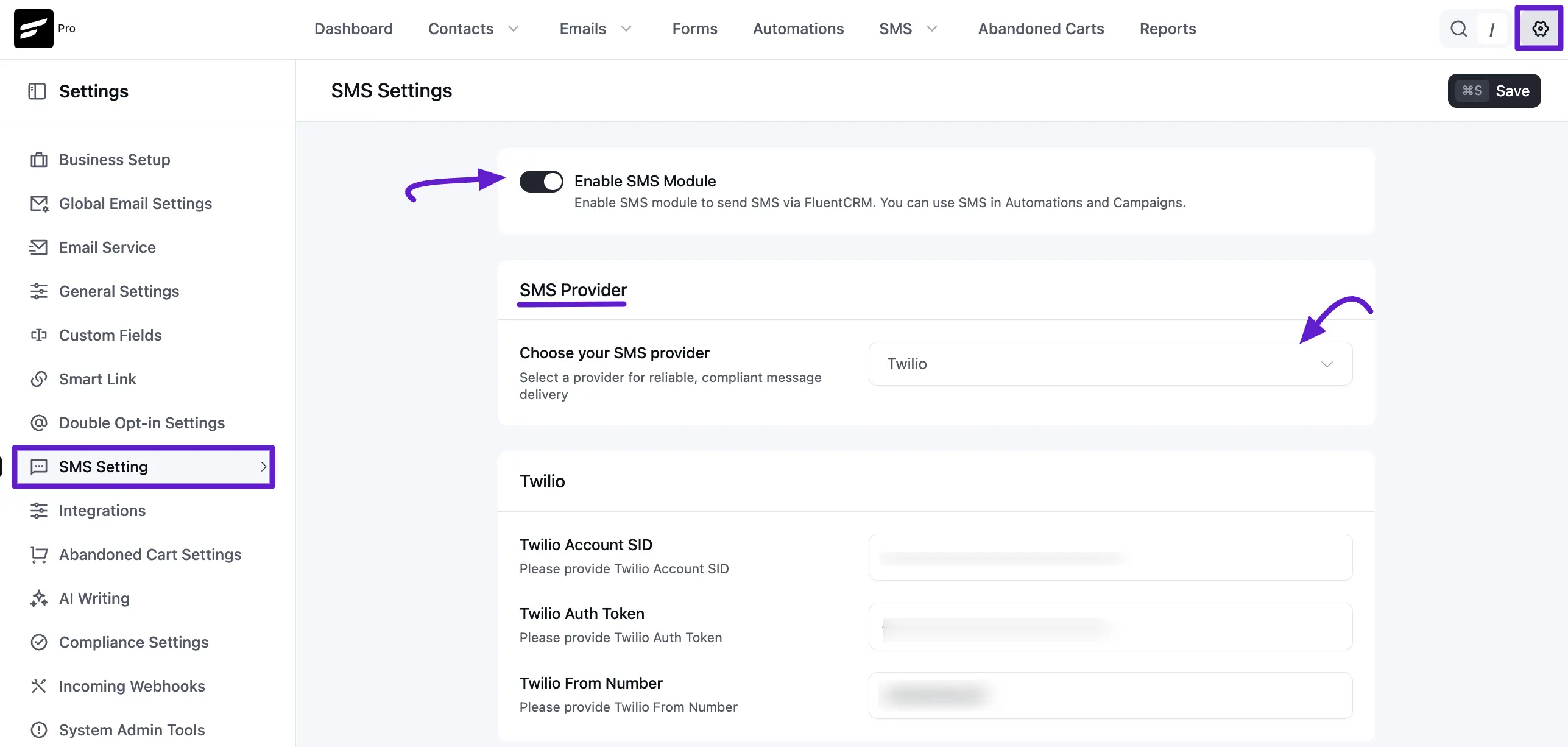
Before you begin, ensure you have enabled the SMS Module in your FluentCRM settings. You can do this by navigating to FluentCRM Pro > Settings > SMS Settings and toggling the Enable SMS Module switch to ON.
- From the SMS Settings page, locate the SMS Provider section.
- Click the Choose your SMS provider dropdown menu and select Twilio from the available options.
Twilio Credentials
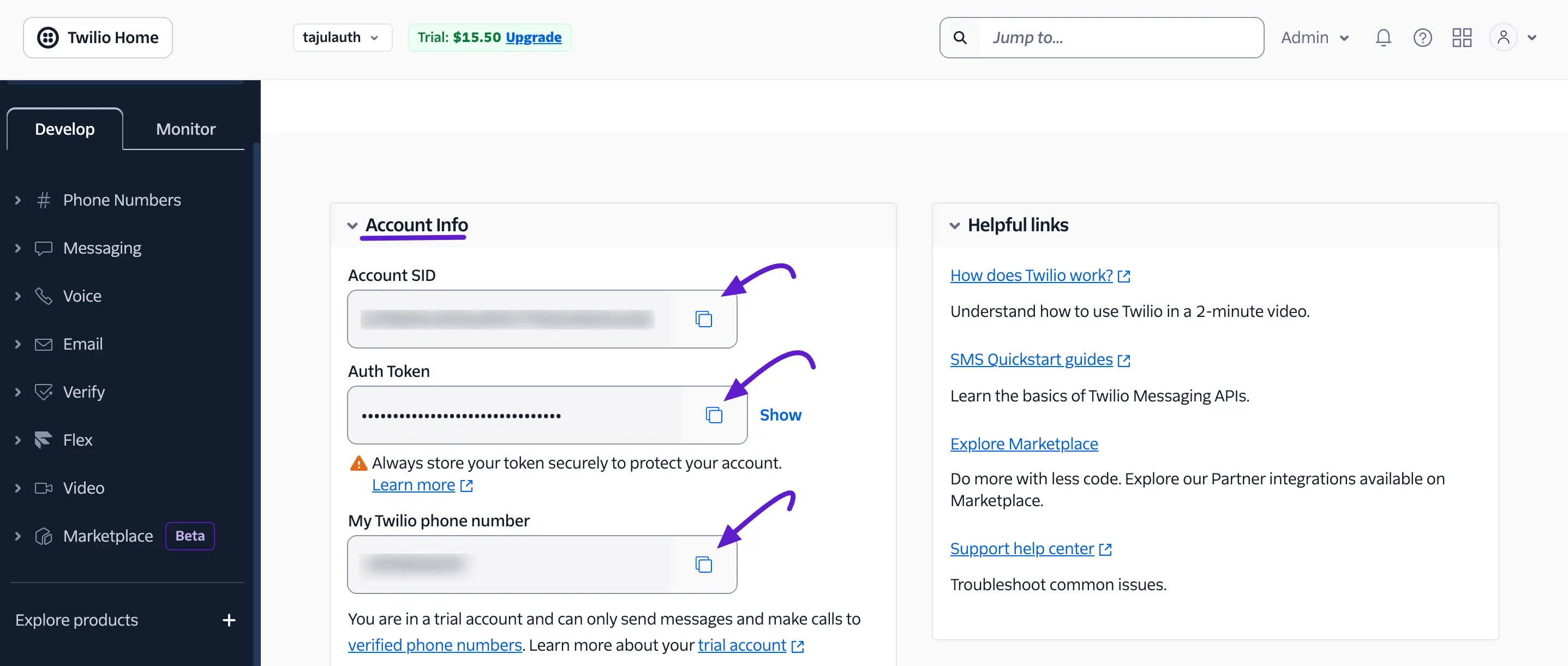
To configure the integration, you need three key pieces of information from your Twilio account: the Twilio Account SID, Twilio Auth Token, and your Twilio From Number.
- Log in to your Twilio account dashboard.
- Navigate to the Account Info section on your Twilio home page.
- Locate and copy your Account SID and Auth Token. (Note: You may need to click Show to reveal your Auth Token).
- Copy your My Twilio phone number as well.
Configuring FluentCRM Twilio Settings
Now return to the SMS Settings page in FluentCRM to enter your credentials.
- Twilio Account SID: Paste the Account SID you copied from your Twilio dashboard.
- Twilio Auth Token: Paste the Auth Token into this field.
- Twilio From Number: Enter the provisioned phone number from your Twilio account.
- Save Settings: Once all credentials are added, click the Save button at the top right of the page.
SMS Incoming Webhook (Optional but recommended)
Upon saving Twilio credentials, FluentCRM generates a unique SMS Incoming Webhook URL at the bottom of the SMS Setting page. Paste this URL into your Twilio messaging service so FluentCRM can:
- Capture inbound replies from contacts and store them on the contact's SMS timeline.
- Trigger automation steps when a contact replies (e.g. apply a tag, fork an automation).
To configure the incoming webhook inside your Twilio Console, follow these steps:
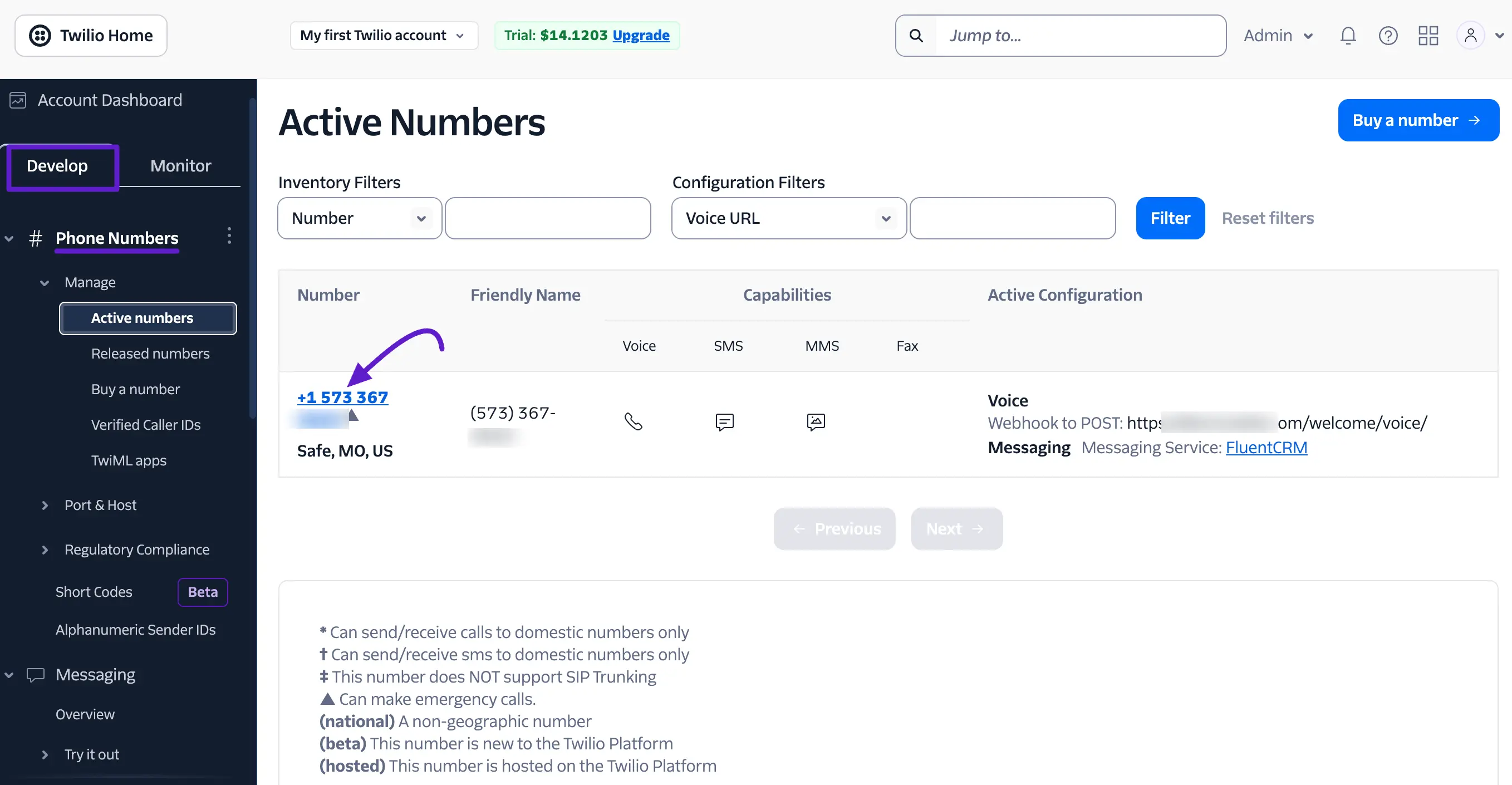
- Log in to your Twilio account and select the Develop tab from the left-hand navigation sidebar.
- Expand the Phone Numbers menu, click on Manage, and then select Active numbers.
- Under the Active Numbers list, Locate your provisioned phone number and click on it to open its unique configuration panel.
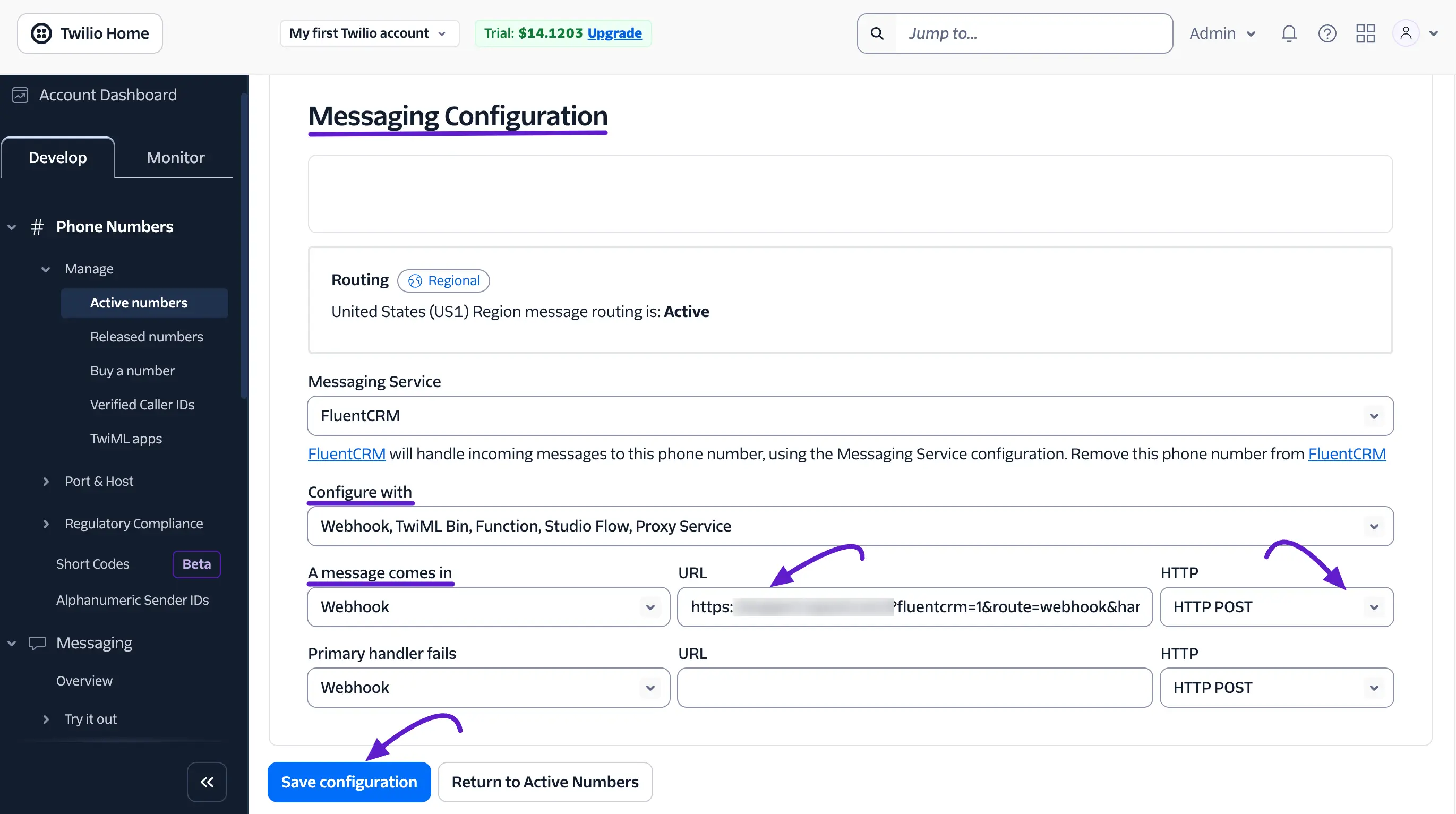
- Scroll down to the Messaging Configuration section.
- Under the Configure with dropdown menu, select Webhook, TwiML Bin, Function, Studio Flow, Proxy Service.
- Locate the A message comes in subsection:
- In the first dropdown menu, select Webhook.
- In the URL input field, paste the unique SMS Incoming Webhook URL generated by FluentCRM.
- In the HTTP method dropdown menu on the right, select HTTP POST.
- Click the blue Save configuration button at the bottom of the page to apply the changes.
Your Twilio integration is now complete. You are ready to start creating and sending SMS campaigns or utilising SMS in your automation funnels.
If you want to learn how to create an SMS campaign, read Configure SMS Module.