
Appearance
Content Blocks in Email Editor
The FluentCRM Email Editor provides a versatile set of blocks to help you design professional and engaging emails. These blocks are categorized into Text, Media, Design, and Integrational sections to streamline your creation process.
Text Content Blocks
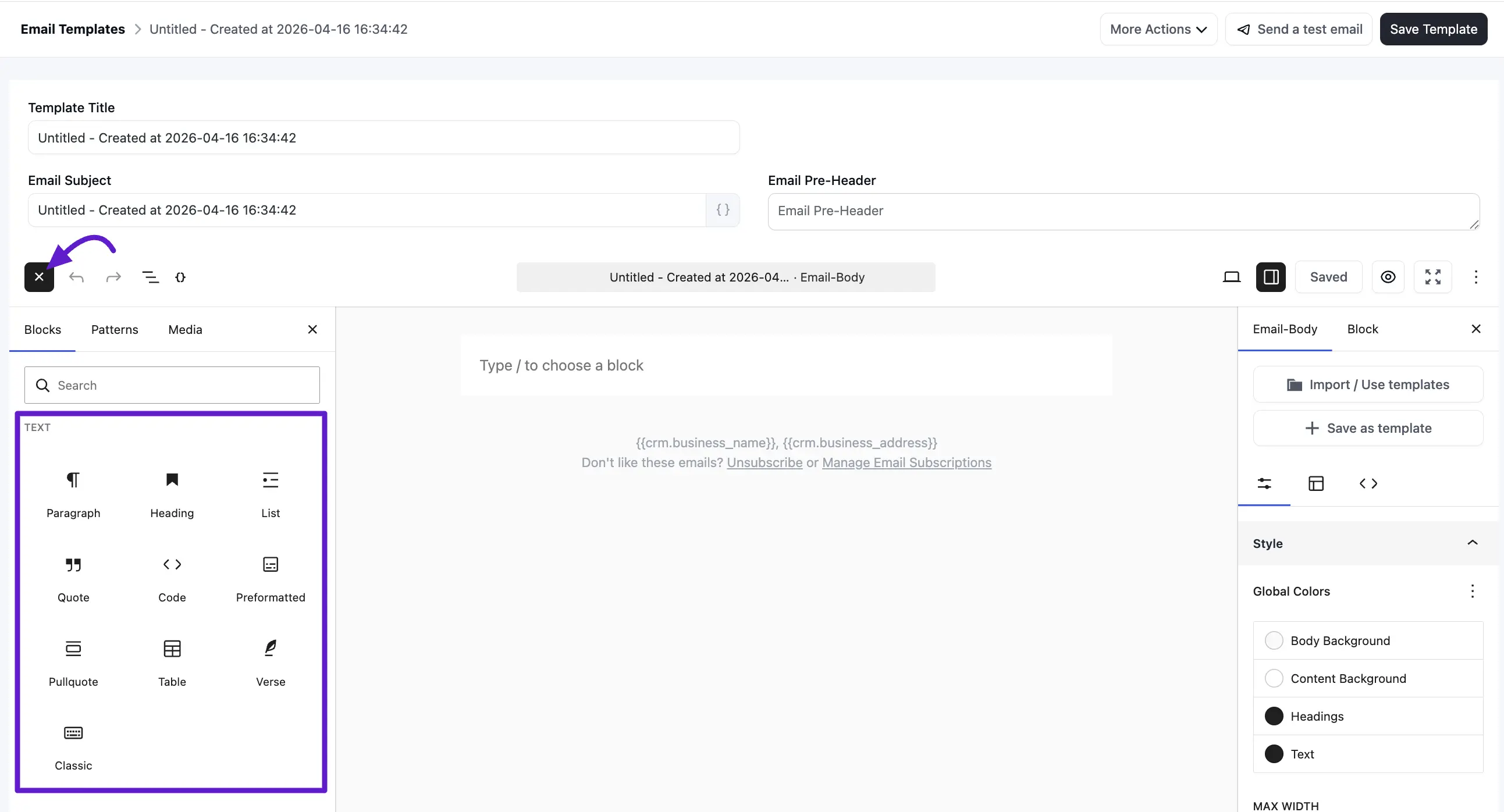
Text blocks allow you to structure your written content with familiar formatting options:
- Paragraph: Used for standard body text.
- Heading: Organizes your email with clear titles.
- List: Creates bulleted or numbered points for better readability.
- Table: Displays data in a structured row and column format.
- Verse and Classic: Specialized blocks for specific text formatting needs.
Media Content Blocks
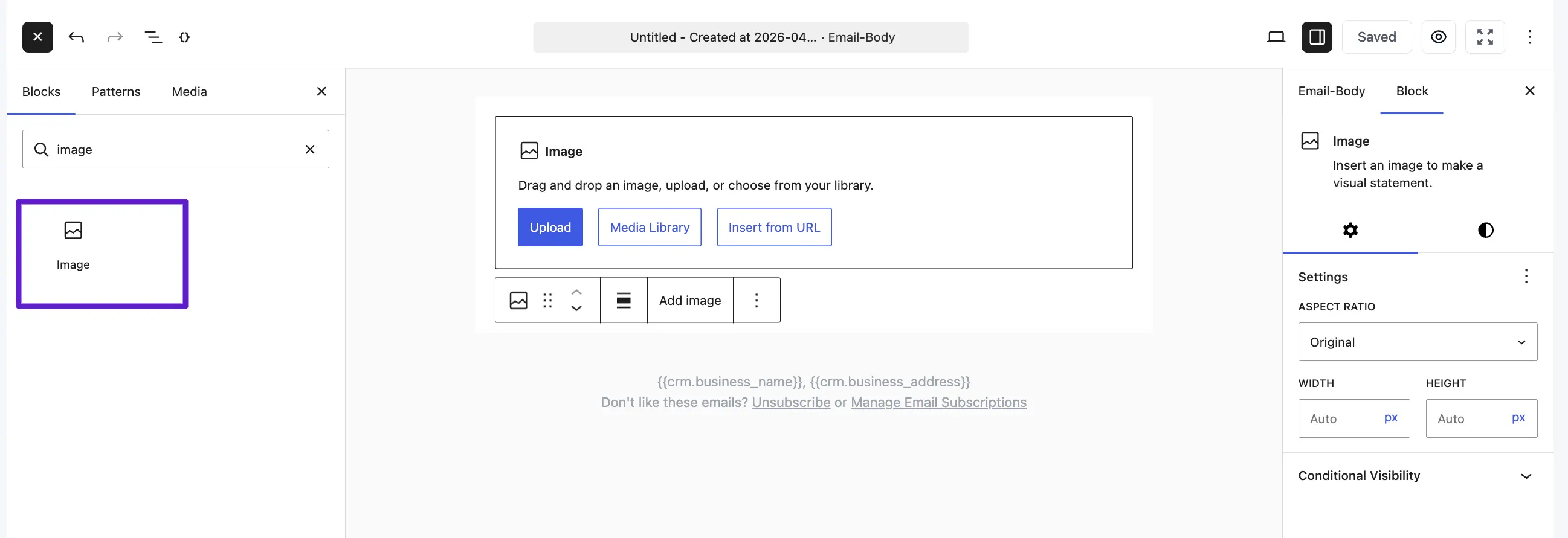
Visual elements are essential for high-converting emails. The Image block is the primary media tool:
- Upload: Directly upload an image from your computer.
- Media Library: Select images already existing in your WordPress library.
- Insert from URL: Link an image from a remote web address.
Design Content Blocks
These blocks help you manage the layout and interactive elements of your email:
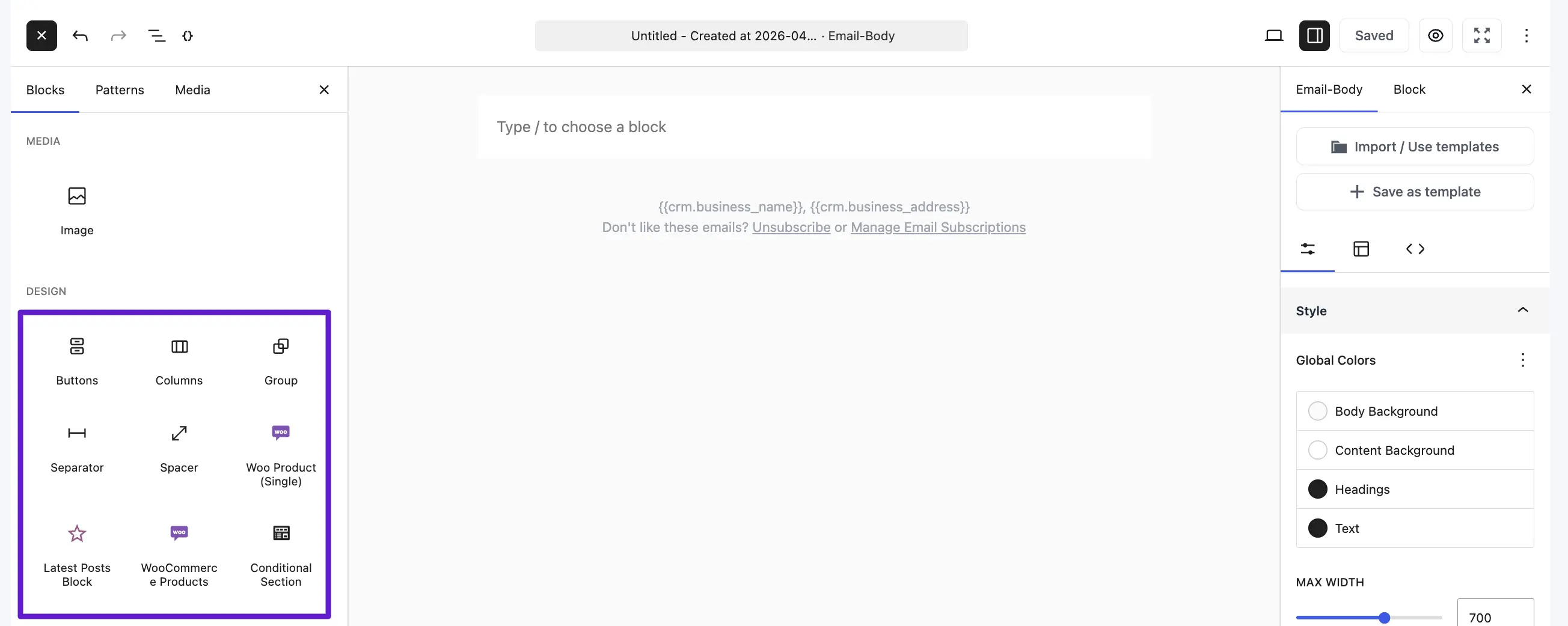
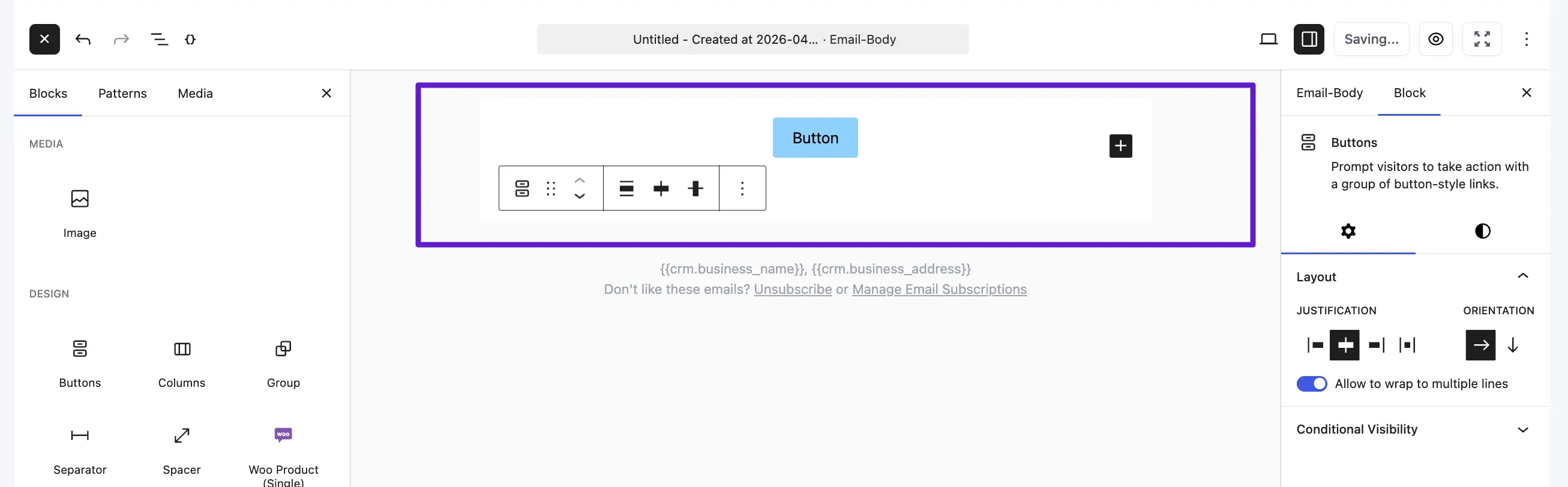
- Buttons: Add clear Call to Action (CTA) elements.
- Columns: Nest multiple content elements side by side for complex layouts.
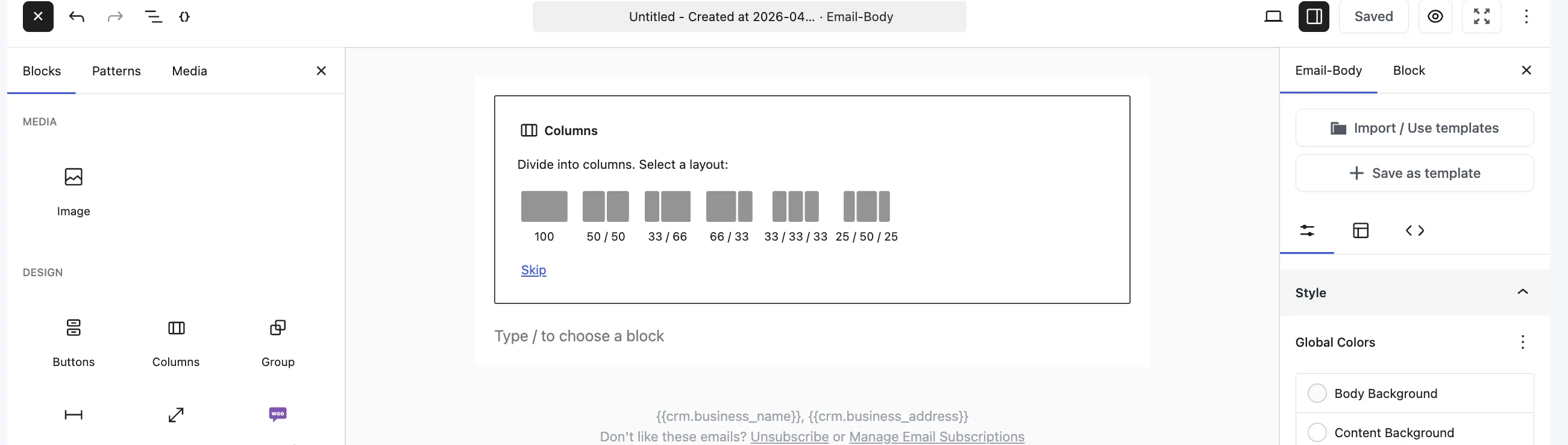
Group and Row: Organize multiple blocks into a single container or a full-width row.
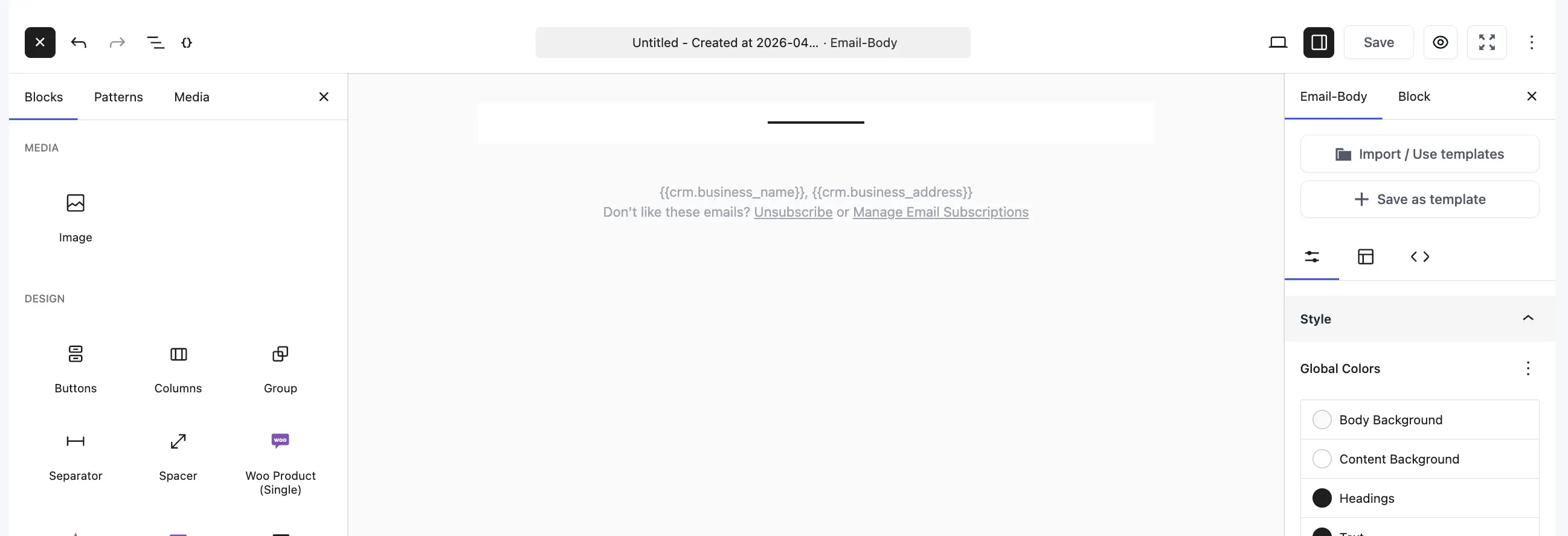
Spacer and Separator: Use these to add breathing room or visible lines between sections.
Conditional Content Blocks
The Conditional Section allows you to show specific content only to selected subscribers. For more detail, see Conditional Sections in the Email Editor.
- Condition Type: You can choose to “Show if in selected tags” or “Show if not in selected tags”.
- Tag Selection: Select the specific tags that will trigger the visibility of this block.
Integrational & Widget Content Blocks
Depending on your active plugins, you may see specialized blocks:
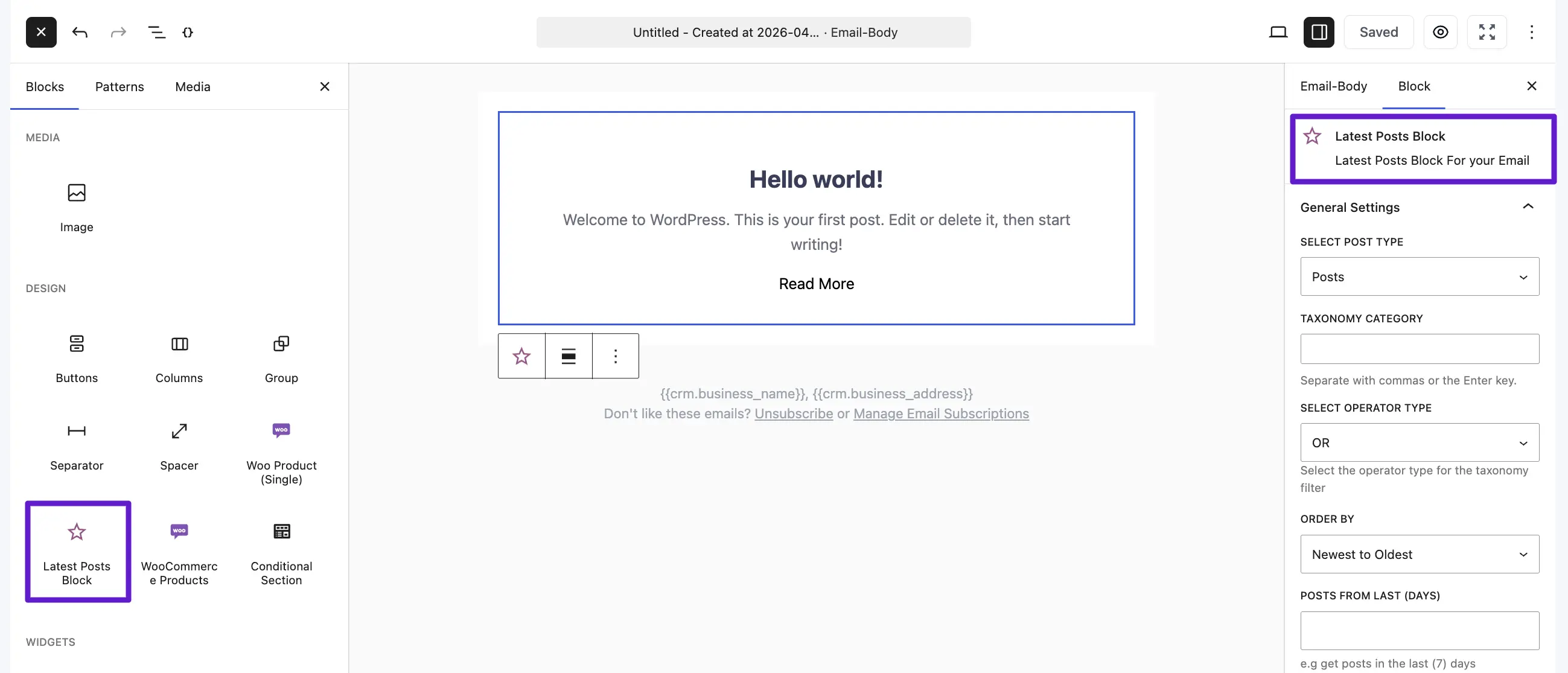
- Latest Posts Block: Automatically displays recent website posts. You can customize the number of posts and the layout.
- WooCommerce Product Block: Search and insert products directly from your store into the email.
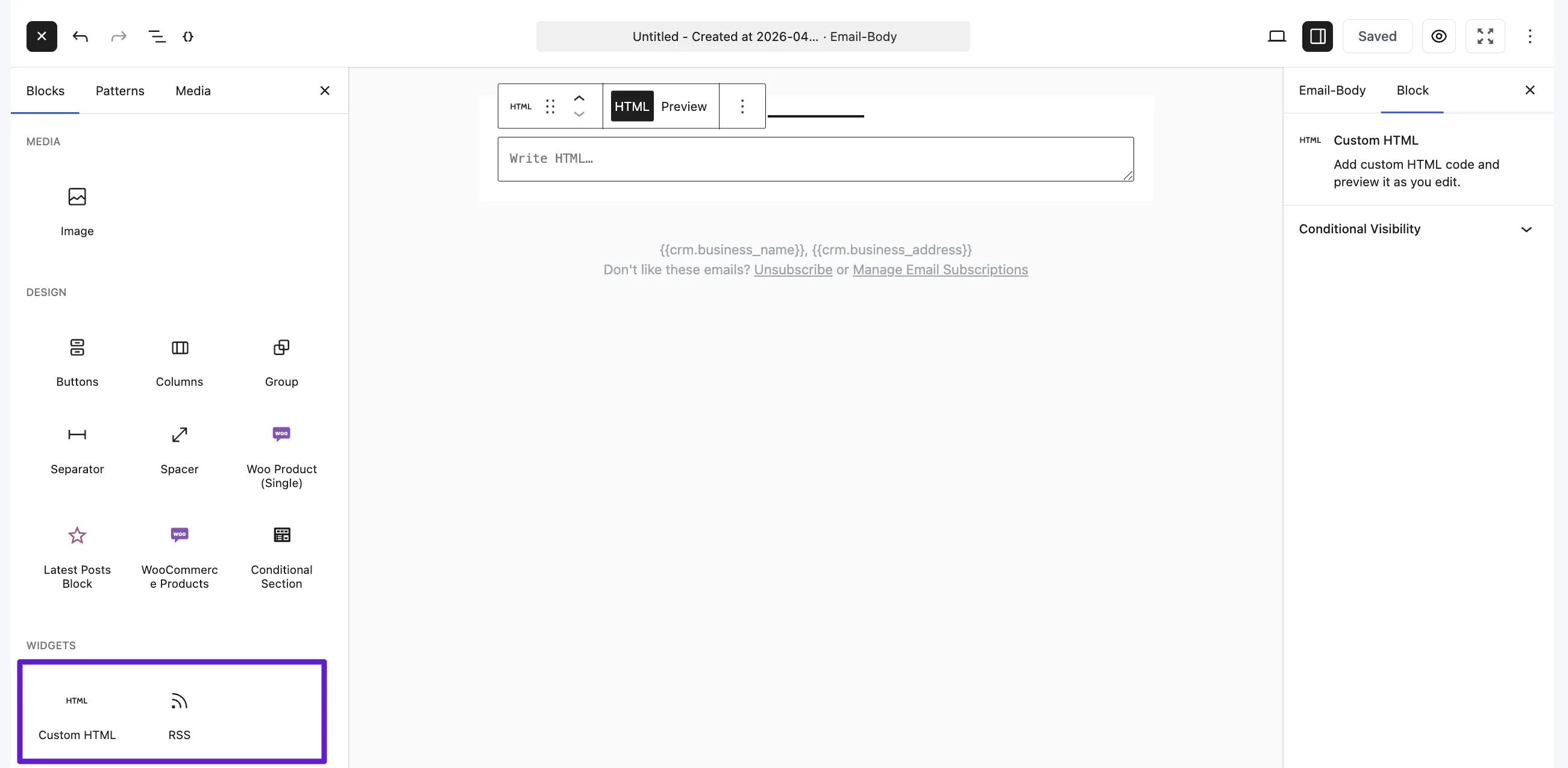
- Custom HTML: Insert custom code for unique design requirements not met by standard blocks.
- RSS: Fetch and display feeds from an external RSS source, with options to show the author, date, and excerpt.
Example Email and Preview
You can use a combination of these elements to create a comprehensive email. Before sending, use the Preview tool to see how your design will appear in various email clients, such as Gmail.