
Appearance
Compose Email in FluentCRM
The email editor is the heart of your marketing efforts. FluentCRM uses a powerful, block-based system (similar to the WordPress Gutenberg editor) to help you build beautiful, professional emails without needing to code.
1. Setting Up Your Email Basics
Before you start designing your email, make sure the basic details are set:
- Template Title: Give your email a name to help you organize it later.
- Email Subject: Write a clear and engaging subject line. You can click the {} icon to add SmartCodes, such as the contact’s first name, to make it more personal.
- Email Pre-Header: Add a short preview text that appears next to the subject line in the inbox. This helps encourage people to open your email.
Important: FluentCRM v3 ships with a Gutenberg-native email builder as the default editor. It supports device preview, the WordPress media library, reusable Email Patterns, and AI Writing – so you can compose, personalise, and reuse email designs without leaving the editor.
2. Customizing the Design (Style & Typography)
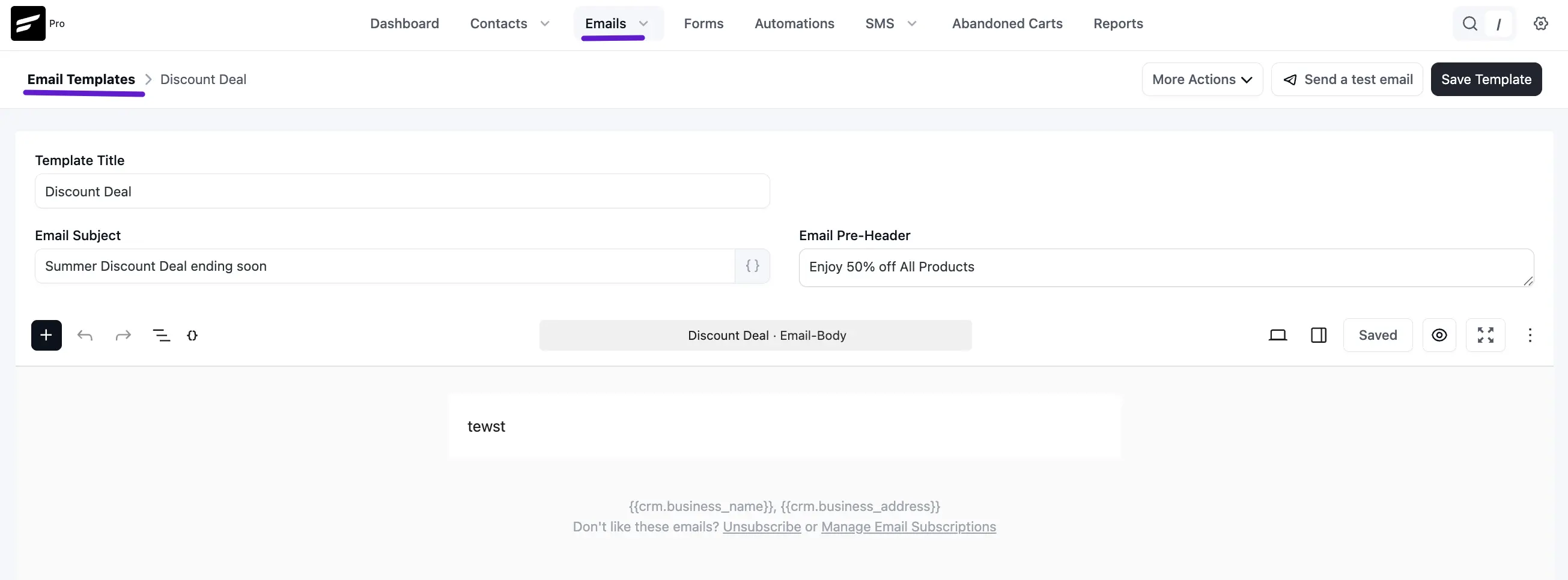
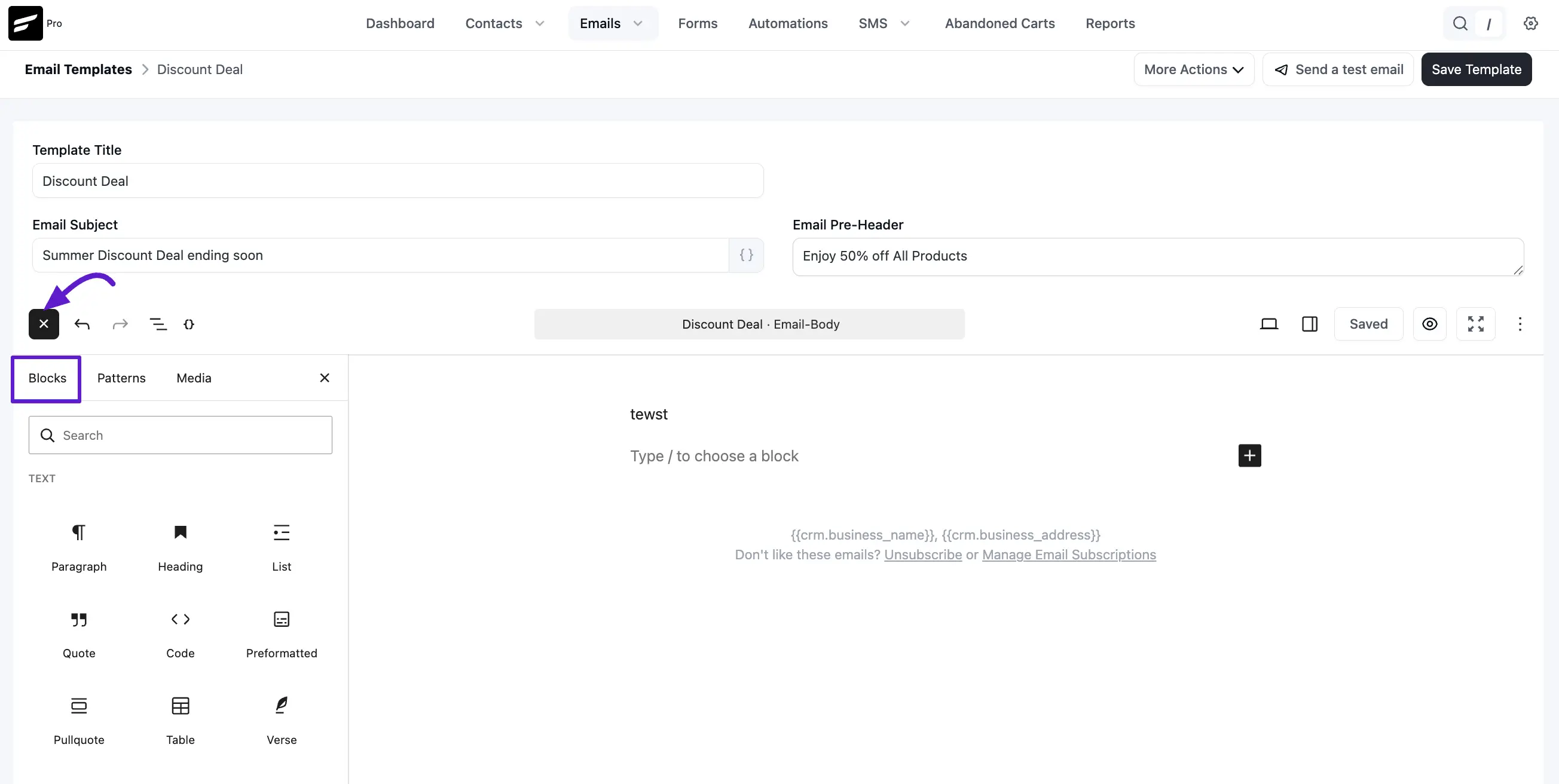
On the right-hand side, click on the Sidebar Icon(indicated by the purple arrow in the image). Here, you will find the Email-Body tab. This allows you to set the global look of your email:
Global Colors:
- Body Background: Change the color of the area outside your email content.
- Content Background: Change the color of the main box where your text sits.
- Text & Headings: Set the default colors for your words and titles.
Typography: Choose your Font Family (e.g., System UI) and set the Font Size (S to XXL) and Line Height to ensure your email is easy to read.
Max Width: Control how wide your email appears on desktop screens (standard is usually 600px to 700px).
Template Type
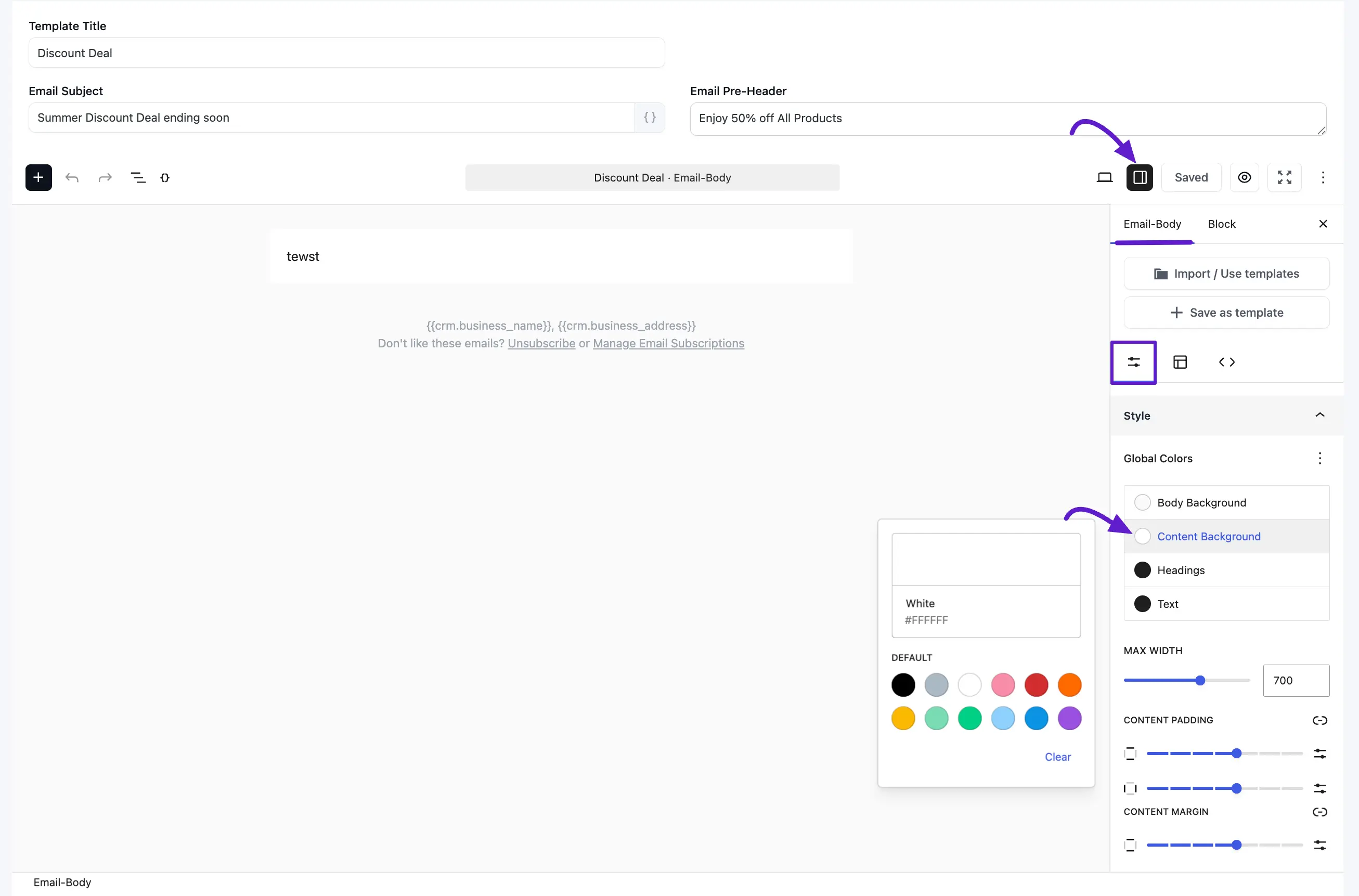
FluentCRM offers several pre-built layout styles to help you format your email quickly. To access these, click the Sidebar icon (indicated by the purple arrow in the image) and navigate to the Template Type section.
Choosing the right layout ensures your content is aligned correctly for different devices and reading preferences:
- Simple Boxed (Default): This is the classic email look. It places your content inside a structured "box" with a clear background distinction between the email body and the outer background. It works perfectly for most newsletters and marketing deals.
- Plain Centered: This layout centers your text and images in the middle of the screen without a visible box border. It provides a clean, modern look that feels like a personal letter.
- Plain Left: If you want your email to look like a standard, direct message sent from a personal Gmail or Outlook account, use this. It aligns all content to the left, which is often preferred for high-conversion sales outreach.
3. Using SmartCodes (Dynamic Data)
FluentCRM uses SmartCodes to pull real-time data from your database and insert it directly into your emails.
How to Use SmartCodes
There are three easy ways to add SmartCodes while you are composing your email:
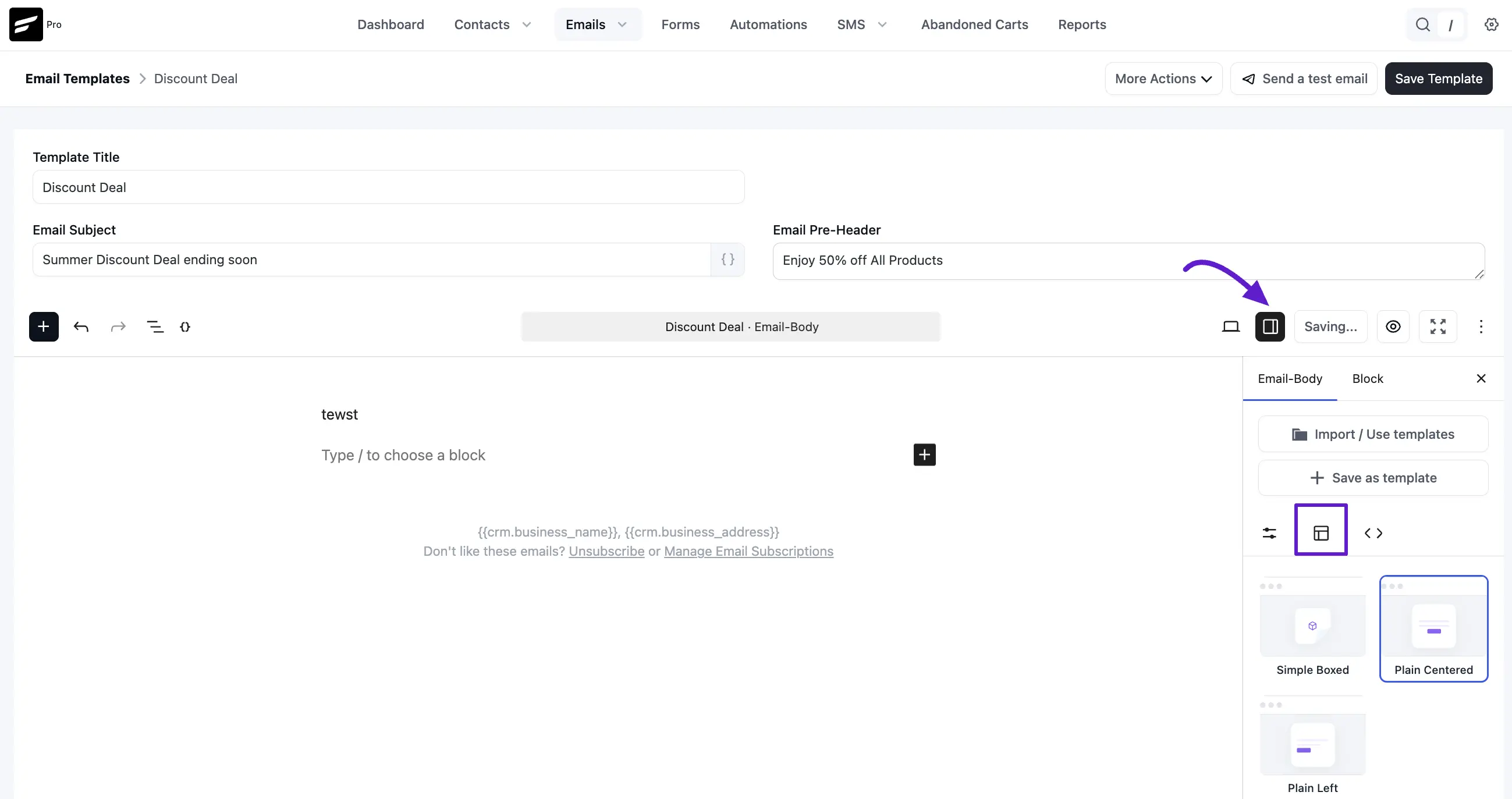
- The Sidebar Tool: Open the Email-Body sidebar on the right and click the SmartCode icon (the < > symbol). Here, you can search for a specific code and click the Copy button to paste it anywhere in your email.
- The Keyboard Shortcut: While typing in any text block, simply type the "@" symbol. A dropdown list will appear with common contact data like First Name, Last Name, and Email.
- Subject Line Personalization: Click the small {} icon inside the Email Subject or Pre-Header fields to instantly add a SmartCode to your subject line.
Available SmartCode Categories
The sidebar organizes SmartCodes into categories so you can find exactly what you need:
- Contact Information: Pull in basic details like
{{contact.first_name}},{{contact.last_name}}, or{{contact.full_name}}. - Address Details: Insert specific location data such as
{{contact.city}},{{contact.state}}, or{{contact.country}}. - WooCommerce Data: For online stores, you can pull in financial info like
{{woo.total_spent}},{{woo.total_order_count}}, or the date of their{{woo.last_order_date}}. - General Business Info: Always include your
{{crm.business_name}}and{{crm.business_address}}in the footer to stay compliant with email regulations. - Links: Easily add required links like
{{crm.unsubscribe_url}}or{{crm.manage_subscription_url}}.
TIP
If a contact does not have a first name, use a fallback value so your message still reads naturally.
Use: Hi {{contact.first_name | default: "friend"}},
This shows Hi John, when the name exists, or Hi friend, when it does not.
4. Adding Content with Blocks
To build your email, click the + (Plus) icon at the top left or simply type "/" in the editor to see available blocks:
- Text: Paragraphs, Headings, Lists, and Quotes.
- Media: Add Images to make your email visually appealing.
- Design: Add Buttons for your Call-to-Action (CTA), Columns for layout, or a Separator to divide sections.
- Widgets: Insert custom HTML or RSS feeds if needed.
5. Advanced Editor Options
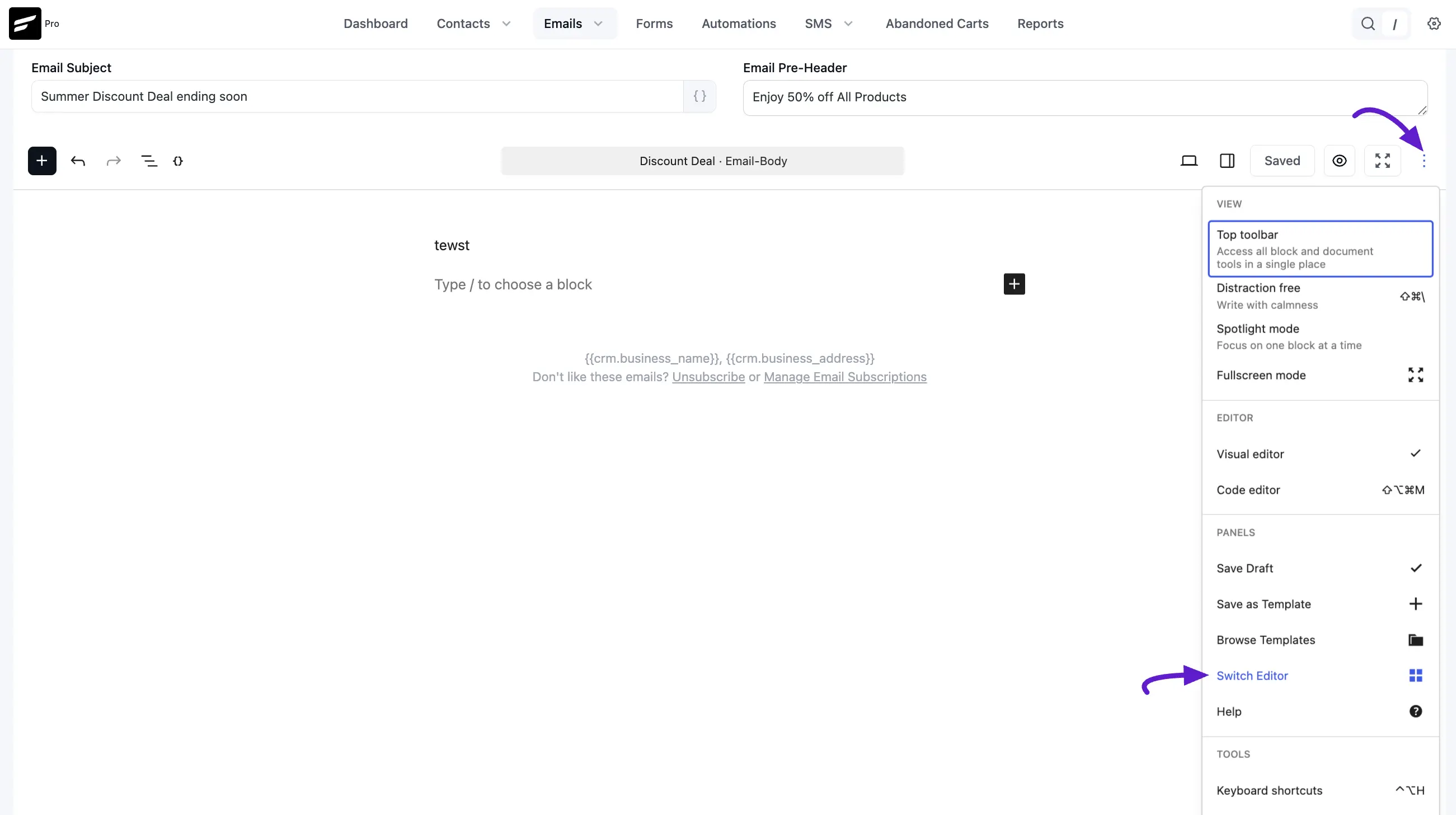
If you need more control or want to switch your workflow, click the three dots (⋮) at the top right:
- Switch Editor: Stay on the Gutenberg-native default, or switch to the Visual Builder, Classic Editor, or Raw HTML for custom code.
- Insert Pattern: Drop in a saved Email Pattern so you don't have to rebuild common sections (header, hero, footer) every time.
- Import/Use Templates: If you’ve already made a great design, click Import to bring it into your current draft.
- Save as Template: If you've created a layout you love, save it so you can use it as a starting point for future emails.
- Device Preview: Toggle between Desktop and Mobile preview from the editor toolbar to confirm the layout works on both.
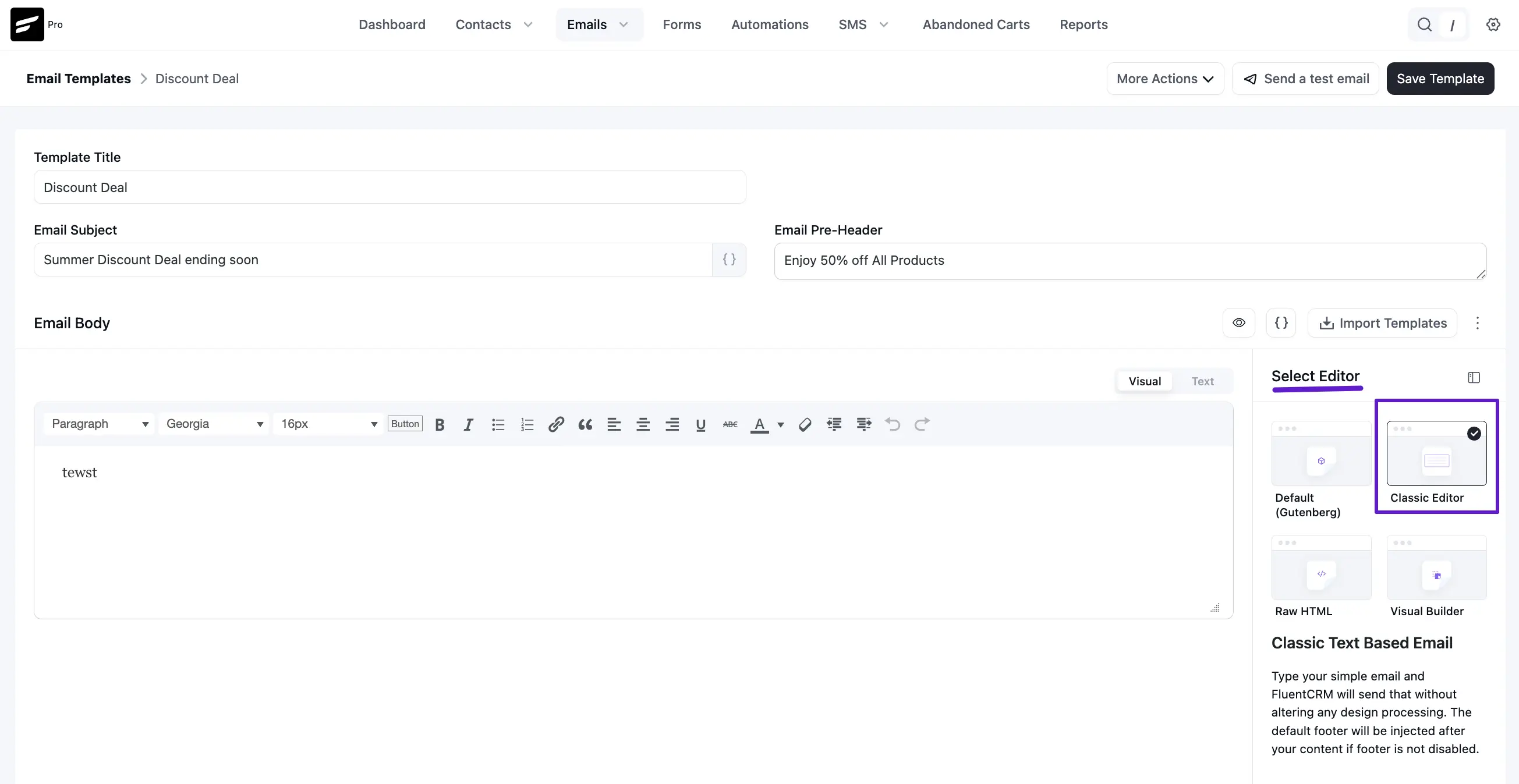
Classic Editor
If you are familiar with the legacy WordPress Classic Editor, this option is for you. You can have more control over the content rather than the Gutenberg Editor.
Raw HTML
FluentCRM’s Raw HTML Email Editor allows advanced users to create fully customized email templates. This is especially useful if you want to import templates from external sources or code the email body using HTML.
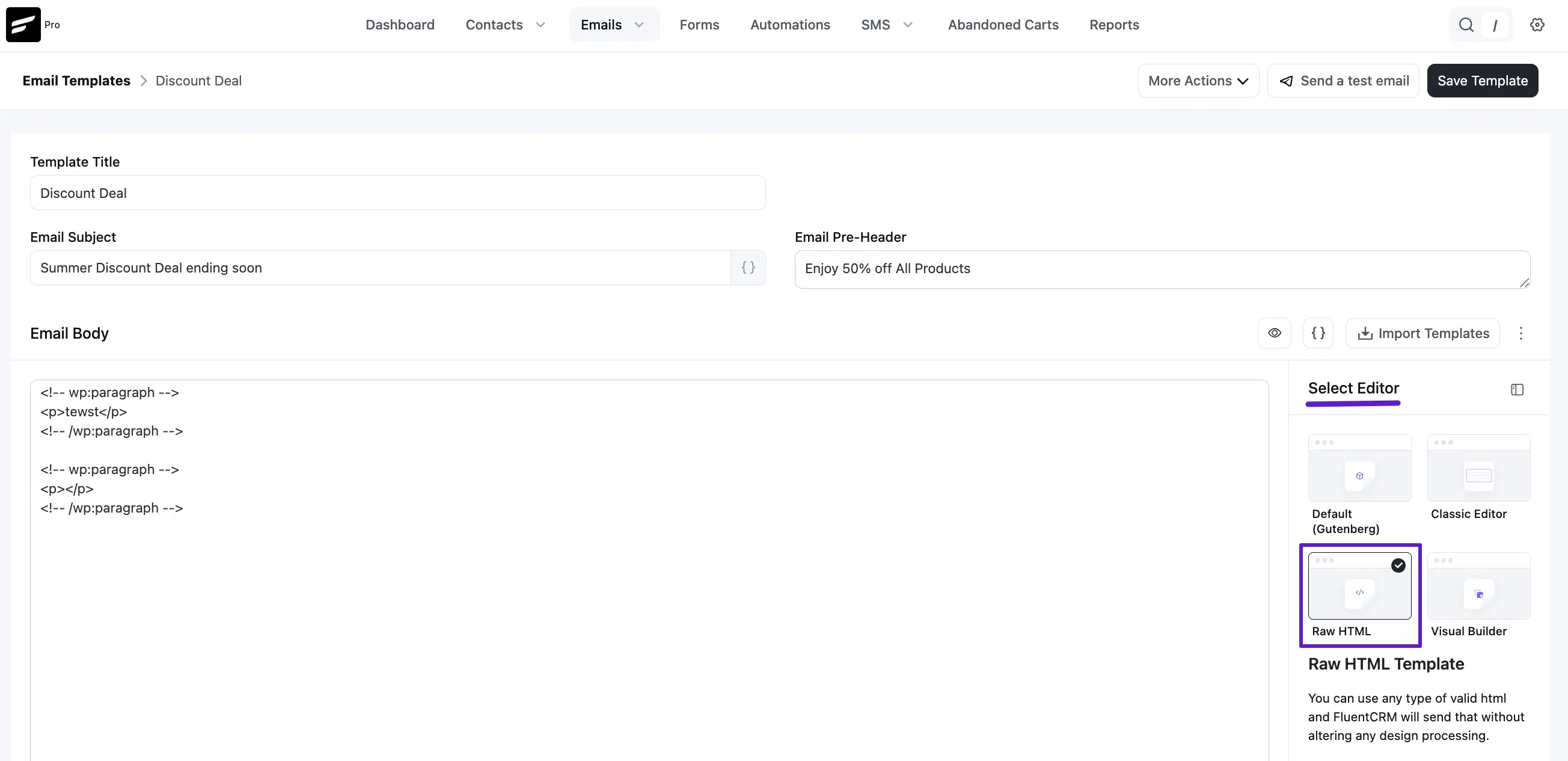
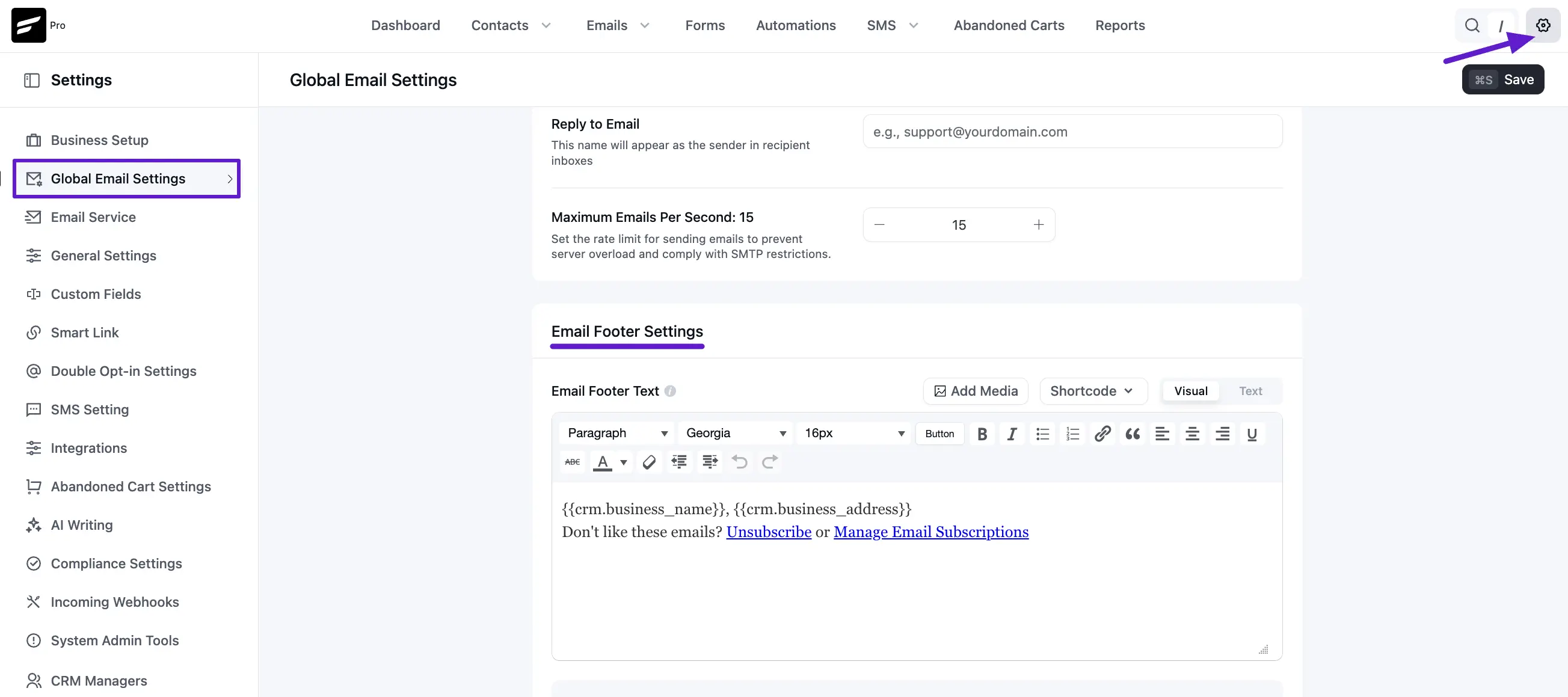
However, when using the Raw HTML editor, the Global Footer, which typically includes essential links like Unsubscribe and Manage Email Subscription, is not automatically added. You will need to manually insert these links into your template.
To do this, go to the Settings tab and click on Global Email Settings. Scroll to the Email Footer Settings section, where you can edit or insert the Unsubscribe or Manage Email Subscription links.
Preview Composed Email
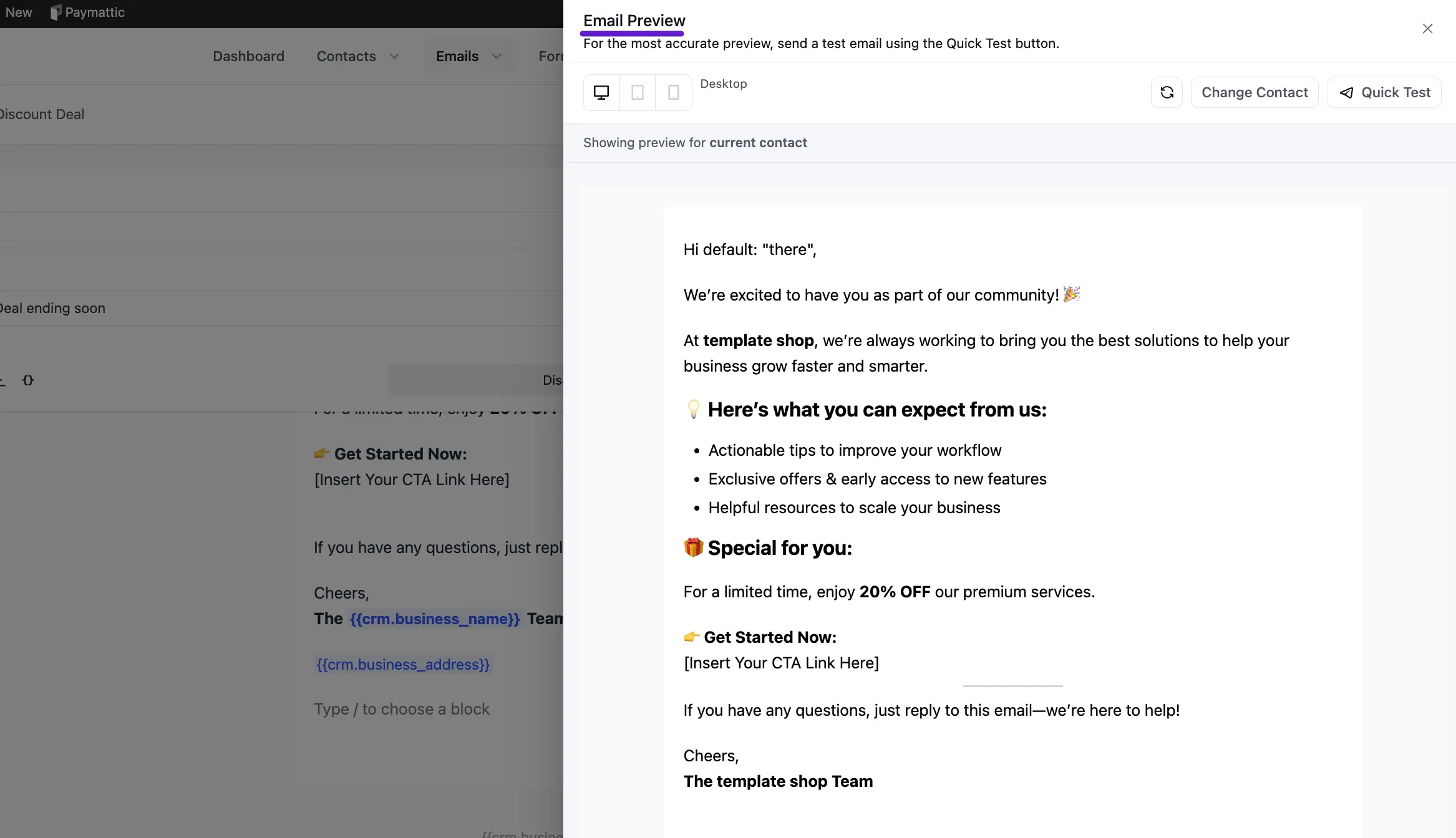
One of the most helpful features of FluentCRM is the Preview. By clicking on the Eye button you can preview the composed email to see how it may look in the recipient's email client. Please remember that there are numerous email clients that are Web, Desktop or Mobile based. The email content you composed may look slightly different on different devices. You should add mobile device-specific CSS codes too so that the email content looks better on Mobile devices as well.
Tip: Use the Device Preview toggle in the toolbar to switch between Desktop and Mobile views and verify how your design will look on both. Some block-level customisation is bound by Gutenberg's own constraints – when in doubt, switch to the Visual Builder for drag-and-drop fine control.
Sending test Email
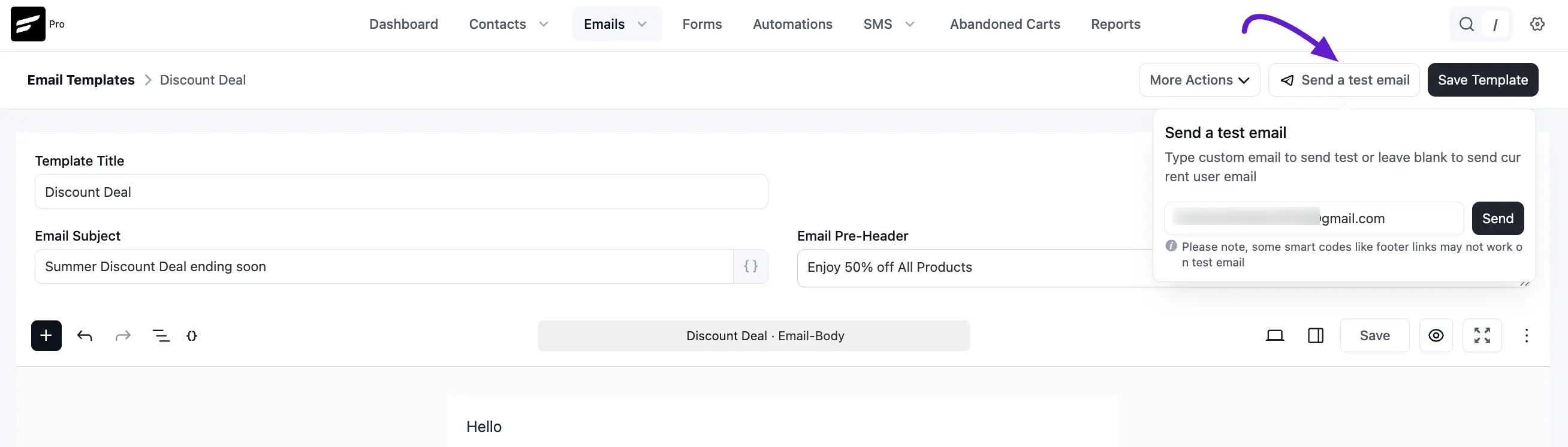
Once you are done composing the email content you should test the email content to your own email to see how they are rendered in Email Client. Remember that, Using ShortCodes that fetch contact data will not be rendered in the test email as the test email will not have generated email that assigns an email with the relevant contact by unique parameters and renders the contact data.
For best email delivery of the composed emails in FluentCRM, please consider using an SMTP Plugin like FluentSMTP. You should also be careful with the content to not be filtered by Spam Filters and mark your email as a Spam and this might get your email rejected or land in the Spam Folder of the Email Clients.