
Appearance
Double Opt-in Settings
The Double Opt-in feature in FluentCRM acts as an essential verification layer to ensure every email address in your list belongs to a real, verified user. When enabled, contacts added via form submissions, automation funnels, or eCommerce checkouts will receive a confirmation email. They will remain in Pending status until they click the confirmation link.
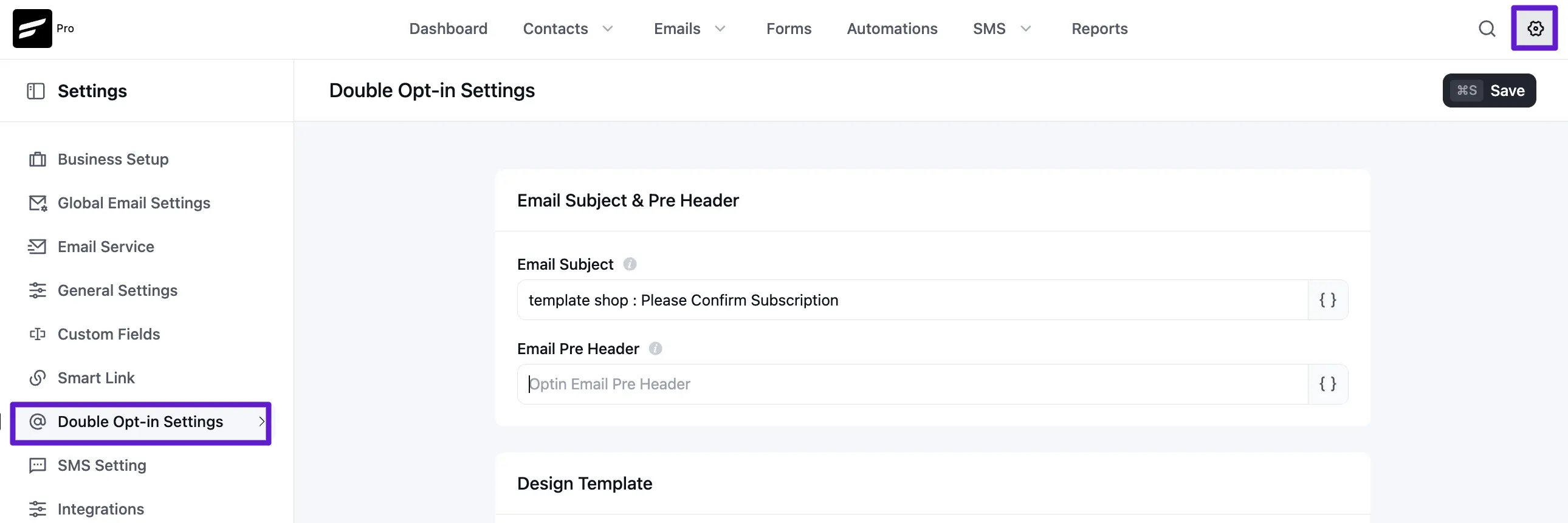
To configure these settings, navigate to Settings ➜ Global Settings ➜ Double Opt-in Settings.
Email Configuration (Subject, Pre-header & Sender)
Customize how the confirmation email appears in your subscriber's inbox:
- Email Subject: Give an appropriate subject for the email to the recipient.
- Email Pre Header: This is the short summary text that follows the subject line when an email is viewed in the inbox. Use this to provide additional context and improve open rates.
Email Body & Design
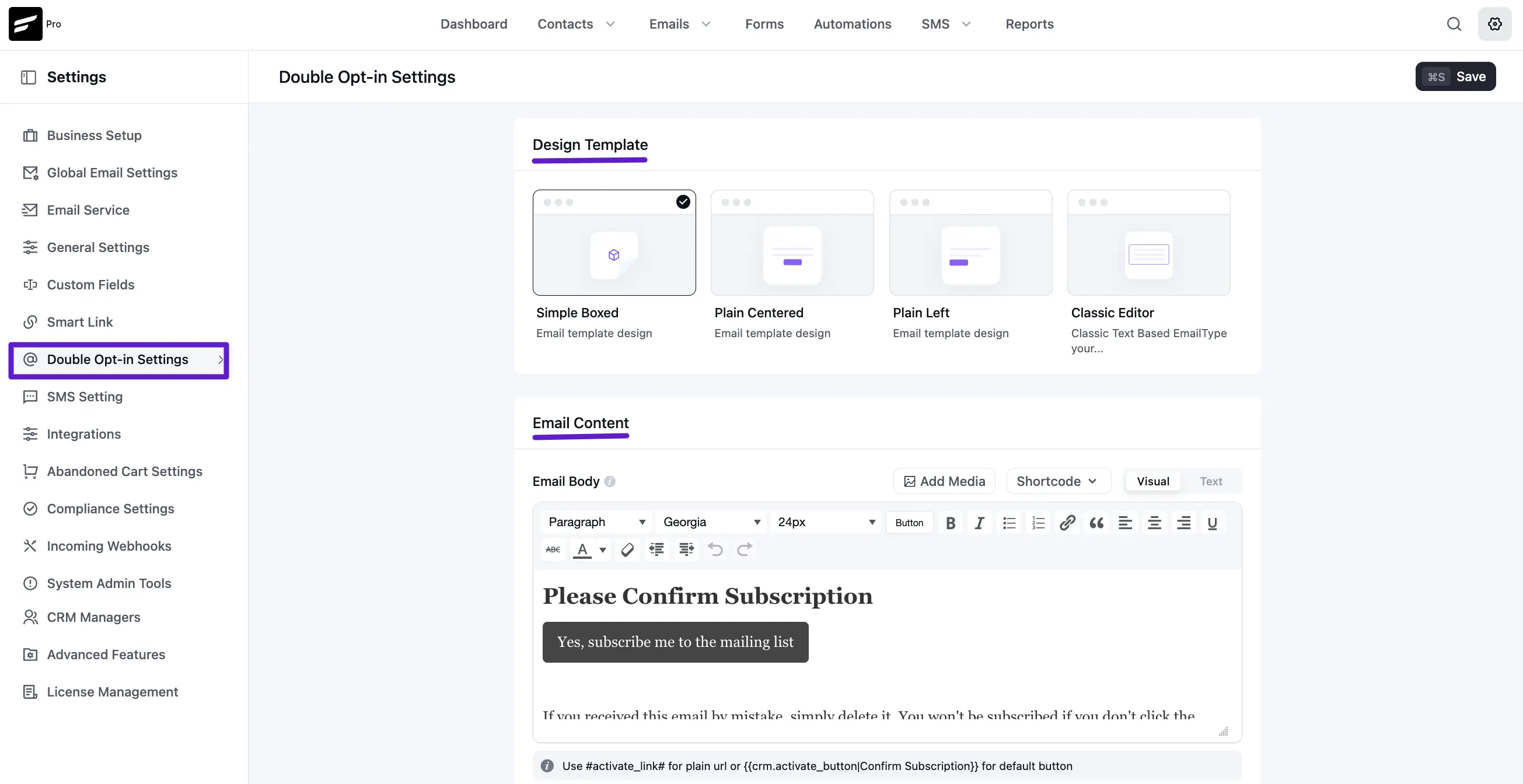
Email Body: Write the email body for the double opt-in email. You can customize the default text using the SmartCode dropdown to create a personalized experience.
Activation Link (Mandatory): You must include the activation trigger so users can confirm.
- For Plain Text Email, use: #activate_link#
- For HTML Email with a button, use: {{crm.activate_button|Confirm Subscription}}
Design Template: Select the email Design Template. You can choose from four different options: Simple Blue, Classic, Plain Texture, or Basic.
After Confirmation Actions
Once a user clicks the confirmation link, you can decide their destination using the following options:
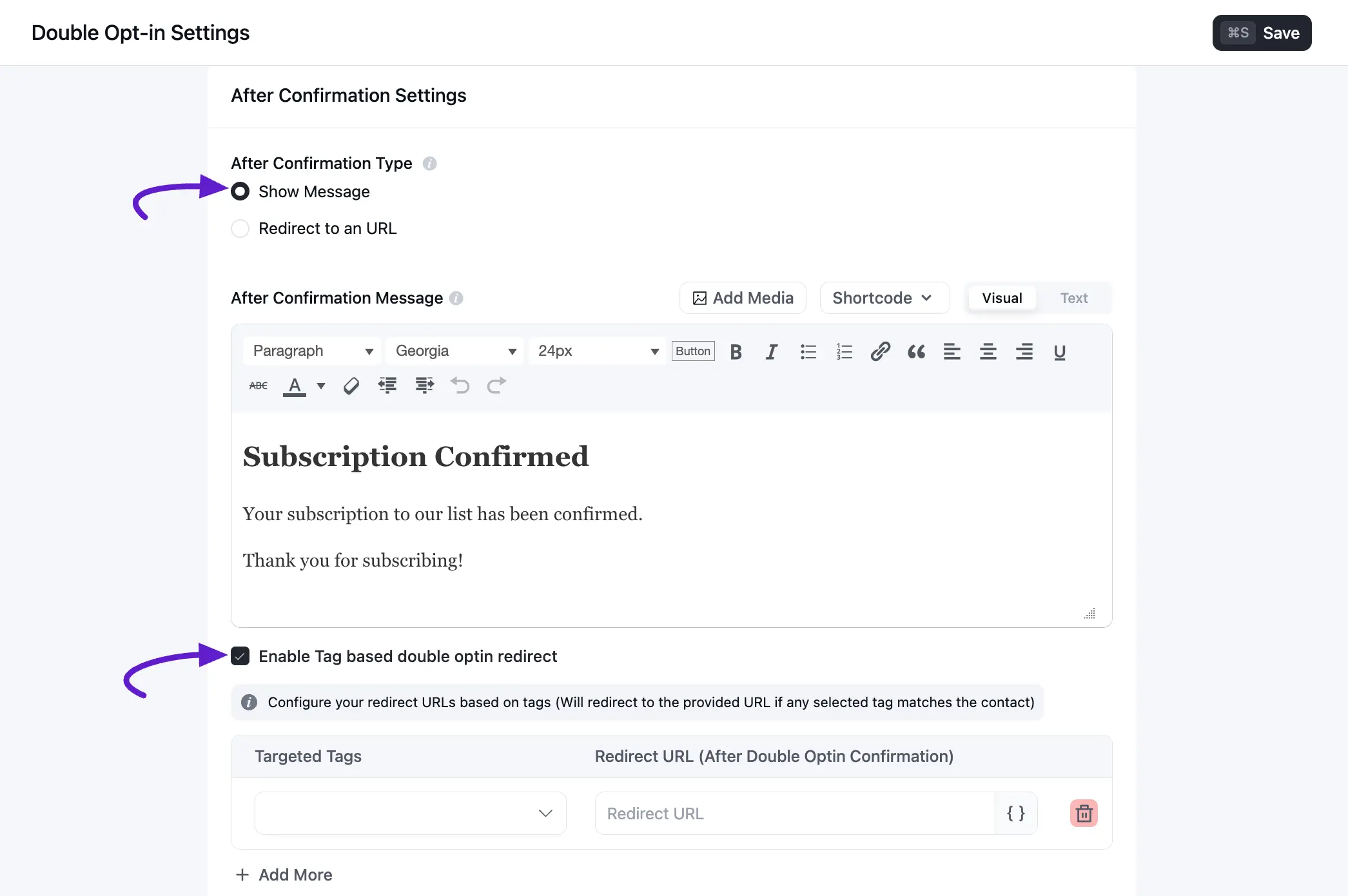
Show Message
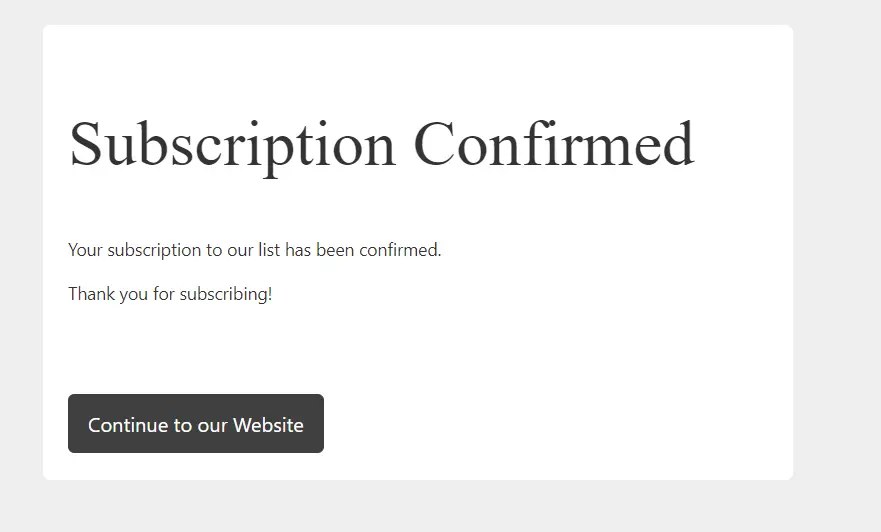
Select this to display a confirmation message on a default FluentCRM page.
- Confirmation Heading: The title displayed to the user (e.g., "Subscription Confirmed!").
- Confirmation Message: The body text appearing after a successful click.
*Note: If you're using Fluent Forms, leave the Enable Double Opt-in Confirmation before the Form Data Processing option( Form -> Form Settings) unchecked to send the above double opt-in email template to your contacts. If you enable both Fluent Forms and FluentCRM double opt-in, your system will send the Fluent Forms double opt-in email template to your contacts.
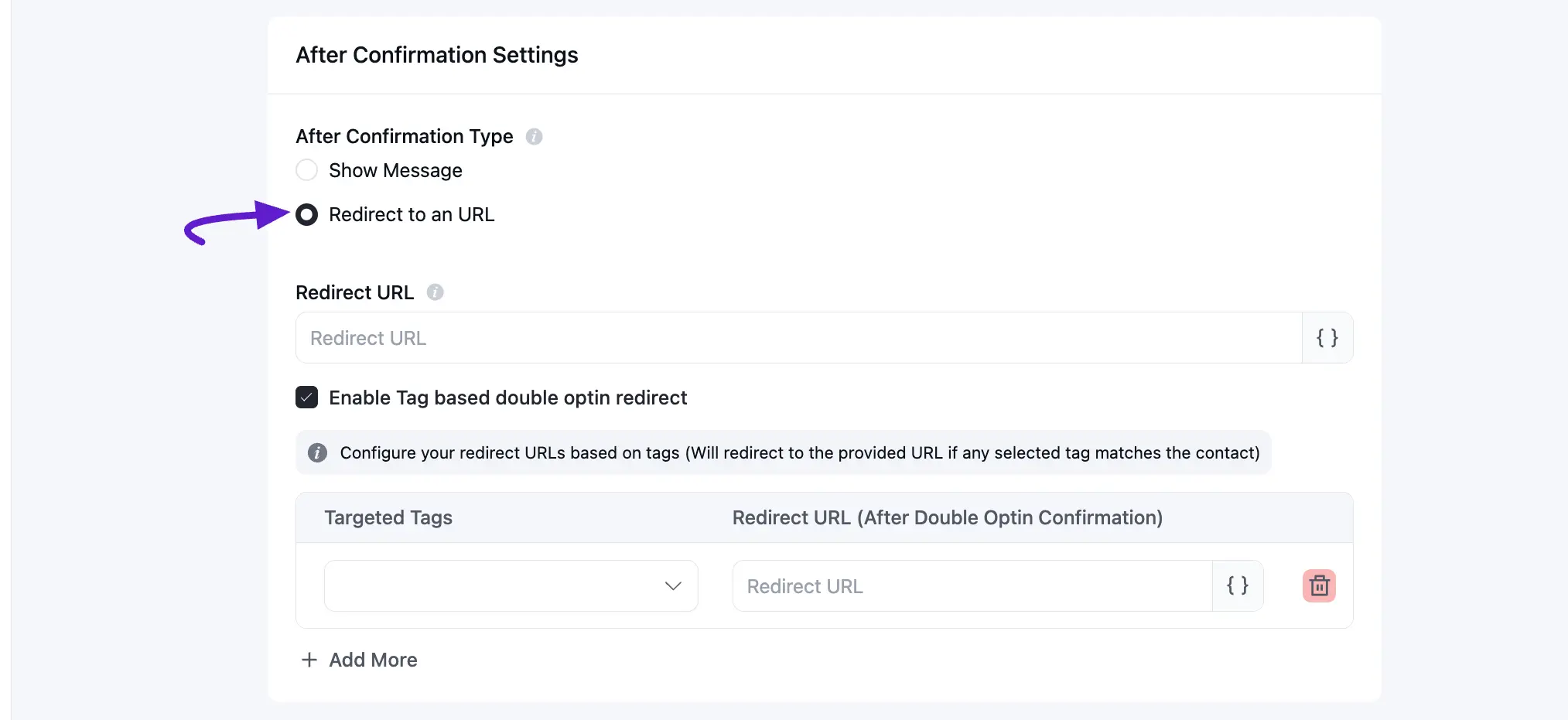
Redirect to an URL
If you want to redirect your user to a specific URL then you can use this option to confirm the subscription and immediately automatically redirect to your desired URL, Landing Page, or anywhere you want.
Below is an example screenshot of what the Double Opt-in Emails look like in the recipient's mailbox.
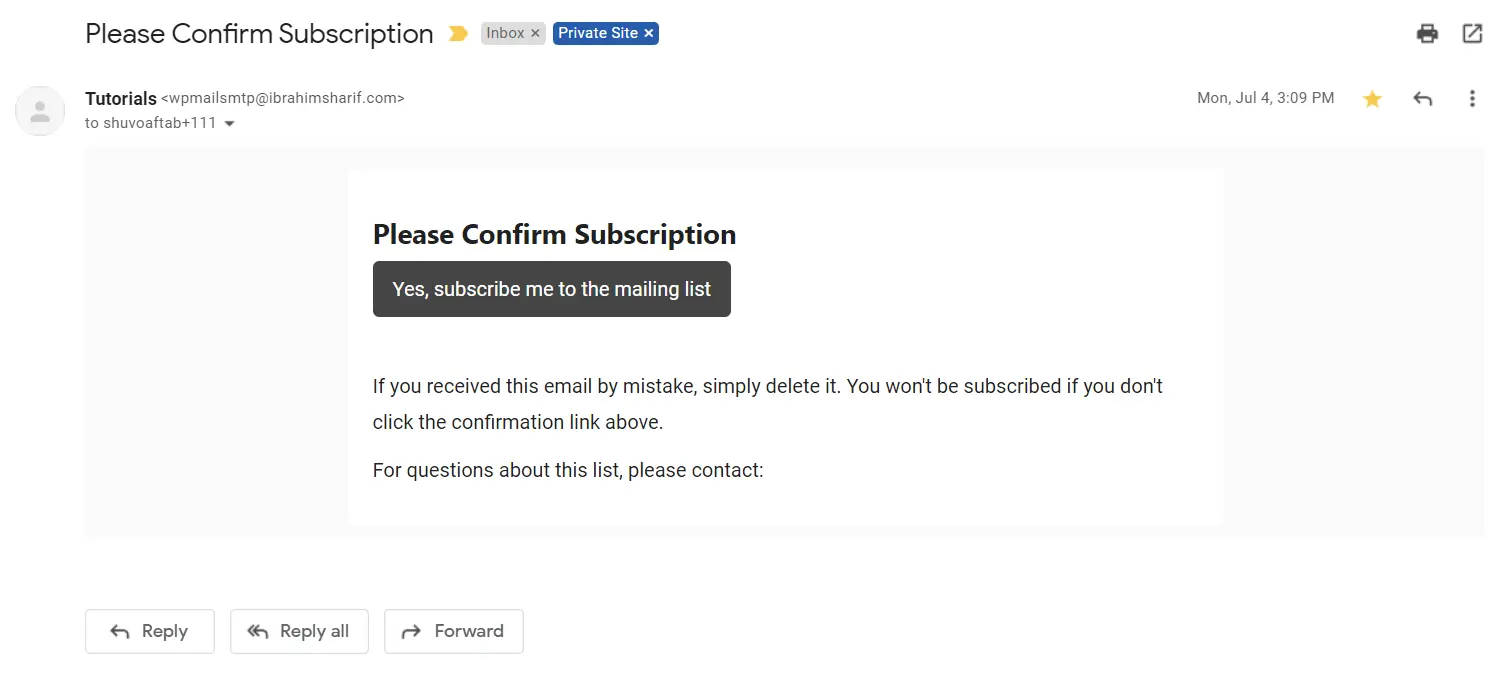
And when the user clicks on the Subscription Confirmation Button and you configure it to show a message after confirmation they will see a message like the below:
That's all for Double Opt-in Confirmation Email Settings!